Get set up

Creating a kit in the items list

In Zigaflow

The short answer

To create a kit, go to Items from the Go To menu, set up the component items first, then click New Item, enter a name and description, click Is Kit, and add the items under Kit Items. Set quantities and, if you want, a fixed price with Use Kit Price, then save.

Steps

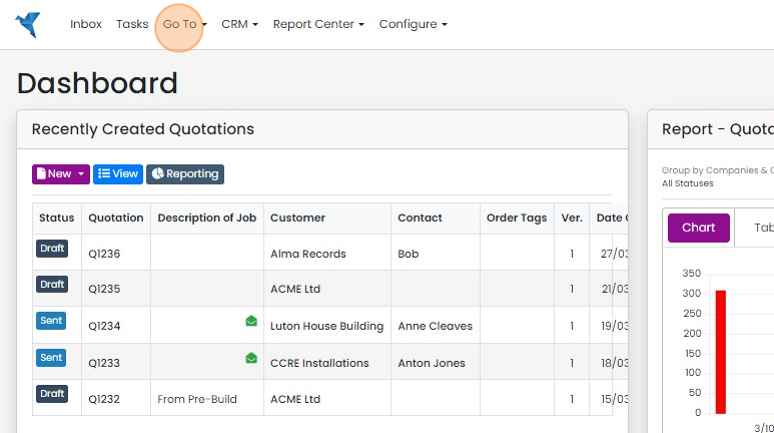
  1. Click "Go To"

    Zigaflow Dashboard with the Go To menu highlighted in the top navigation bar, above the Recently Created Quotations panel
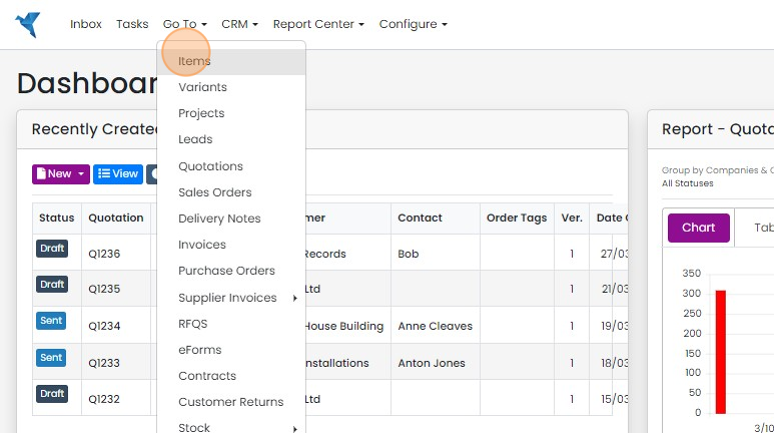
  2. Click "Items"

    Go To menu open on the Dashboard with the Items option highlighted at the top of the dropdown list
  3. First, set up the component item(s)

    First, set up the component item(s). Skip this step if you already have them ready or if not, set them up in the usual way.

    Create the kit item
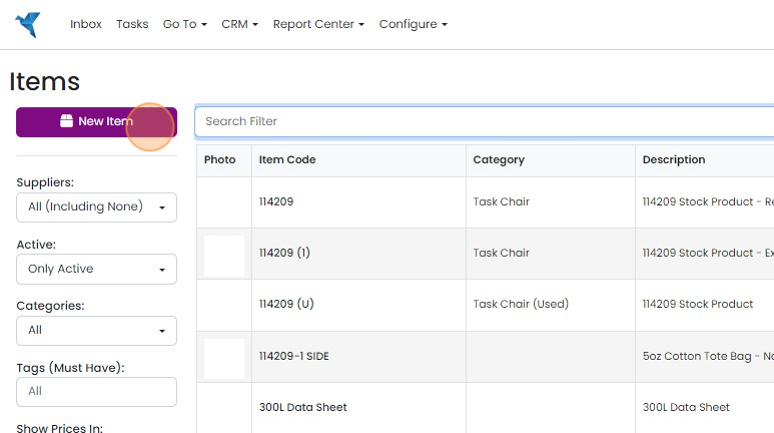
    Items list in Zigaflow with the purple New Item button highlighted above the Suppliers, Active and Categories filters
  4. Next, set up the kit item - click "New Item"
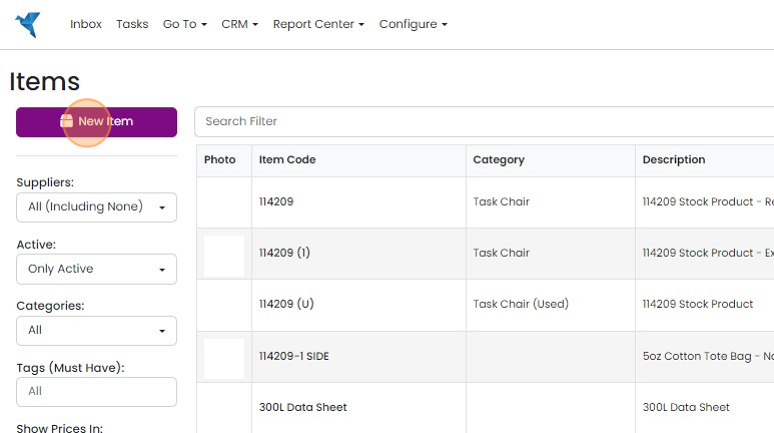
    Items list with the purple New Item button highlighted at top left, above Suppliers, Active and Categories filters
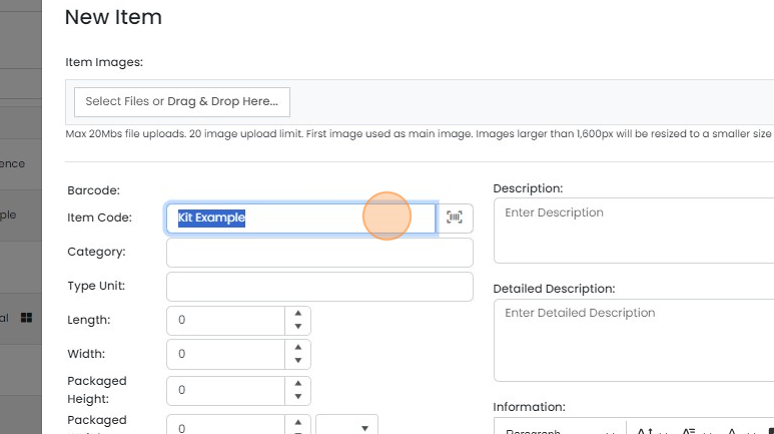
  5. Put in the name

    New Item form with the Item Code field highlighted, containing the selected text
  6. Type " 1 [[Home]]"

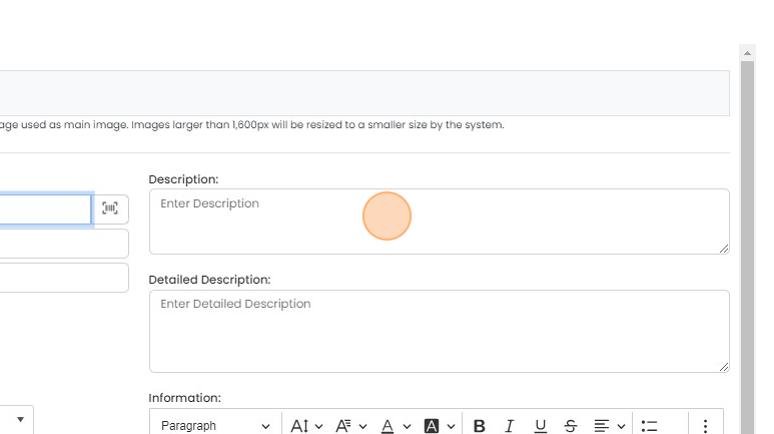
  7. Put in the Description

    Item form with the Description field highlighted, above the Detailed Description and Information fields
  8. Click 'Is Kit'

    Item details panel with cost and tax code fields, highlighting the Is Kit checkbox among the item options
  9. Click "Add Item"

    Add items to the kit
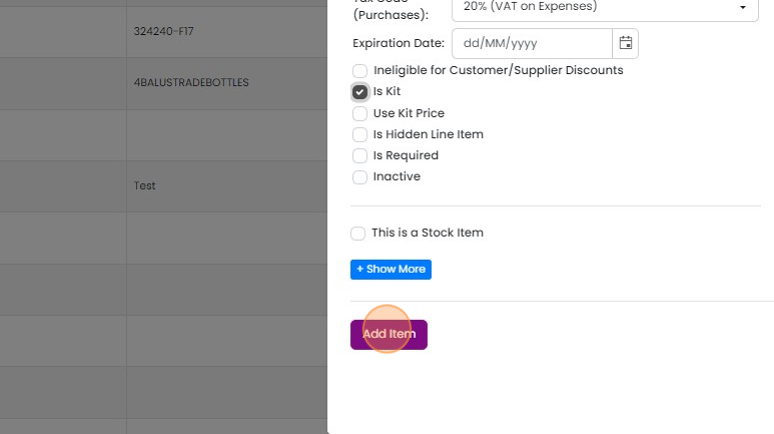
    Item form side panel with the Is Kit checkbox ticked and the Add Item button highlighted at the bottom
  10. Add the items within the kit by clicking on "Kit Items"
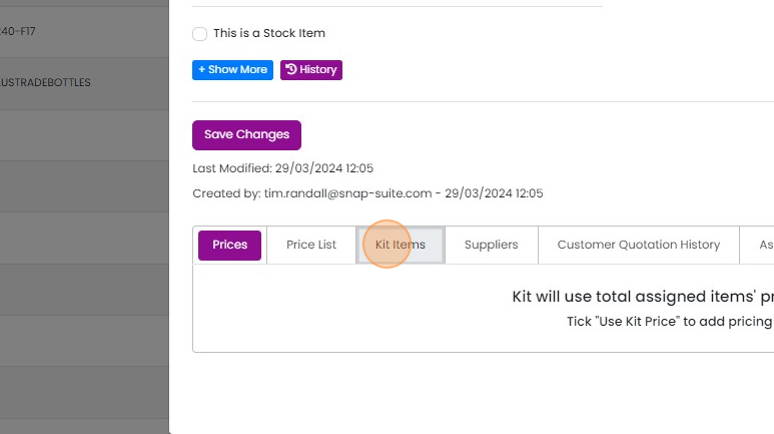
    Item edit panel with the Kit Items tab highlighted next to Prices, Price List and Suppliers tabs below Save Changes
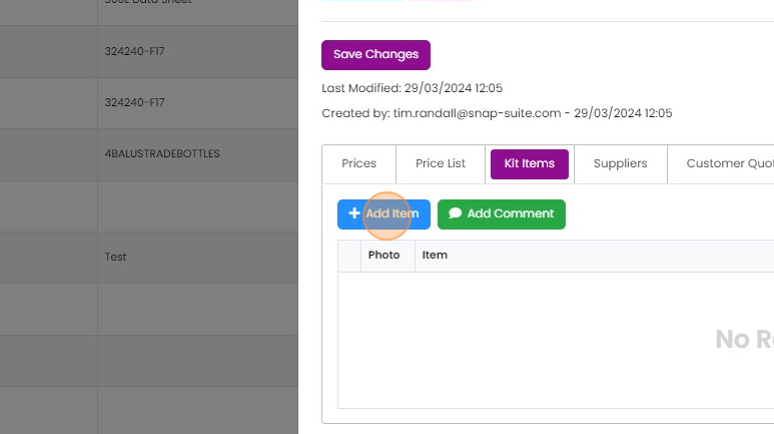
  11. Click "Add Item"

    Kit Items tab of an item panel with the Add Item button highlighted above an empty table of Photo and Item columns
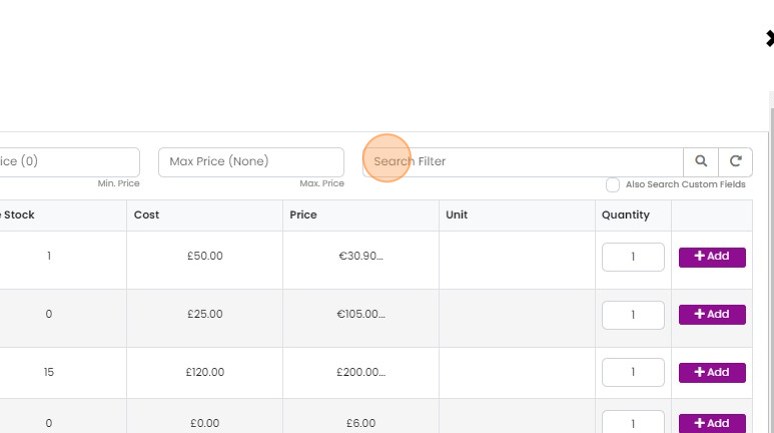
  12. Find the items to add

    Item picker with the Search Filter field highlighted, beside price filters and a list of items with Quantity and Add buttons
  13. Type "kit item"

  14. Click here

    Item search results for
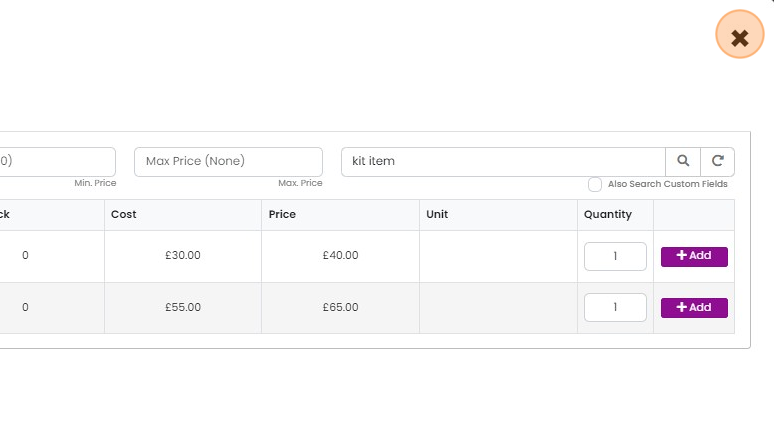
  15. Add them to the kit

    Item search results for
  16. Click "×"

    Edit kit item quantities

    Item search results for
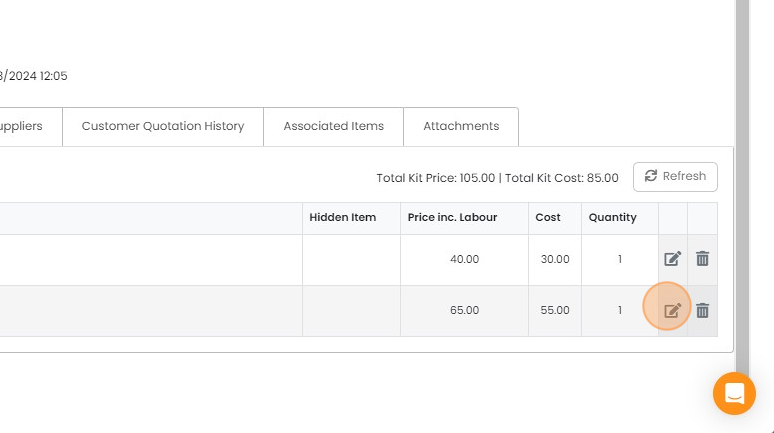
  17. Edit the item by clicking here

    Kit components table with Price inc. Labour, Cost and Quantity columns, edit icon highlighted on the second item row
  18. If required, change the quantity of each item in the kit
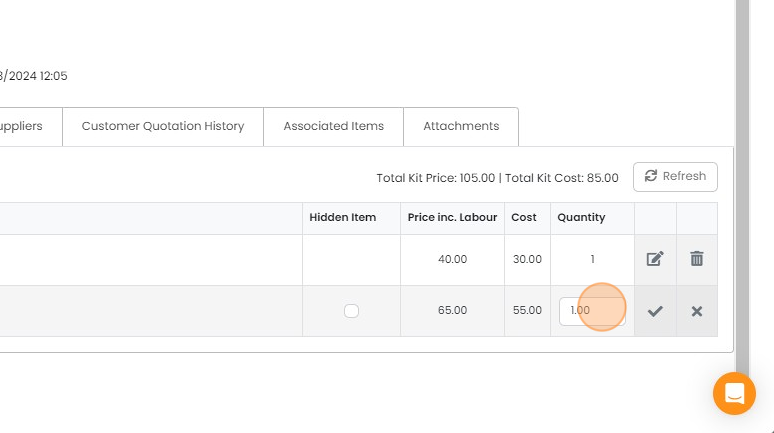
    Kit items table with the Quantity field highlighted in an editing row, showing 1.00 next to the save checkmark
  19. Type "2"

  20. To automatically hide the kit item on a Quotation or Job/Sales Order, etc., tick this box
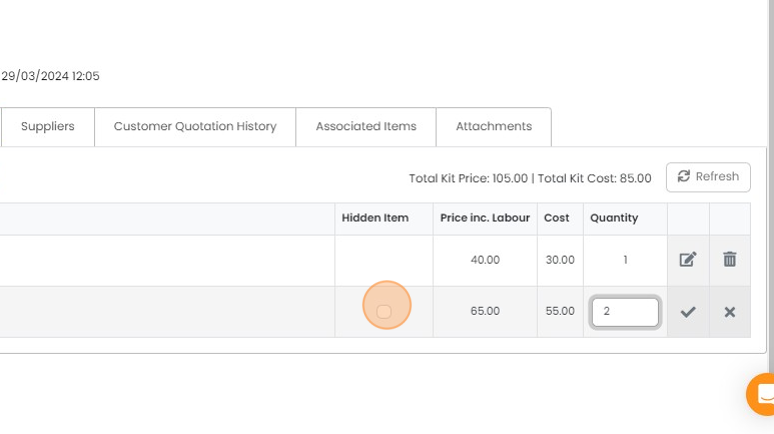
    Kit item table in edit mode with the Hidden Item checkbox highlighted on the second row, next to Quantity set to 2
  21. Confirm the edit

    Set the kit price

    Kit items table with second row in edit mode, Quantity 2.00 and Hidden Item checked, checkmark confirm button highlighted
  22. This shows the total price and cost based on the kit items
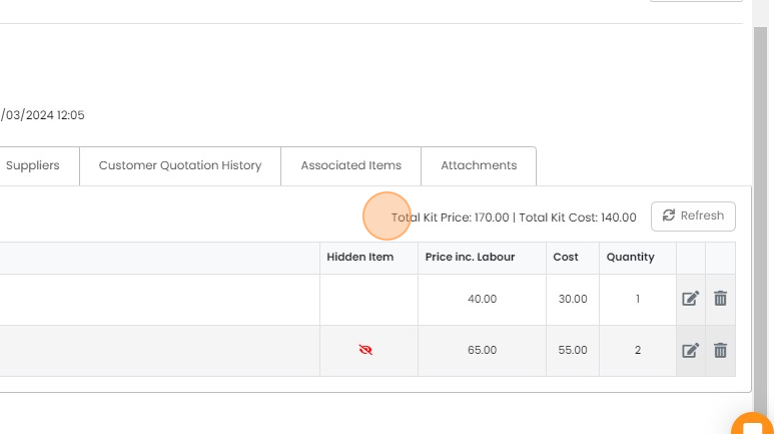
    Kit items table on the item record, highlighting the Total Kit Price and Total Kit Cost summary beside the Refresh button
  23. To give the kit a specific price, i.e. not based on its kit items, click on 'Use Kit Price'
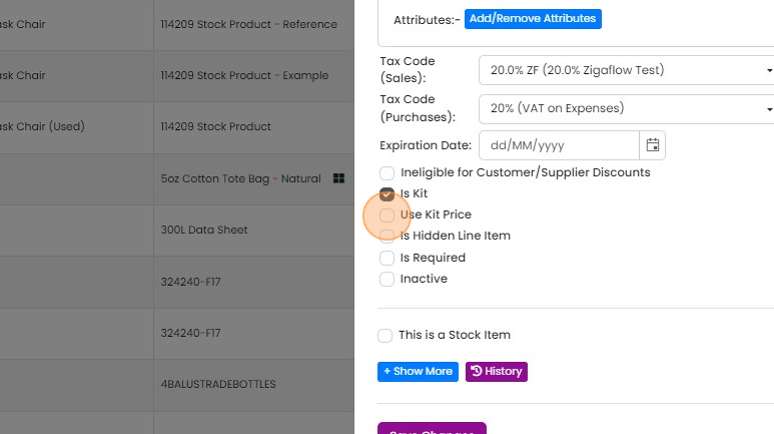
    Item edit panel with Is Kit checked and the Use Kit Price checkbox highlighted below it, beside the items list
  24. Click on the 'Prices' tab and edit the default price
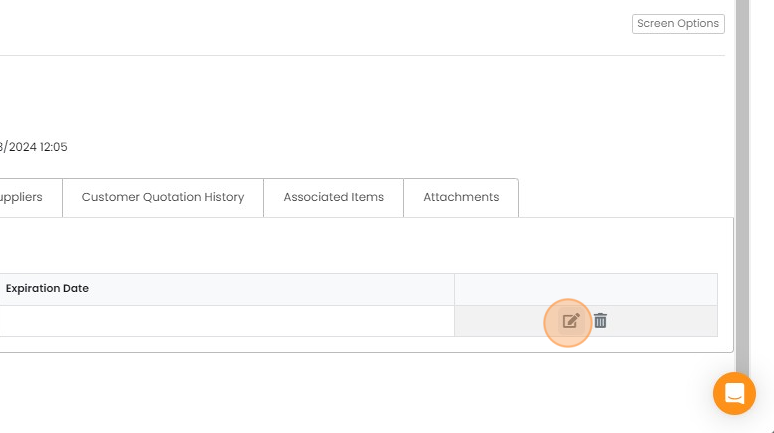
    Item record tabs with a price row's edit pencil icon highlighted beside the delete icon, next to the Expiration Date column
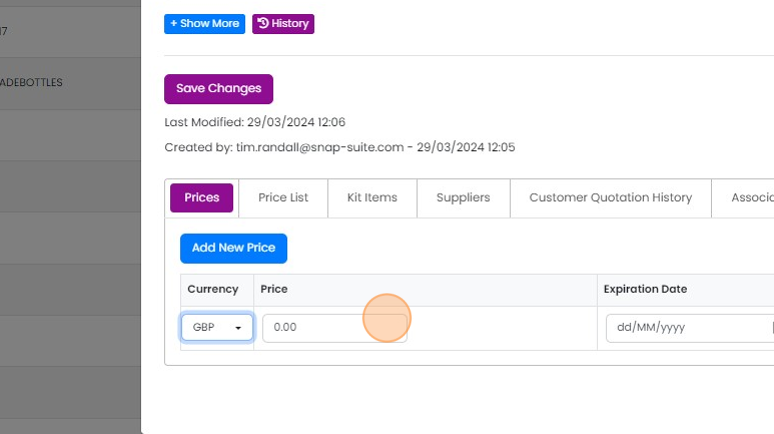
  25. Entering the price here

    Prices tab of an item with a new price row, highlighting the Price field showing 0.00 next to the GBP currency dropdown
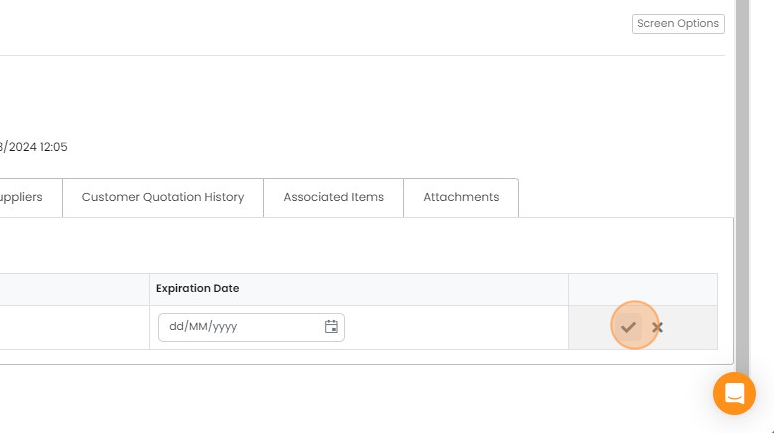
  26. Confirm the edit

    Item tabs with an Expiration Date field in edit mode, the checkmark confirm button highlighted to save the row
  27. Click on the 'Use Kit Price' to toggle between a set price and the one calculated from the kit items

    Click on the 'Use Kit Price' to toggle between a set price and the one calculated from the kit items. You can swap this around when the kit is on Quotation, Job/Sales Order, etc..
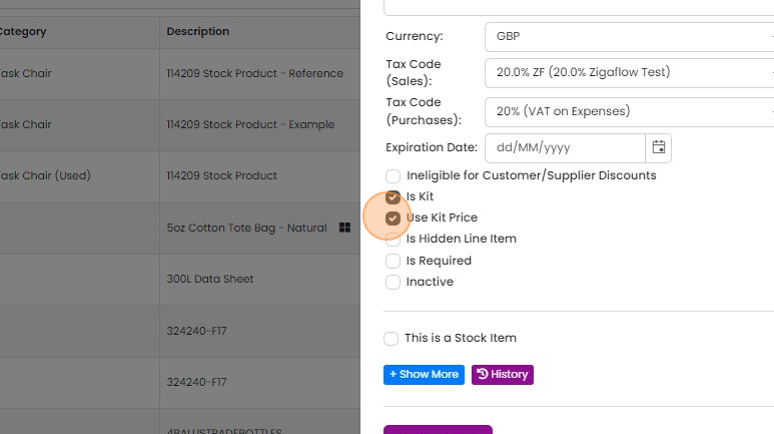
    Item settings panel with Is Kit checked and the Use Kit Price checkbox highlighted to toggle kit-calculated pricing
  28. Click "Save Changes"

    Kit item edit panel with the Save Changes button highlighted, below the Is a Stock Item, Show More and History options

Open the items list

Frequently asked questions

Next step

Add a kit to a quotation, job/sales order, etc.To add a kit to a quotation, job/sales order, or similar record, click Add Items on the record and search by the kit name. Kits show with a four square icon. Set the quantity, click Add, then click the "×" to close. The kit is then added to the record.

Was this helpful?

See Zigaflow on your own workflow

Book a demo and we will walk through quoting, jobs and purchasing the way your team runs them.

Or see how Zigaflow would fit your business, free