Get set up

Download, edit and upload document templates

In Zigaflow

The short answer

To change a document template in Zigaflow, click Document Templates, pick the module, and click the green button to download the document. Edit it in Microsoft Word or similar, then upload it as a new template or import it into an existing one. Preview the result before you save.

Steps

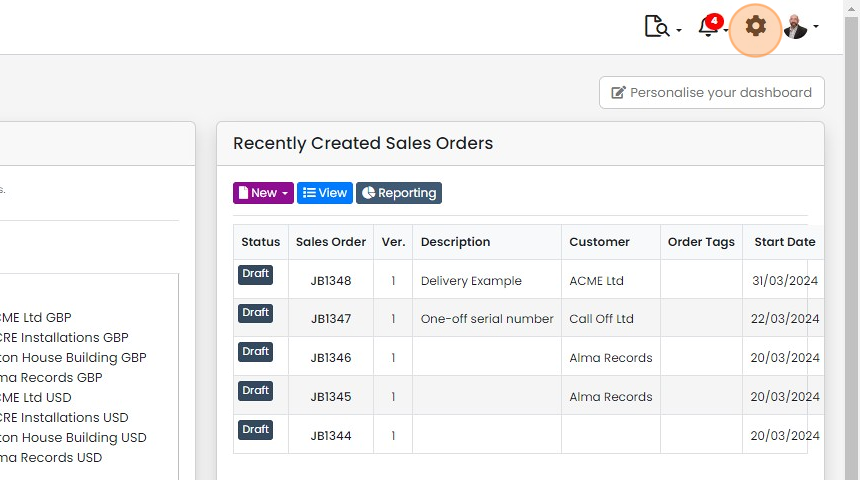
  1. Click here

    Zigaflow dashboard with the settings gear icon highlighted in the top-right toolbar, next to notifications and profile
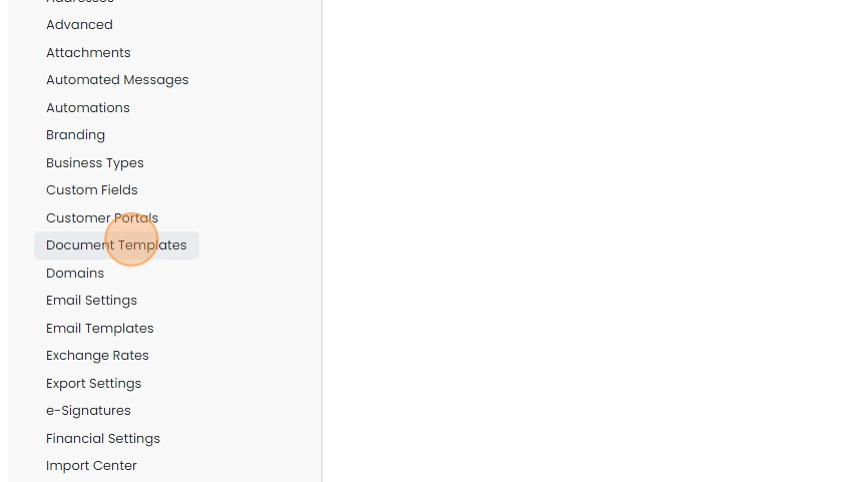
  2. Click "Document Templates"

    Settings menu list with Document Templates highlighted between Customer Portals and Domains, ready to click
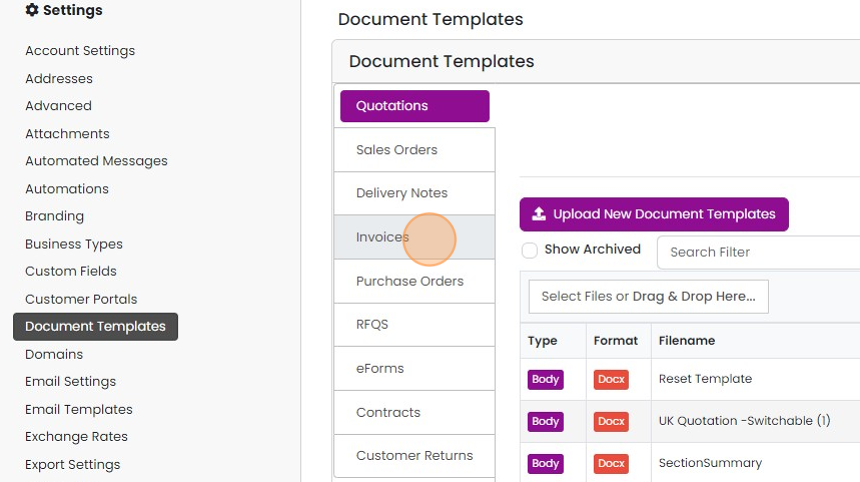
  3. Select the module to work in

    Document Templates settings with the Invoices tab highlighted in the module list below Quotations and Sales Orders
  4. Click on the green button to download the document

    Upload as a new template
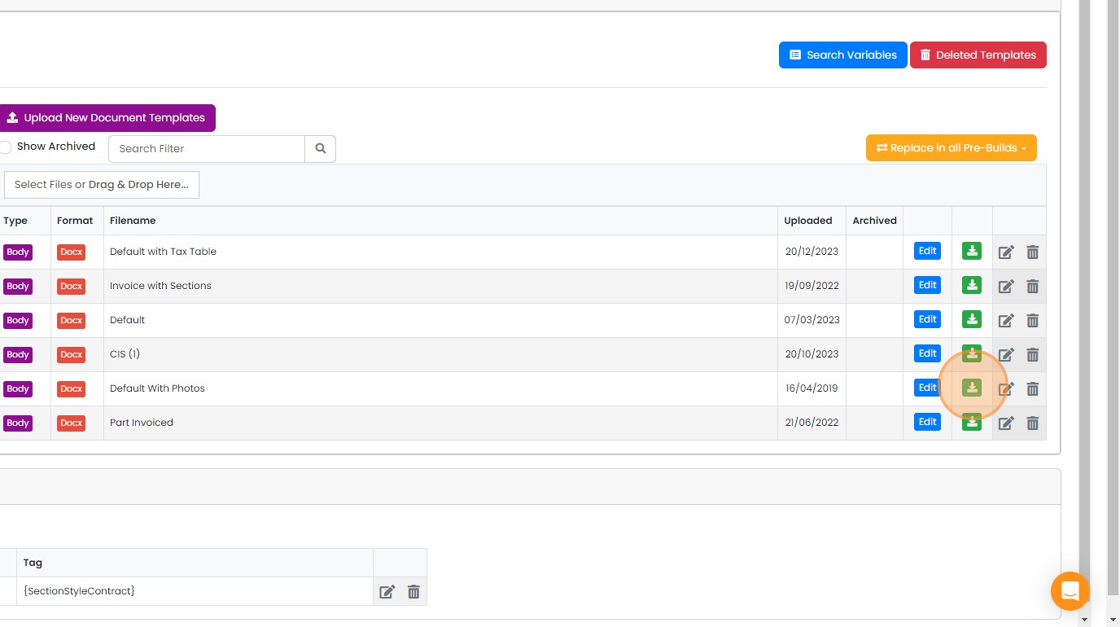
    Document templates list with the green download button highlighted on the Default With Photos Docx template row
  5. Edit the document in Microsoft Word or similar, and when ready click "Upload New Document Templates"
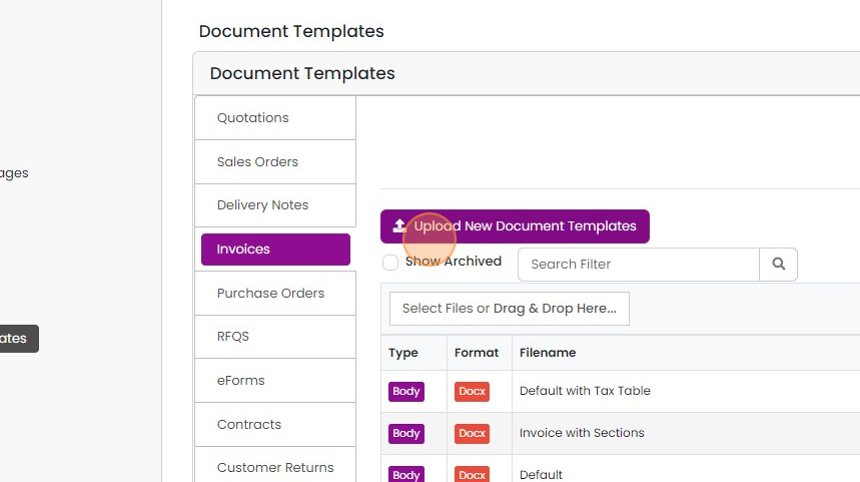
    Document Templates screen with Invoices tab selected and the Upload New Document Templates button highlighted
  6. Select file on your desktop, and upload it. You can now preview the result
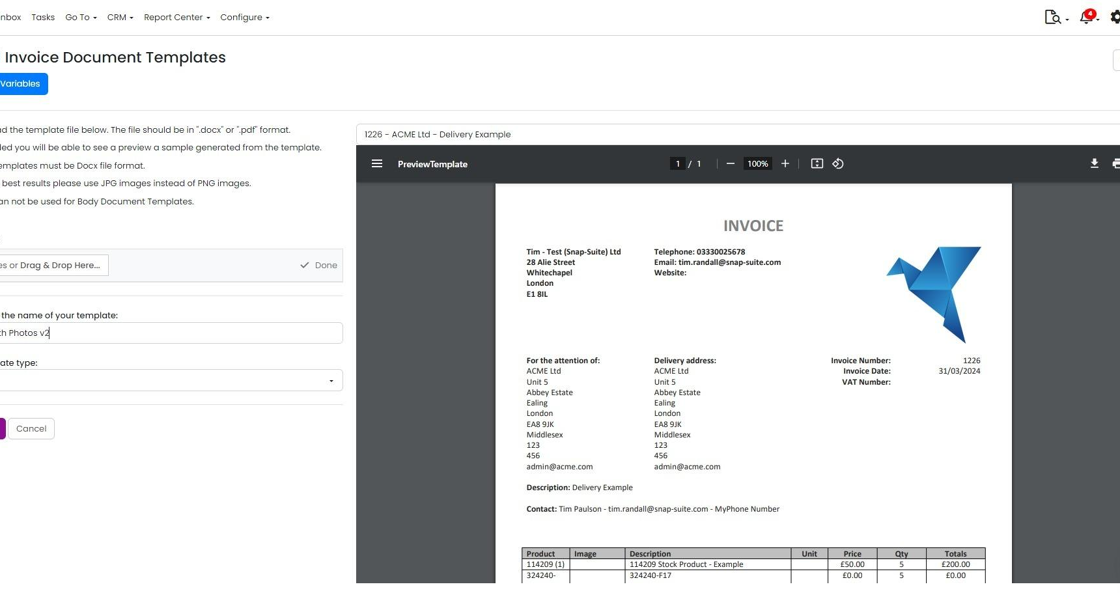
    Invoice Document Templates page with uploaded template marked Done and an invoice preview shown in the PreviewTemplate pane
  7. Click on the dropdown to see how it appears on different documents
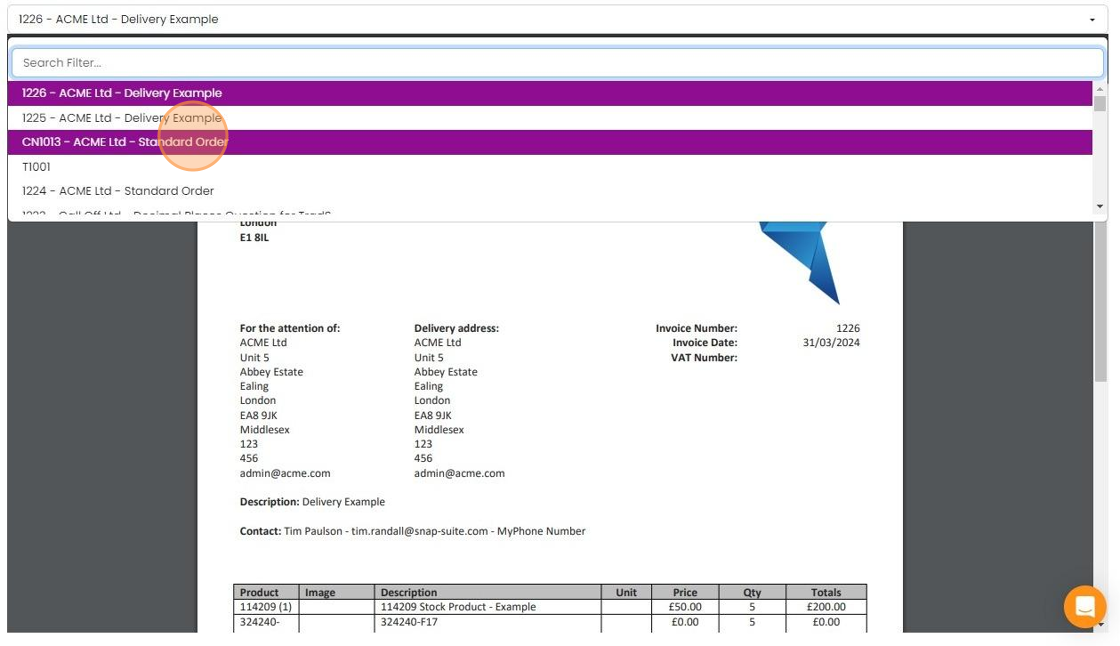
    Document preview dropdown open with a Search Filter box, highlighting a credit note entry above an invoice template preview
  8. When you are happy with the document, click "Complete". This add it as a new document template

    Replace an existing template
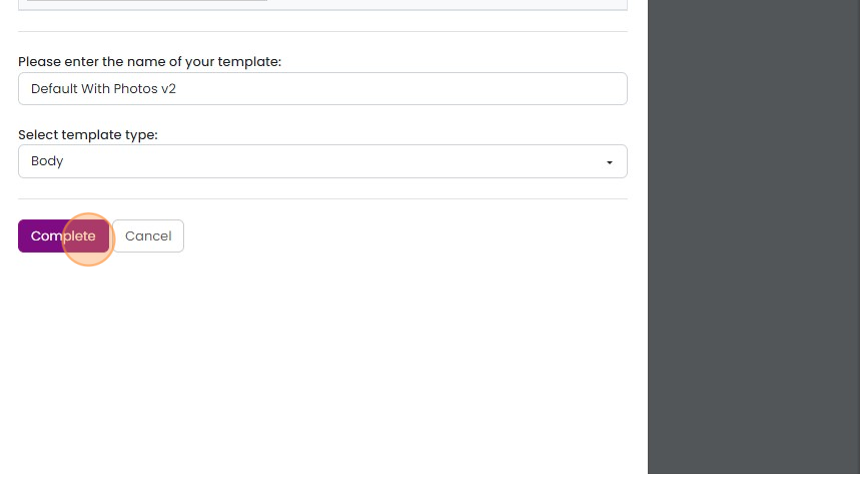
    Template form with name
  9. Alternatively, you can import into an existing document template

    Alternatively, you can import into an existing document template. The advantage of this is that it immediately replaces the old version in your existing Invoices, Quotations, Jobs/Sales Orders, etc. and not just the new ones.

    Click on the Edit button for the document to replace
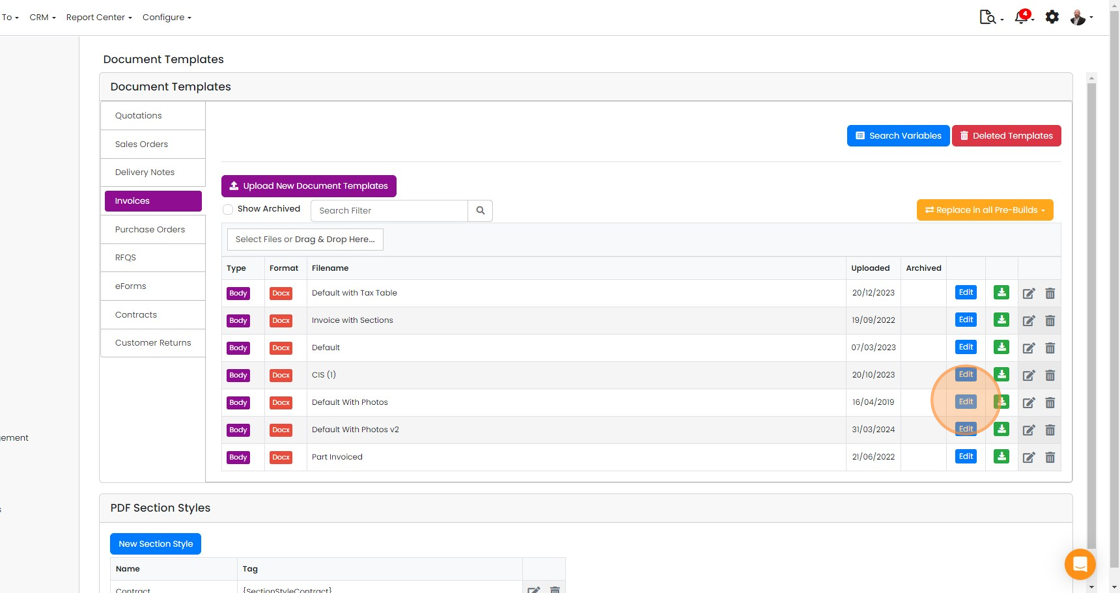
    Document Templates Invoices tab with the Edit button highlighted for the Default With Photos template row
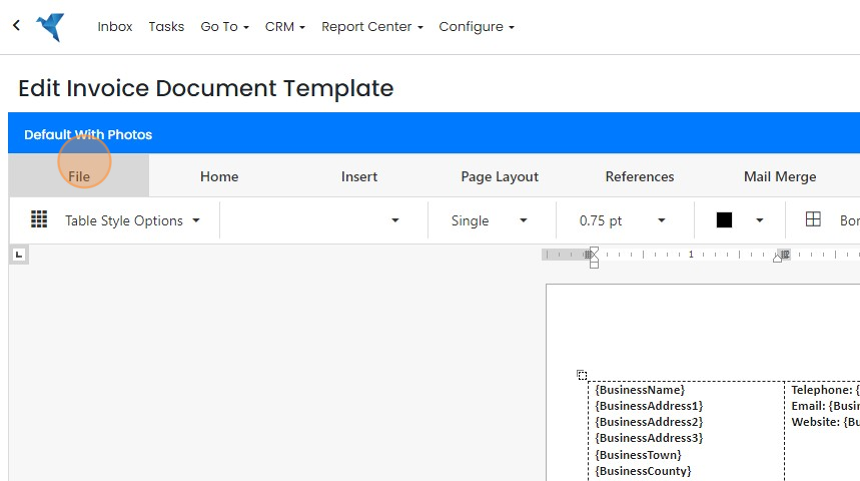
  10. Click "File"

    Edit Invoice Document Template editor for the Default With Photos template, with the File tab highlighted in the ribbon
  11. Click "Open" and upload the new document template

    Edit Invoice Document Template screen with the File tab open and the Open button highlighted to upload a new template
  12. Click "Step 1: Preview"

    Document template editor with the Step 1: Preview button highlighted in the blue toolbar beside Search Variables
  13. Use this dropdown to check against different ones
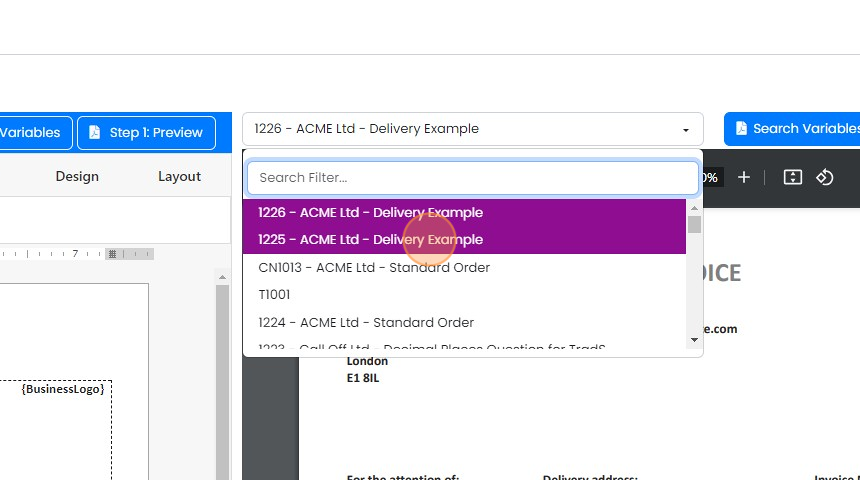
    Template editor preview record dropdown open with Search Filter box, a delivery example record highlighted for selection
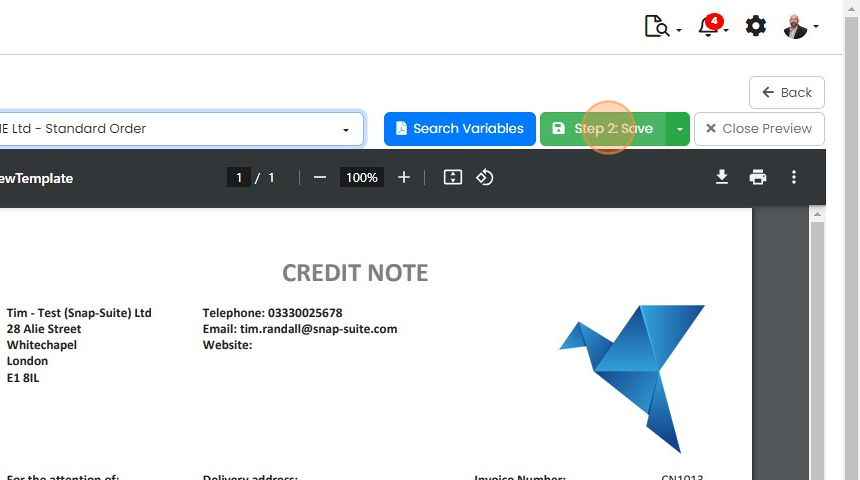
  14. Click "Step 2: Save"

    Template preview of a credit note PDF with the green

Download a document template

Frequently asked questions

Next step

Editing document templates onlineTo edit a document template online in Zigaflow, click Document Templates, then click Edit on the template you want and make changes in the online editor. This suits changing text or other simple changes. You can add variables, preview the result, and save by overwriting the current version or creating a new one.

Was this helpful?

See Zigaflow on your own workflow

Book a demo and we will walk through quoting, jobs and purchasing the way your team runs them.

Or see how Zigaflow would fit your business, free