Import inventory/stock from a spreadsheet
The short answer
To import stock from a spreadsheet in Zigaflow, click the Cog, open Import Center, and choose Stock or Inventory. Download the template, add your items and quantities, then drag the file in and click Upload. Use it for first-time setup or to update quantities. Items must already be in the system.
Steps
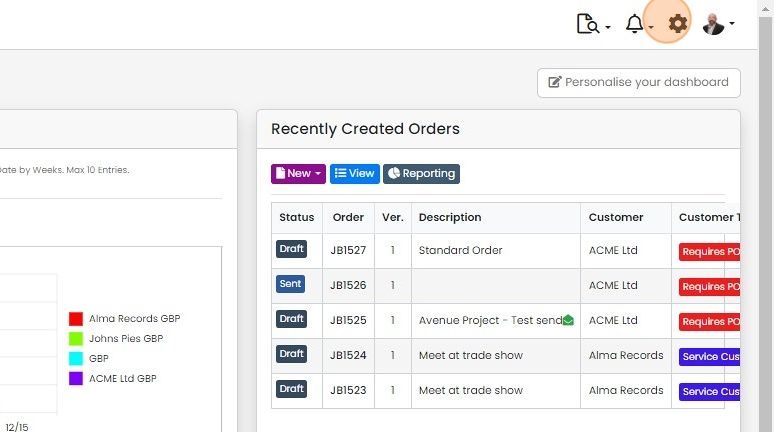
Click on the Cog
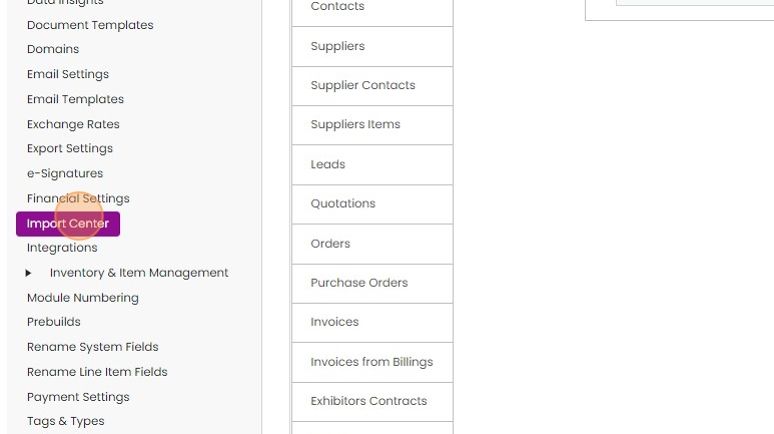
Click "Import Center"
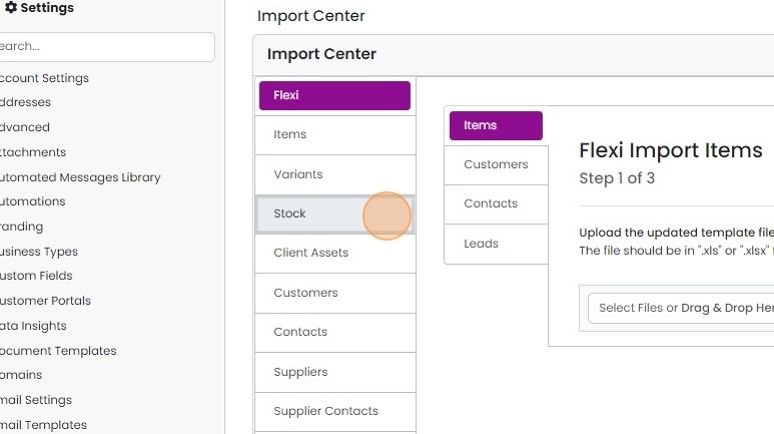
Click "Stock" or "Inventory"
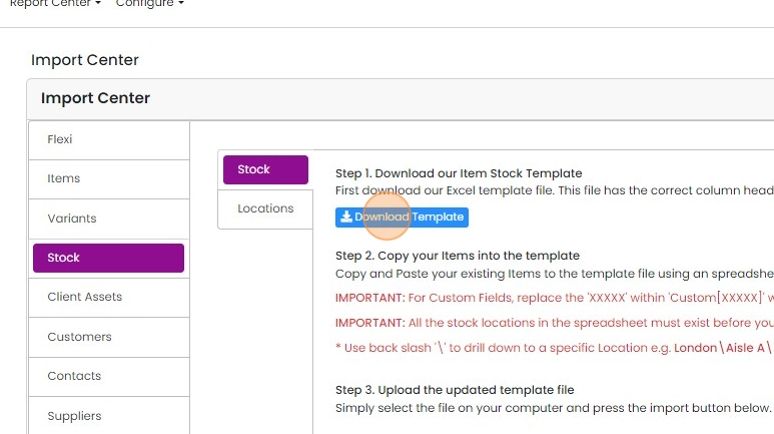
Click "Download Template" for the spreadsheet to load your data into the correct format
Add your stock data
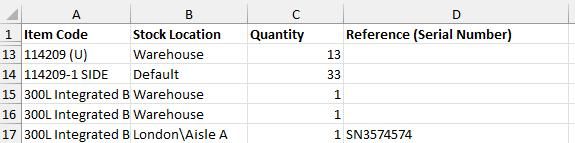
Add the items and their quantities into the spreadsheet
Note the construction of the stock location, i.e. London\Aisle A, and if the item has a reference or serial number, this can be put into the "Reference" column. An item must be already set in the system to use references for this to work.
Upload the file
Drag and drop the import file here
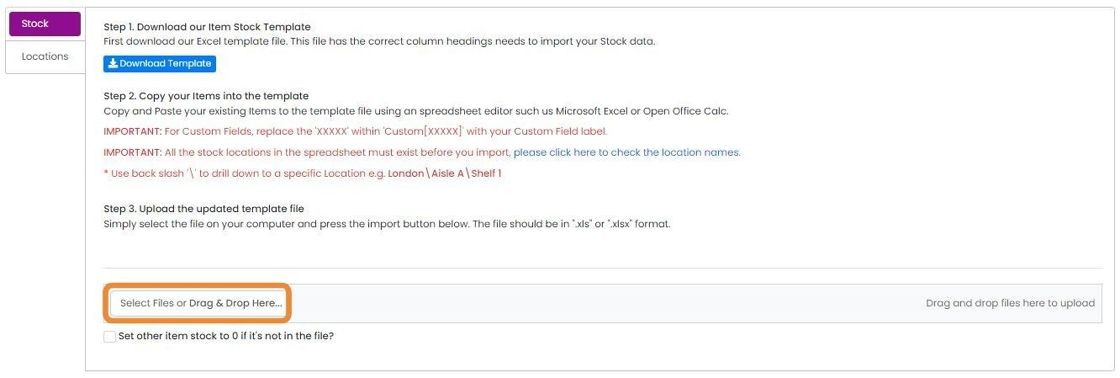
Tick here to remove stock in the system that is not in the import file

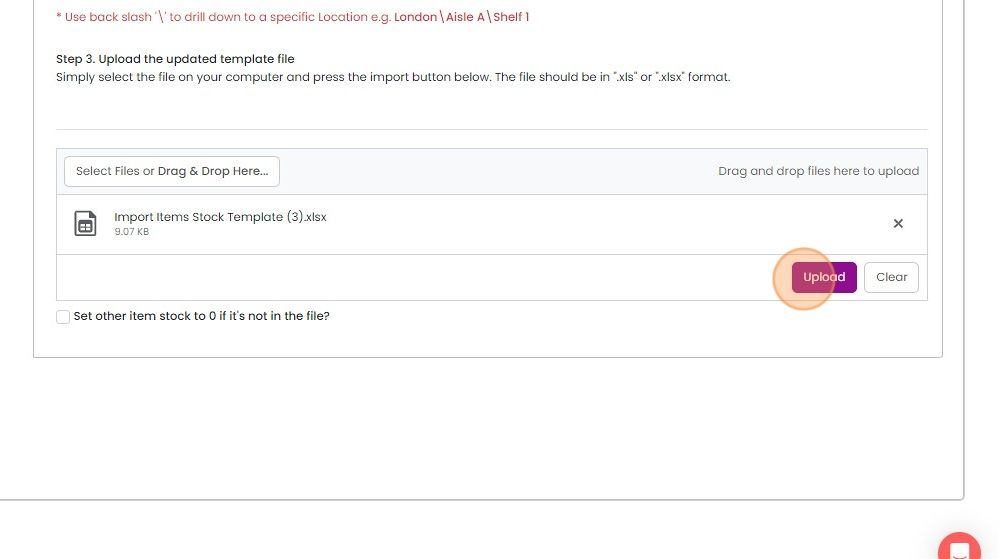
Click "Upload"
Learn more: stock levels in Zigaflow


Zigaflow allows you to import stock from another system using a spreadsheet.
You can also import a spreadsheet to update existing inventory levels, for example, after physical checks are logged on a spreadsheet.
Before you start
Items must already be in the system before attempting to import their quantities.
You can download the current quantities by clicking on Go To -> Stock -> Overview -> Export -> "Quantities by Location"
If you have not set up the locations yet, see Setting up Inventory/Stock Locations
Download the import template
Frequently asked questions
Was this helpful?