Import leads from a spreadsheet
The short answer
To import leads from a spreadsheet in Zigaflow, click the Cog, then Import Center, then Flexi, then Leads. Drag and drop your file, map the mandatory and optional columns, and click Next. Customers and contacts not already in Zigaflow are created during the import. You can save the mapping for later imports.
Steps
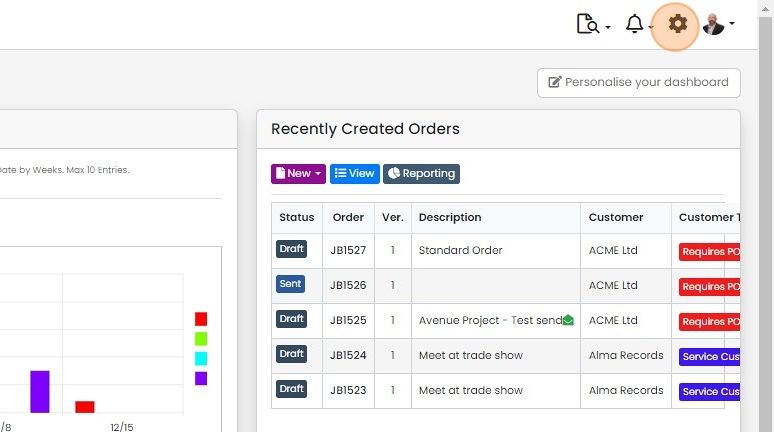
Click on the Cog
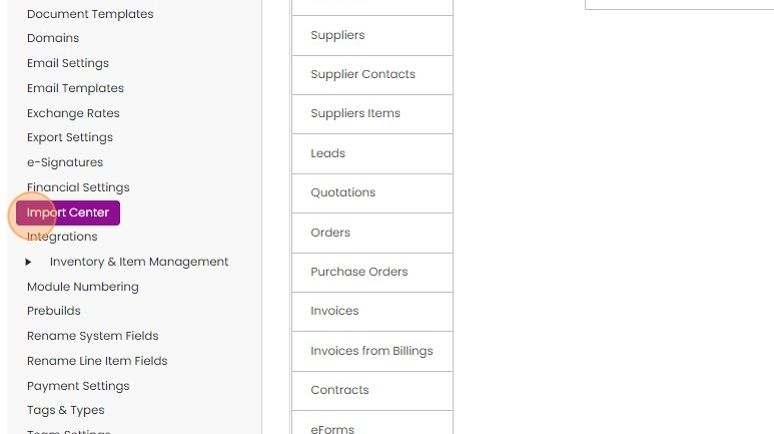
Click "Import Center"
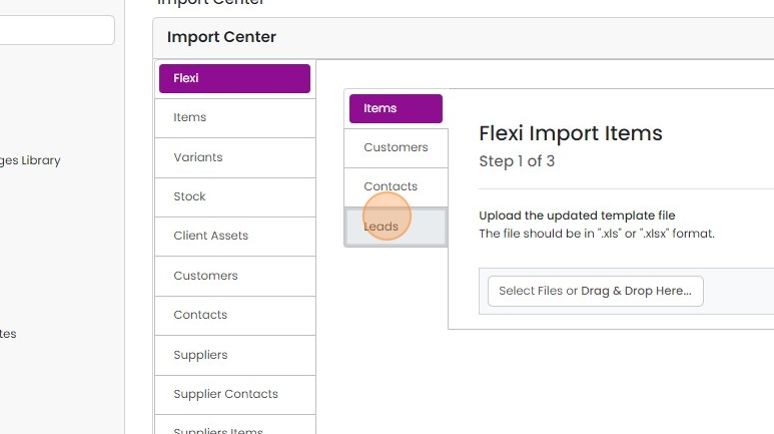
Click "Flexi"

Click "Leads"
The spreadsheet can look similar to this

Drag and drop the import file here
Map the columns

Map the mandatory fields in the Zigaflow to the import spreadsheet's columns
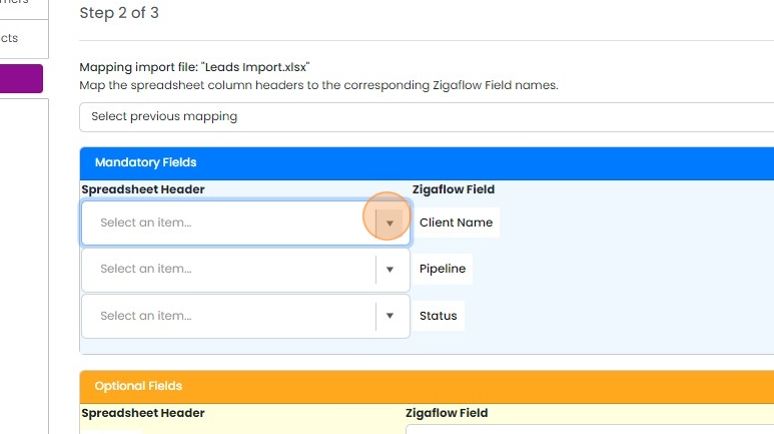
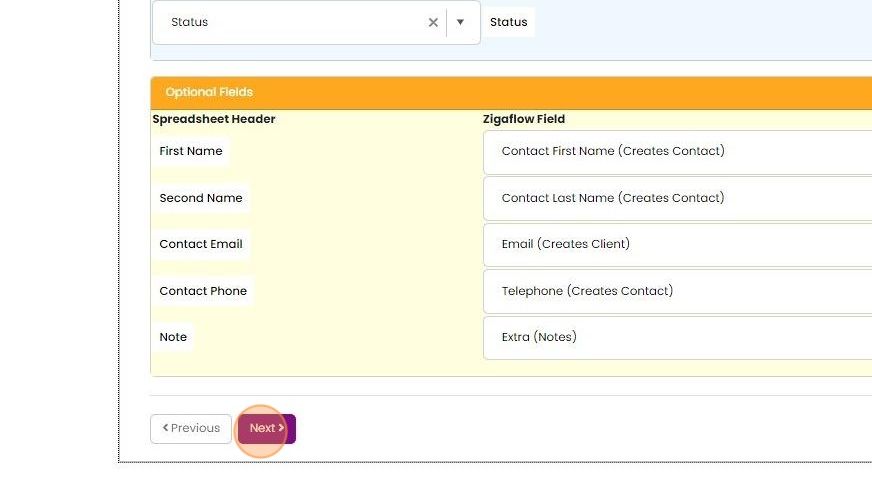
Map the optional fields in the Zigaflow to the import spreadsheet's columns

Click "Next" to complete the import
Check and save the import
Check the message bar for the success or failure of the import
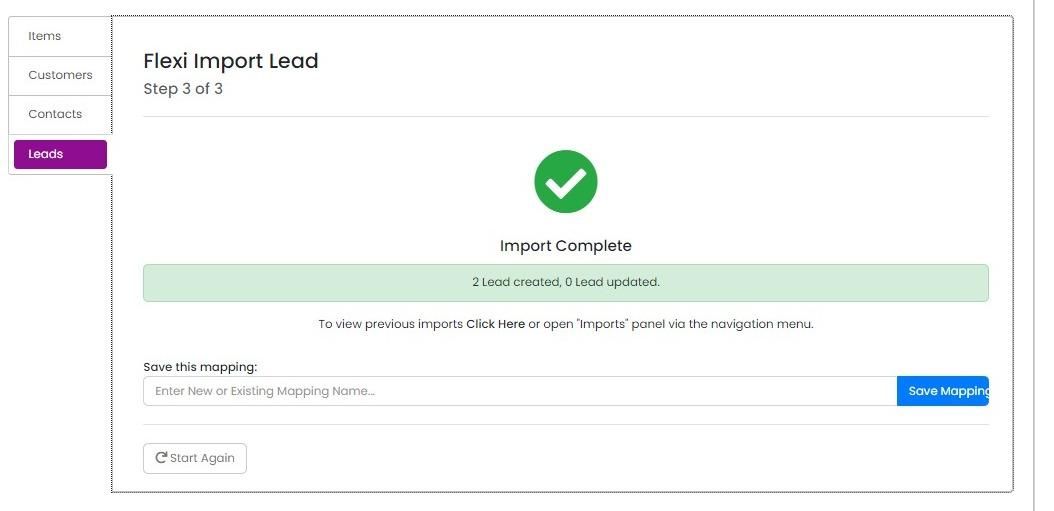
Save the mapping to re-use the column settings for later imports
Learn more: leads in Zigaflow


Zigaflow allows the import of leads from a spreadsheet. It will create customers and contacts not already in the system during the import, making it easy to get up and running with a new set of leads.
It will check the name of a customer/company against what already exists before creating a new record, so make sure that where the customer/company should already be in Zigaflow, the names match exactly.
Prepare your spreadsheet
The spreadsheet should consist of these columns at a minimum:
Pipeline - the lead pipeline.
Status - the initial status of the lead.
Customer - the customer/company. If the customer does not already exist in Zigaflow it will be created by the import process.
If a contact for the lead can be imported in the same file and if they do not exist in Zigaflow, they will be created on import. Split by full names into first and second names columns.
Open the leads import
Frequently asked questions
Was this helpful?