Get set up

Import variants from a spreadsheet

In Zigaflow

The short answer

To import variants from a spreadsheet, prepare a file with the base code, description, SKU divider and options. Then go to Cog, Import Center, Variants, Variants in Zigaflow. Select the file and click Upload. A success screen shows how many variants were imported.

Steps

  1. Prepare the import spreadsheet. Include the base code, description, SKU divider and options similar to this

    Spreadsheet with BaseCode, SkuDivider, option name, value and derivative columns, and Description, filled for BASE-TABLE
  2. Import using the Cog -> Import Center -> Variants -> Variants
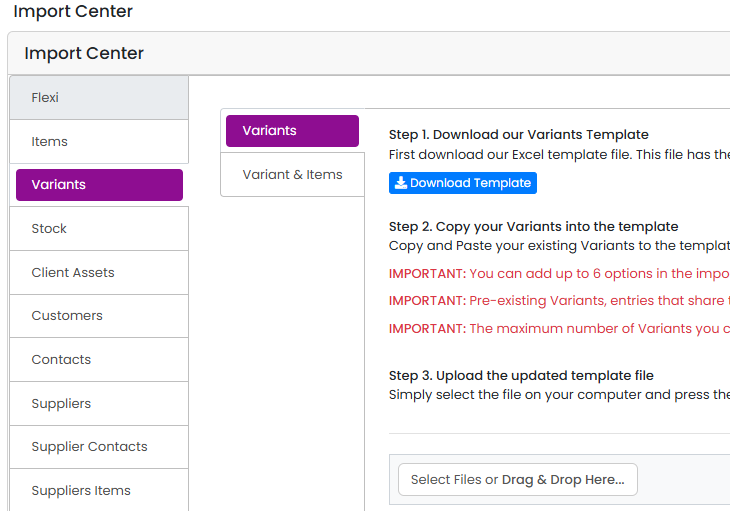
    Import Center with Variants selected in the left menu and Variants sub-tab open, showing the Download Template button
  3. Select the file and click 'Upload'

  4. The success screen will indicate how many have been imported
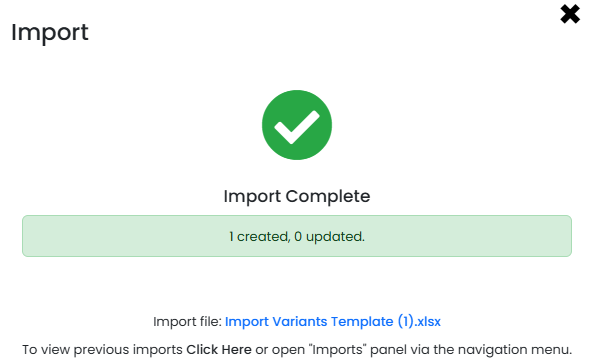
    Import dialog showing a green checkmark,
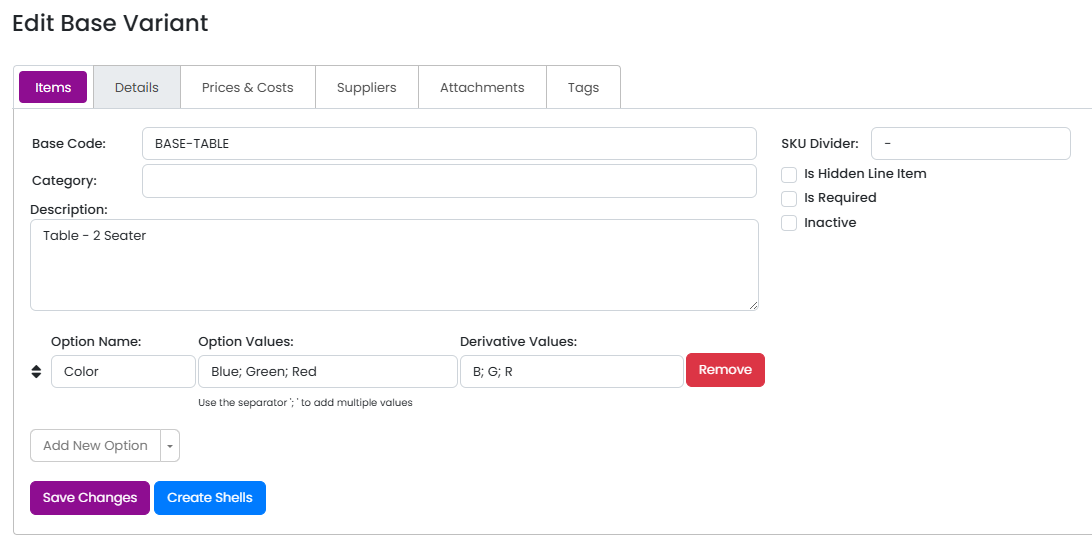
  5. From the imported example, this is created

    Edit Base Variant Items tab showing imported BASE-TABLE with Color option values Blue; Green; Red and derivatives B; G; R

Frequently asked questions

Next step

Import SKU/items into variantsTo import SKUs or items into variants, first make sure the base variants already exist. Prepare a spreadsheet with the item code, item description, and the name and value of each option. Then click the Cog, then Import Center, Variants, Variant & Items, select the file and click Upload.

Was this helpful?

See Zigaflow on your own workflow

Book a demo and we will walk through quoting, jobs and purchasing the way your team runs them.

Or see how Zigaflow would fit your business, free