Get set up
Importing item attributes
The short answer
Importing item attributes can take two stages. First, use the Import Center, under Items and then Attributes, to set the attribute names on your items from a template, unless they already exist. Then use the Flexi-Import to bring in the attribute values from a spreadsheet, matched by item code.
Steps
To set the attributes using the import, click here. To import just the values, skip forward to step 10
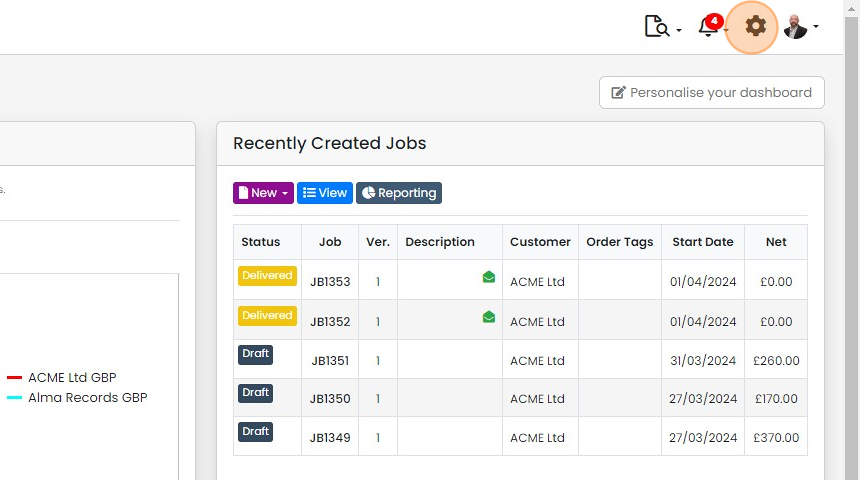
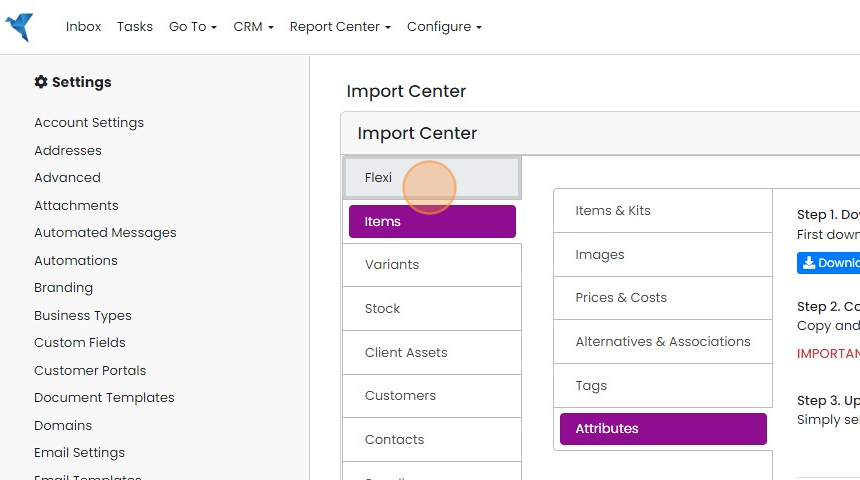
Click "Import Center"
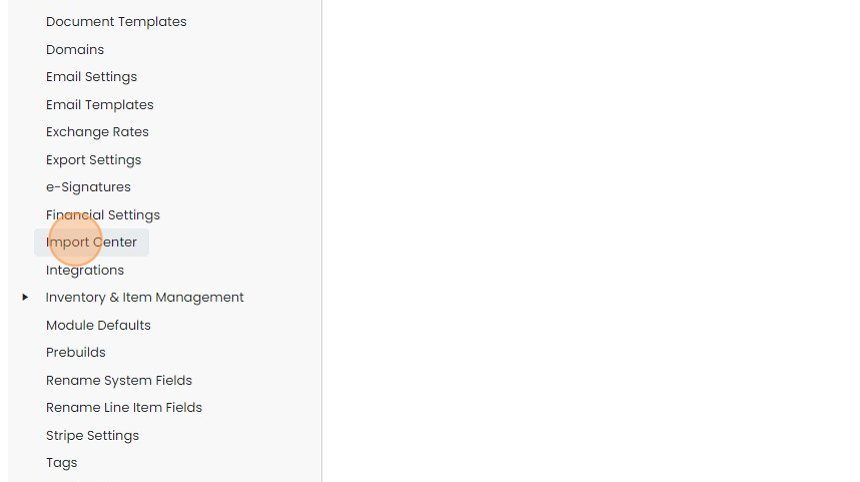
Click "Items"

Click "Attributes"
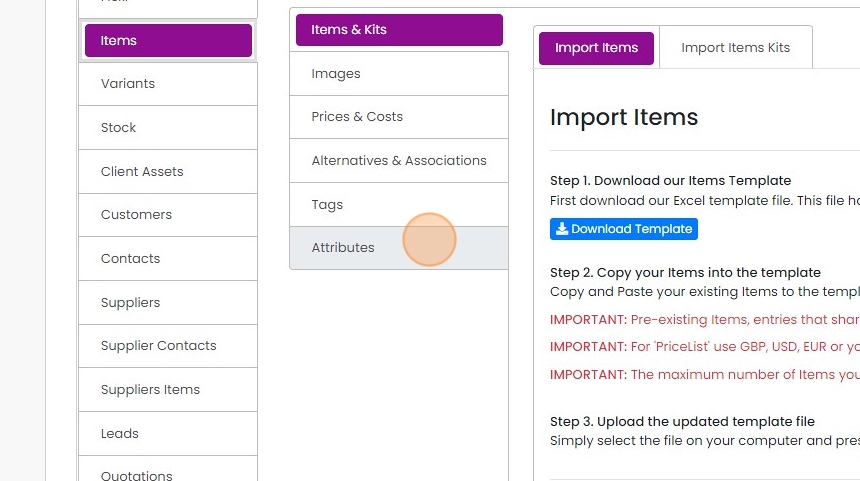
Click "Download Template"

Populate the template with the attribute(s) names and save it

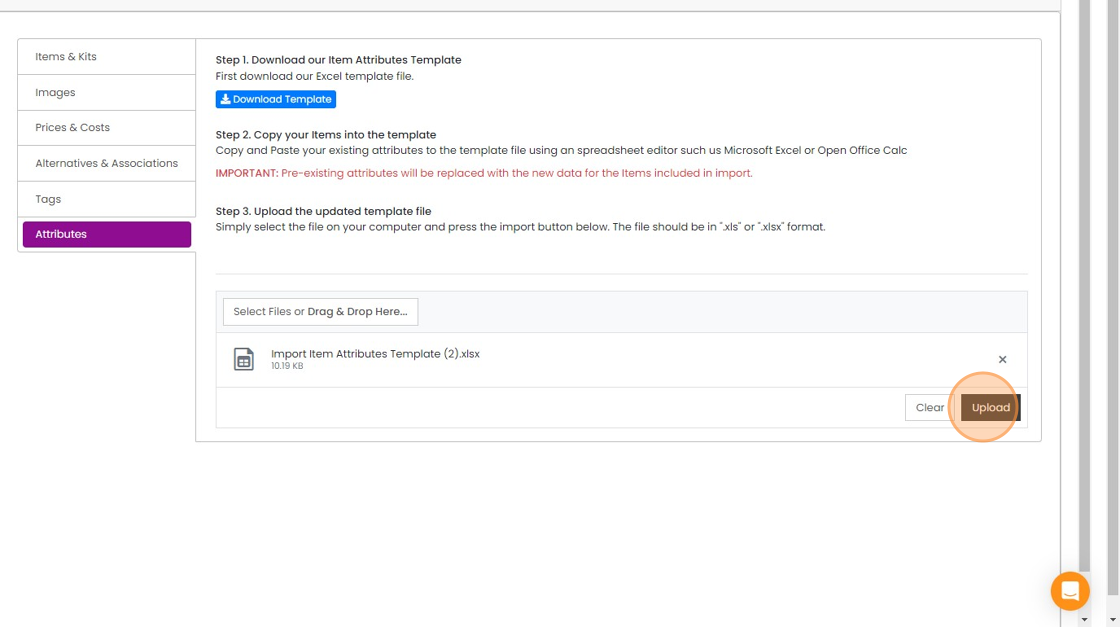
Import the spreadsheet
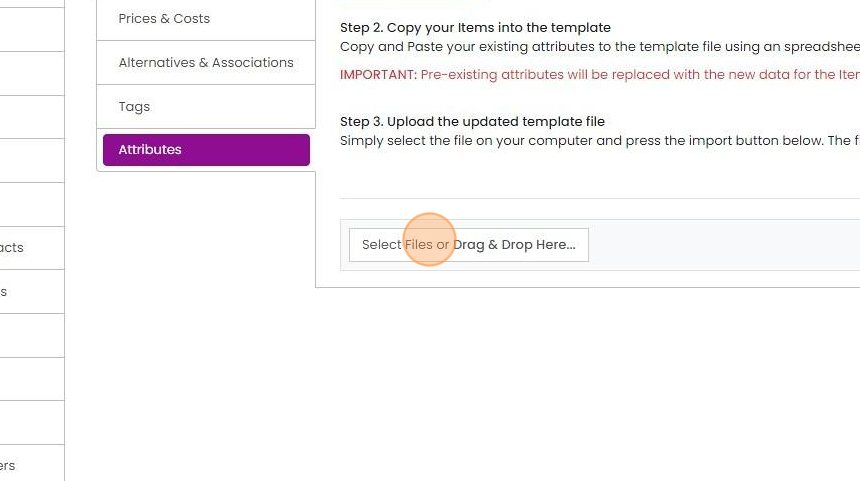
Click "Upload"
Click "x" to close the success panel
Import attribute values
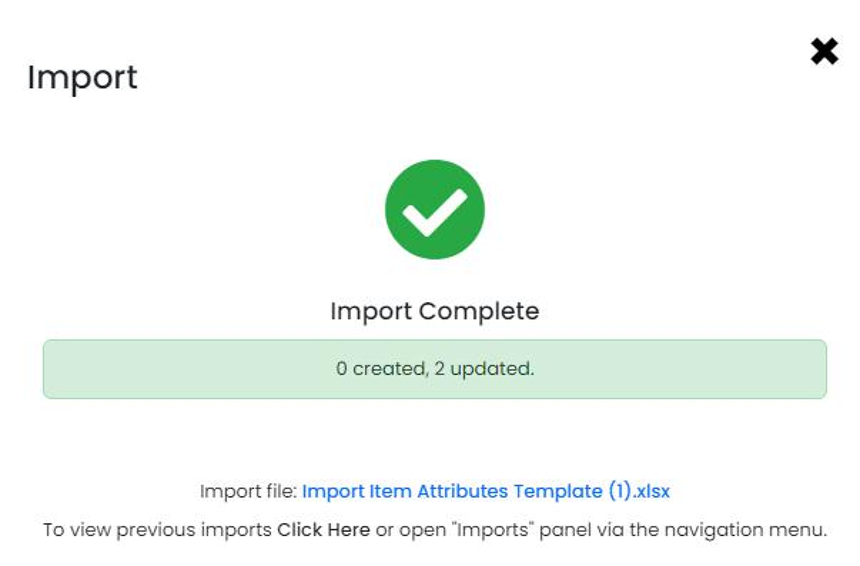
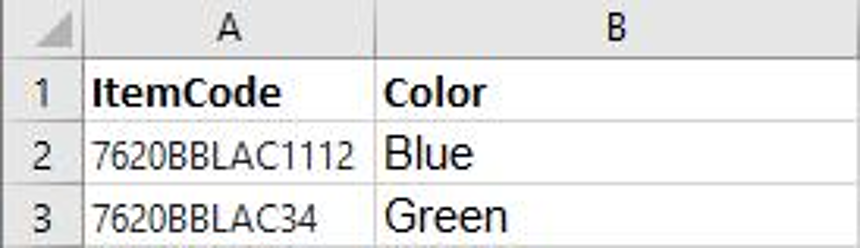
To import the values, put them into a spreadsheet
To import the values, put them into a spreadsheet. The only columns required are the ItemCode and the values for the attribute.
If an item does not have an attribute set up but a value in this file, it will be ignored
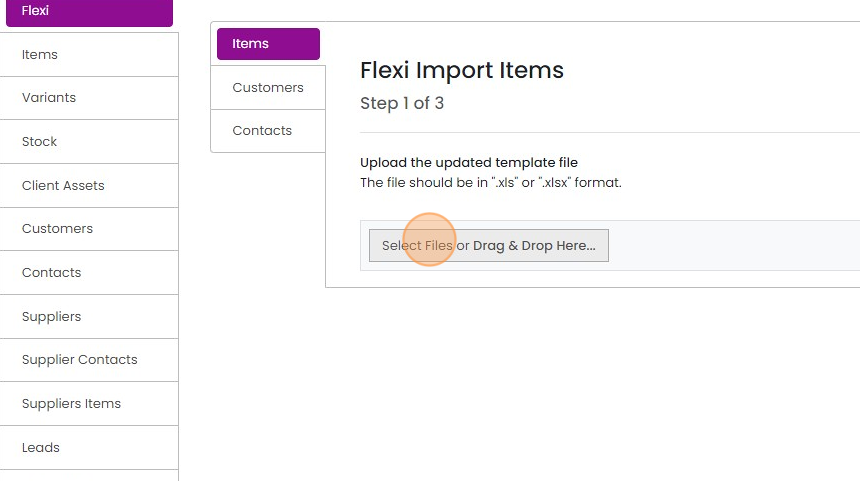
Use the Flexi-Import for this. Click "Flexi"
Click this file field
Set the column with the item codes to match the "Item Code" in Zigaflow

Match the spreadsheet attribute column to the attribute in Zigaflow. Type the name of the attribute to find it
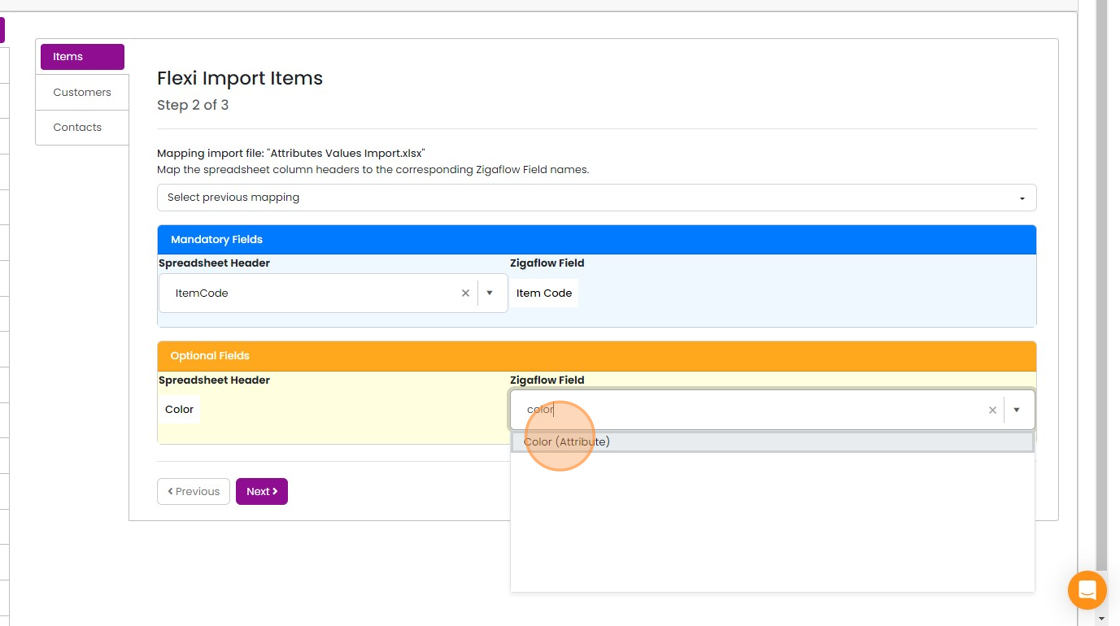
Click "Next"

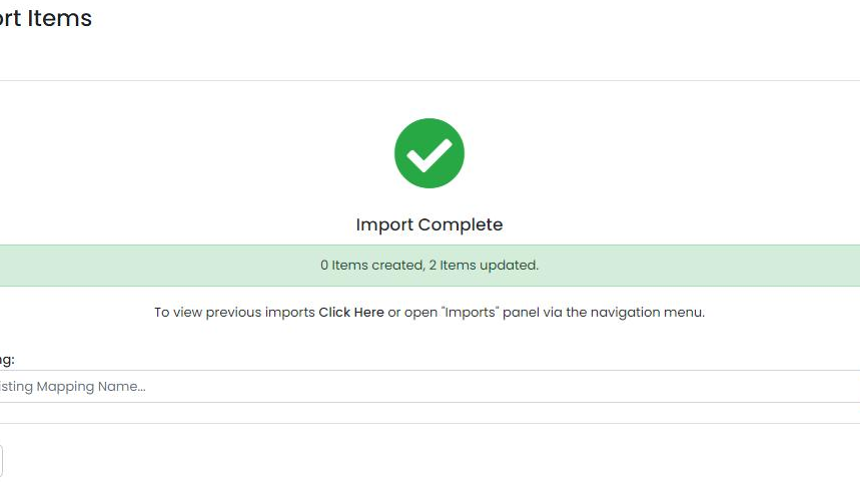
Check the items have been updated
Learn more: inventory in Zigaflow


Importing Attributes
This can be a two-stage process:
i) An import to set attributes on items, but this isn't required if they already exist
ii) The flexi-import imports the values
Set up attributes on items
Frequently asked questions
Was this helpful?