Get set up

Setting up item attributes

In Zigaflow

The short answer

Set up an item attribute in Zigaflow under Custom Fields, then Item Attribute Fields, then New Attribute Field. Choose a type such as Dropdown, name it, enter the values, and add it to the items that need it. You can then edit it on quotes and show it on PDF templates.

Steps

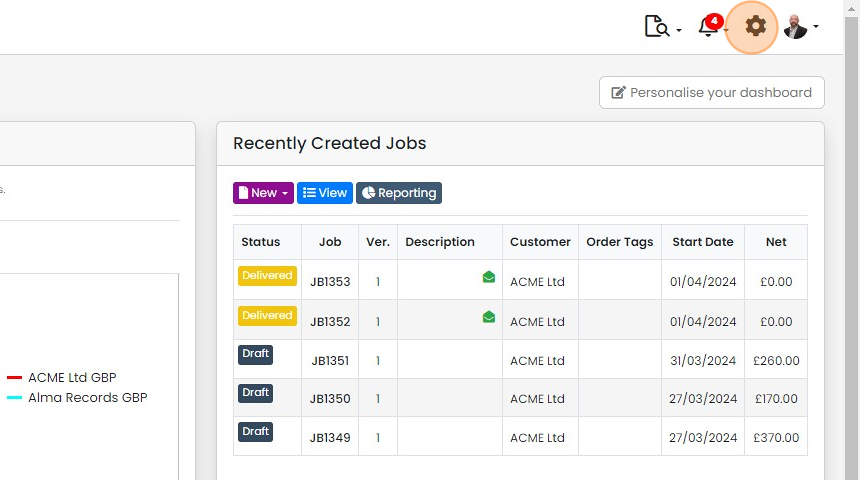
  1. To set up the Attribute, click here

    Zigaflow dashboard with the gear (settings) icon highlighted in the top-right toolbar, beside the notifications bell
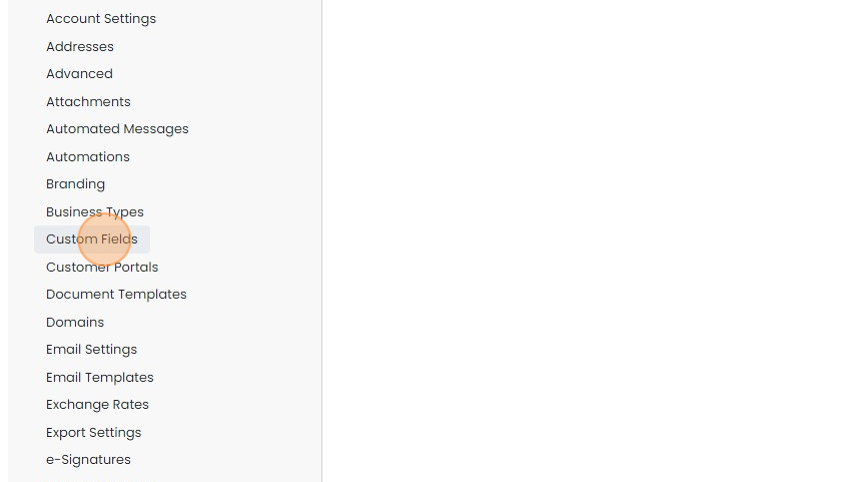
  2. Click "Custom Fields"

    Settings menu list with Custom Fields highlighted between Business Types and Customer Portals
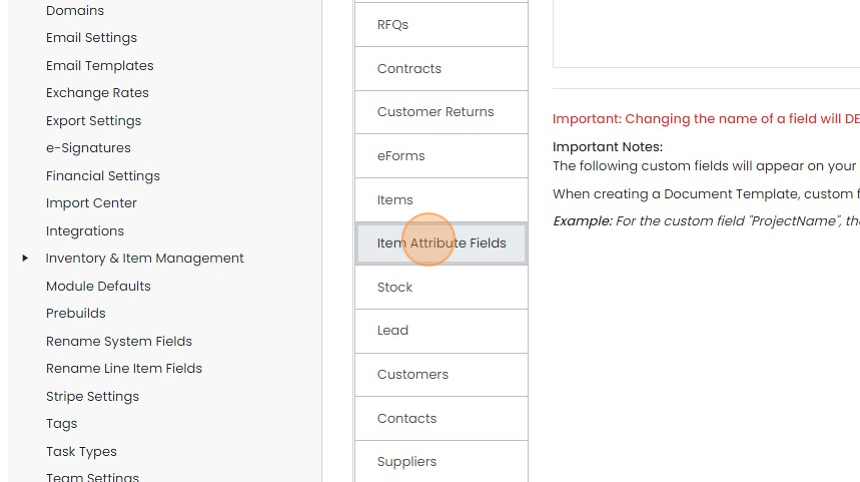
  3. Click "Item Attribute Fields"

    Custom fields settings with the Item Attribute Fields tab highlighted in the list between Items and Stock
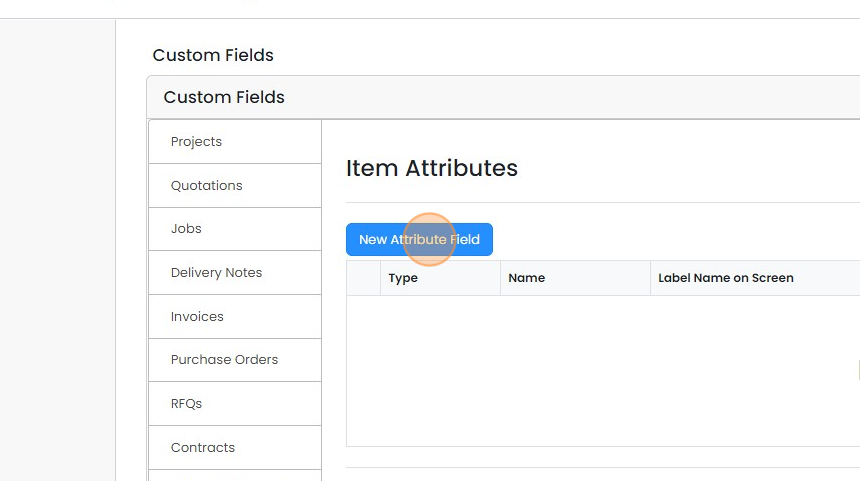
  4. Click "New Attribute Field"

    Custom Fields settings showing the Item Attributes page with the New Attribute Field button highlighted above an empty table
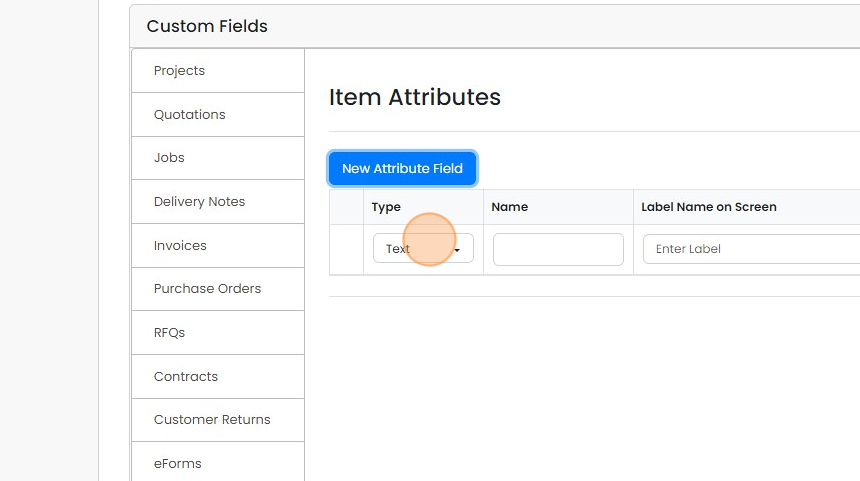
  5. Click the type field

    Item Attributes in Custom Fields with the Type dropdown, set to Text, highlighted in the new attribute field row
  6. In this example, we are going to create a Dropdown

    Item Attributes screen with the Type dropdown open on a new attribute row and the Dropdown option highlighted
  7. Give the attribute a name - this will be used in the PDF document variable

    Custom Fields Item Attributes screen with Dropdown type selected and
  8. The label is displayed on the screens
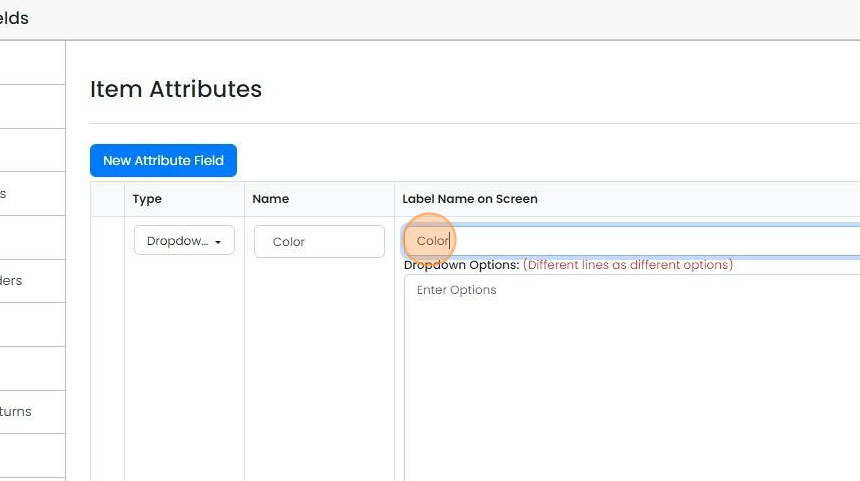
    Item Attributes screen with the Label Name on Screen field highlighted, showing
  9. Enter the dropdown values and click on the tick

    Add the attribute to an item
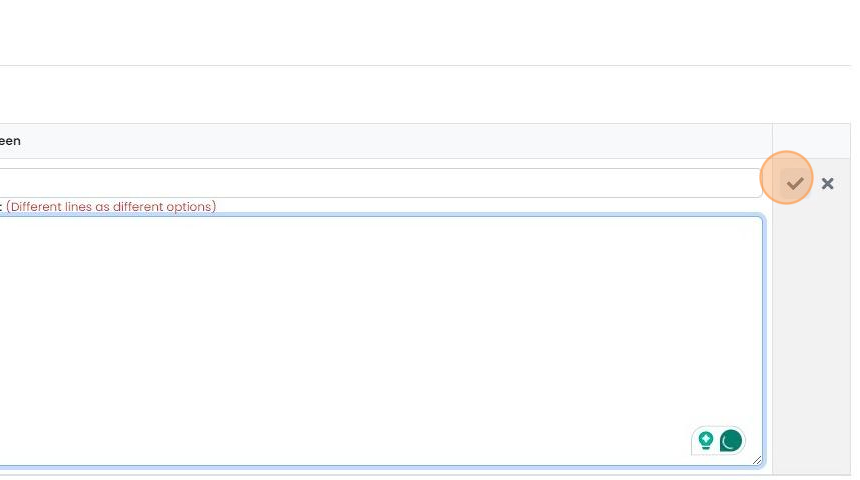
    Item attribute row with an empty dropdown options box (different lines as different options) and the tick button highlighted
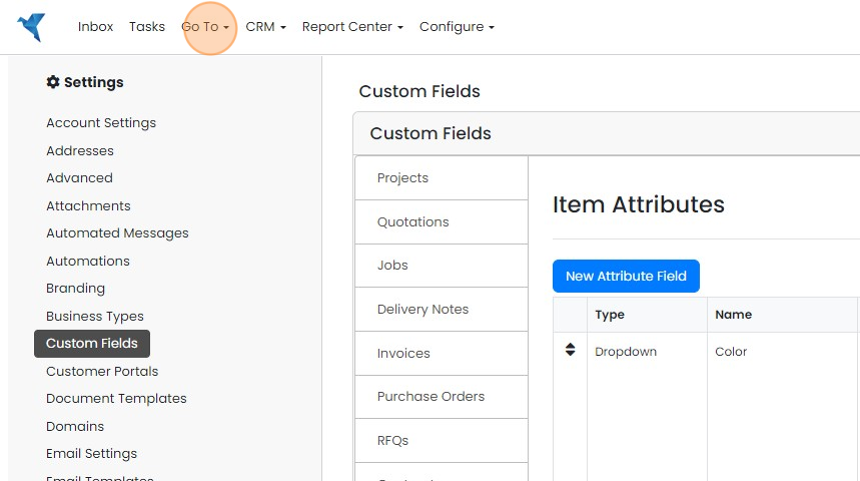
  10. To add it to an item, click "Go To"

    Custom Fields settings page showing Item Attributes, with the Go To menu highlighted in the top navigation bar
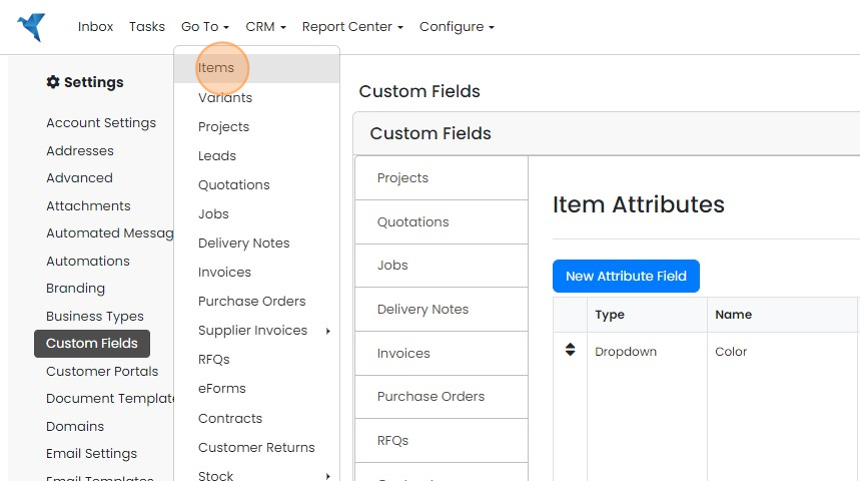
  11. Click "Items"

    Go To menu open over the Custom Fields settings page, with the Items option highlighted at the top of the list
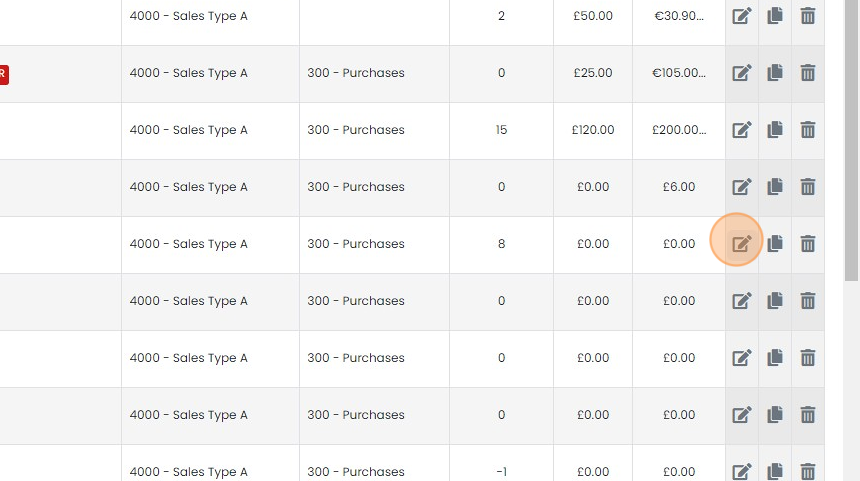
  12. Edit an item

    Items list with sales and purchase account codes, quantities and prices, with the edit pencil icon highlighted on one row
  13. Click "Add/Remove Attributes"

    Item edit form with the Add/Remove Attributes button highlighted in the Attributes section, above the Currency field
  14. Click "Add"

    Add/Remove Attributes dialog with no current attributes, highlighting the Add button beside the Color item attribute
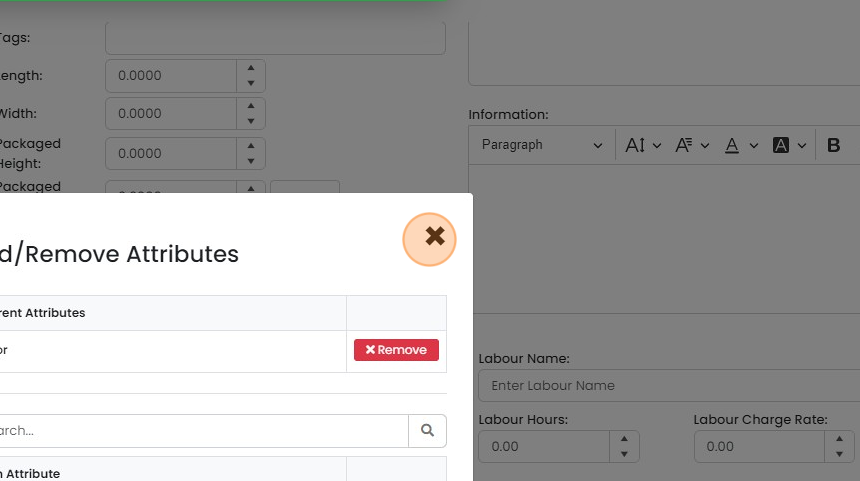
  15. Click "×"

    Add/Remove Attributes dialog with a current attribute and Remove button, close × button highlighted at top right
  16. You can select the default value here or leave it blank

    Edit the attribute on a document
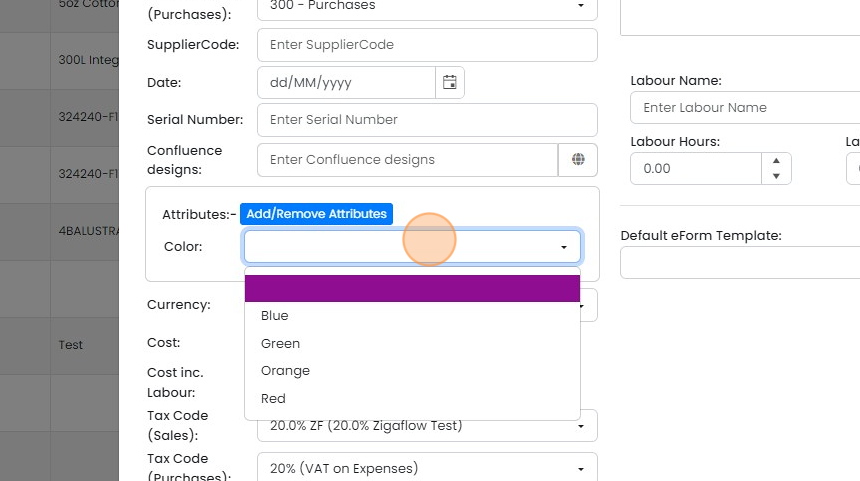
    Item form Attributes section with the Color dropdown open, showing Blue, Green, Orange and Red options to pick a default
  17. Open a quotation or other document and add that item in. It is displayed as below

    Quote line items table with the Color attribute tag highlighted under the 300L Integrated Block item description
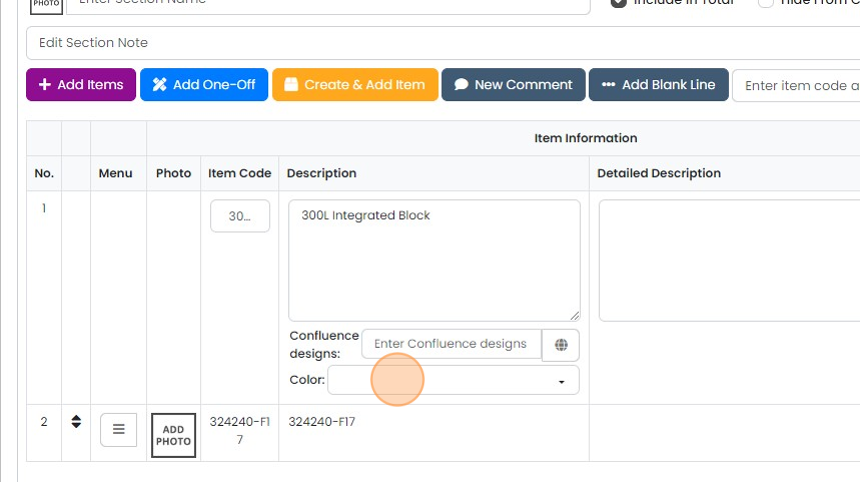
  18. Click the attribute to edit

    Quote section item list with the Color attribute dropdown highlighted below the 300L Integrated Block description
  19. Select the desired option

    Item Information table with the Color dropdown open under the item description, highlighting the Green option
  20. Tick to save the change

    Add the attribute to a template
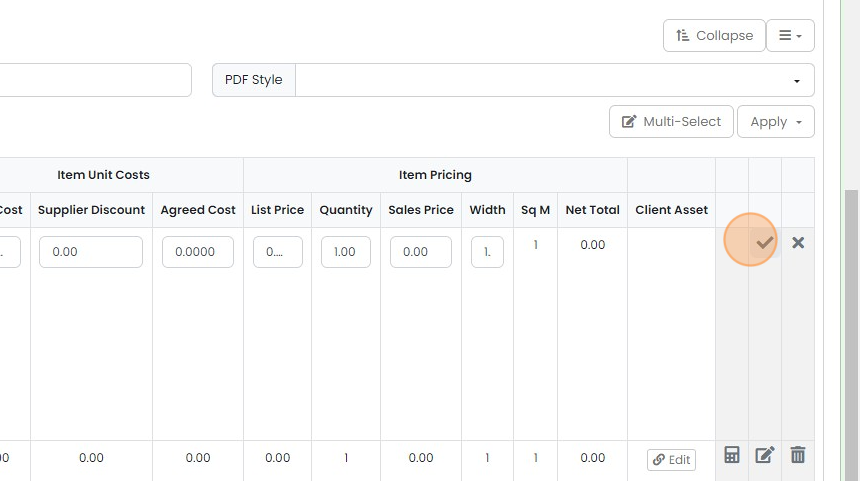
    Line items table in edit mode with Item Unit Costs and Item Pricing columns, the tick button highlighted to save the row
  21. To add it to the document template, click here
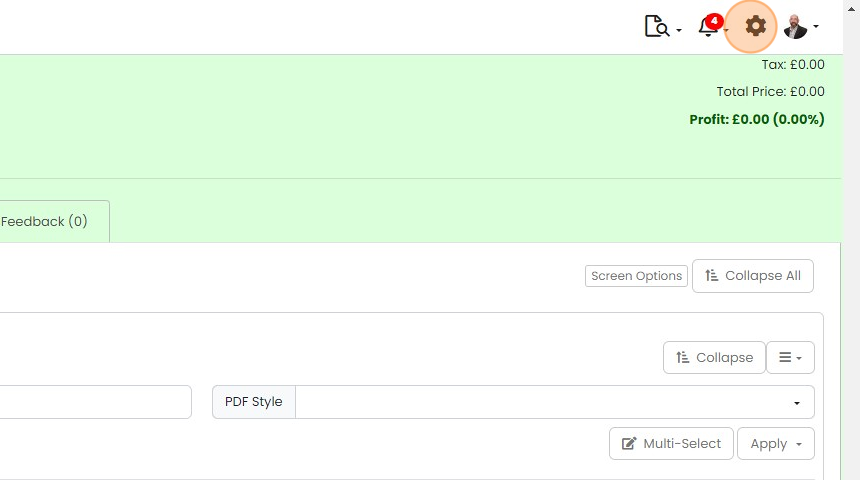
    Settings gear icon highlighted in the top toolbar of a document page, next to the notifications bell and profile menu
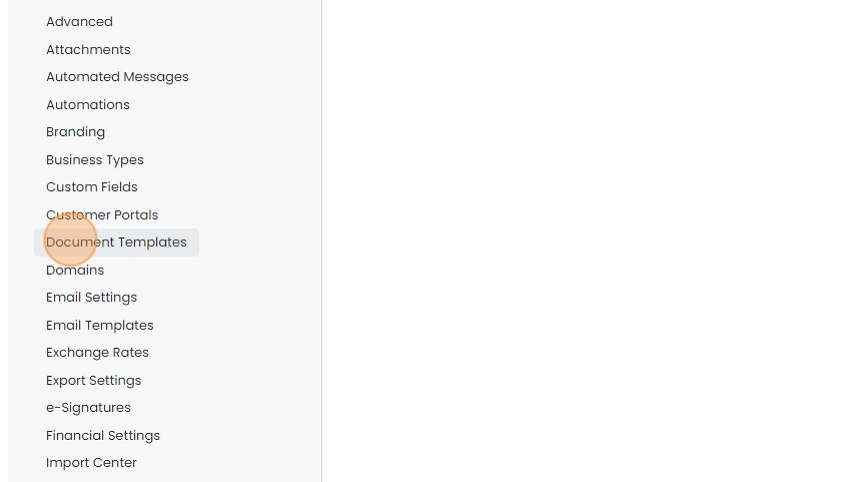
  22. Click "Document Templates"

    Settings menu list with Document Templates highlighted and selected, between Customer Portals and Domains
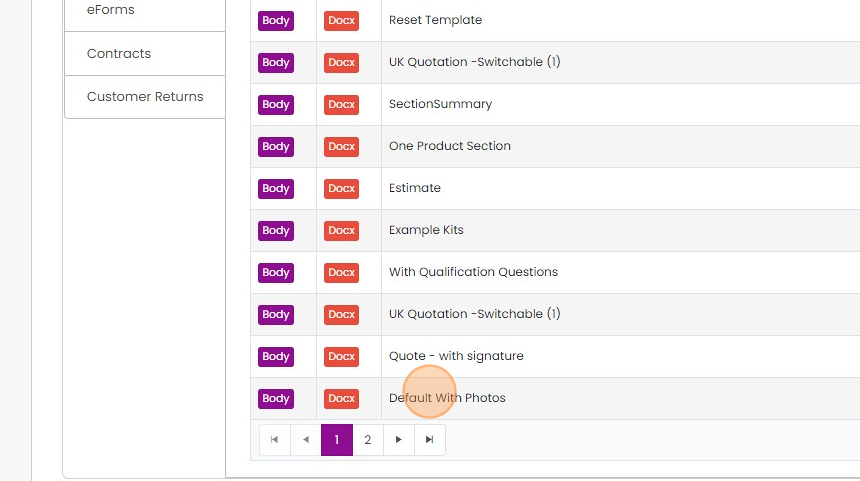
  23. Edit a document template

    Document templates list with Body and Docx tags, highlighting the Default With Photos template to open for editing
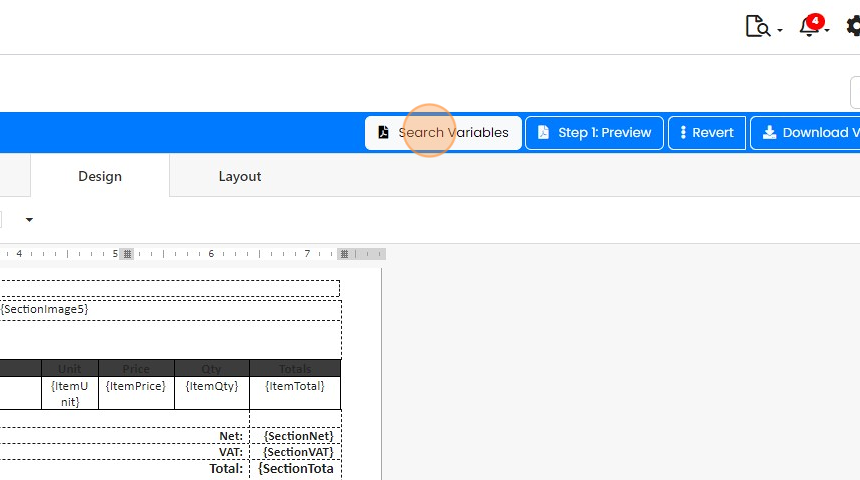
  24. Click "Search Variables"

    Document template designer with the Search Variables button highlighted in the blue toolbar beside Step 1: Preview
  25. Type "Attribute" in the search to list the variables

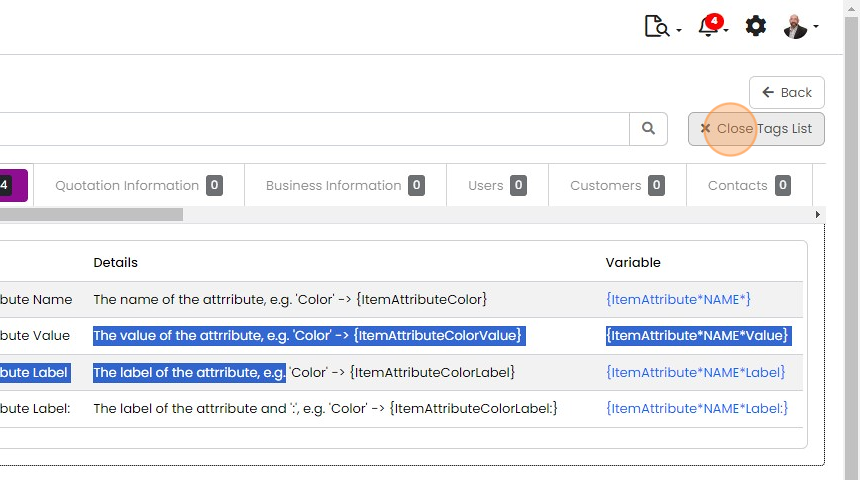
    Type "Attribute" in the search to list the variables. Note that the attribute name is put between "{ItemAttribute" and the display type (i.e. Value, Label).
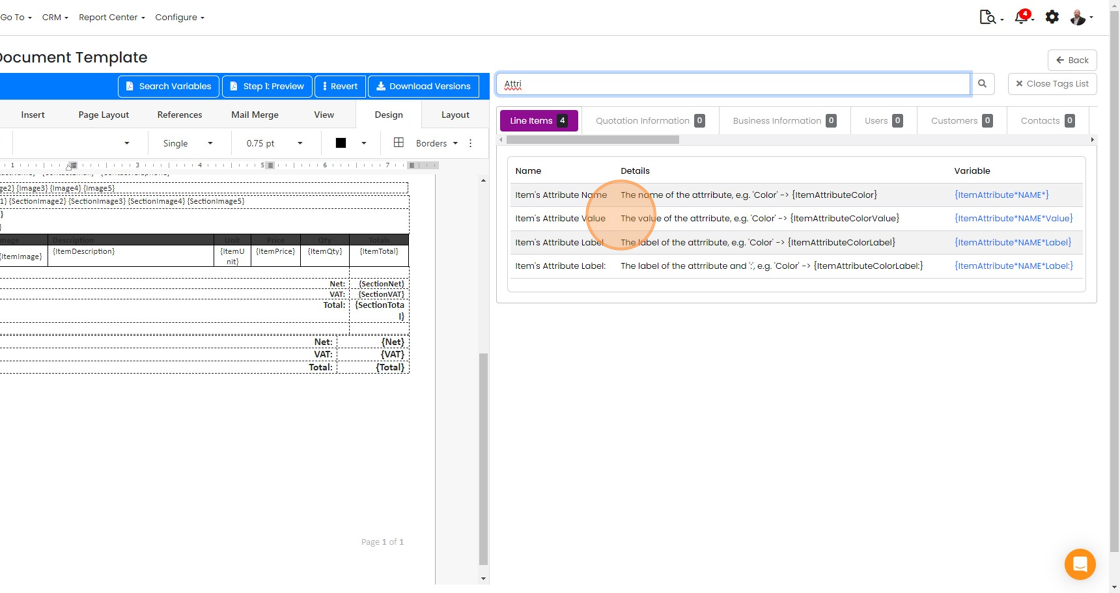
    Document Template tags list searched for
  26. Click "Close Tags List"

    Tags list of item attribute variables with the Close Tags List button highlighted at top right, next to Back
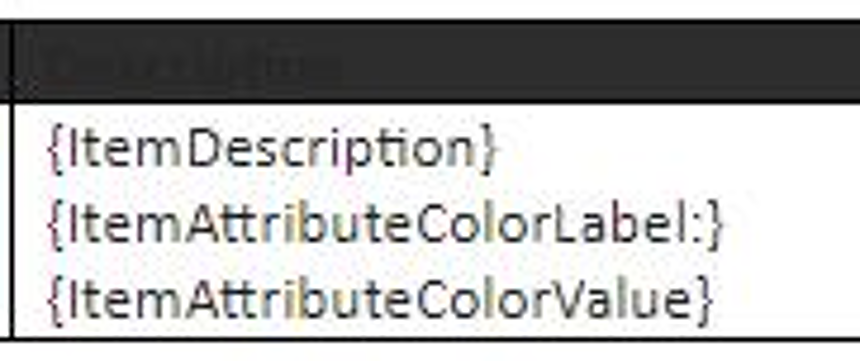
  27. Add the variables to the document

    Document template table cell with {ItemDescription}, {ItemAttributeColorLabel:} and {ItemAttributeColorValue} variables
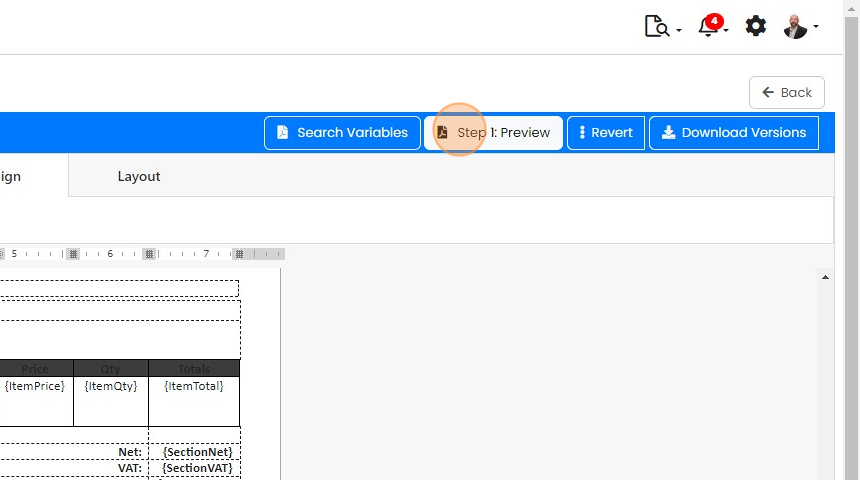
  28. Click "Step 1: Preview"

    Template designer toolbar with the
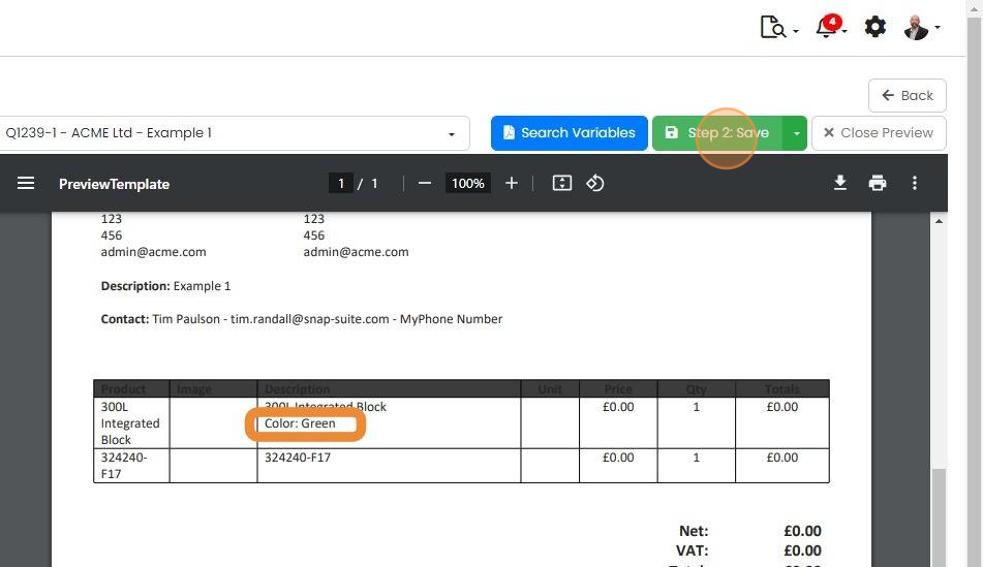
  29. Note how it appears only for the item with that attribute and not for the other. Click "Save"

    Template preview with

​Item Attributes are similar to custom fields but can be applied to individual items. For example, if a material has a certain grade, you can set up an attribute dropdown to list those grades and apply this to one or more items, and the dropdown only appears for those items. Item custom fields should be used when the field makes sense for all items.​
​

Create an attribute field

Frequently asked questions

Next step

Adding attributes to a PDF documentOpen a document template from Document Templates in Zigaflow, click Search Variables, and type Attribute to list the attribute variables. Add them to the template, click Step 1: Preview to check the layout, then click Save. The variable shows only for items that have that attribute.

Was this helpful?

See Zigaflow on your own workflow

Book a demo and we will walk through quoting, jobs and purchasing the way your team runs them.

Or see how Zigaflow would fit your business, free