Deliver work
Printing item labels from purchase orders
The short answer
On the purchase order, click an Apply button to print item labels: the Apply button for all items, a section's Apply button for that section, or Multi-Select then Apply on Selected for chosen items. Then click Print Preview, choose a label template if needed, and click the Print icon.
Steps
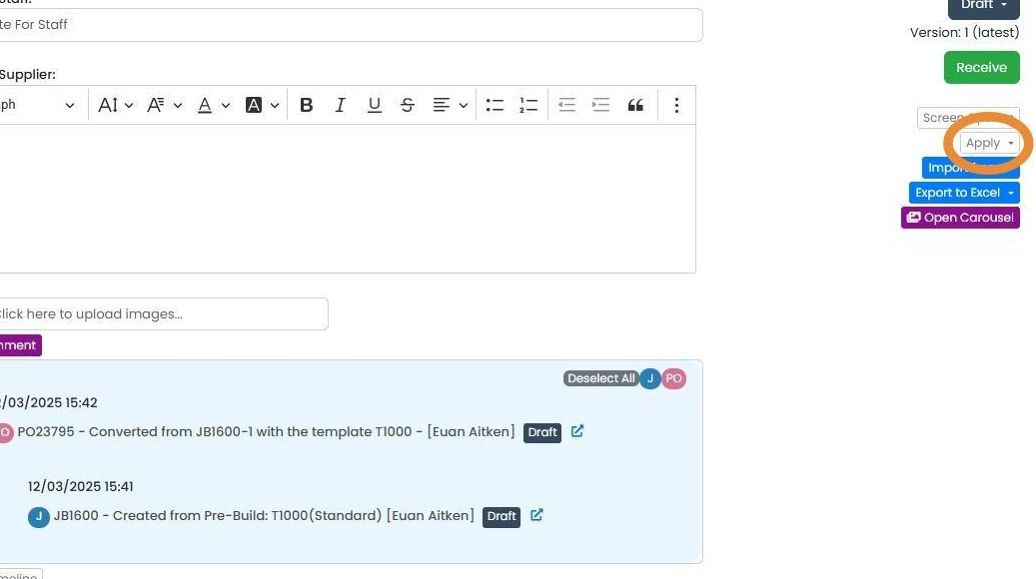
On the purchase order, you can print labels for all the items, using this "Apply" button
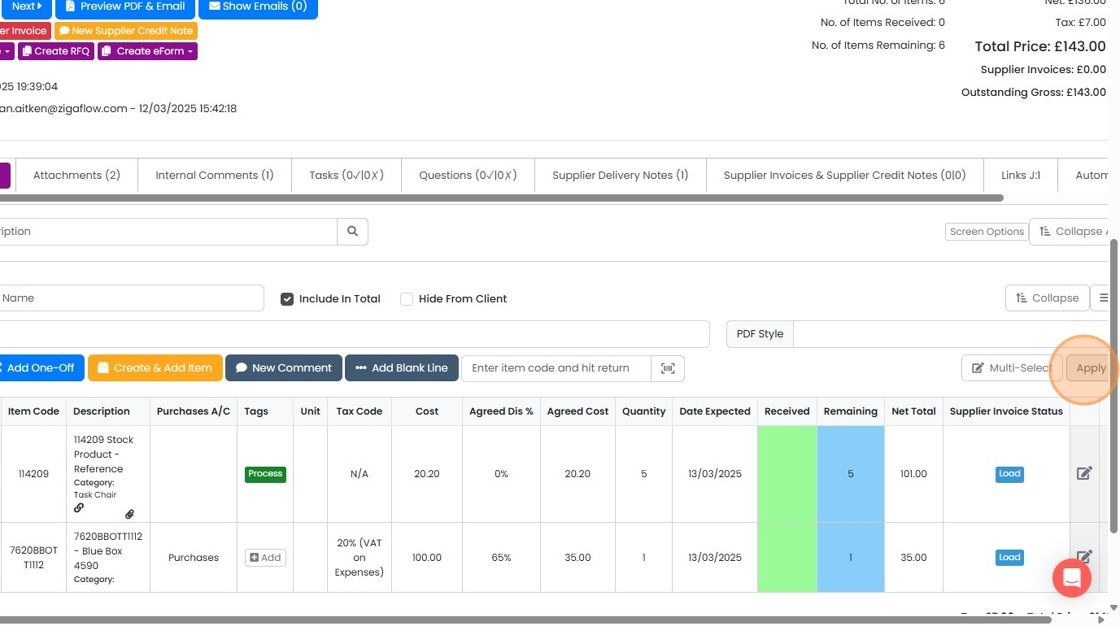
To print just the items in a section, use the section's "Apply" button
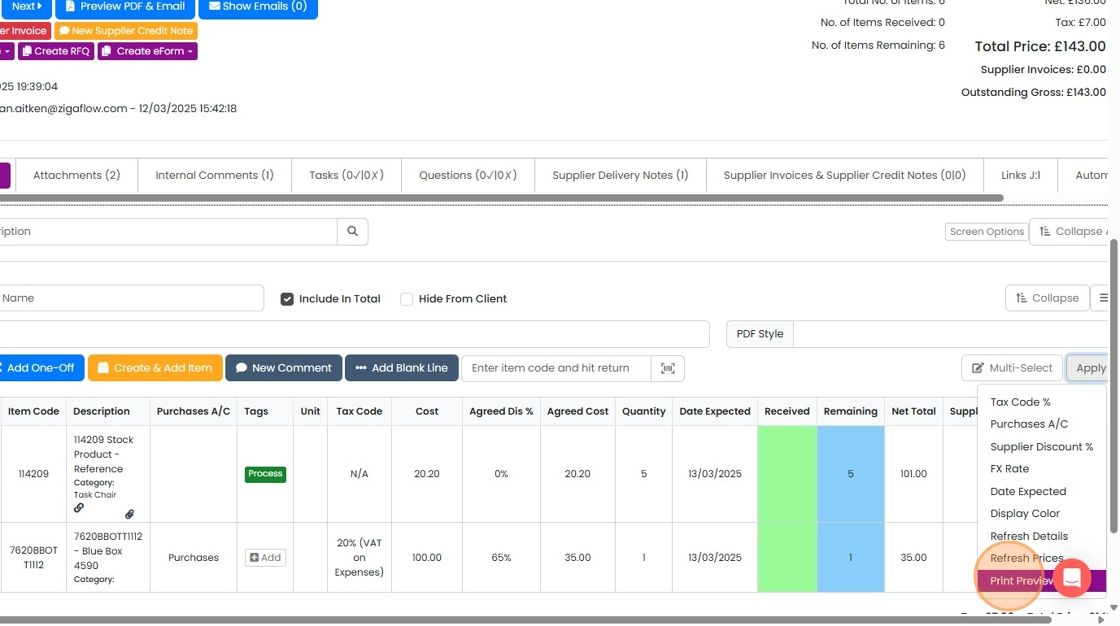
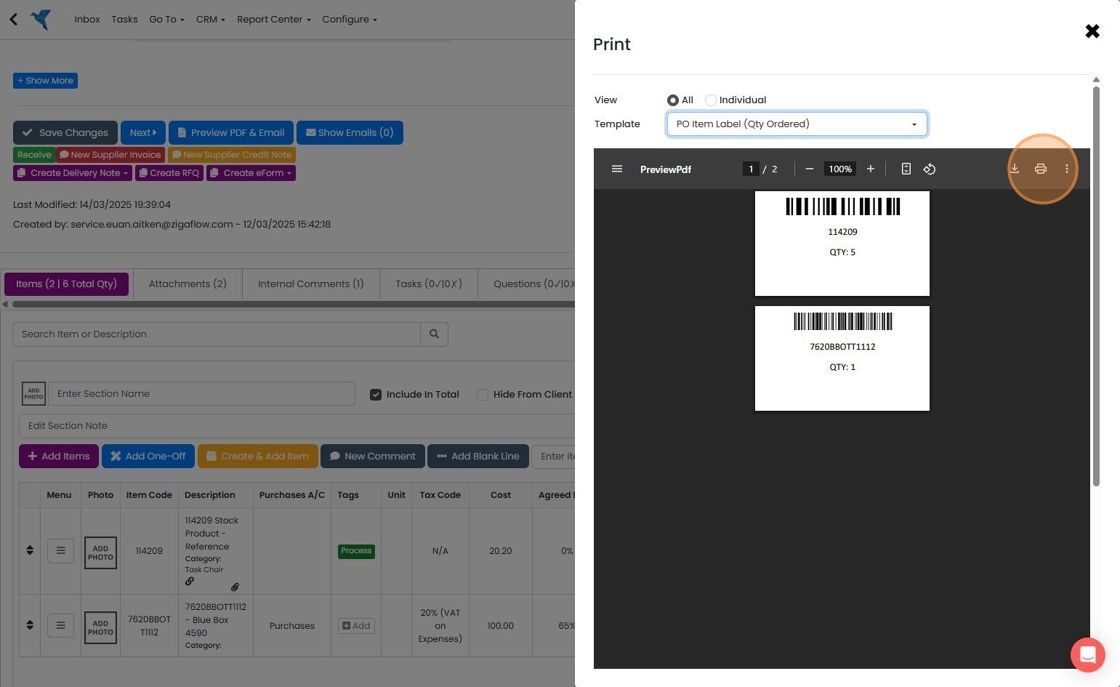
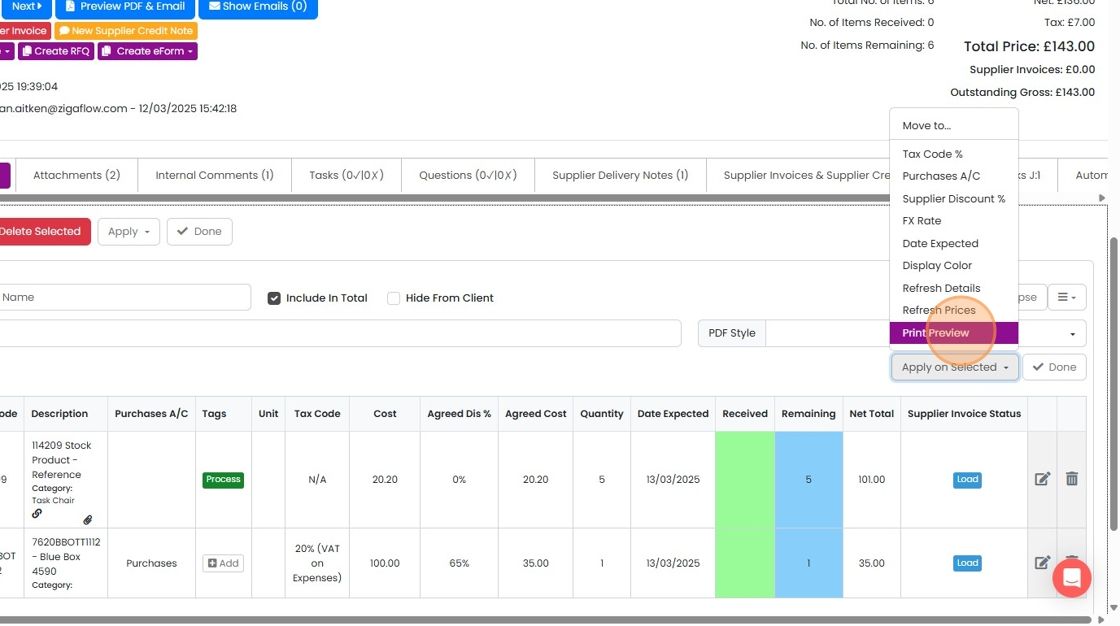
Click "Print Preview"
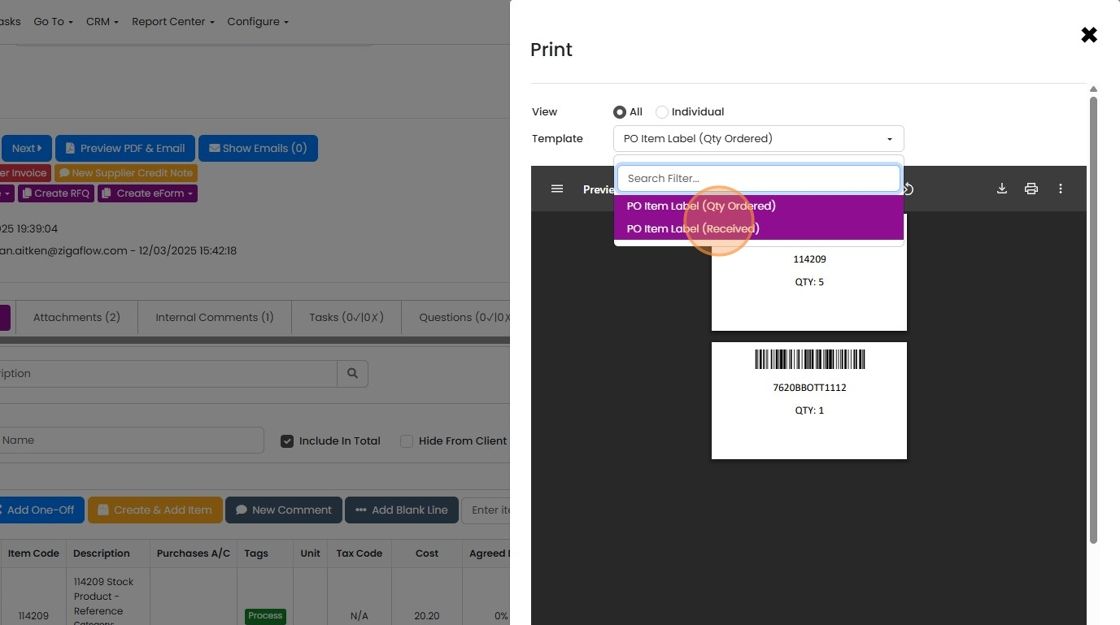
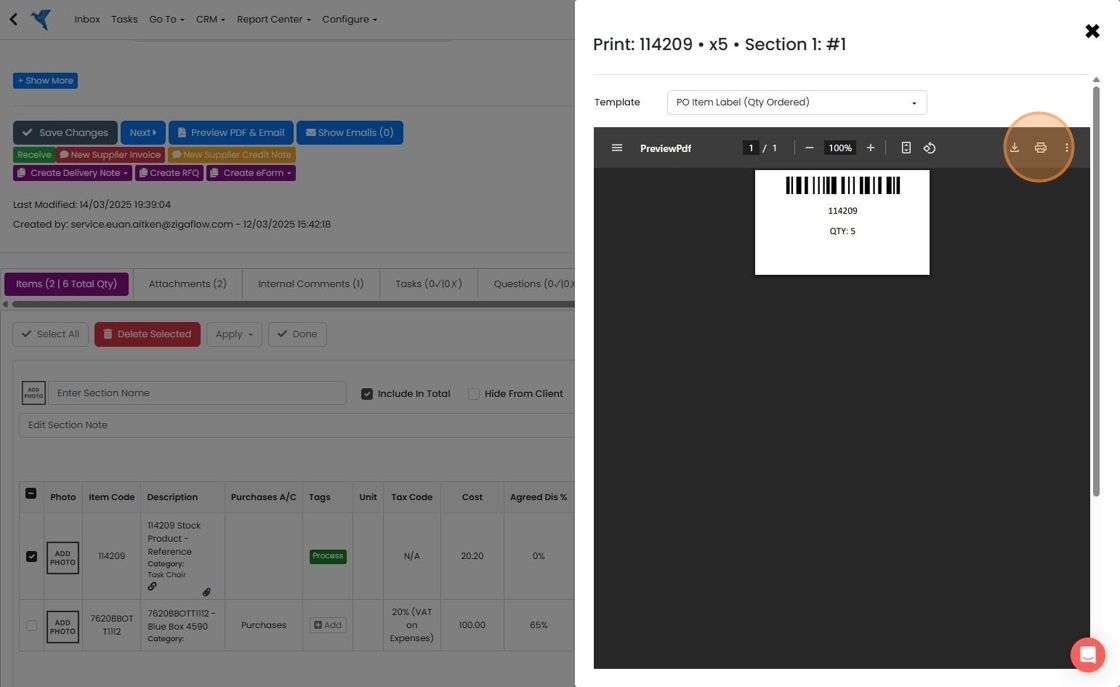
The template can be changed here

Select the desired template
Click on the "Print" icon
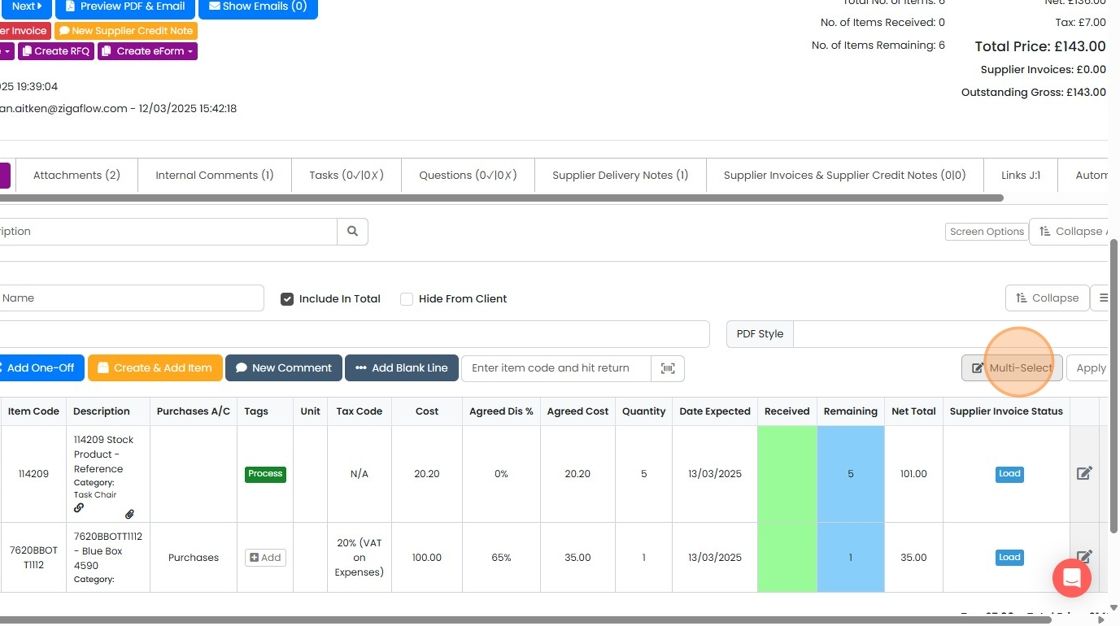
To print selected items, click "Multi-Select"
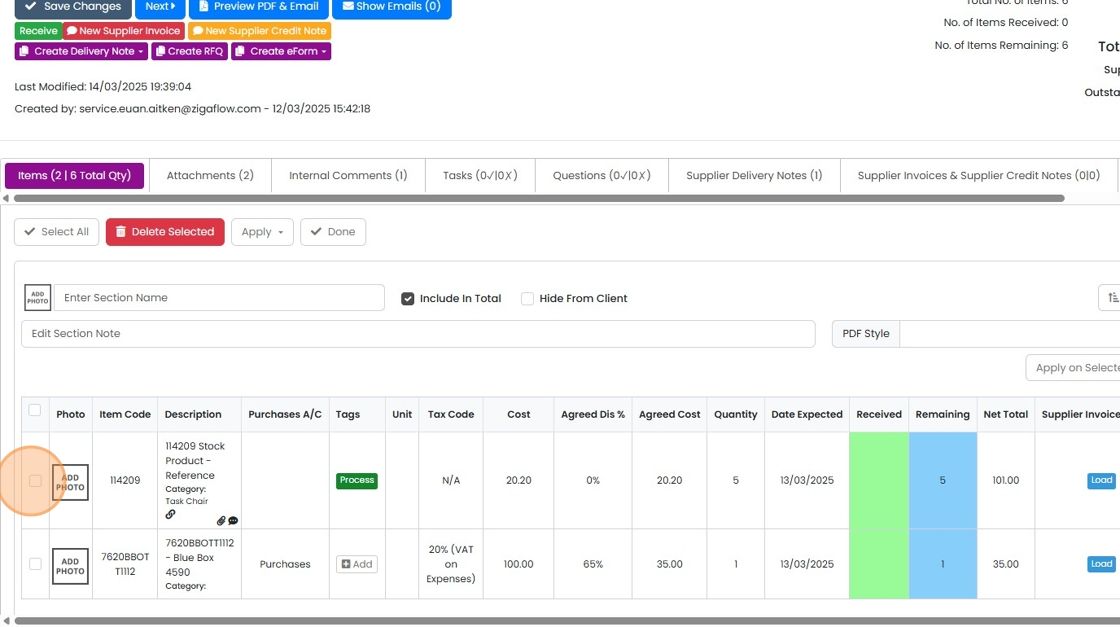
Select the required items
Click "Apply on Selected"
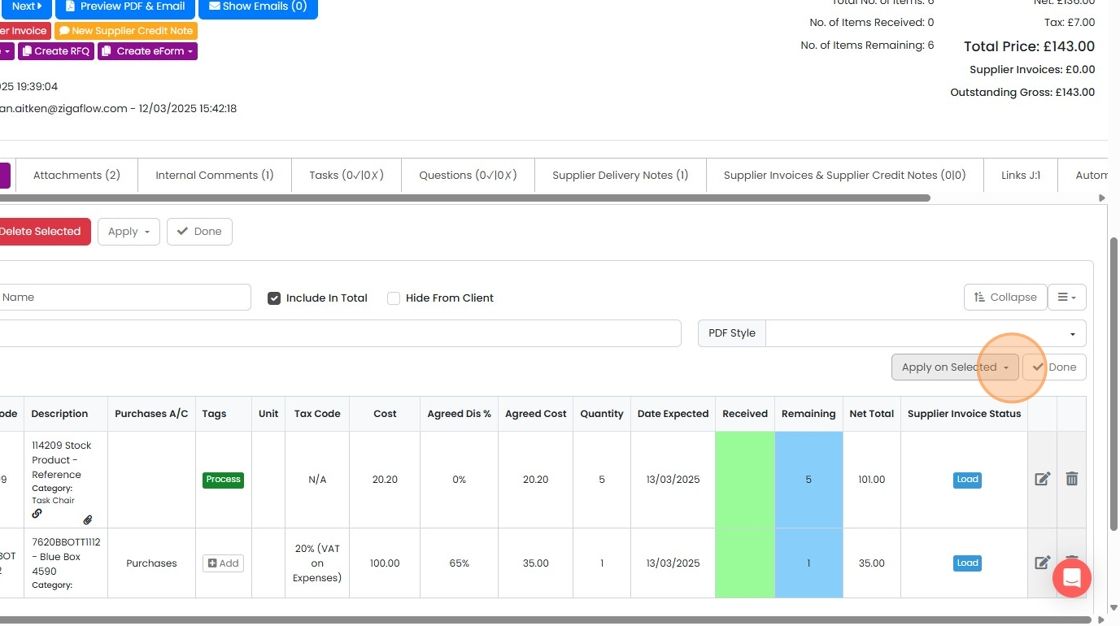
Click "Print Preview"
Follow the same process with the templates and print icon
Learn more: purchase orders in Zigaflow


Frequently asked questions
Next step
Momentum planWas this helpful?