Get set up

Setting up label printing

In Zigaflow

The short answer

To set up label printing in Zigaflow, click the cog, then Document Templates, then Items. Check which variables you can print, then click Upload New, add your template, choose the screen it is for, and click Complete. Labels can be printed from three screens: Stock Allocation, Items List and Purchase Order Edit.

Steps

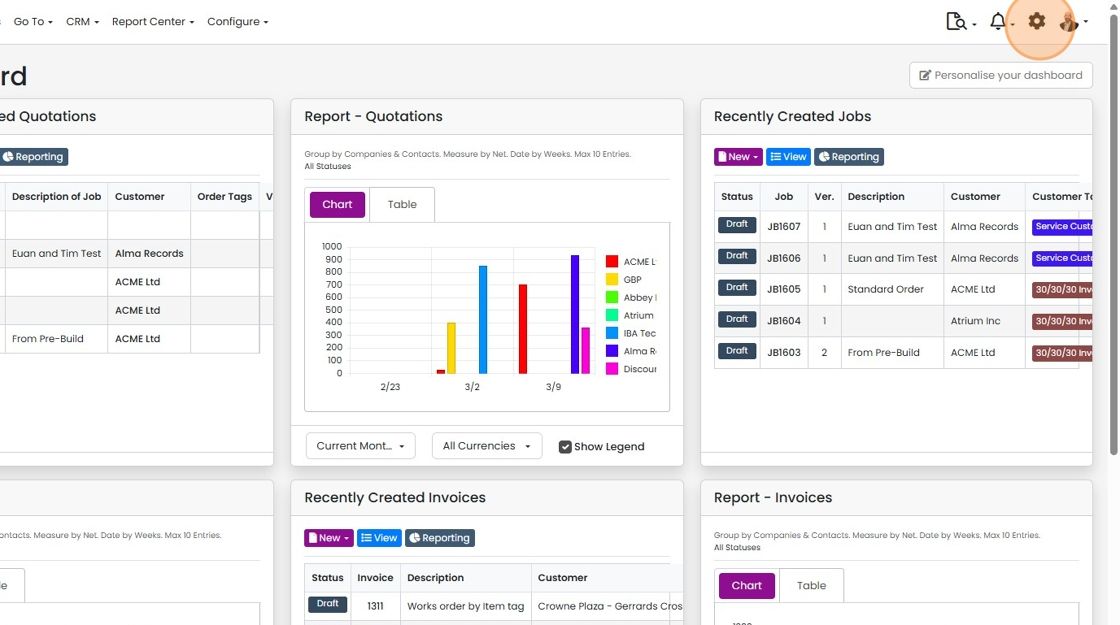
  1. Click on the cog

    Zigaflow dashboard with the cog (settings) icon highlighted in the top-right toolbar next to the notifications bell
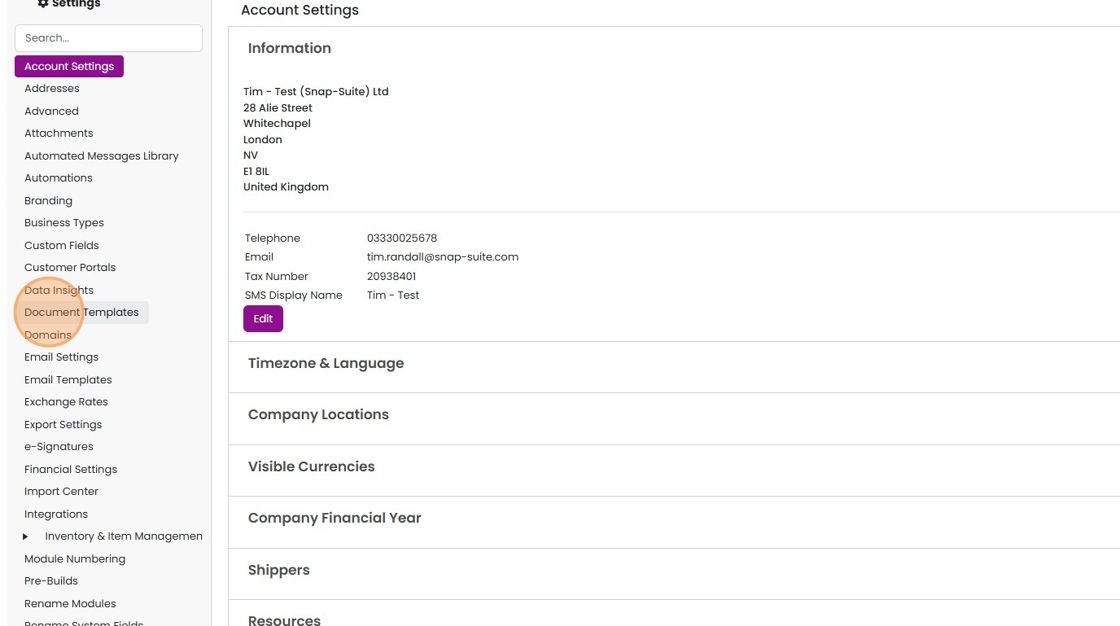
  2. Click "Document Templates"

    Settings menu with Account Settings open, highlighting Document Templates in the left-hand list of settings options
  3. Click "Items"

    Check the available variables
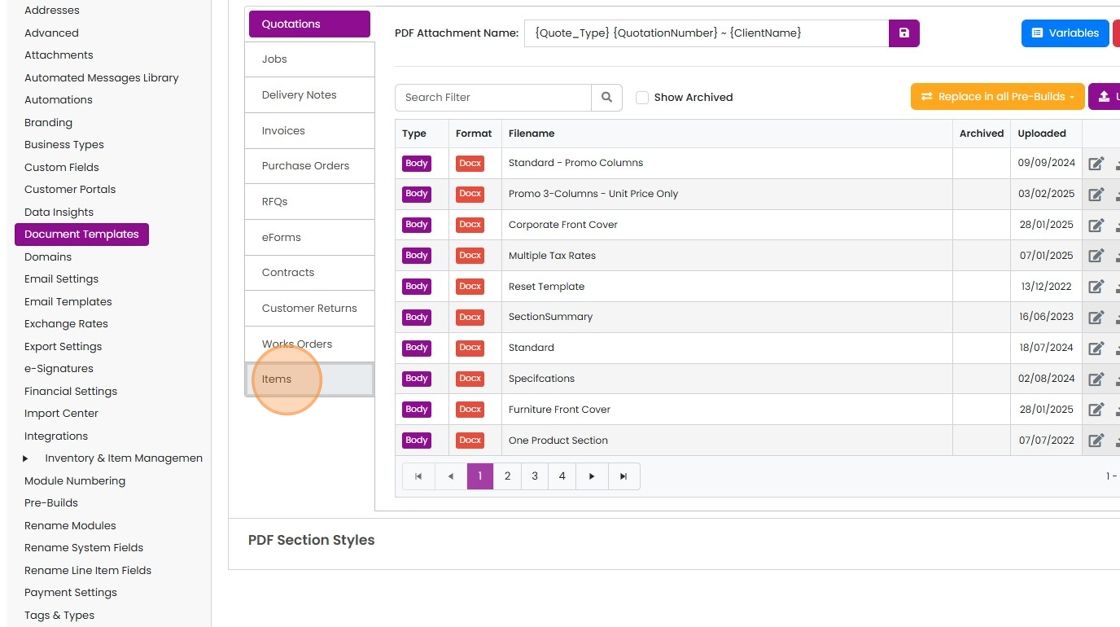
    Document Templates settings with the Items tab highlighted in the module list below Works Orders, Quotations templates shown
  4. Click on the "Variables" button to see what can be placed on the label

    Document Templates settings with the Items tab selected and the Variables button highlighted above the label templates list
  5. Click on the "Variables" button to see what can be placed on the label

    Document Templates settings with the Items tab selected and the Variables button highlighted above the label templates list
  6. They are split by purpose (item, stock allocation and purchase order)

    Upload a label template
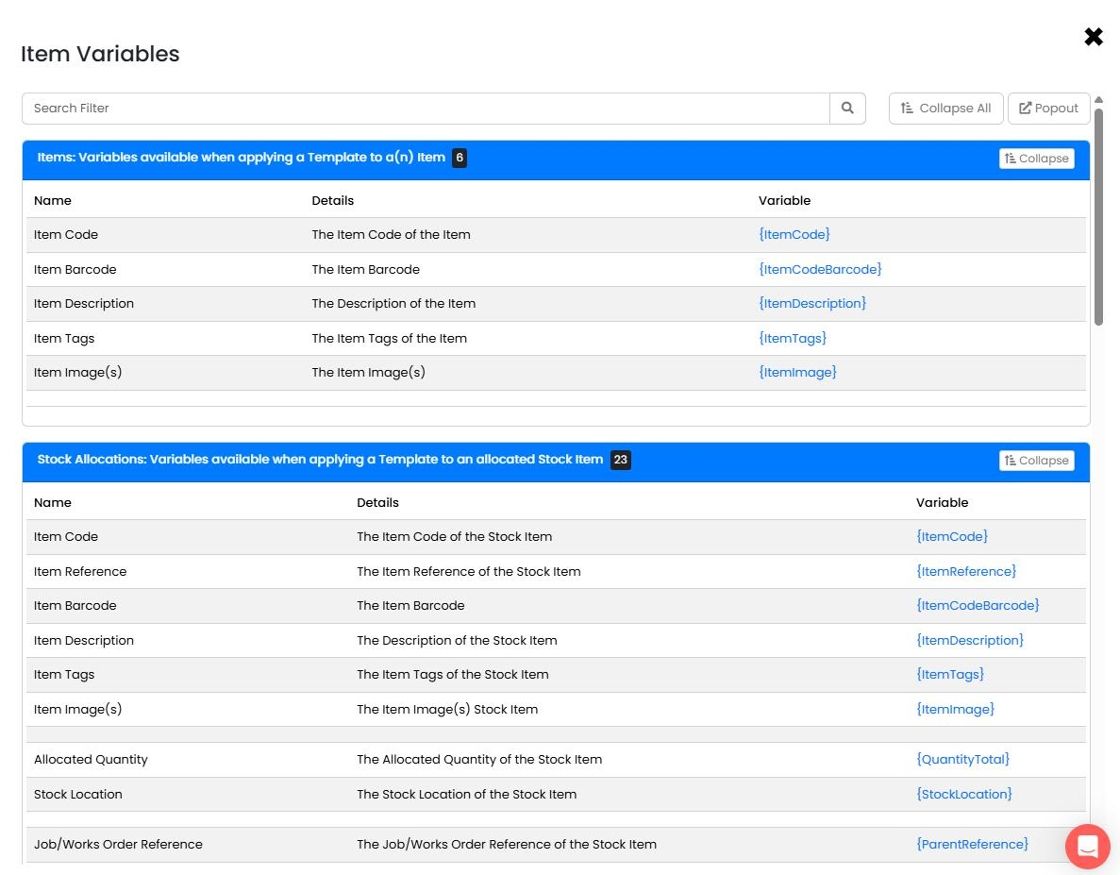
    Item Variables window with Items and Stock Allocations sections listing variable names, details and codes like {ItemCode}
  7. To upload a template, click "Upload New"
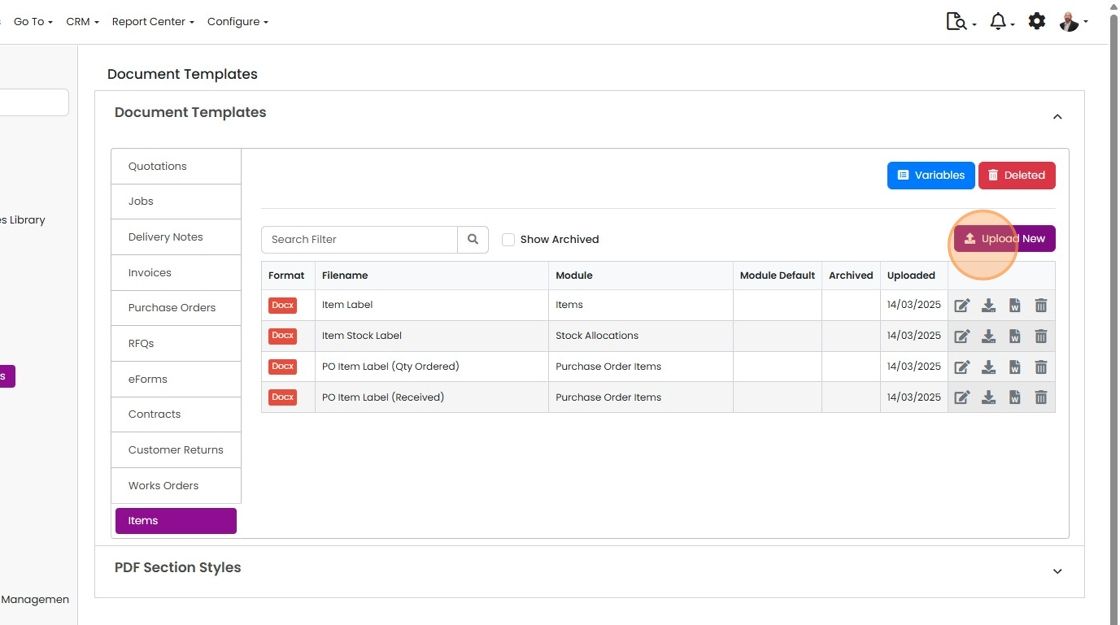
    Document Templates page with the Items tab selected, showing label templates and the Upload New button highlighted
  8. Drag-and-drop or upload the template here
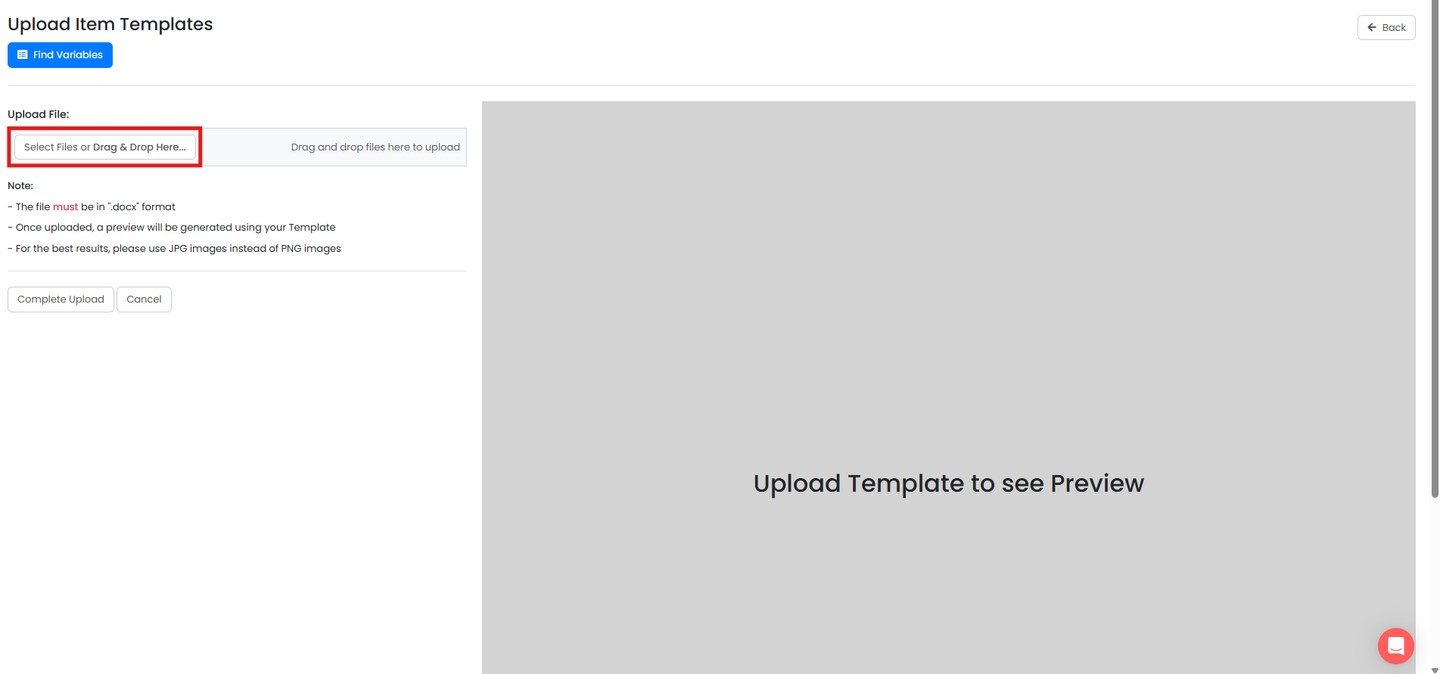
    Upload Item Templates screen with the Select Files or Drag & Drop Here button highlighted in the Upload File field
  9. Select the screen the label is to be used on
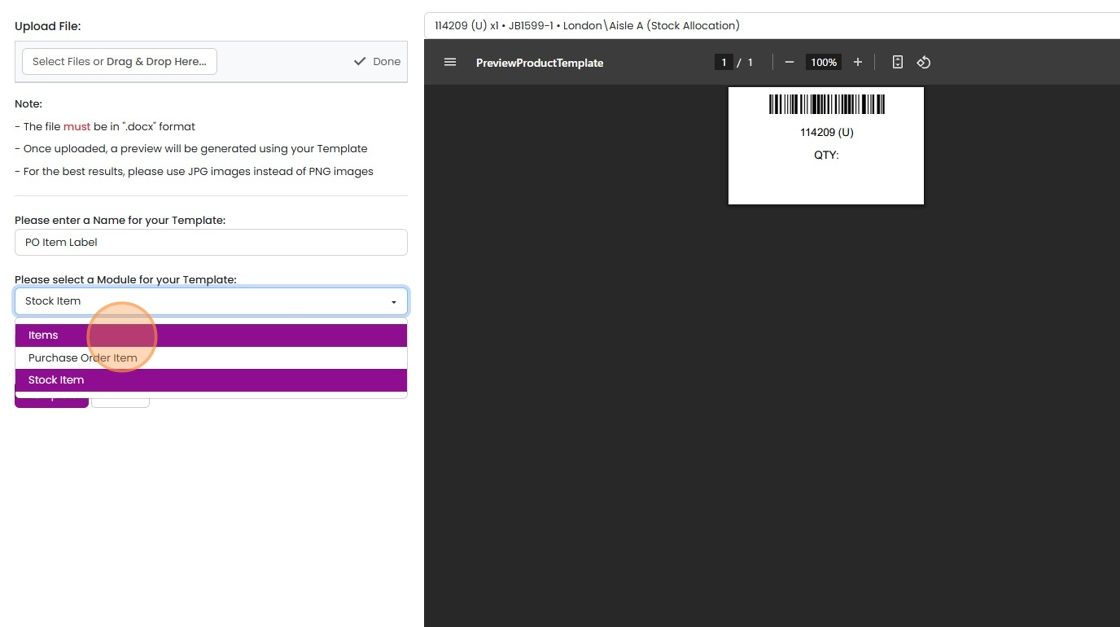
    Label template upload form with the module dropdown open showing Items, Purchase Order Item and Stock Item options
  10. Click "Complete"

    Template upload form with name and Items module set, barcode label preview on right, and Complete button highlighted
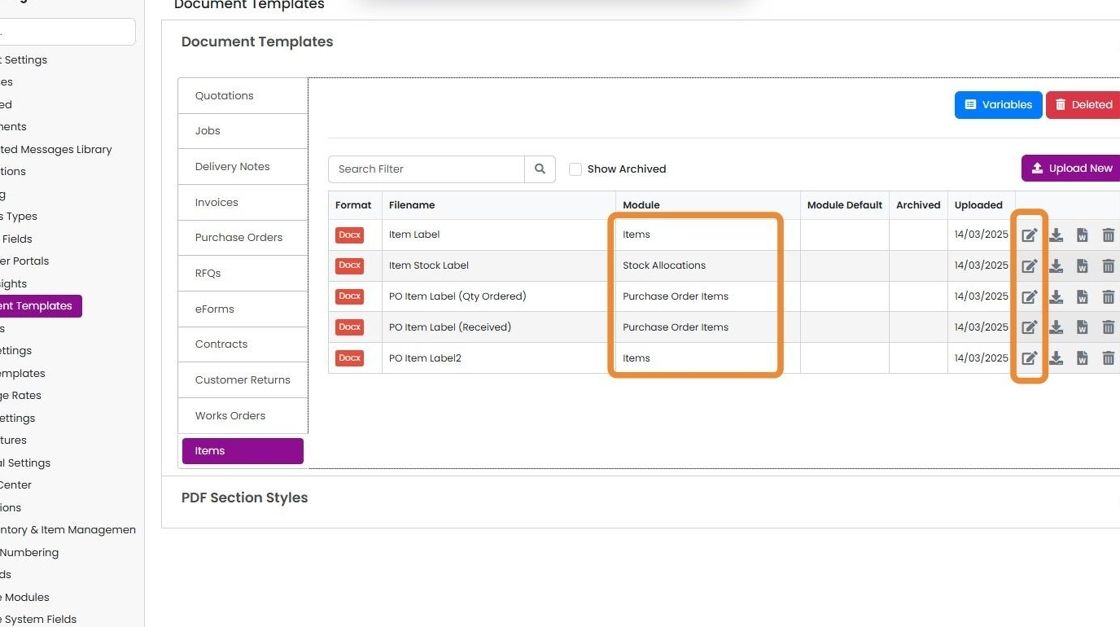
  11. The module/screens can be changed here after clicking on edit

    Document Templates Items tab with the Module column and the edit icons for each label template highlighted

There are three screens where labels can be printed.

  • Stock Allocation
  • Items List
  • Purchase Order Edit

Each screen requires a different template.

Note that each print document is for one item and is not designed to print multiple labels from the same sheet.

To upload a template for one or more screens.

Open the item templates

Frequently asked questions

Next step

Print item labelsTo print item labels in Zigaflow, click Go To, then Items. Use the bulk update button, choose Print Preview, and select the items you want labels for. Click Print Preview again, change the template if needed, then click the Print icon. Label templates must be set up before you print.

Was this helpful?

See Zigaflow on your own workflow

Book a demo and we will walk through quoting, jobs and purchasing the way your team runs them.

Or see how Zigaflow would fit your business, free