Get set up

Questions and playbooks

In Zigaflow

The short answer

Questions, also called playbooks, are screens that change according to a record's status. They let you guide your team through your process, split a status's fields across two or more screens, and make fields mandatory. Set them up from the Cog, then Prebuilds, on the Questions tab. They work in Quotations, Jobs/Sales Orders, Works Orders and Purchase Orders.

Steps

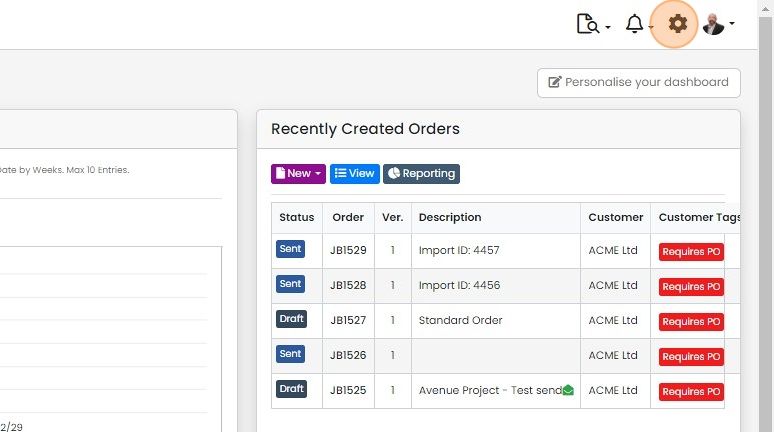
  1. Click on the Cog

    Zigaflow dashboard with the settings cog icon highlighted in the top-right toolbar, above the Recently Created Orders panel
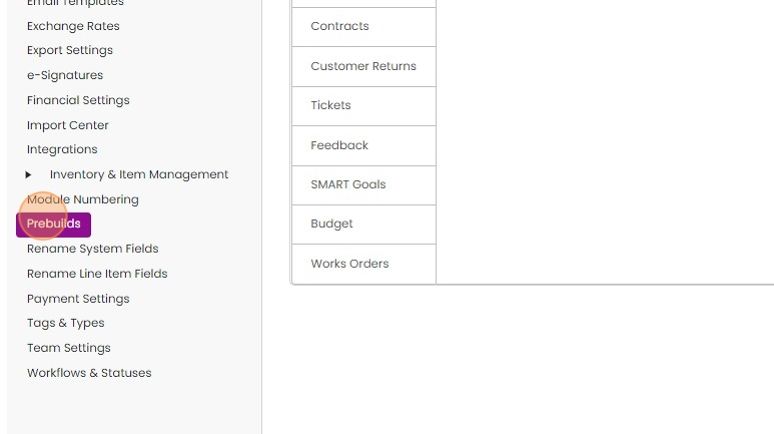
  2. Click "Prebuilds"

    Settings menu in the left sidebar with
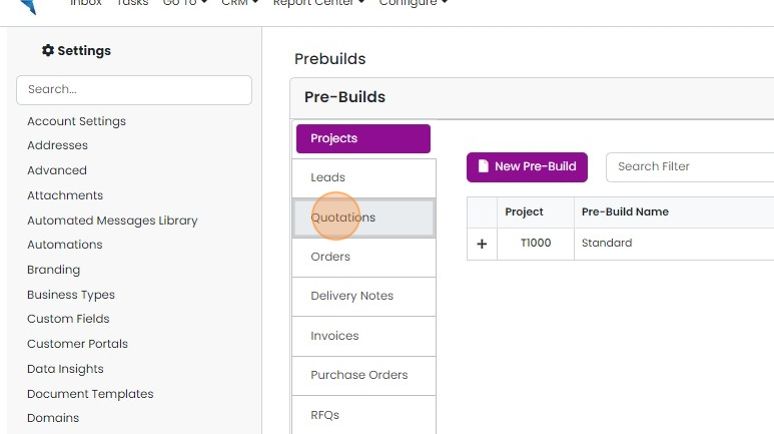
  3. Select the module to work in

    Pre-Builds settings page with the Quotations tab highlighted in the module list below Projects and Leads
  4. Create a pre-build or edit an existing one
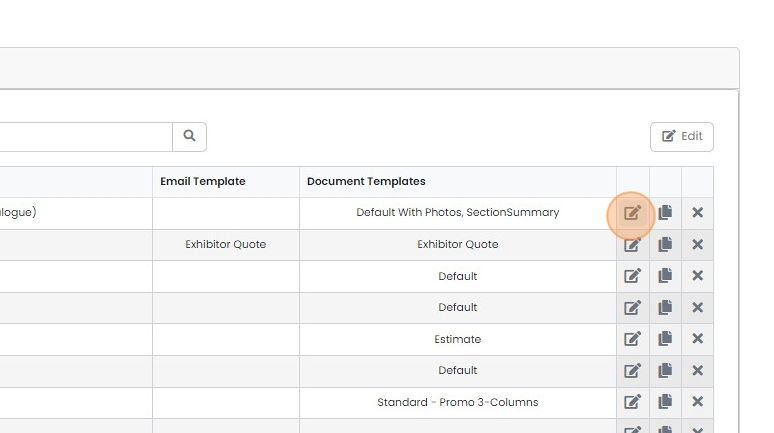
    Playbooks list with Email Template and Document Templates columns, edit icon highlighted on the first playbook row
  5. Click "Questions" tab

    Add a section for a status
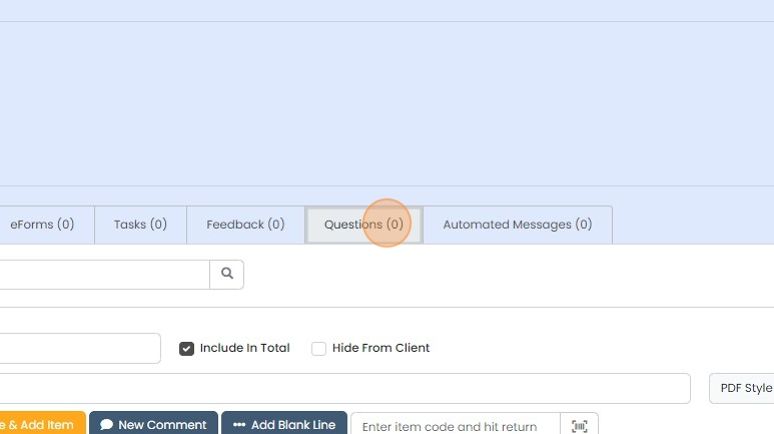
    Record tab bar with the Questions (0) tab highlighted, between Feedback (0) and Automated Messages (0)
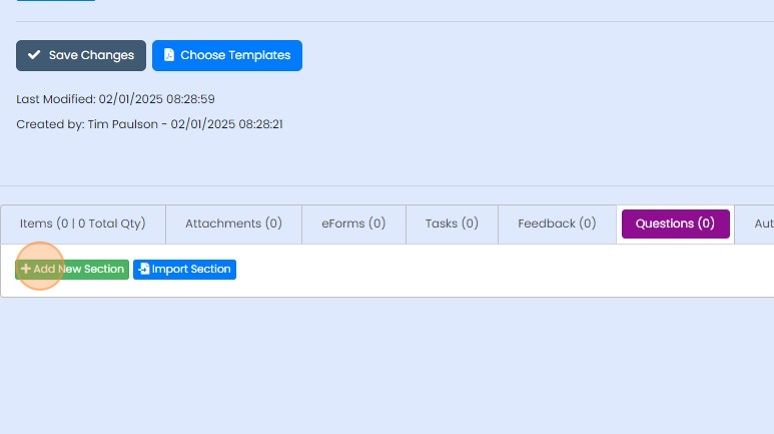
  6. Click "Add New Section"

    Questions tab with the Add New Section button highlighted, next to Import Section, below Save Changes and Choose Templates
  7. Select the status where these questions are activated
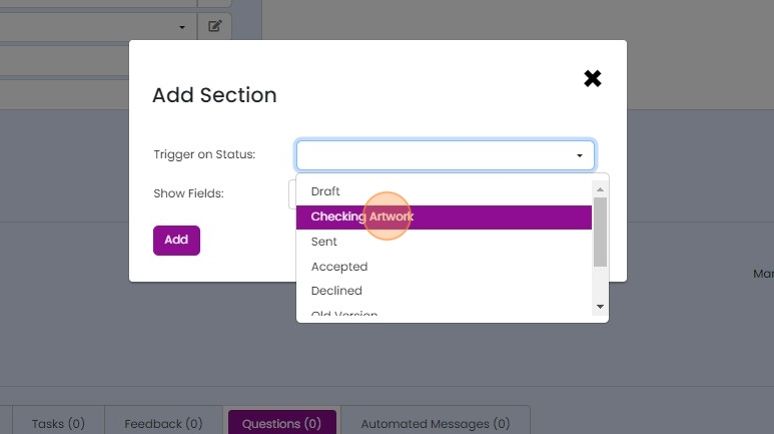
    Add Section dialog with the Trigger on Status dropdown open and the Checking Artwork status highlighted for selection
  8. There are four types of default field selections

    • None - None
    • Basic - Just the company, contact, next and back buttons
    • All Visible Fields - All the fields you have set to be visible for that module
    • All Fields - Including those set to not visible
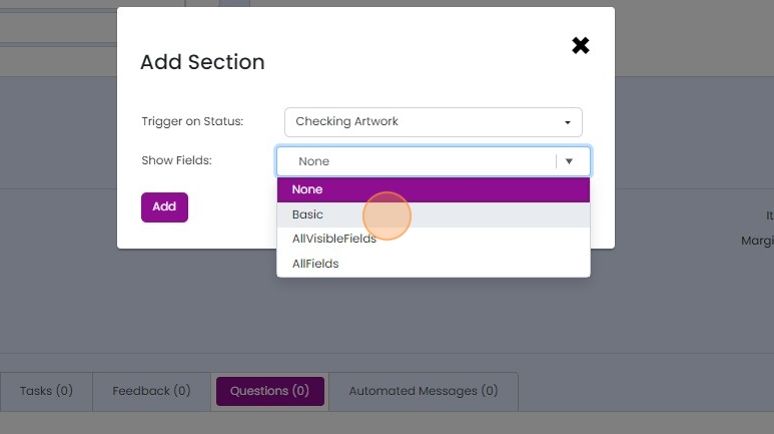
    Add Section dialog with the Show Fields dropdown open, listing None, Basic, AllVisibleFields and AllFields options
  9. Make your selection and click on Add

    Make your selection and click on Add. These fields will now be the only ones shown when the quotation, job/sales order, etc., is moved to this status
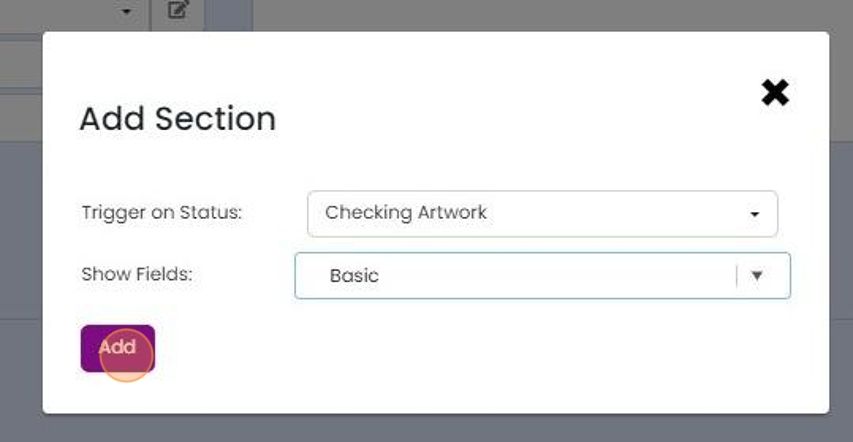
    Add Section dialog with Trigger on Status set to Checking Artwork, Show Fields set to Basic, and the Add button highlighted
  10. To add more system fields, click here
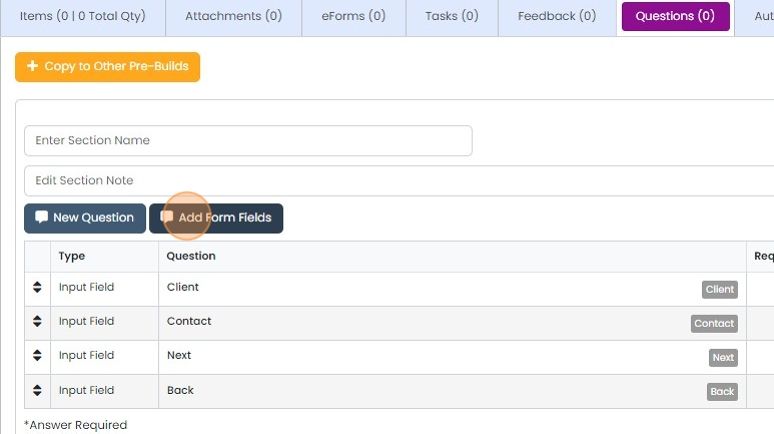
    Questions tab of a pre-build with the Add Form Fields button highlighted, next to New Question above a list of input fields
  11. Click on the fields, buttons or tabs to add
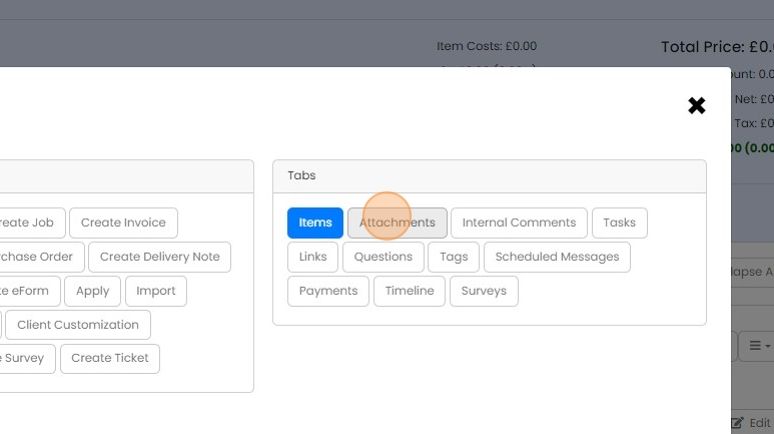
    Customization dialog with Tabs panel listing Items, Attachments, Questions and more, with the Attachments tab highlighted
  12. Click "Save"

    Add status-specific questions
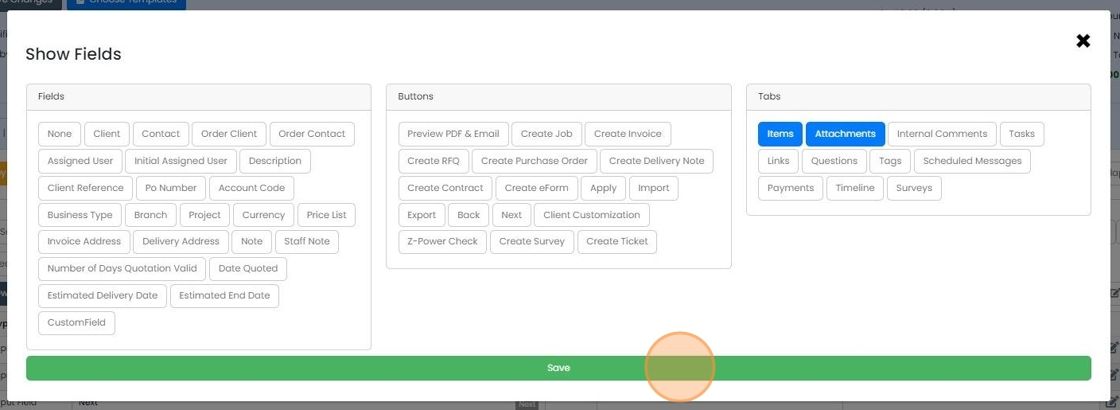
    Show Fields dialog with Fields, Buttons and Tabs panels, Items and Attachments tabs selected, and the Save button highlighted
  13. Add questions that are specific to this status. They are not system or custom fields
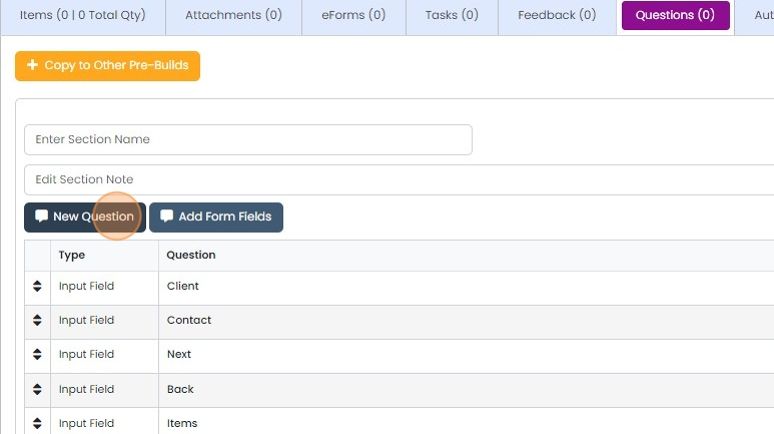
    Questions tab with the New Question button highlighted, above a list of input field questions such as Client and Contact
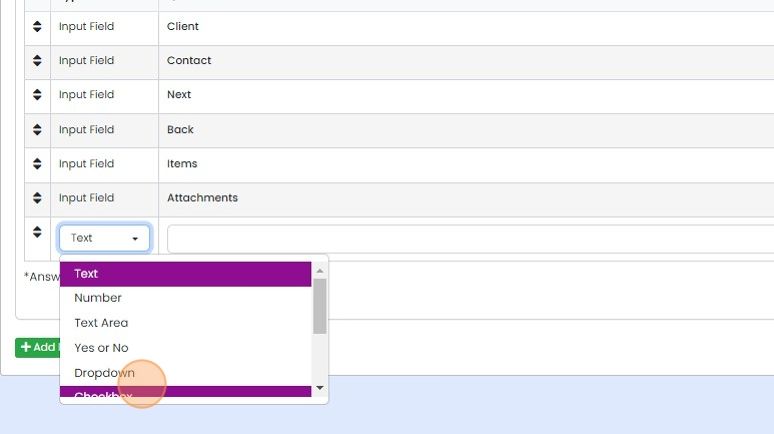
  14. Select the type of question

    Question type dropdown open on a new playbook row, listing Text, Number, Text Area, Yes or No, Dropdown and Checkbox
  15. Give it a label

    Playbook question list with a new Checkbox row added and its empty label text field highlighted for entering a label
  16. Set whether it is required/mandatory before the next page/status can be moved to
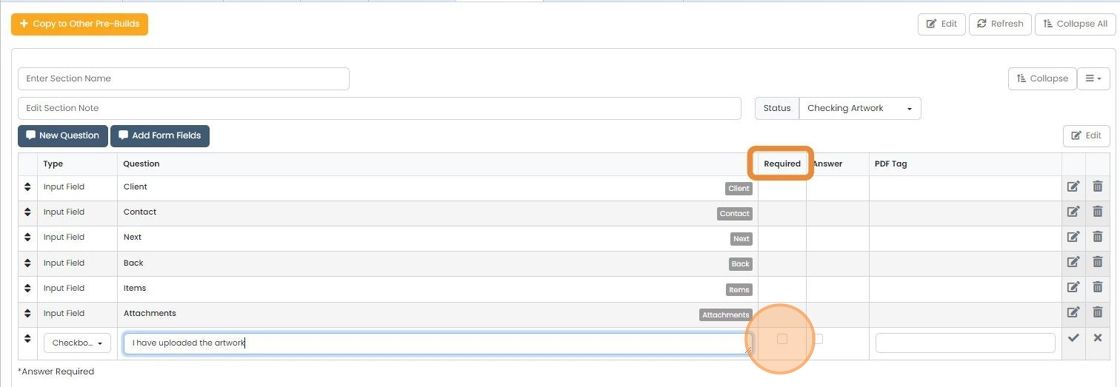
    Pre-build question editor with the Required column highlighted and its checkbox circled for a new Checkbox question row
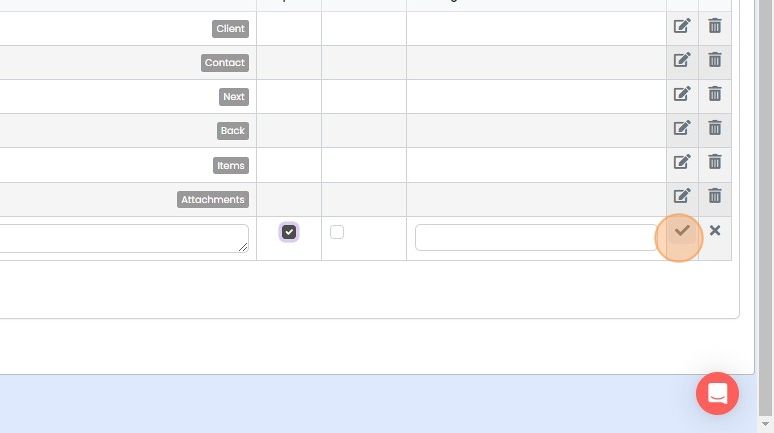
  17. Tick here to confirm

    Playbook steps table with a new row being added, the tick confirm button highlighted at the end of the row
  18. Question field types are

    • Checkbox
    • Date
    • Dropdown
    • Embedded Video
    • Input field (for system or custom fields)
    • Multi-select
    • Number
    • Text
    • Text Area (multi-line)
    • Yes or No
    Question list with the new row's Type dropdown open, showing Text, Number, Text Area and Yes or No options
  19. Custom fields can be added by selecting the field type Input Field, then Custom Field, and then the name...

    Custom fields can be added by selecting the field type Input Field, then Custom Field, and then the name of the custom field
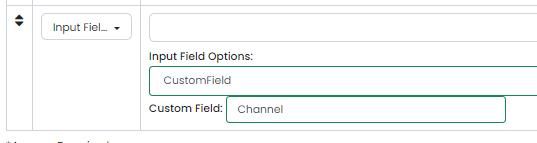
    Playbook question row with Input Field type selected, Input Field Options set to CustomField and Custom Field set to Channel
  20. Add notes to a section to help users understand what they need to do
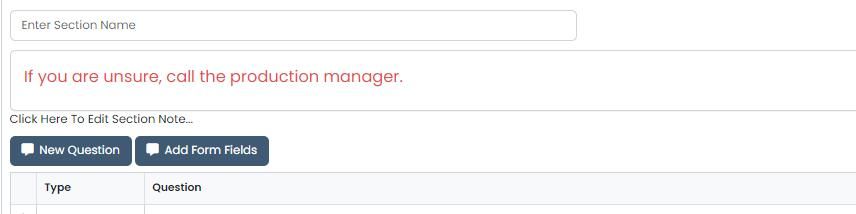
    Playbook section editor with a section note reading
  21. To add another set of questions, click "Add New Section"
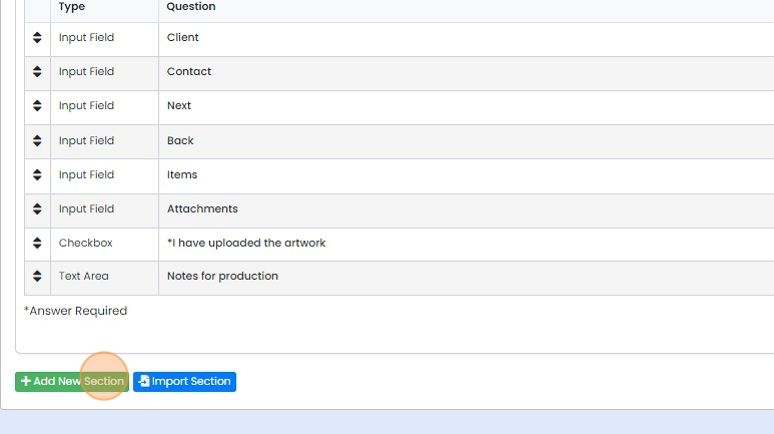
    Question list with input field, checkbox and text area rows, with the green Add New Section button highlighted below
  22. To have another screen for the same status (i.e

    To have another screen for the same status (i.e. you need to pass through two screens or more in one status), select that status again when creating the question set

    How questions work for users
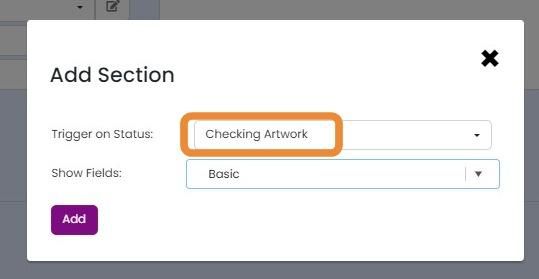
    Add Section dialog with the Trigger on Status dropdown highlighted, set to Checking Artwork, and Show Fields set to Basic
  23. When the resulting quotation, job/sales order, etc., moves to this status, only the specified fields,...

    When the resulting quotation, job/sales order, etc., moves to this status, only the specified fields, buttons, tabs, and questions are shown
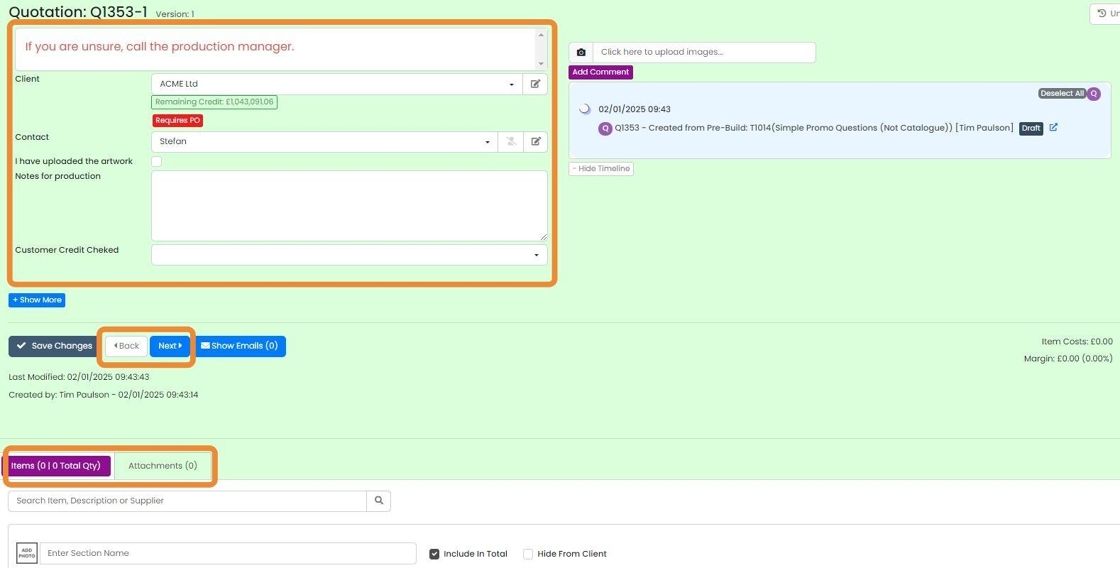
    Quotation screen with only selected fields, the Back and Next buttons, and Items and Attachments tabs highlighted
  24. If the user tries to move to the next page or status without completing all the required fields
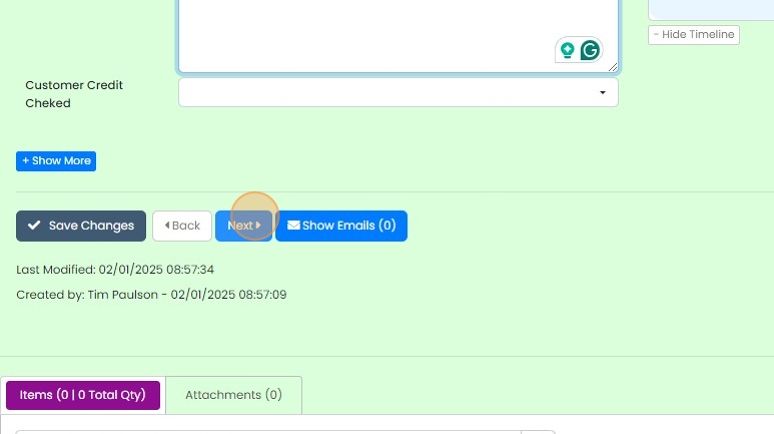
    Record form with the Next button highlighted beside Save Changes, Back and Show Emails, below the Customer Credit Checked field
  25. A message is shown informing the user which question needs to be completed, and they are not allowed to move

    Quotation screen showing a red error banner reading

Questions or Playbooks allow you to:

  • Guide your team through your processes with screens that change according to their status.
  • Split the fields in a status into two or more screens
  • Make some fields mandatory/required.
  • Use pre-build specific fields

This functionality is only available in these modules:

  • Quotations
  • Jobs/Sales Orders
  • Works Orders
  • Purchase Orders

Open the questions tab

Frequently asked questions

Next step

How to rename, remove or add a statusTo rename, remove or add a status in Zigaflow, click the Cog, choose Workflows & Statuses, pick the module, and click Edit. Change the status description, set whether it is visible, optionally make data editable, then click Save Changes. To change the order, drag and drop the status into place.

Was this helpful?

See Zigaflow on your own workflow

Book a demo and we will walk through quoting, jobs and purchasing the way your team runs them.

Or see how Zigaflow would fit your business, free