Get set up
Set up automated SMS messages
The short answer
To set up automated SMS messages in Zigaflow, go to Prebuilds, choose a module such as Jobs, open Automated Messages, and edit or create a message. Tick the checkbox at the bottom, add the tag {ClientContactCellphone} to the Mobile box, preview it, then copy it to other pre-builds.
Steps
Click here

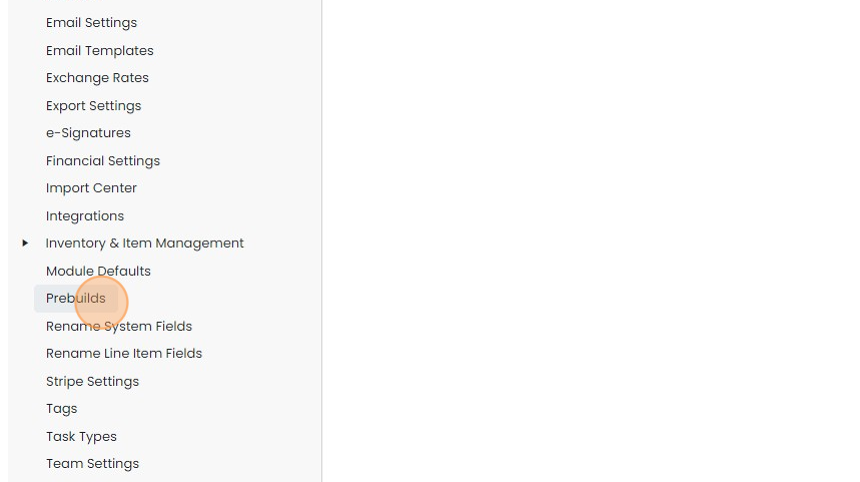
Click "Prebuilds"
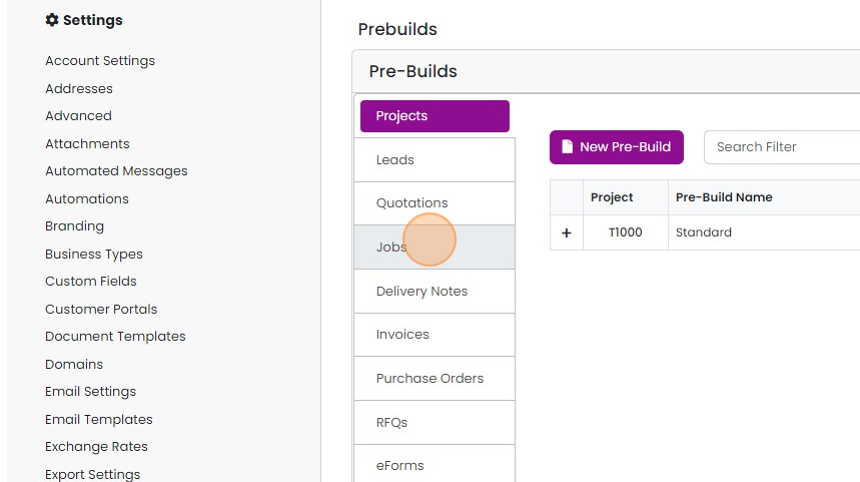
In this example, we will add an SMS message to a Jobs/Sales Order automated message, so click "Jobs"
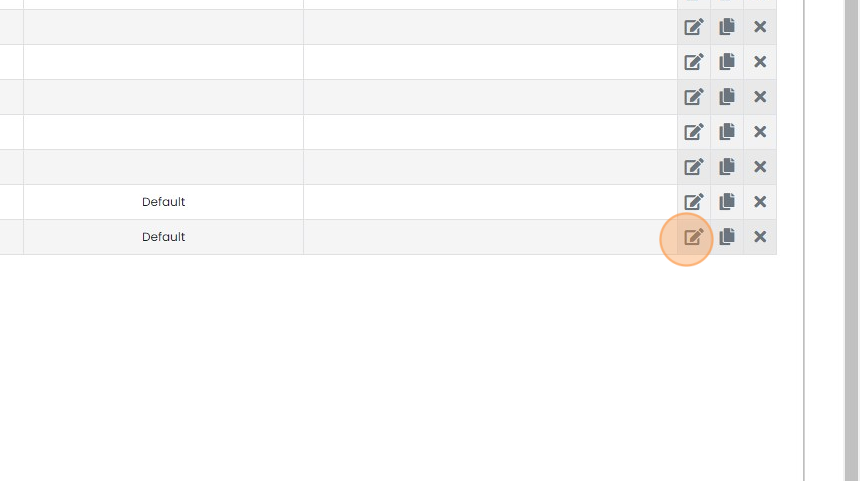
Click here
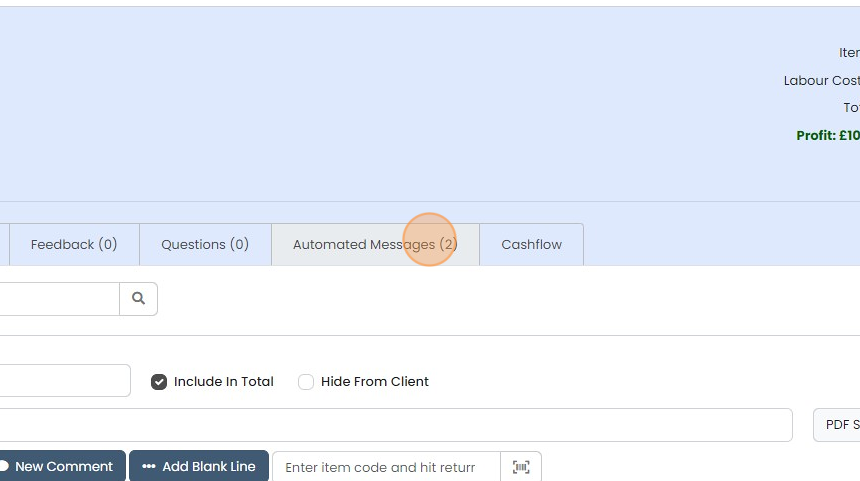
Click "Automated Messages"
Add SMS to the message
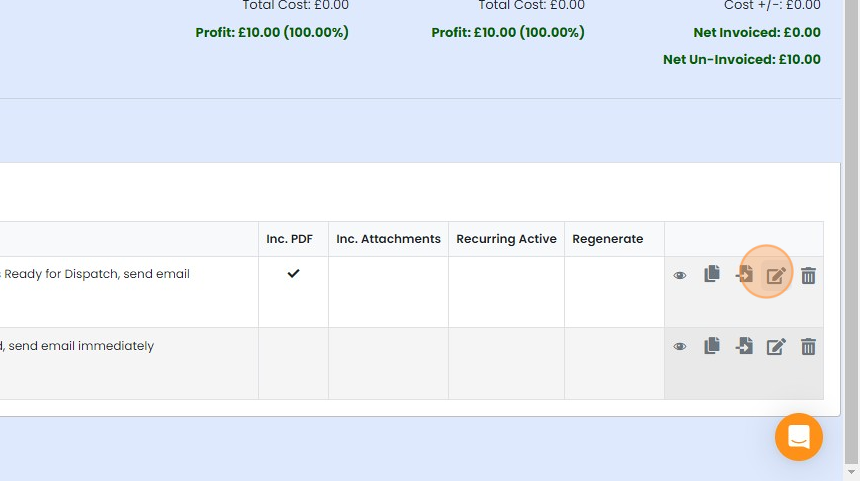
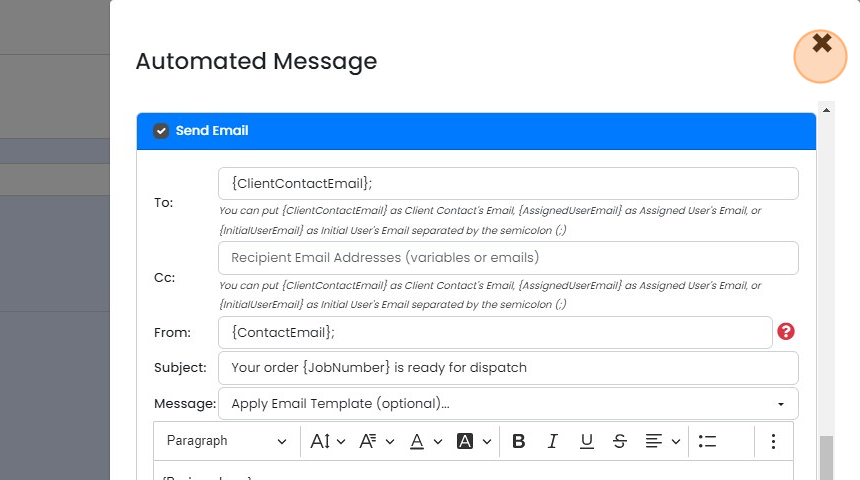
Edit the automated message or create a new one
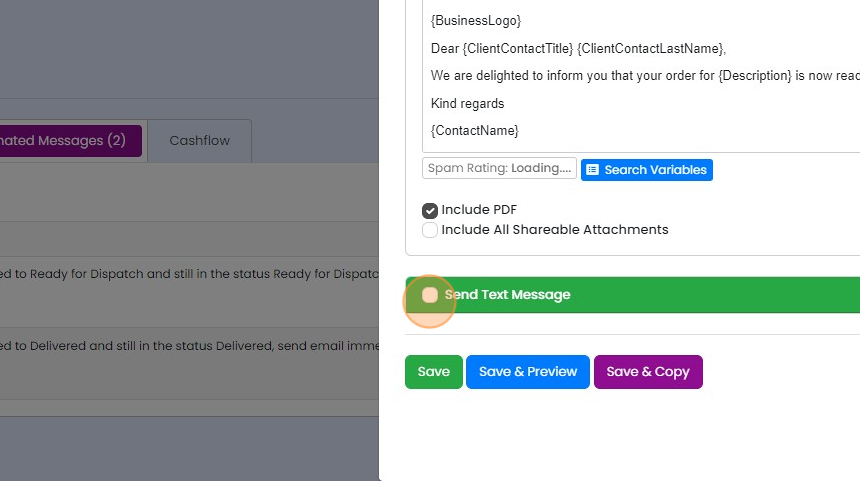
At the bottom of the message, click this checkbox
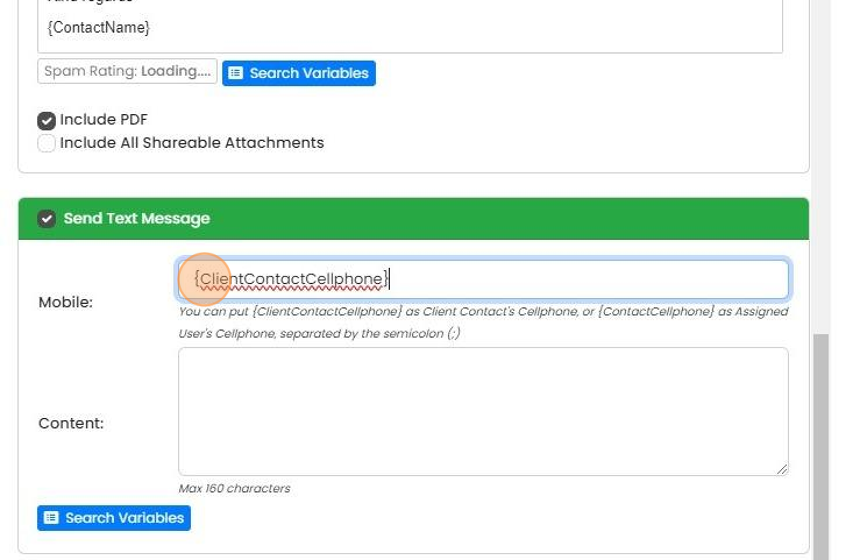
Add the tag {ClientContactCellphone} to the "Mobile" box
Preview the SMS
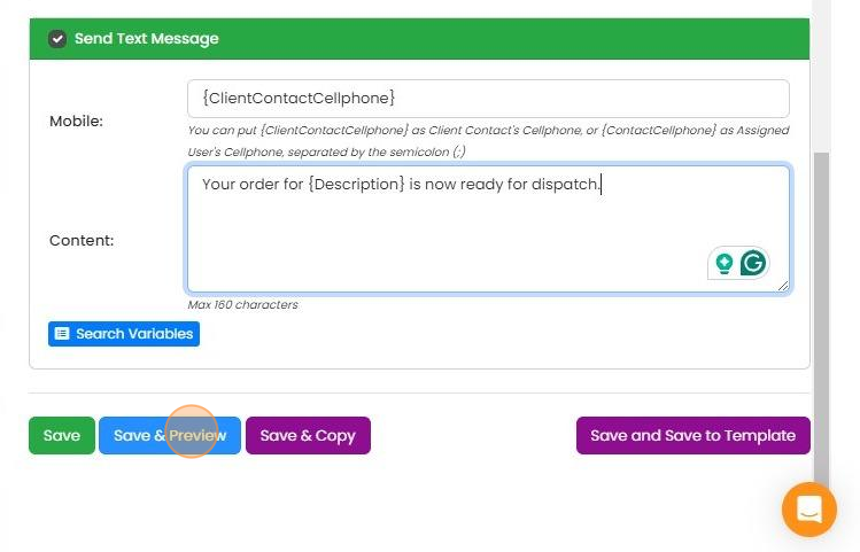
Check that the message works - click on "Save & Preview"
Click "SMS Preview"

"NOT VALID" is fine, as it will resolve to the customer's number when the message is created
"NOT VALID" is fine, as it will resolve to the customer's number when the message is created. Click "×" to close
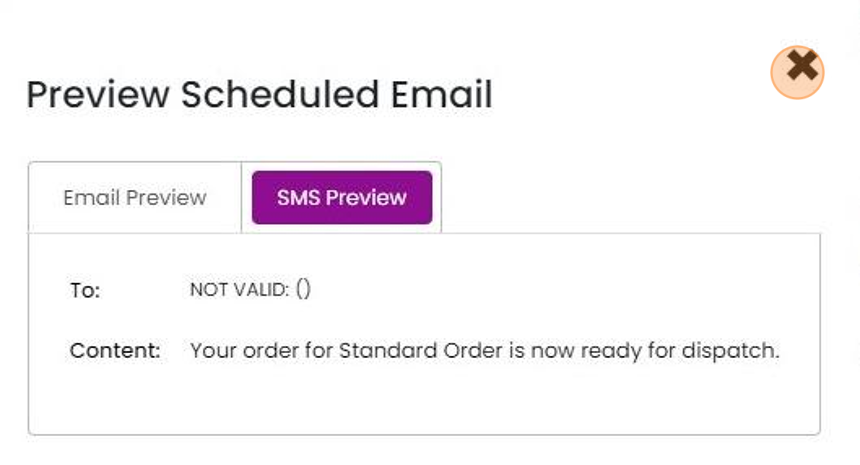
Click "×"
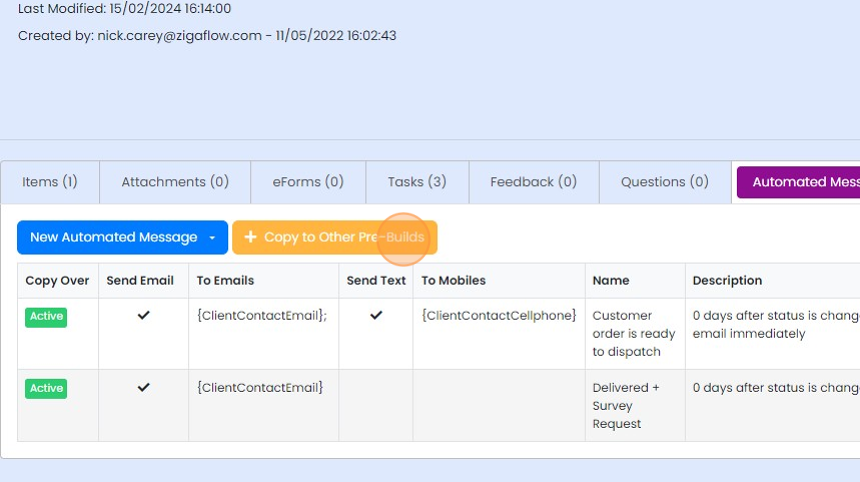
Copy to other pre-builds
To push this to other pre-builds, click "Copy to Other Pre-Builds"
Learn more: automations in Zigaflow


If you are in the USA or Australia, you must contact us before sending SMS messages due to country-specific regulations.
In this example, we add SMS messaging to a Job/Sales Order pre-build, but it works in precisely the same way for all the other modules.
Open automated messages
Frequently asked questions
Was this helpful?