Get set up

Setting the visible columns and panel fields

In Zigaflow

The short answer

Admin users set the default visible columns on list screens and the fields on panel views by clicking the screen options icon, then the settings/cogs icon. From there you can add a named view set and hide or show columns. Once saved, any user can switch between the view sets.

Steps

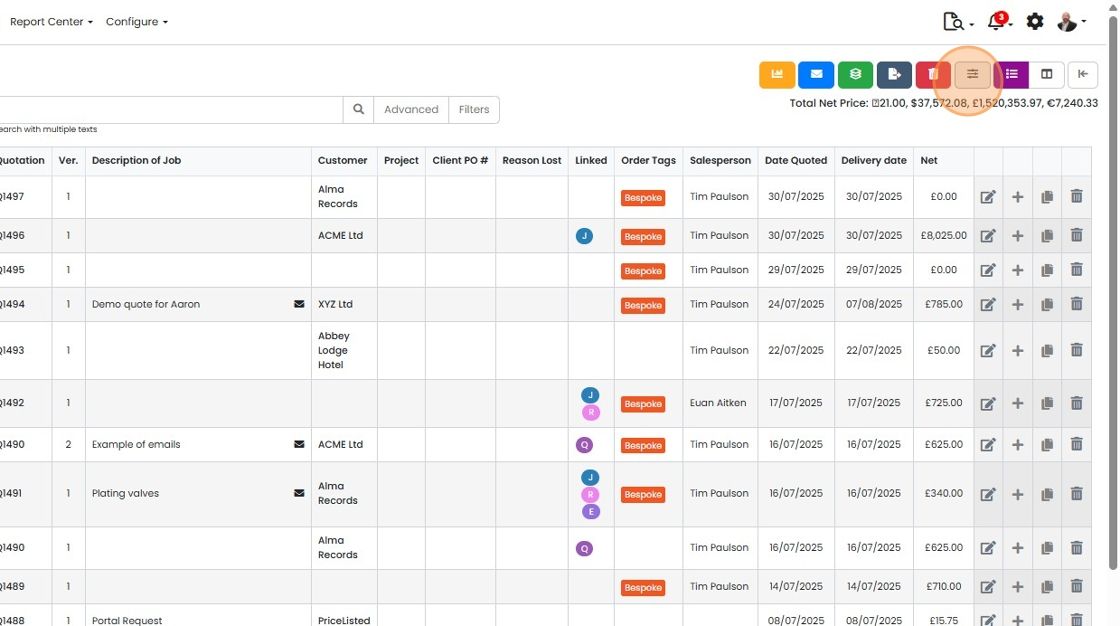
  1. Click on the screen options icon

    Quotes list with the screen options icon highlighted in the toolbar above the table, next to the purple list button
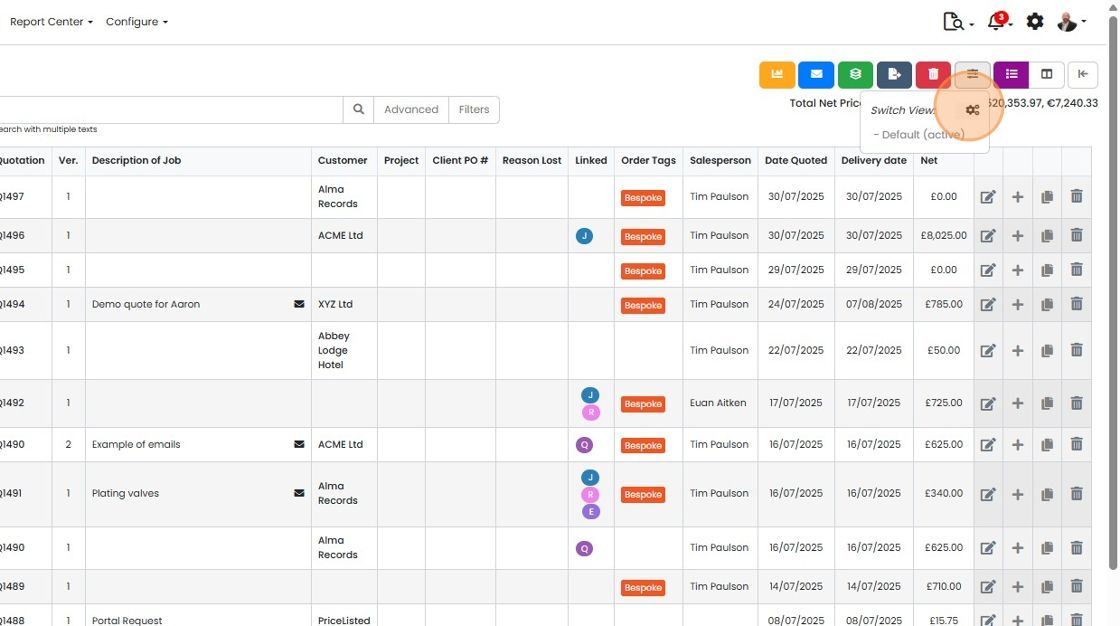
  2. Click on the settings/cogs icon

    Quotation list with the Switch View dropdown open, highlighting the cogs settings icon beside
  3. To add a new view set, click on the plus button
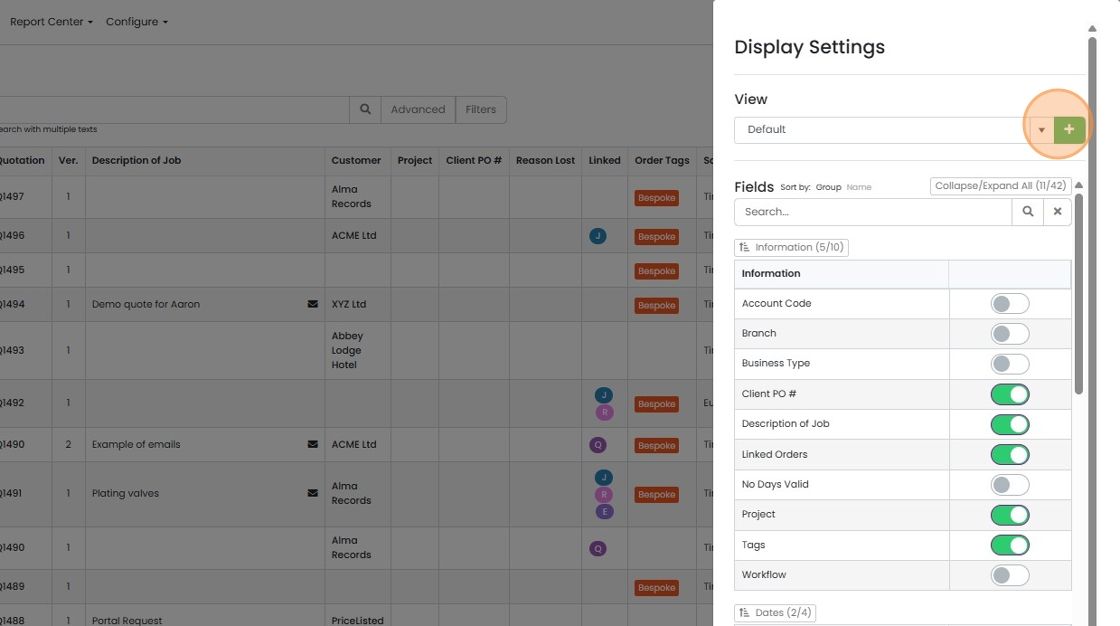
    Display Settings panel over the quotation list, with the green plus button next to the View dropdown highlighted
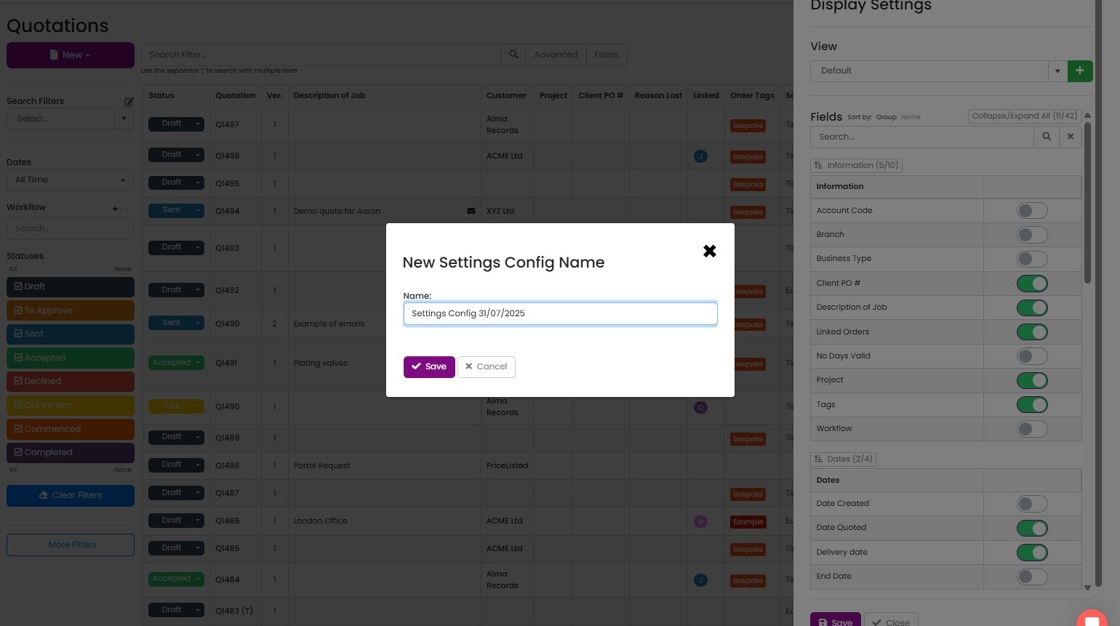
  4. Give the view set a name

    New Settings Config Name dialog over Quotations Display Settings, with the Name field filled in and the Save button ready
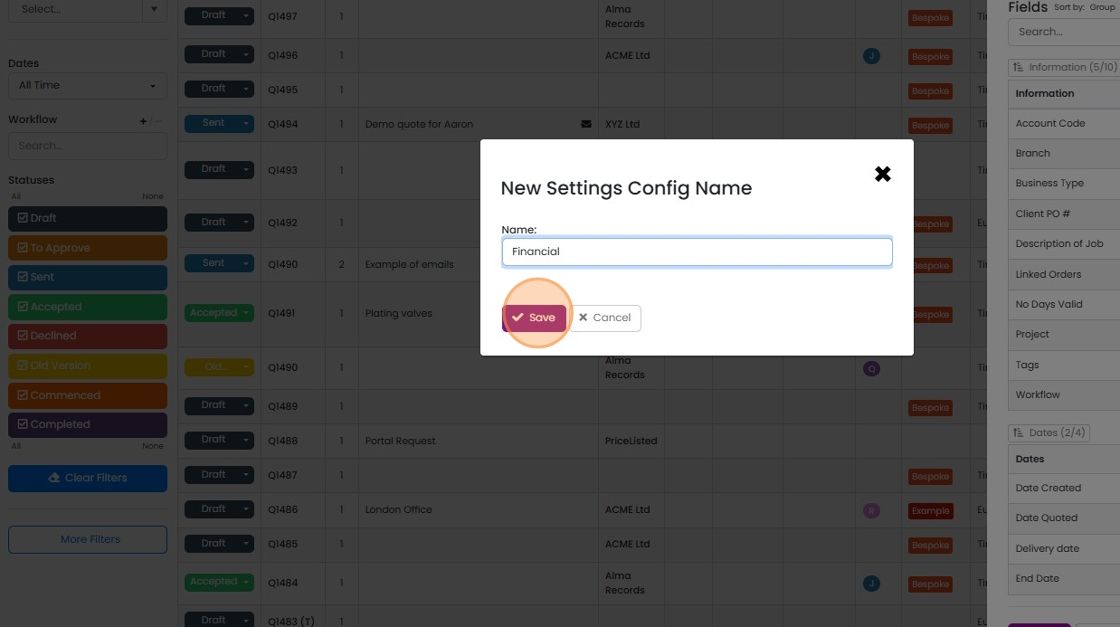
  5. Click "Save"

    New Settings Config Name dialog with
  6. Hide or show columns for this column set
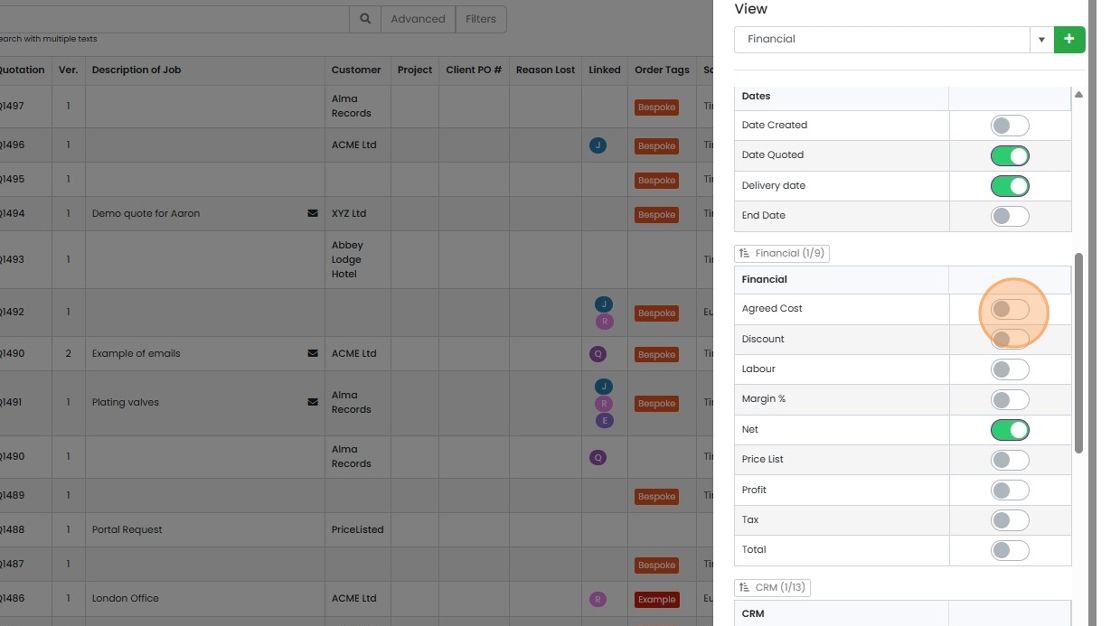
    Quotations list View panel for the Financial column set, with the Agreed Cost toggle highlighted in the Financial section
  7. When you have made all your changes, click "Save"
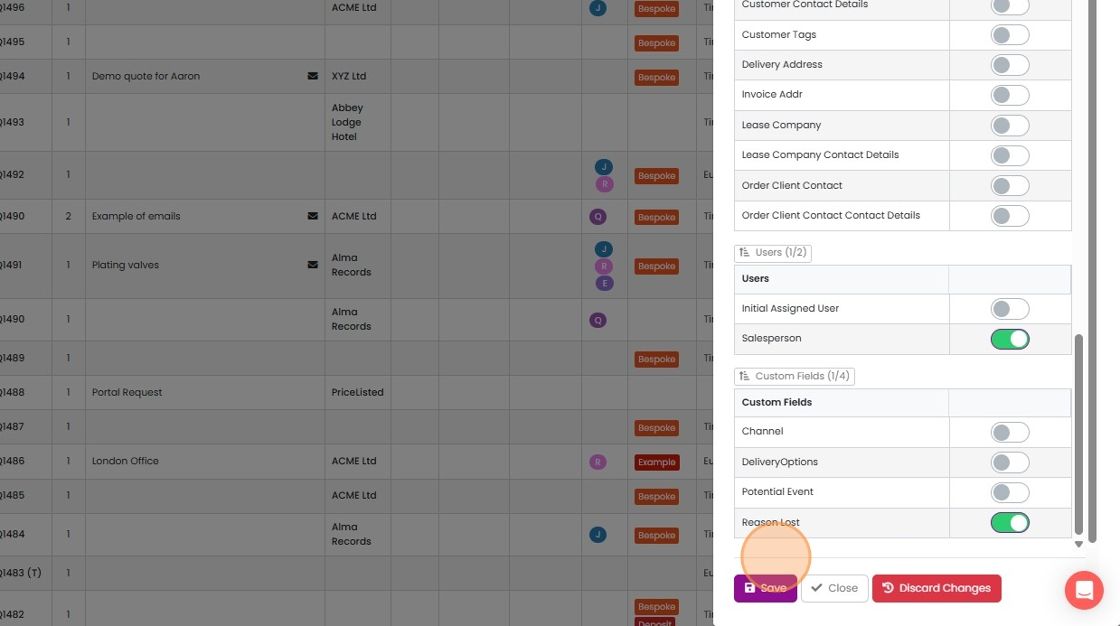
    Column settings panel with Salesperson and Reason Lost toggled on, and the Save button highlighted at the bottom
  8. Click "Close"

    Switch between view sets
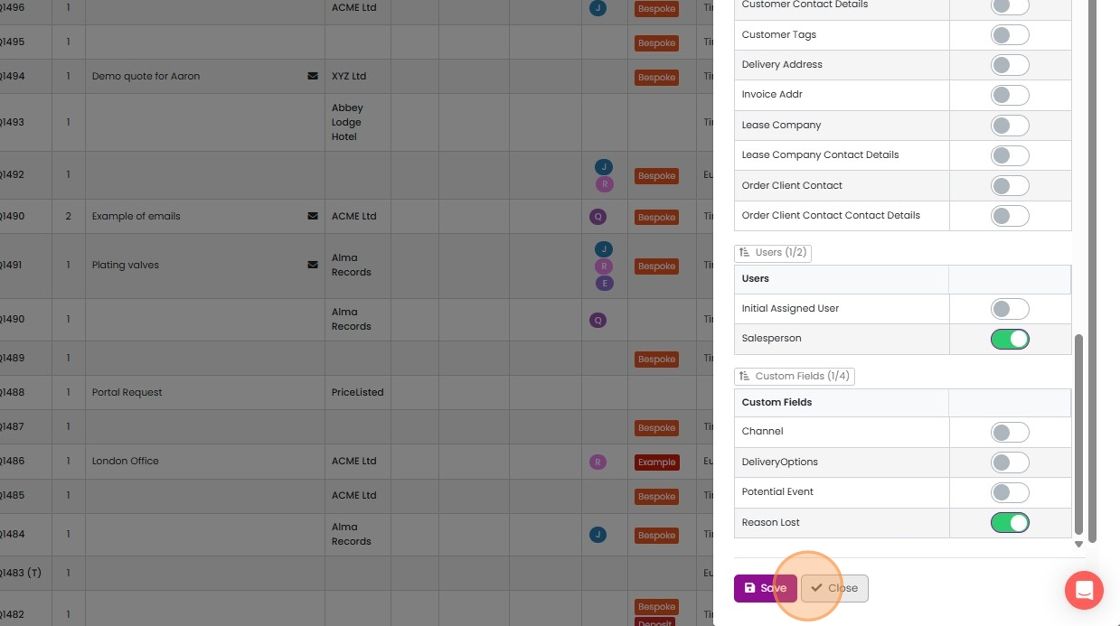
    Column settings panel with Salesperson and Reason Lost toggled on, and the Close button highlighted next to Save
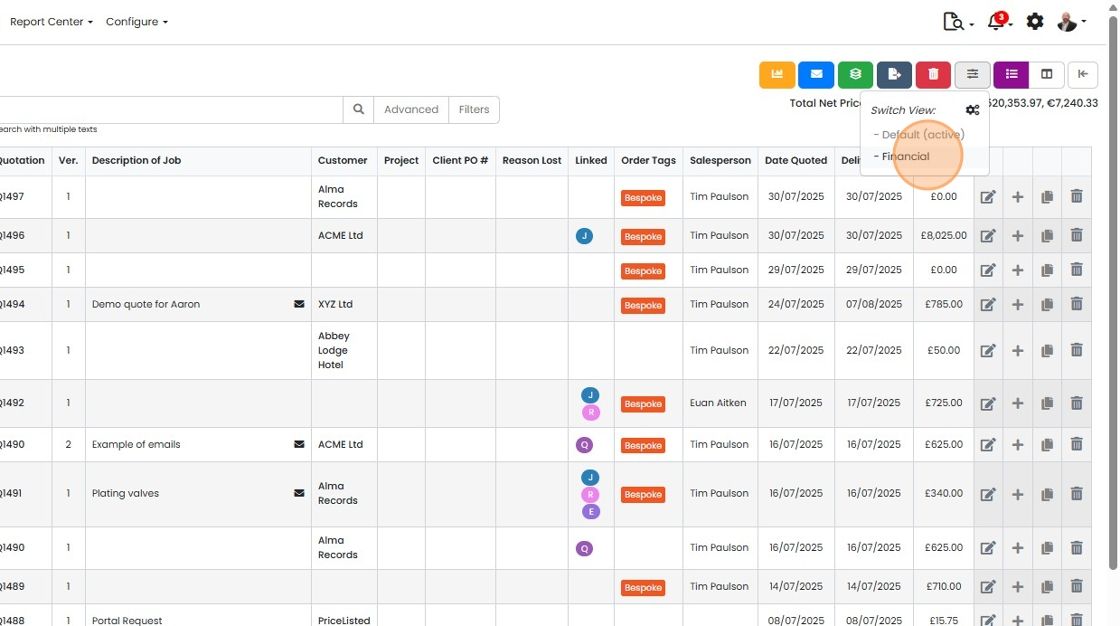
  9. To switch between the view sets, click here
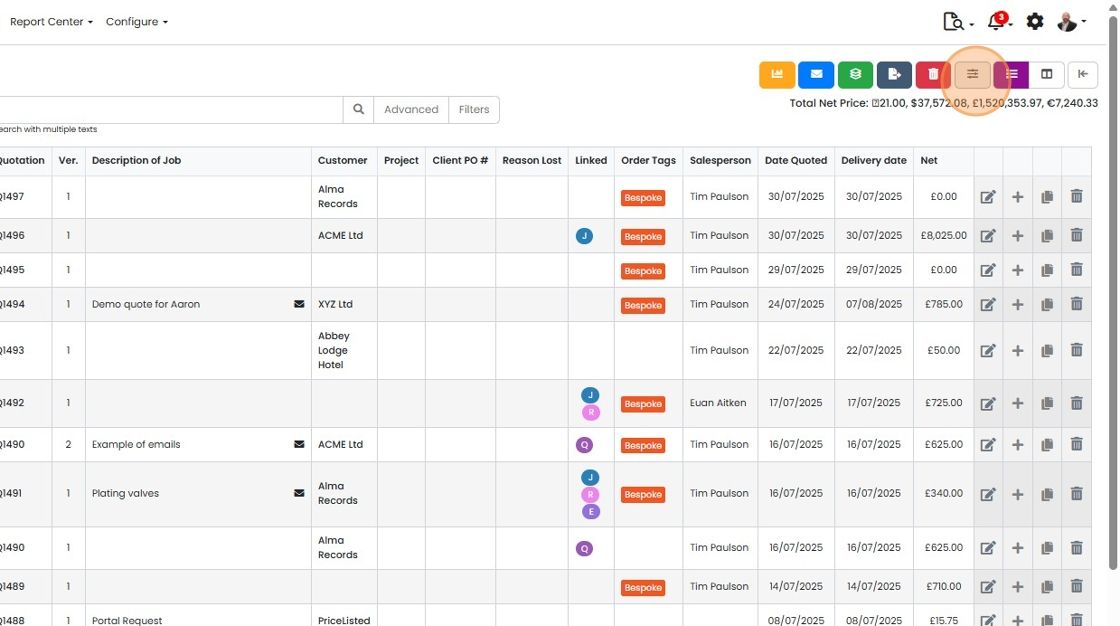
    Quotes list with the sliders icon button highlighted in the top-right toolbar, used to switch between column view sets
  10. Select the desired view

    Quotations list with the Switch View dropdown open, highlighting the Financial option below Default (active)

This applies to the list screens, for example, Go To -> Quotations, to the list view, kanban/panel and calendar view (if one exists for that module).

The views and default columns can only be set by admin users. However, views already set up can be swapped by all users.

For example, a user can quickly switch between panel views:

Quote card in the Accepted column showing delivery date, net, profit, a Bespoke tag and a task list in panel view

To this:

Accepted column card showing quote number, Delivery date, End date, description and Bespoke tag after adding panel fields

Create a new view set

Frequently asked questions

Next step

Set what columns and fields to display (show/hide)Click Go To, choose Quotations, then click Screen Options and use the toggle next to each field to show or hide it. The same works for the top of the edit screen and the items grid. You need Admin access to see the Screen Options button.

Was this helpful?

See Zigaflow on your own workflow

Book a demo and we will walk through quoting, jobs and purchasing the way your team runs them.

Or see how Zigaflow would fit your business, free