Get set up
Setting up price lists
The short answer
To set up a price list in Zigaflow, click the Cog, then Financial Settings, then Price Lists, then New Price List. Type a name and description and choose the currency it applies in. You can then add prices one at a time or import them from a spreadsheet.
Steps
Click on the Cog
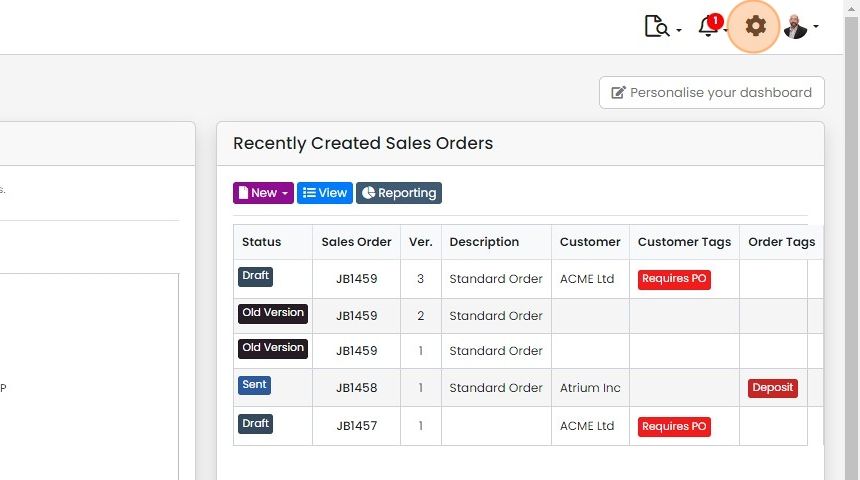
Click "Financial Settings"
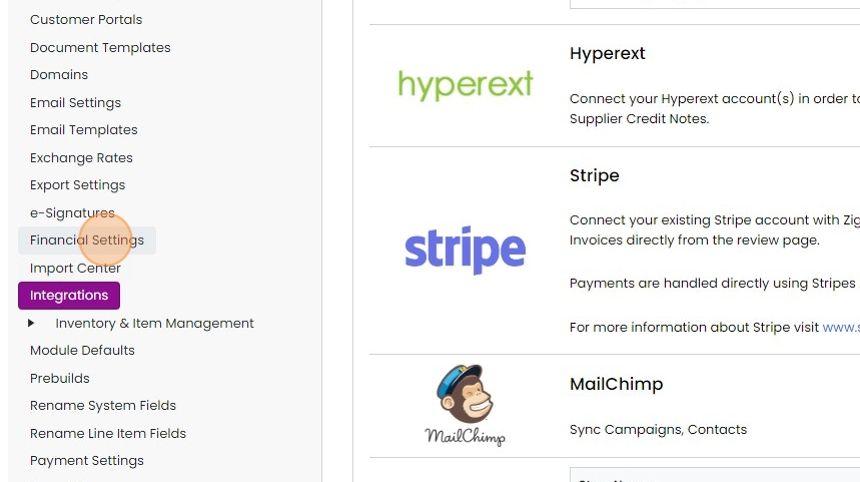
Click on 'Price Lists'
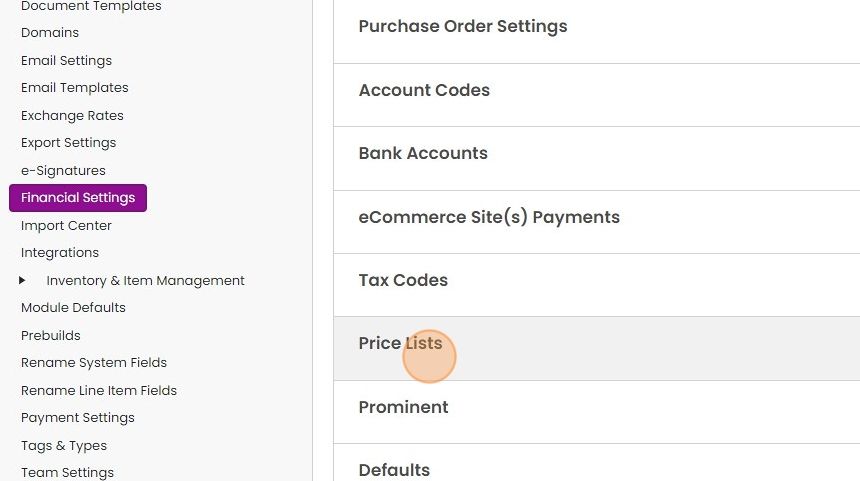
Click "New Price List"
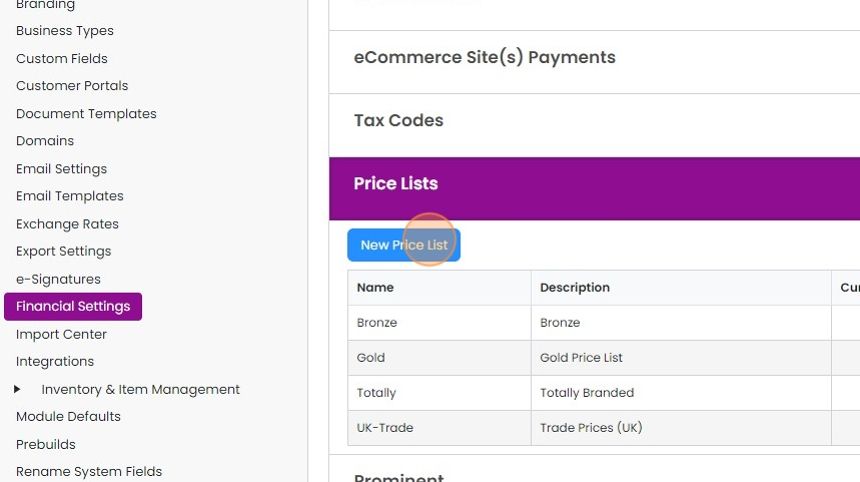
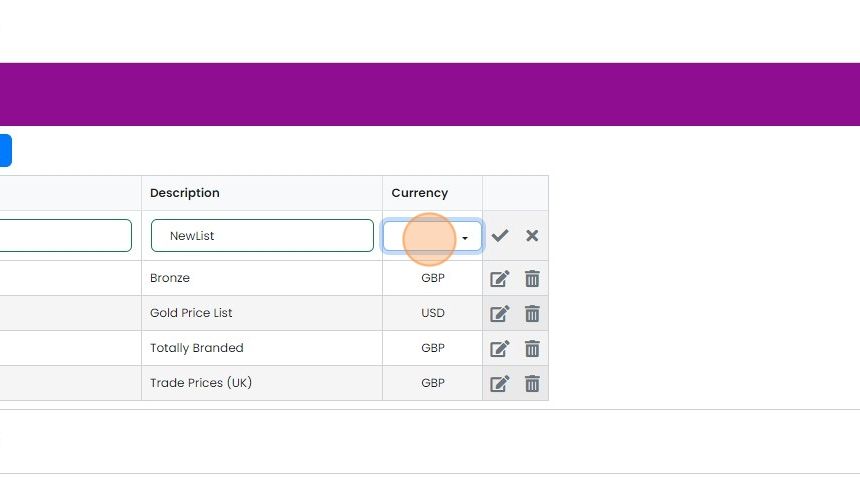
Type in the name and description
And the currency that it to applied in
Import prices from a spreadsheet
You can add the prices individually, more are more likely to import from a spreadsheet
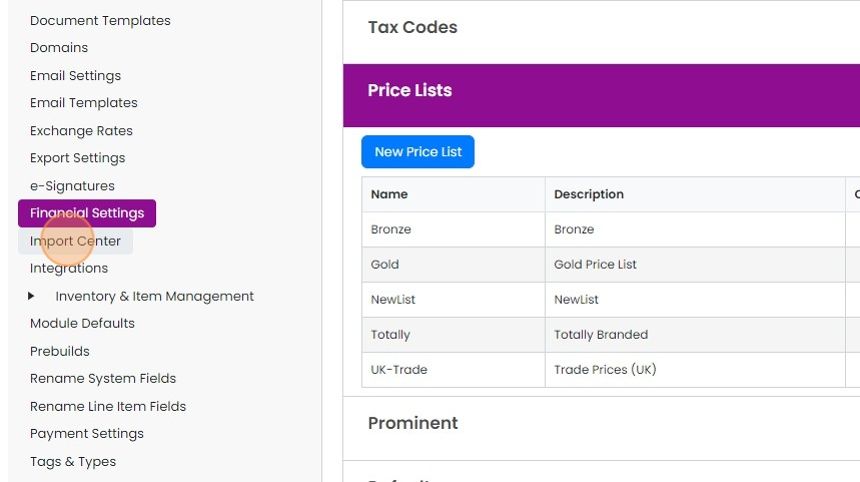
You can add the prices individually, more are more likely to import from a spreadsheet. To do this, click the 'Import Center'
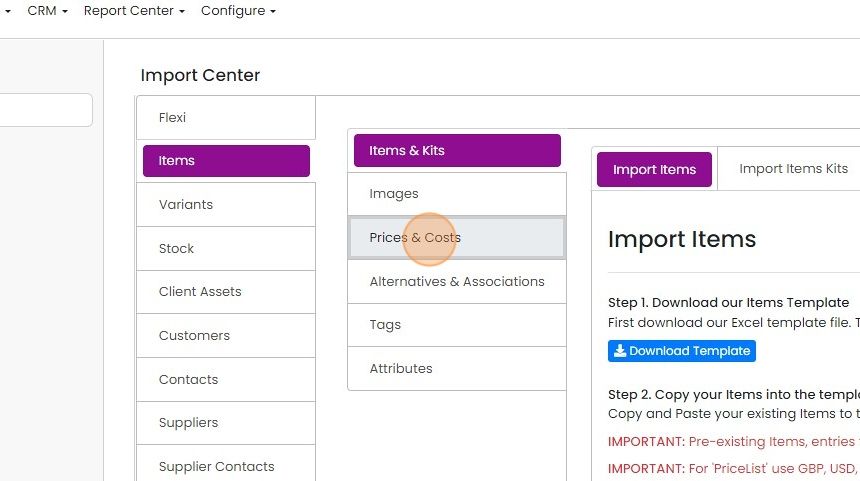
Click 'Items' then 'Prices & Costs'
Click 'Import Items Price Lists'

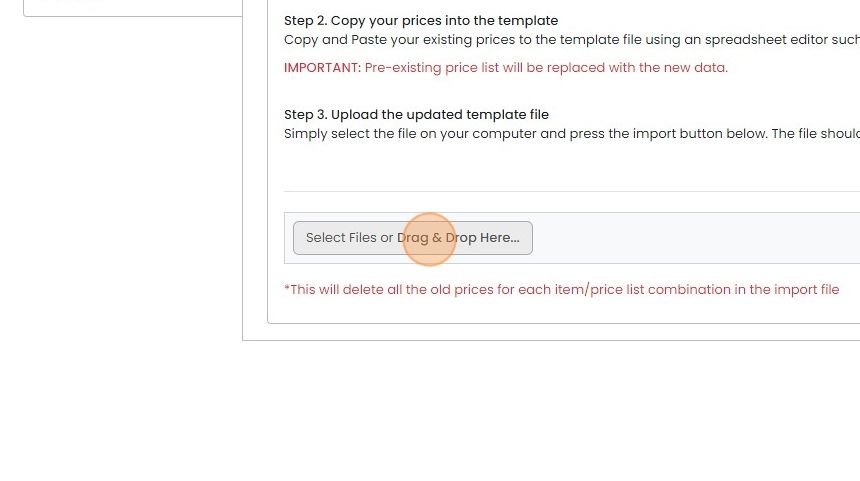
Click 'Drag & Drop Here...' to upload the file
The import file should have the item code, the price list it is to be set up, the price and the...
The import file should have the item code, the price list it is to be set up, the price and the breakpoint- which is zero if it is for any quantity

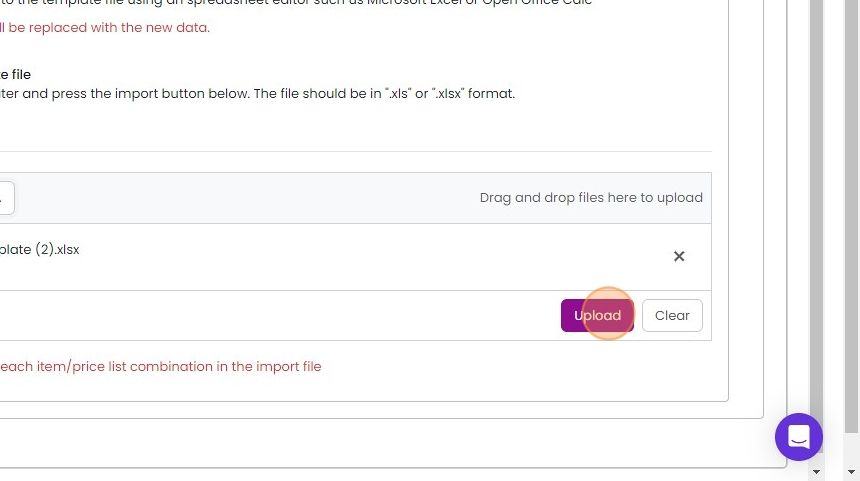
Click "Upload"
Open the item and click 'Price List to see the price uploaded
Use a price list on a quotation

When you add the product with price list set to the default, it will use the default price - in this case...
When you add the product with price list set to the default, it will use the default price - in this case £30.00
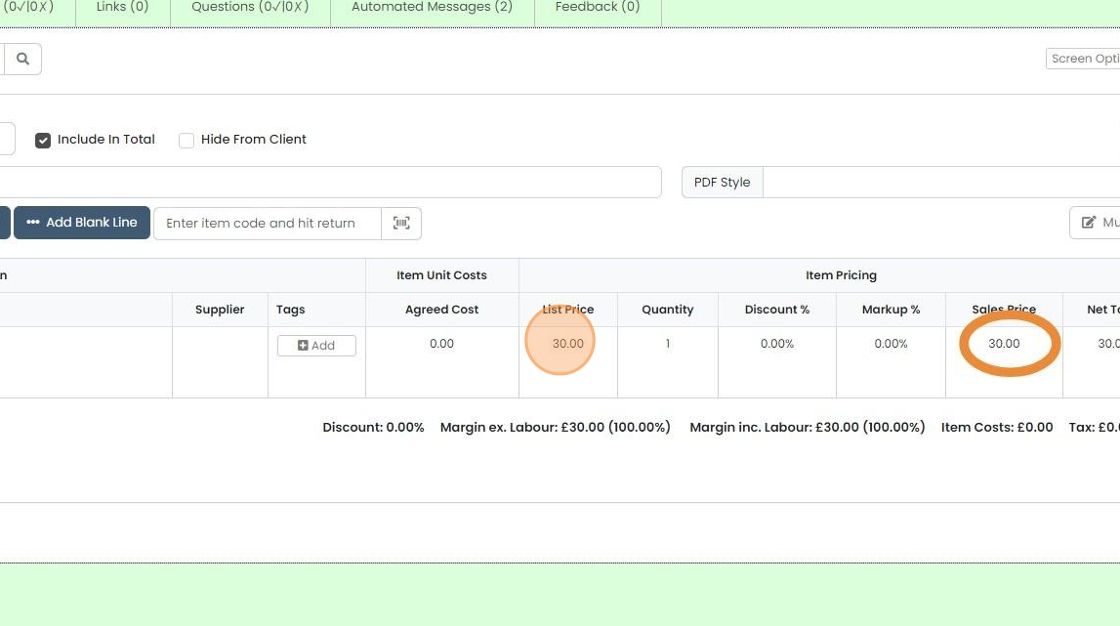
To use the new price list, click on the 'Price List' dropdown and select it

The new price is now used
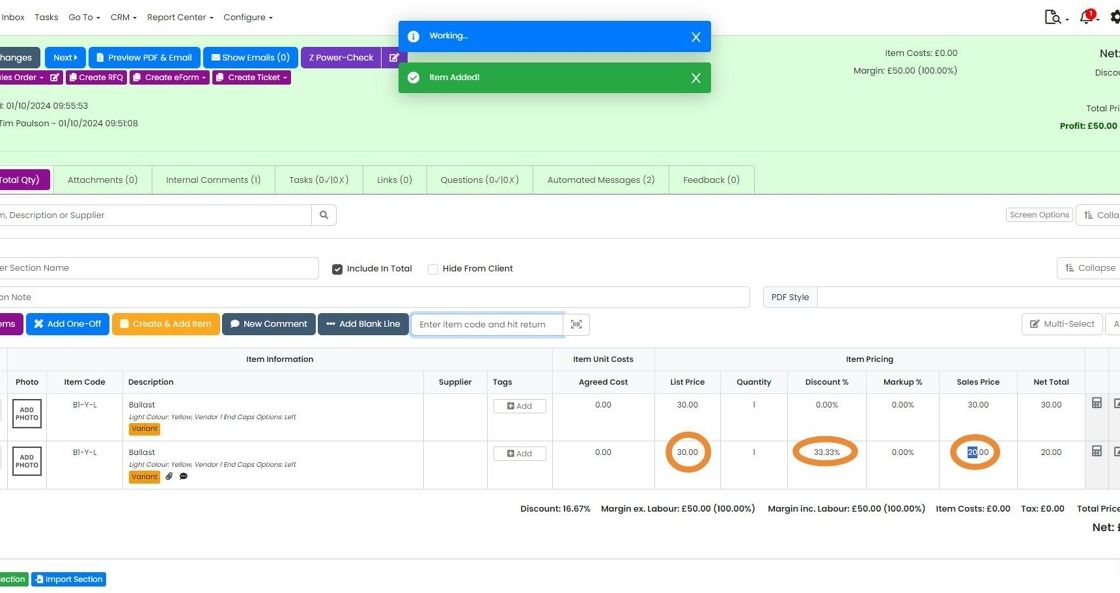
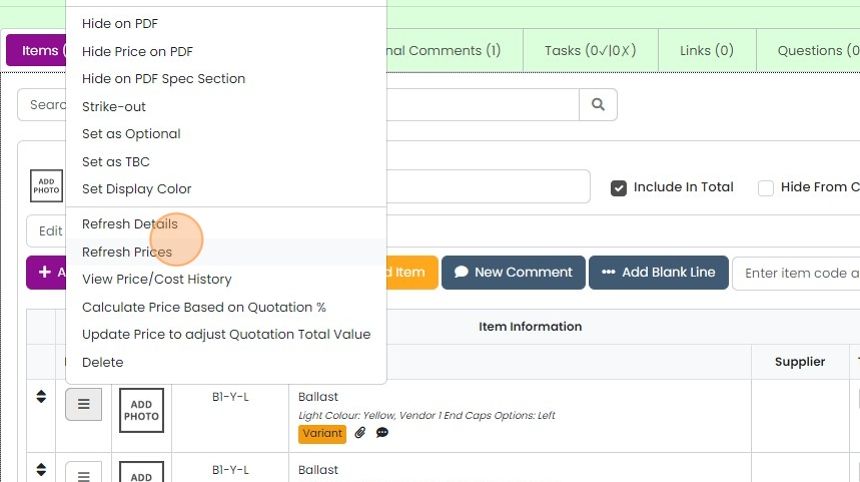
If you already had items on the quotation before changing the price list, click on the menu item for that item
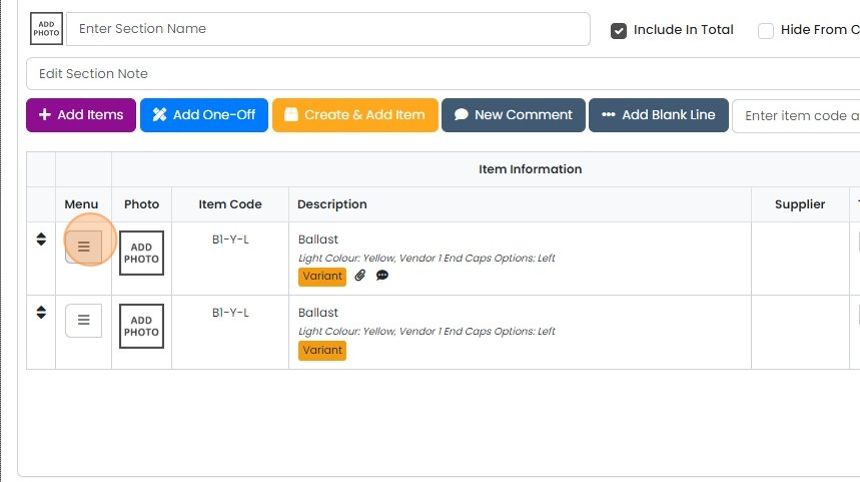
And click on 'Refresh Prices'. Or use the 'Apply' button to refresh more than one item
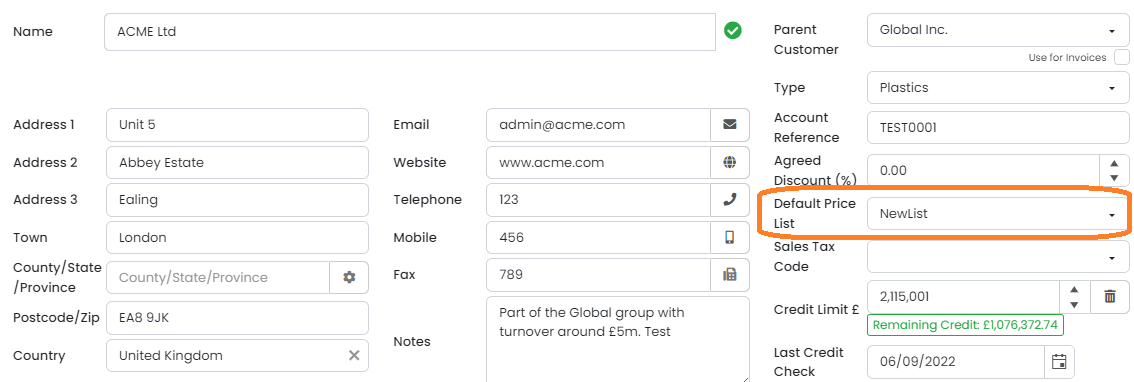
Note that you can set the default price list for a customer in their edit page
Learn more: quotes in Zigaflow


Create a price list
Frequently asked questions
Was this helpful?