Get set up

Use your logo on screens

In Zigaflow

The short answer

To use your logo on screens in Zigaflow, click the cog icon, then click Branding. Click the upload button or drag and drop your logo file. Your logo then appears on the page and in the menu bar. If it does not show in the menu bar, refresh your browser.

Steps

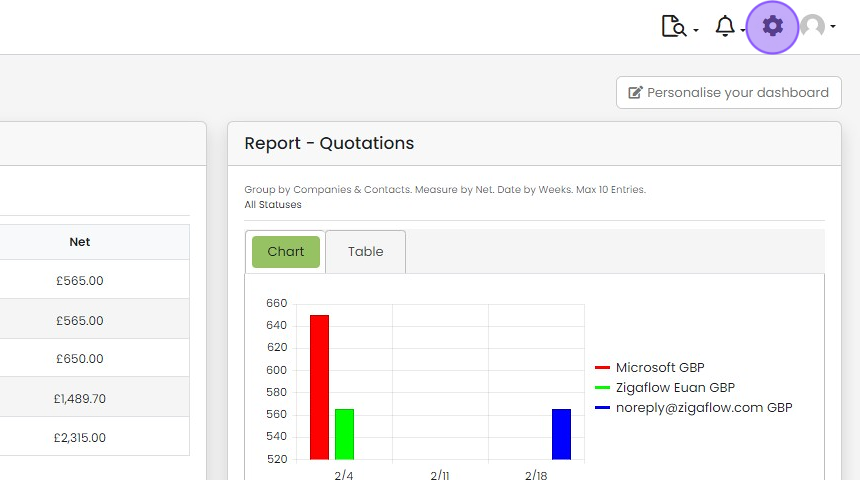
  1. Click on the cog icon

    Zigaflow dashboard with the settings cog icon highlighted in the top-right toolbar beside the notifications bell
  2. Click "Branding"

    Settings menu panel listing options from Account Settings to Exchange Rates, with the Branding option highlighted
  3. Click this button or drag & drop your logo
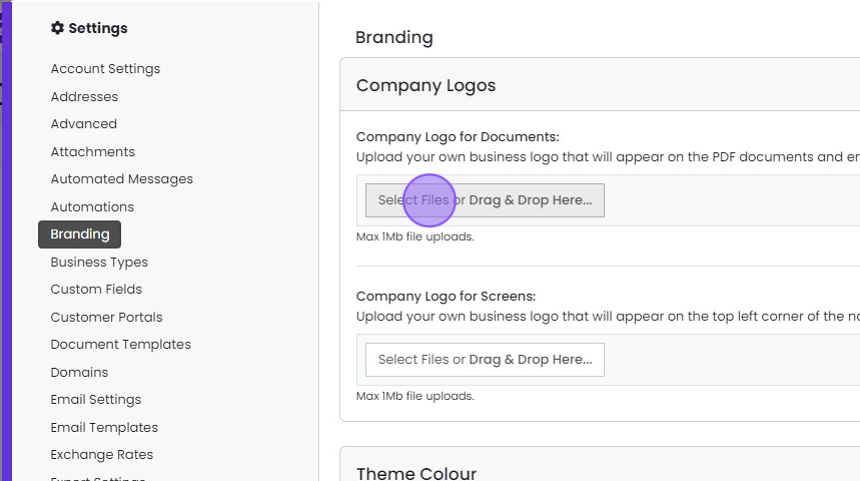
    Branding settings with the Select Files or Drag & Drop Here button highlighted under Company Logo for Documents
  4. Your logo will appear here

    Note: Sometimes you may have to refresh your browser for the logo to appear in the menu bar in your screen
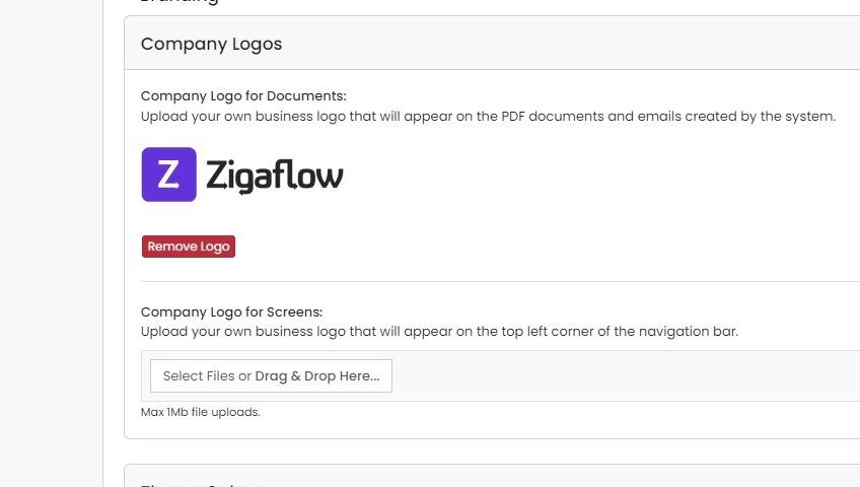
    Company Logos panel showing an uploaded logo with Remove Logo button, above the Company Logo for Screens upload field

Frequently asked questions

Next step

Adding your logo for documents and emailsTo add your logo to Zigaflow documents and emails, click the cog icon, click Branding, then click the upload area or drag and drop your logo file. You only add it once. It then appears in your documents, and you can place it in templates or emails with the {BusinessLogo} variable.

Was this helpful?

See Zigaflow on your own workflow

Book a demo and we will walk through quoting, jobs and purchasing the way your team runs them.

Or see how Zigaflow would fit your business, free