Make it yours

Using reports

In ZigaflowQuotes, Go and Momentum plans

The short answer

To use reports in Zigaflow, go to Report Center and click Report Studio. Choose a module, a type of report, how to group results, a time breakdown, a value and a time period. Then filter with status filters and additional filters, pick a graph type, and click Details to see a list of results.

Steps

  1. Click "Report Center"

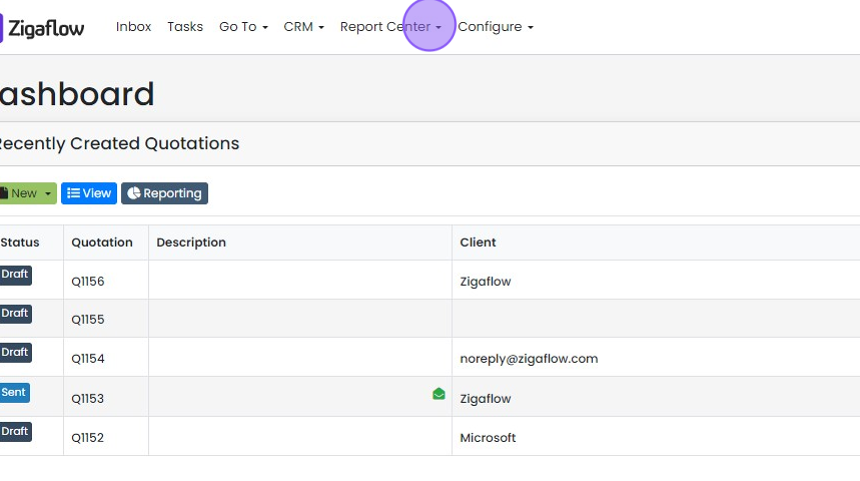
    Zigaflow Dashboard with the Report Center dropdown highlighted in the top navigation bar above Recently Created Quotations
  2. Click "Report Studio"

    Choose what to report on
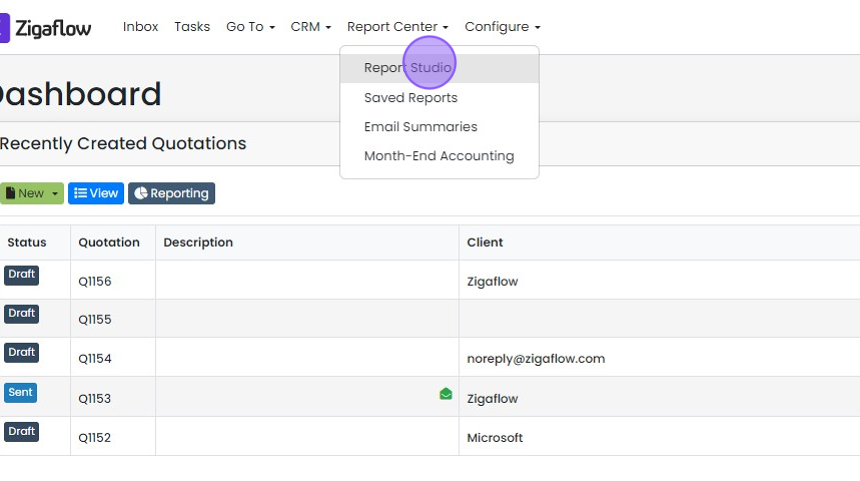
    Report Center dropdown open on the Dashboard with the Report Studio option highlighted at the top of the menu
  3. Choose the module you want to report on
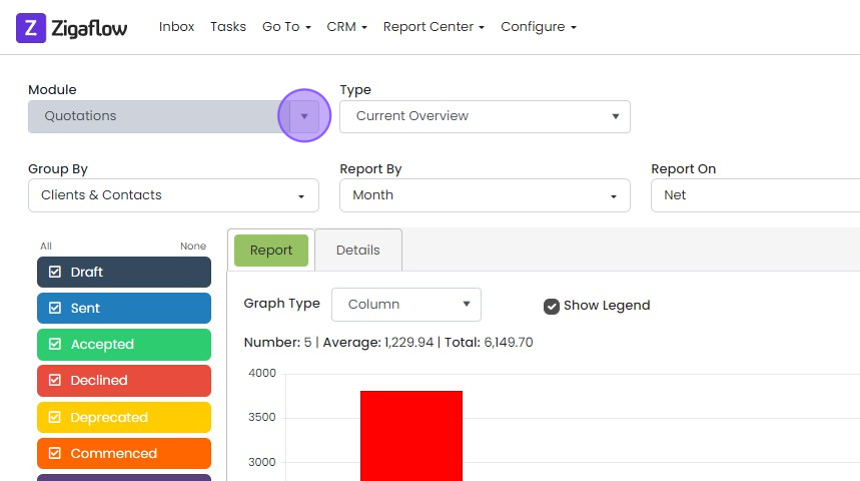
    Report Center screen with the Module dropdown arrow highlighted, currently set to Quotations, above the report chart
  4. Click the type of report you want to view

    Report settings with the Type dropdown arrow highlighted, currently set to Current Overview, above a column graph
  5. Choose how you want to group the results
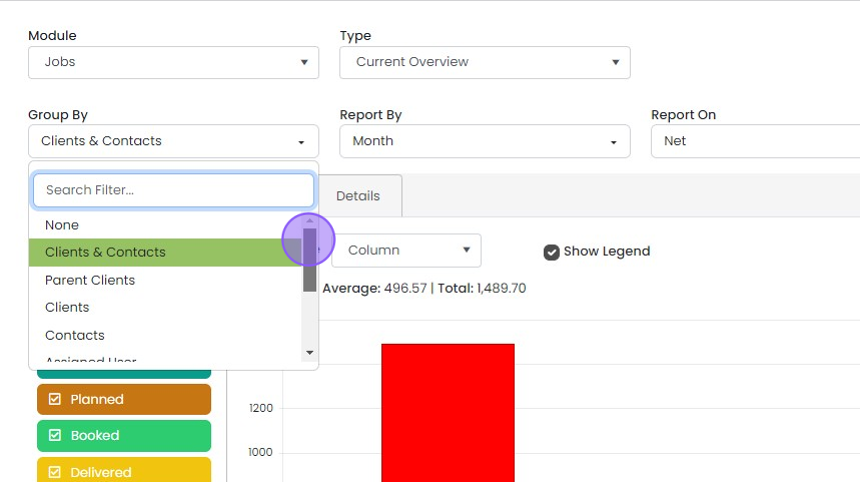
    Jobs report with the Group By dropdown open, listing options such as None, Clients & Contacts, Parent Clients and Contacts
  6. Choose how you want to breakdown results by time

    Report settings with the Report By dropdown highlighted, set to Month, beside Report On set to Net above a column chart
  7. Choose which value you want to report on
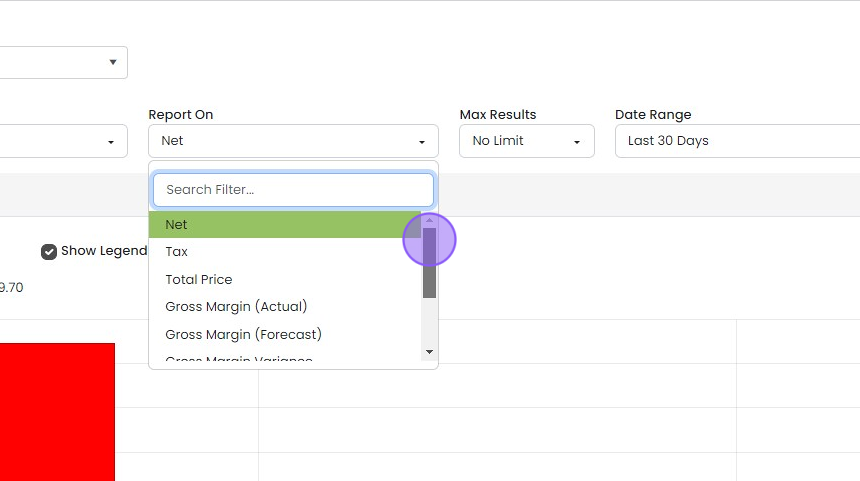
    Report On dropdown open with Net highlighted, plus options like Tax, Total Price, and Gross Margin (Actual)
  8. Click the time period you want to report on

    Filter your results
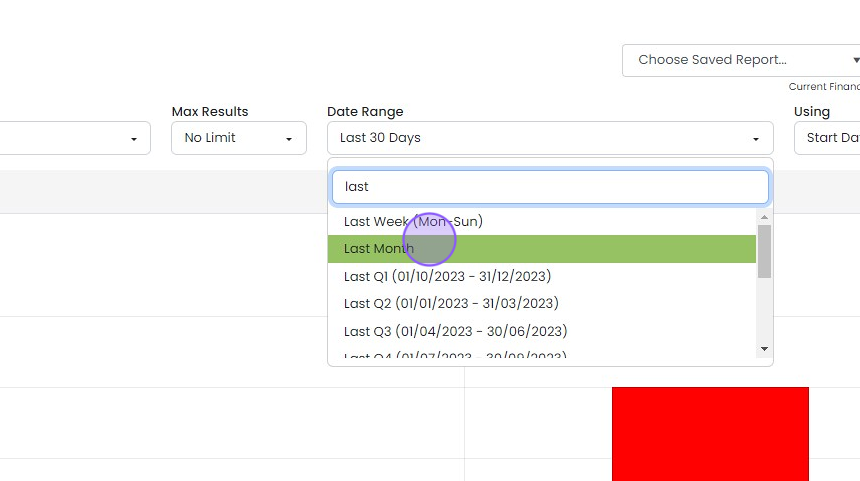
    Date Range dropdown in report filters with
  9. Filter your results using the status filters
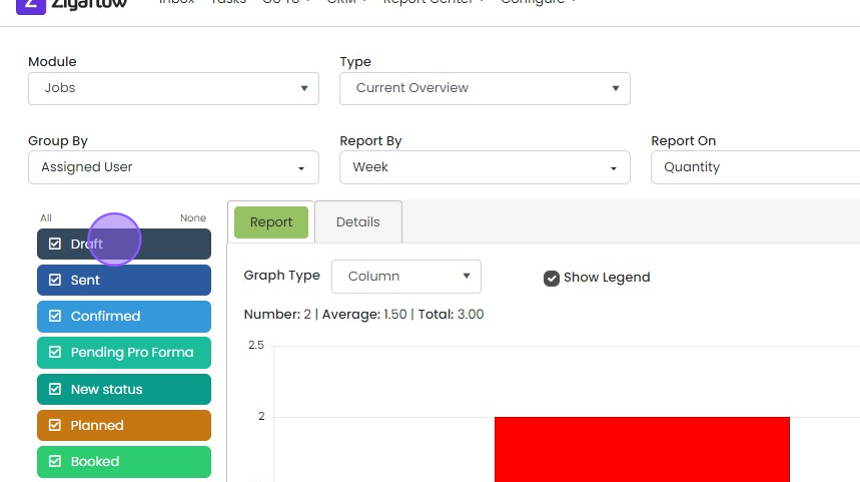
    Jobs report with the Draft status filter highlighted in the status list beside the Report tab's column graph
  10. Apply any additional filters

    View and explore results

    Report filters panel with the Business Type dropdown highlighted, showing options such as Architect, Developer and Landlord
  11. Click which type of graph you want to view results in
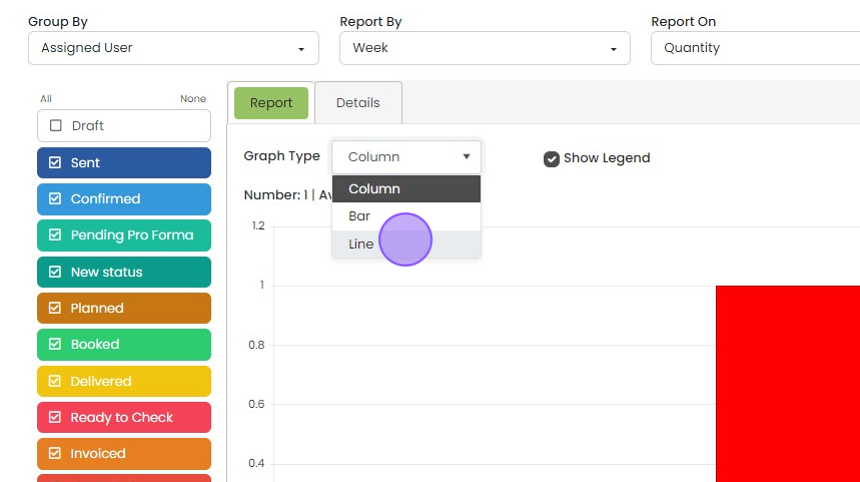
    Report tab with the Graph Type dropdown open showing Column, Bar and Line options, with Line highlighted
  12. Click "Details" to see a list of results
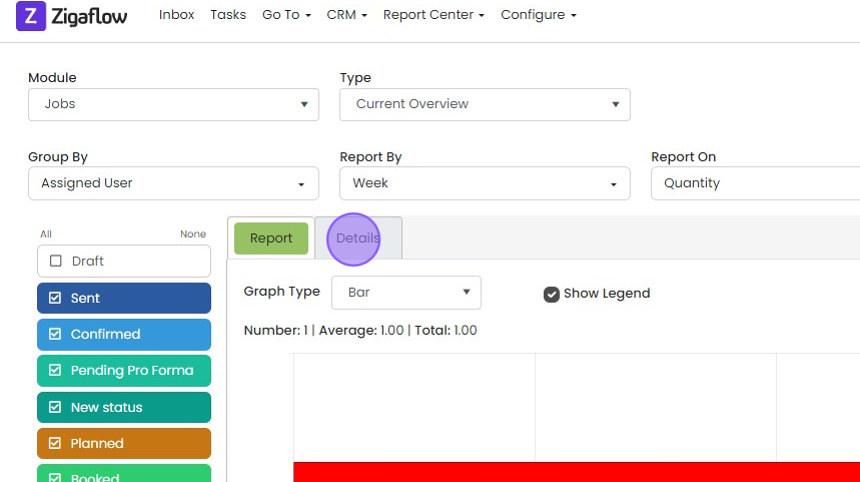
    Jobs Current Overview report with the Details tab highlighted beside the Report tab, above the bar graph settings
  13. Click the link to jump to the relevant records

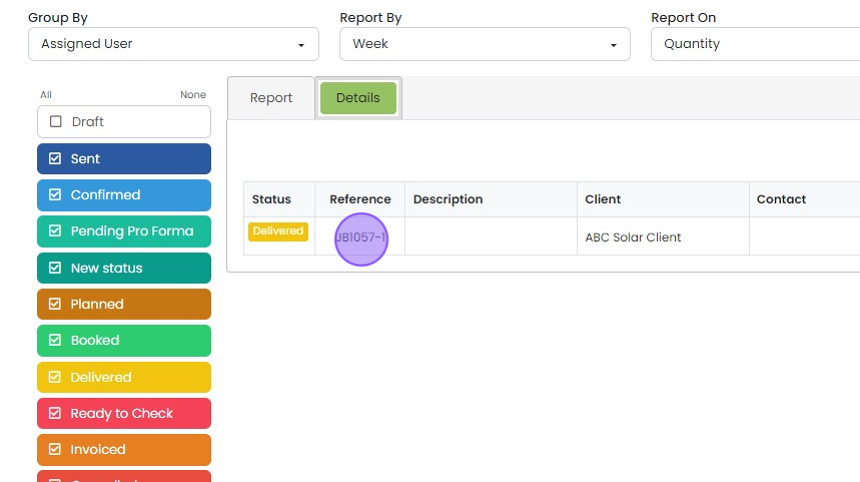
    Report Details tab listing a Delivered job, with the job reference link in the Reference column highlighted

Frequently asked questions

Next step

Saving a reportQuotes, Go and Momentum plansTo save a report in Zigaflow, open Report Center, click Save Report to keep the current settings, give the report a name, and click Save. You won't need to enter the filters again. Saved reports can also be updated, saved as a new report, or switched between with a dropdown.

Was this helpful?

See Zigaflow on your own workflow

Book a demo and we will walk through quoting, jobs and purchasing the way your team runs them.

Or see how Zigaflow would fit your business, free