Get set up
Webhooks from automation
The short answer
To send a webhook from Zigaflow automation, click the cog, select Automations, choose the module such as Jobs/Orders, and click Add New. Name the automation, set it Active, save, add a status condition if it runs on a status change, then add an action with the target URL. Webhooks work in Quotations and Jobs/Sales Orders.
Steps
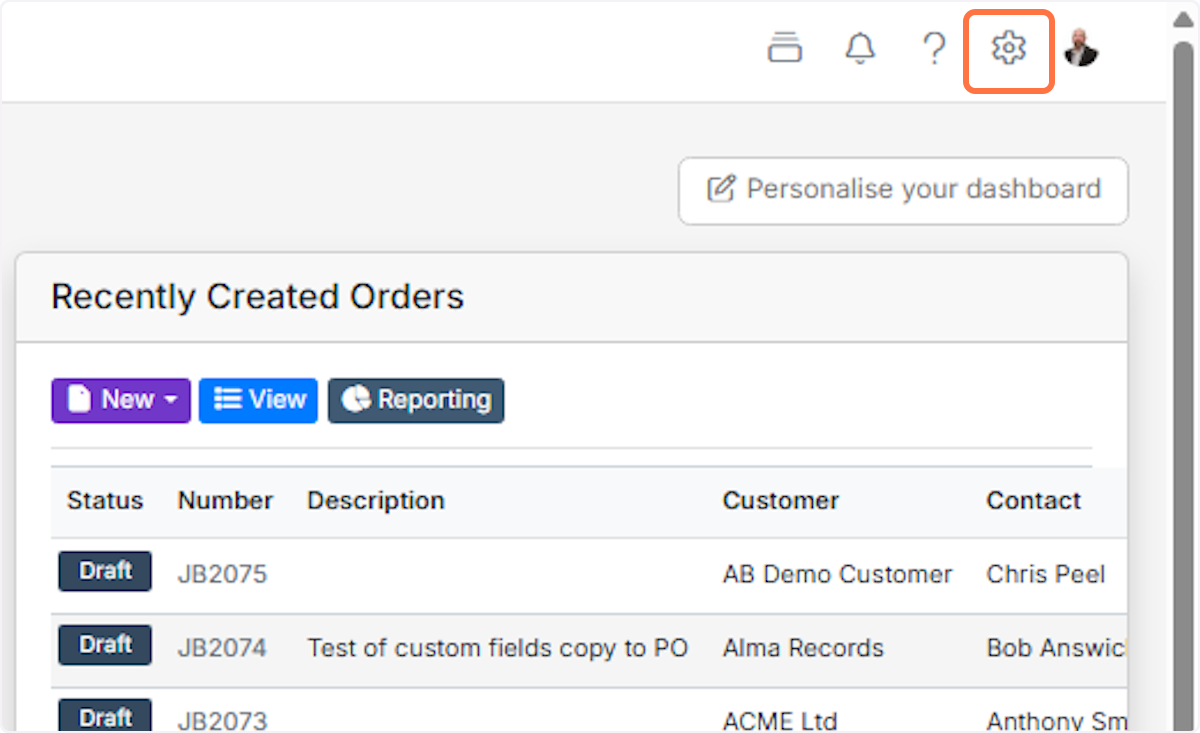
Click on the cog
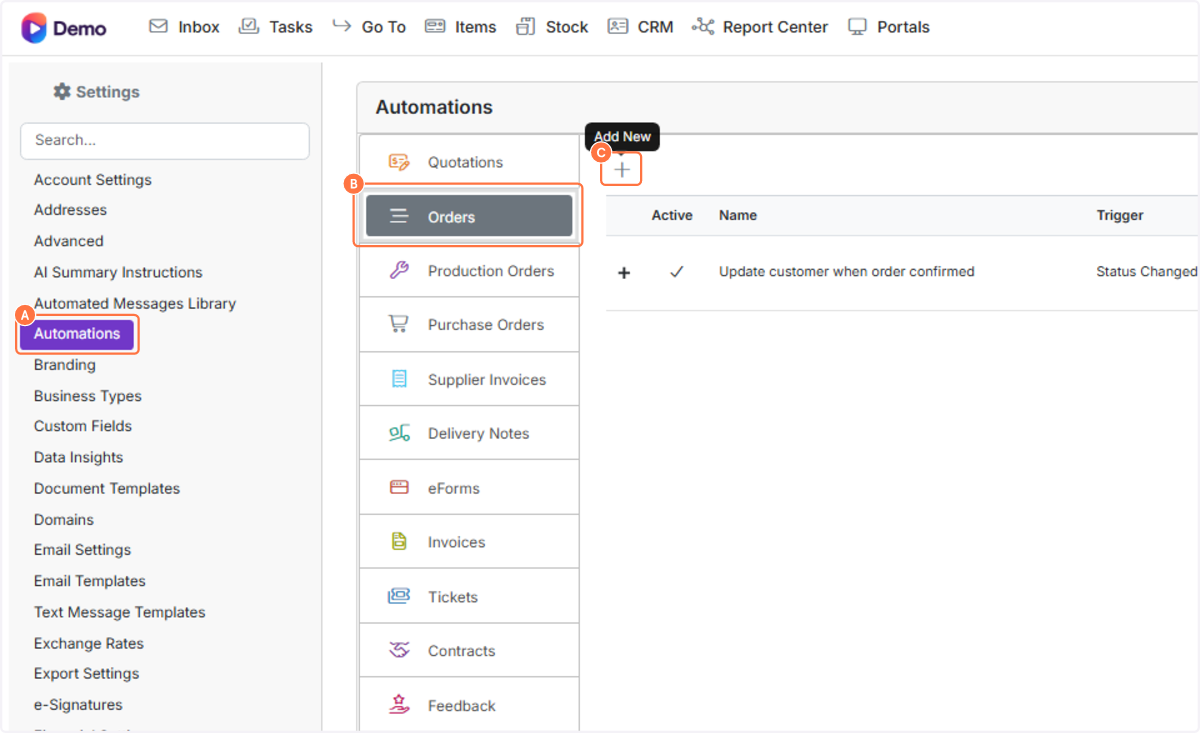
A. Select Automations
B. Click on the module to run the webhook from (in this case, Jobs/Orders)
C. Click on Add New
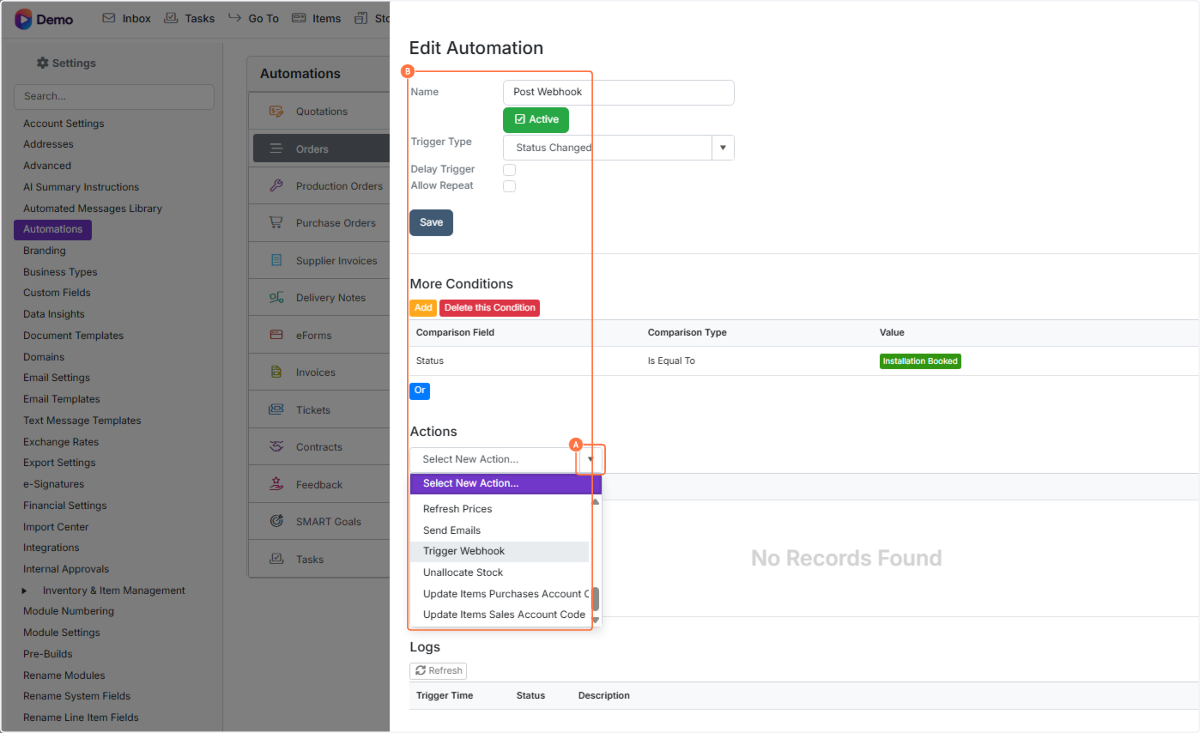
Give the automation a name and click on Active

Click on Save

If you choose to run the automation when a status is changed, set the status in the conditions

A. In the Actions tab, click on 'Select New Action'
B. Select Select New Action...
A. Put the target URL in the top box
B. The 'Type' is a free-text identifier you can use in the other system to help manage the calls
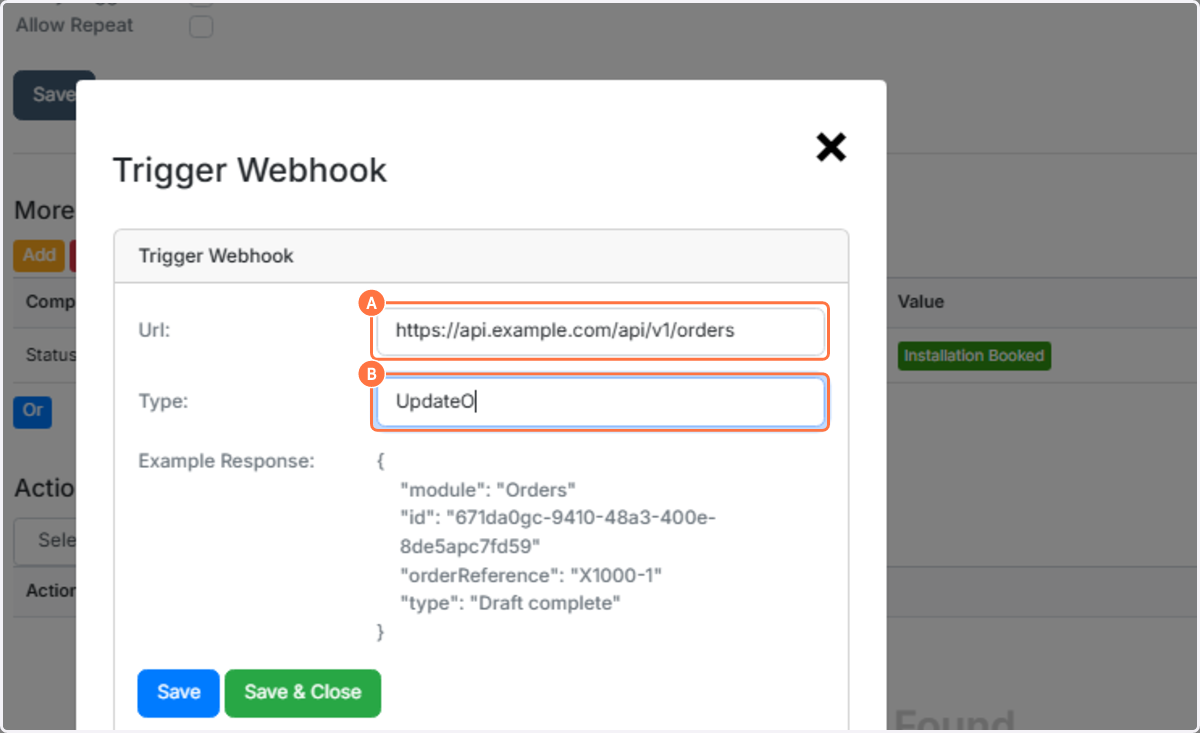
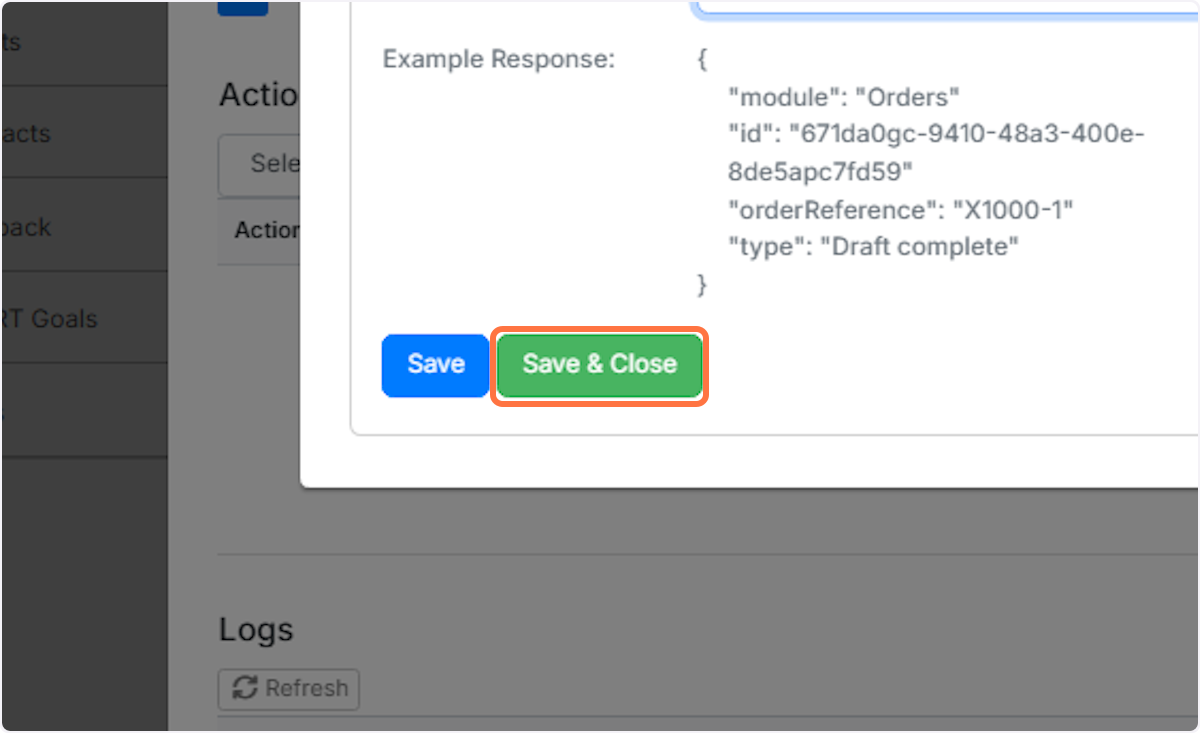
Click on Save & Close
Learn more: automations in Zigaflow


Webhooks are available in Quotations and Jobs/Sales Orders.
Frequently asked questions
Was this helpful?