Get set up

Adding attributes to a PDF document

In Zigaflow

The short answer

Open a document template from Document Templates in Zigaflow, click Search Variables, and type Attribute to list the attribute variables. Add them to the template, click Step 1: Preview to check the layout, then click Save. The variable shows only for items that have that attribute.

Steps

  1. To add attributes to a document template, click here
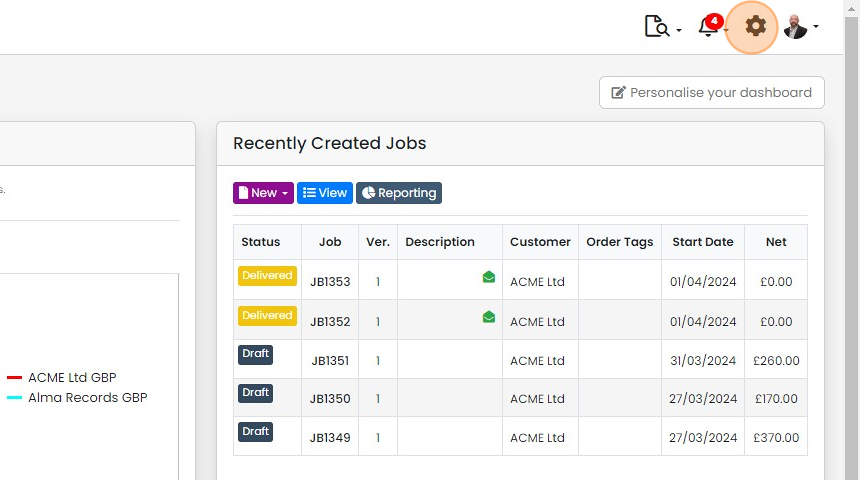
    Zigaflow dashboard with the settings gear icon highlighted in the top-right toolbar, next to the notifications bell
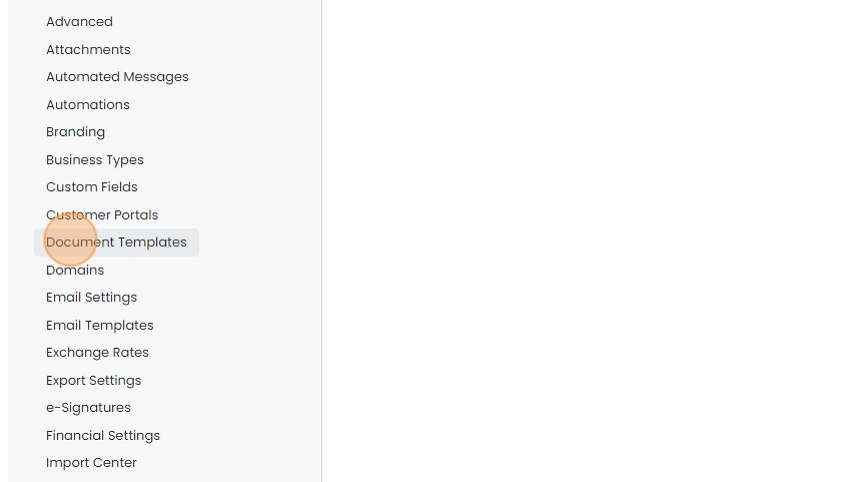
  2. Click "Document Templates"

    Settings menu list with the Document Templates option highlighted between Customer Portals and Domains
  3. Edit a document template

    Find the attribute variables
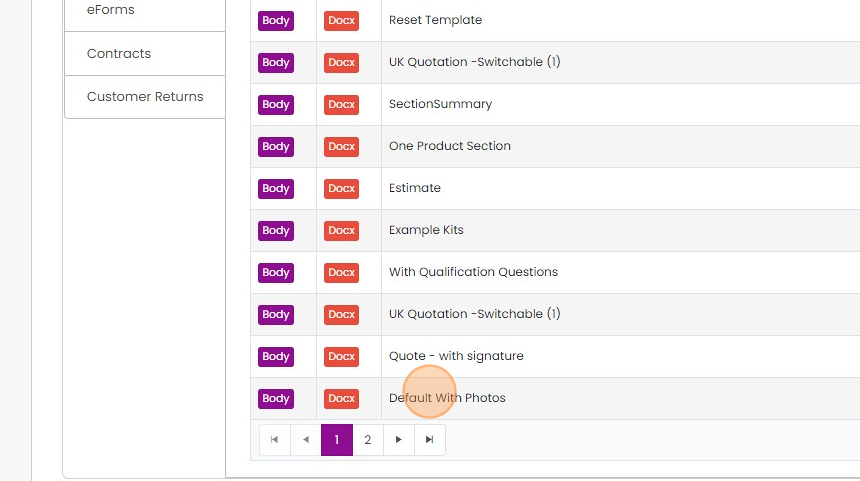
    Document template list with Body and Docx tags, highlighting the Default With Photos template to open for editing
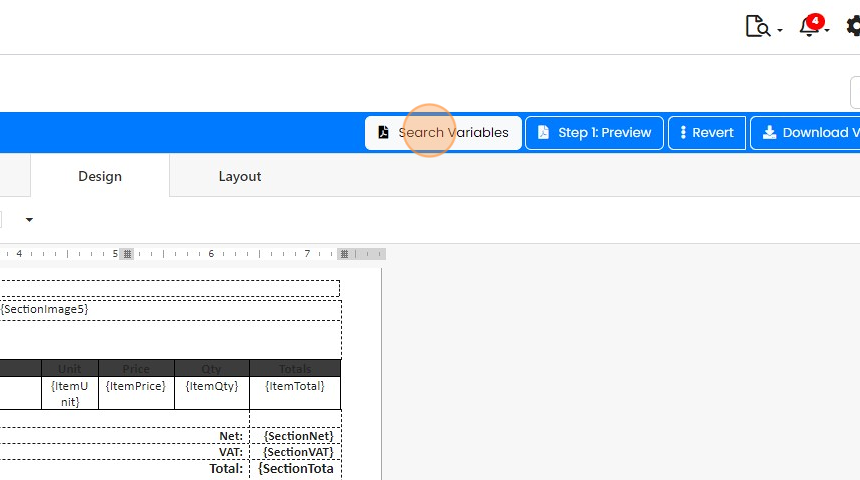
  4. Click "Search Variables"

    PDF template editor with the Search Variables button highlighted in the blue toolbar beside Step 1: Preview and Revert
  5. Type "Attribute" in the search to list the variables

    Type "Attribute" in the search to list the variables. Note that the attribute name is put between "{ItemAttribute" and the display type (i.e. Value, Label).
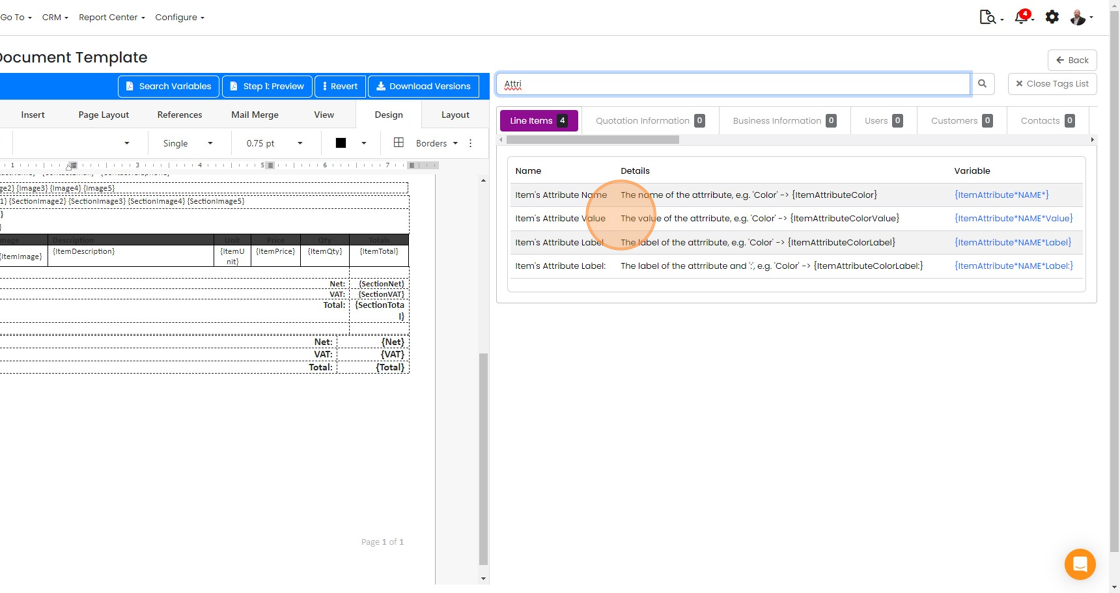
    Document Template tags list filtered by
  6. Click "Close Tags List"

    Add and preview the variables
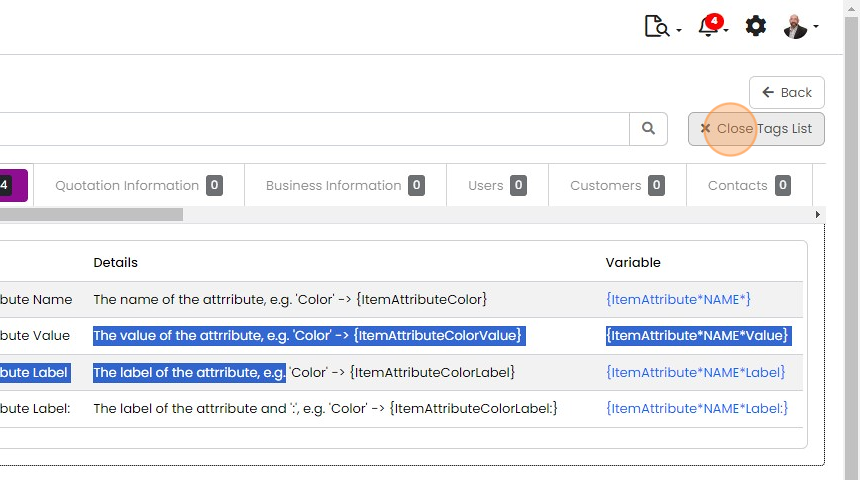
    Tags list of item attribute variables with the Close Tags List button highlighted at the top right, beside the Back button
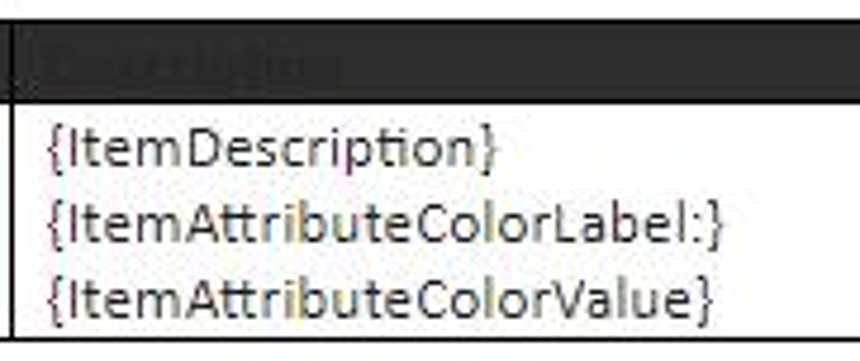
  7. Add the variables to the document

    Document template table cell with {ItemDescription}, {ItemAttributeColorLabel:} and {ItemAttributeColorValue} variables
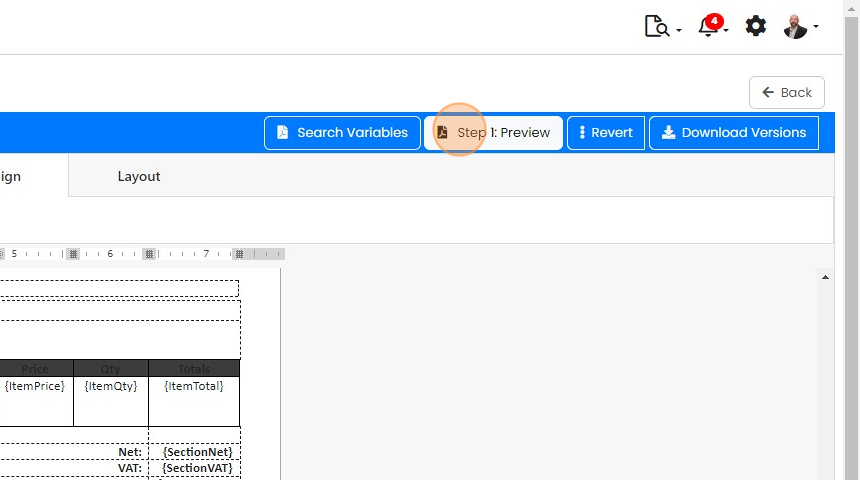
  8. Click "Step 1: Preview"

    Template editor toolbar with the
  9. Note how it appears only for the item with that attribute and not for the other. Click "Save"

    Template preview of a quote PDF with

Open a document template

Frequently asked questions

Next step

Finding document variables and tagsIn Zigaflow, open Document Templates, click the module you want, then click Search Variables. Use the search box to narrow the list of tags. The lists are split by function, and Line Items matches the items' grid. Click a variable to copy it into your PDF template.

Was this helpful?

See Zigaflow on your own workflow

Book a demo and we will walk through quoting, jobs and purchasing the way your team runs them.

Or see how Zigaflow would fit your business, free