Bulk emailing direct from contacts, customers & suppliers
The short answer
To email several contacts at once in Zigaflow, go to CRM, then Contacts, click Send Email, select the contacts, and write the email or pick a template. Click Next to preview it, then Create & Send. The emails are queued and go out over the next few minutes.
Steps
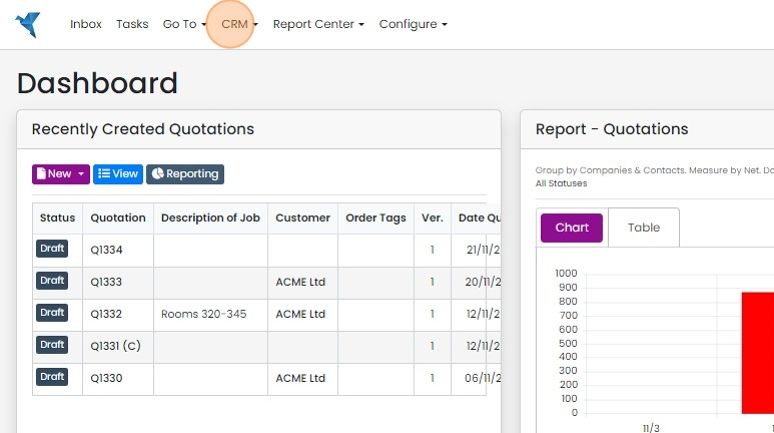
Click "CRM"
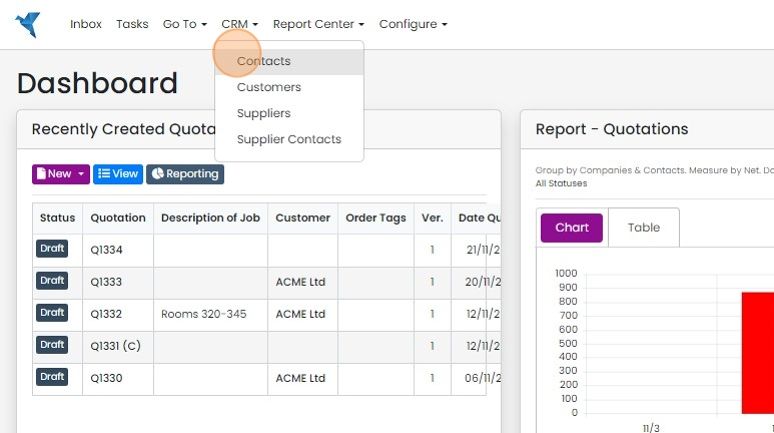
Click "Contacts"
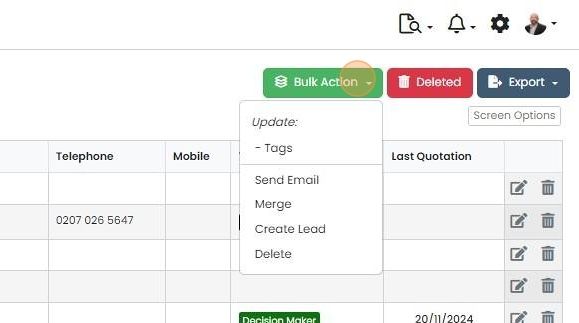
Click here
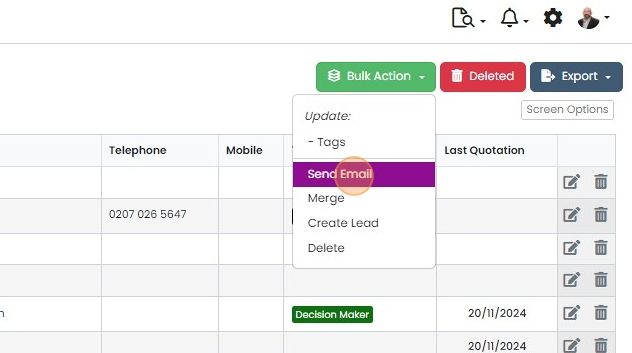
Click "Send Email"
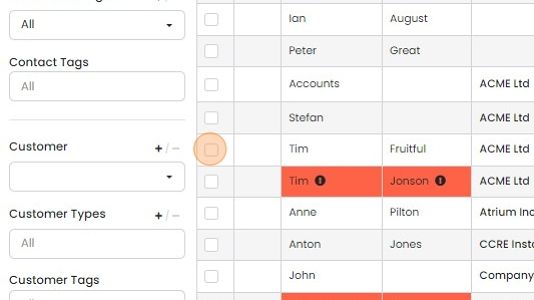
Select the contacts to email
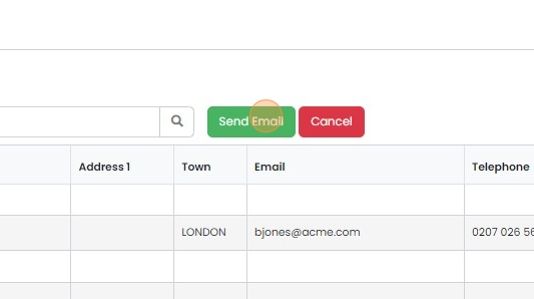
Click "Send Email"
Write the email or use a template
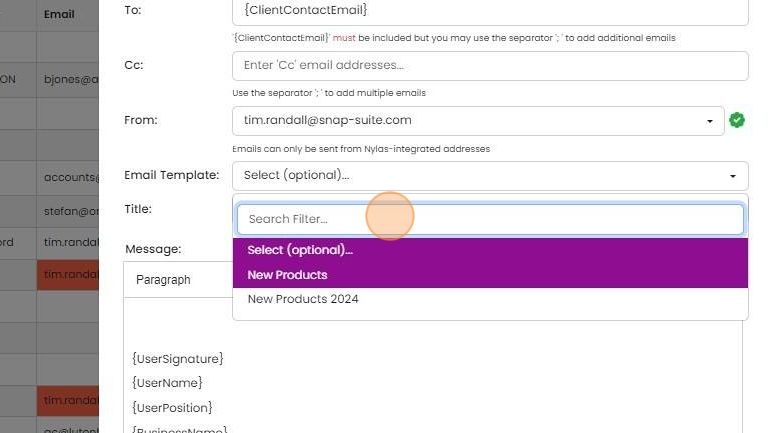
You can create the email subject and text here and then save it, or cclick "Select (optional)..." to use...
You can create the email subject and text here and then save it, or cclick "Select (optional)..." to use an existing template.
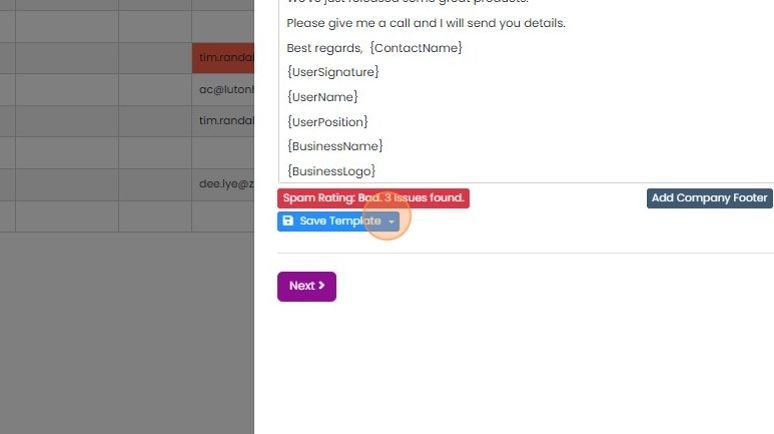
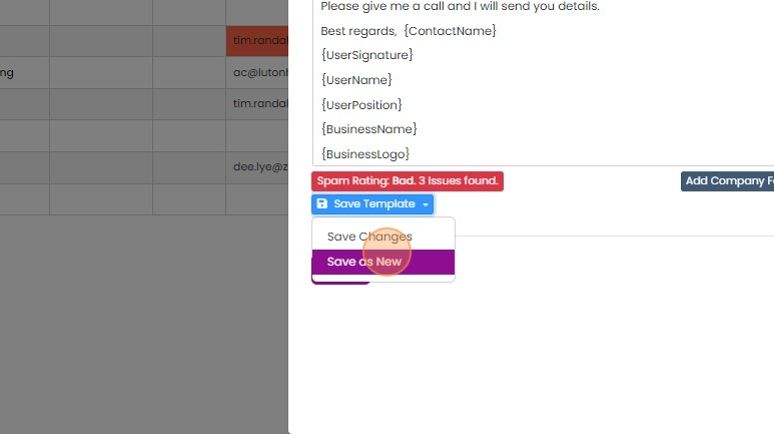
To create a new template to use later, or update the existing one, click "Save Template"
Click "Save as New" to create a new one, or 'Save Changes' to update the existing template
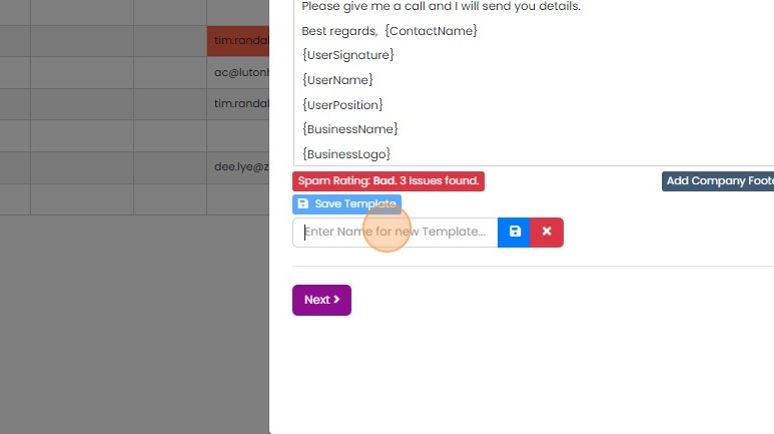
Click the "Enter Name for new Template..." field
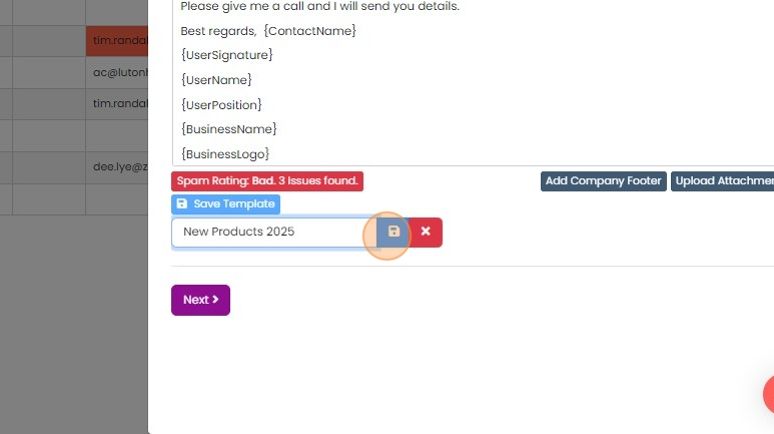
Type in the name and click on the 'Save' icon
Preview and send the email
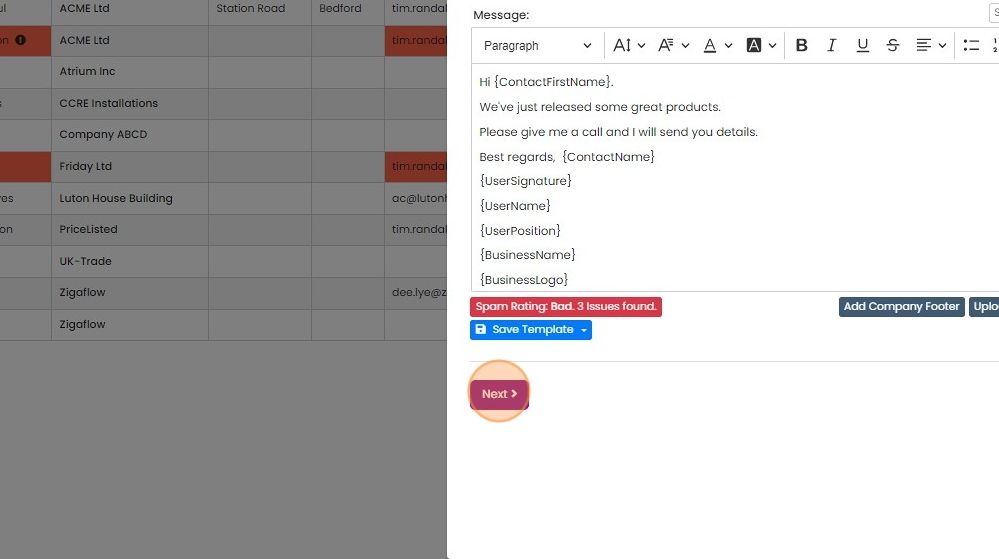
When you are happy with your email content, click "Next" to preview it
When you are happy with the email, click "Create & Send"
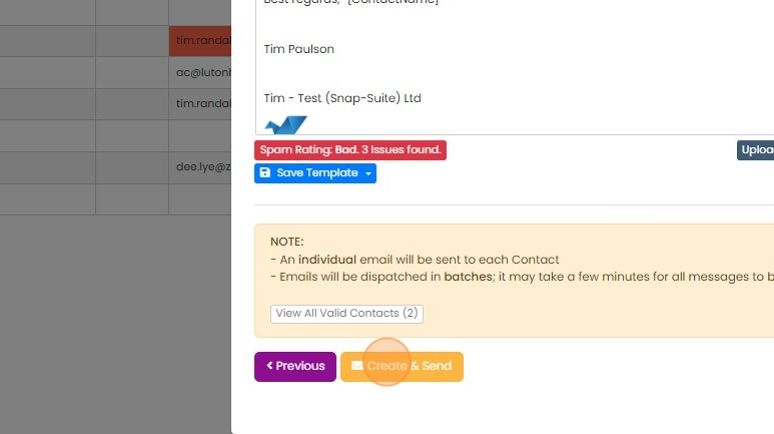
This will queue all the emails to be sent over the next few minutes
This will queue all the emails to be sent over the next few minutes. They are not sent immediately together to prevent the email being seen as spam. Click "Close".
Learn more: the Mailchimp integration
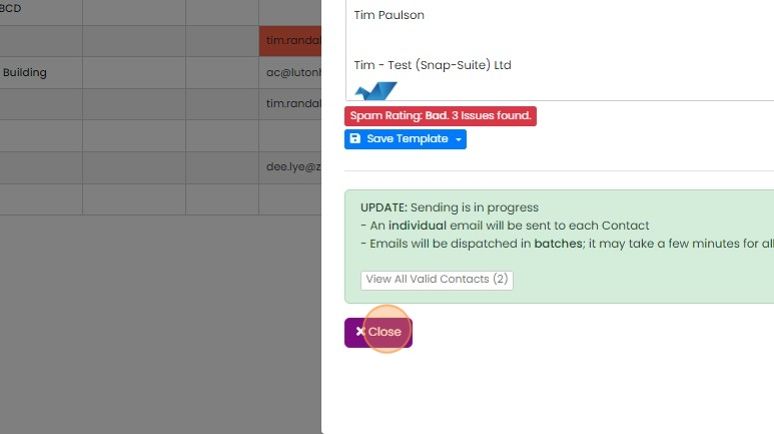


This process will allow you to send emails to hundreds of contacts from your email address. Once you have 200+ contacts, you should use our MailChimp integration so that spam filters do not see your email as a bulk message.
These instructions cover sending emails from the contacts screen. Emails can sent from the companies' screen and suppliers but the email used is the main one for the company and not a contact email.
Select the contacts to email
Frequently asked questions
Was this helpful?