Connecting an email account
The short answer
To connect an email account in Zigaflow, click your user photo placeholder, choose Your Profile, then Email Integration, and click Connect to Your Mail System. Enter your email address, log in, pick your provider, click Continue and follow the on-screen instructions. You can connect one or more accounts.
Steps
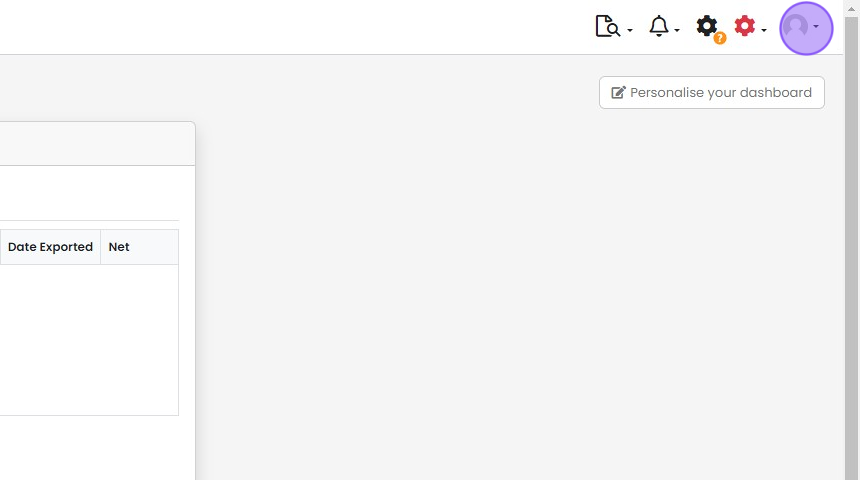
Click the placeholder for your user photo
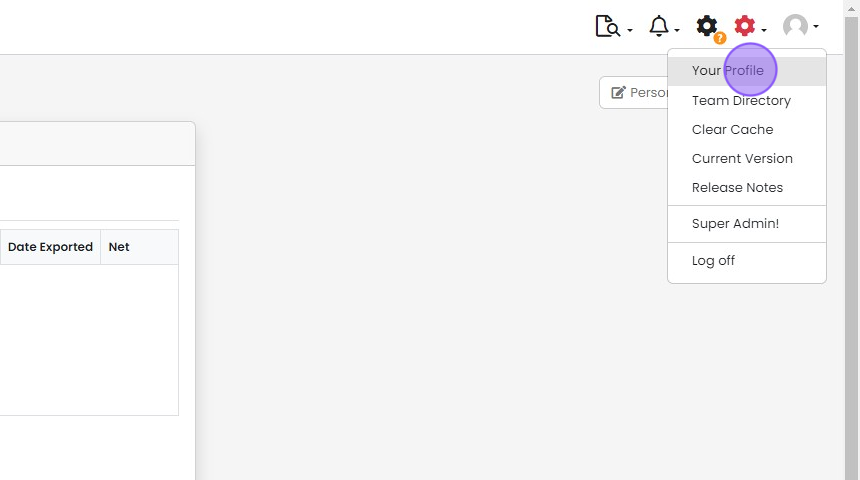
Click "Your Profile"
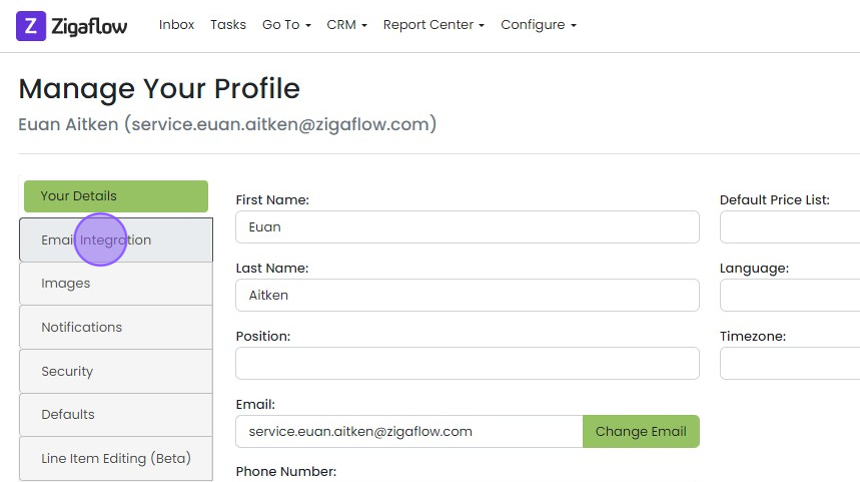
Click "Email Integration"
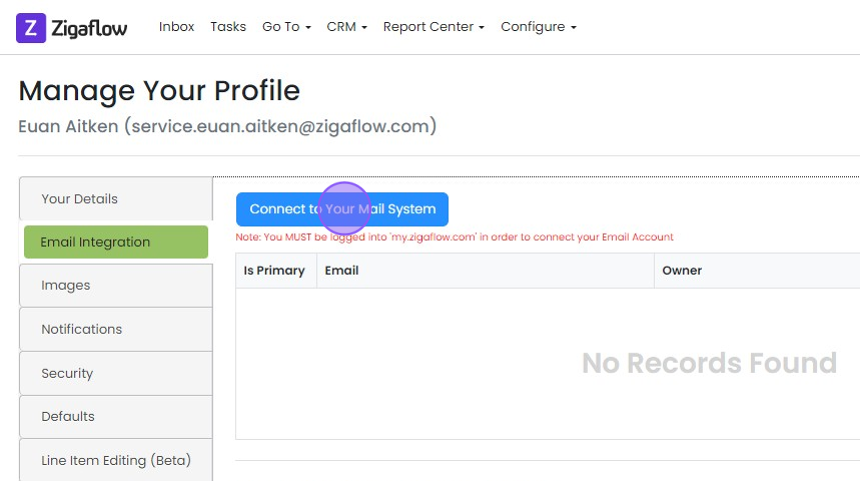
Click "Connect to Your Mail System"
Log in to your email account
Enter your email address

Click "Log in"
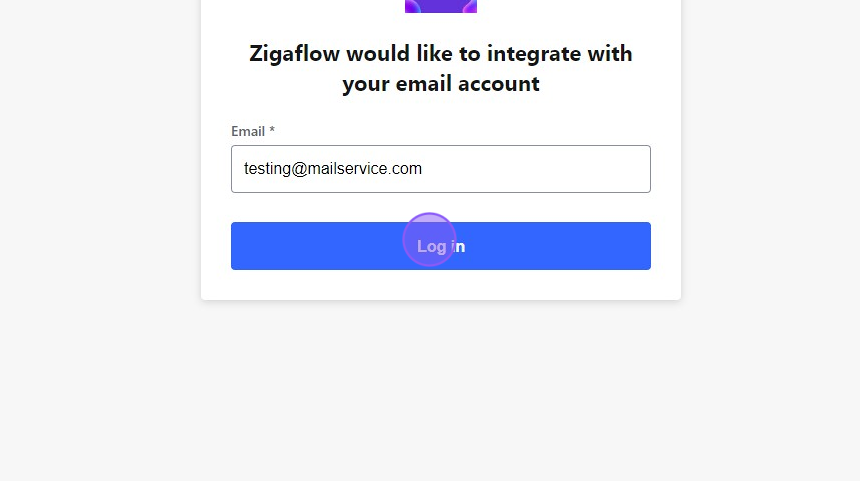
Choose your email provider
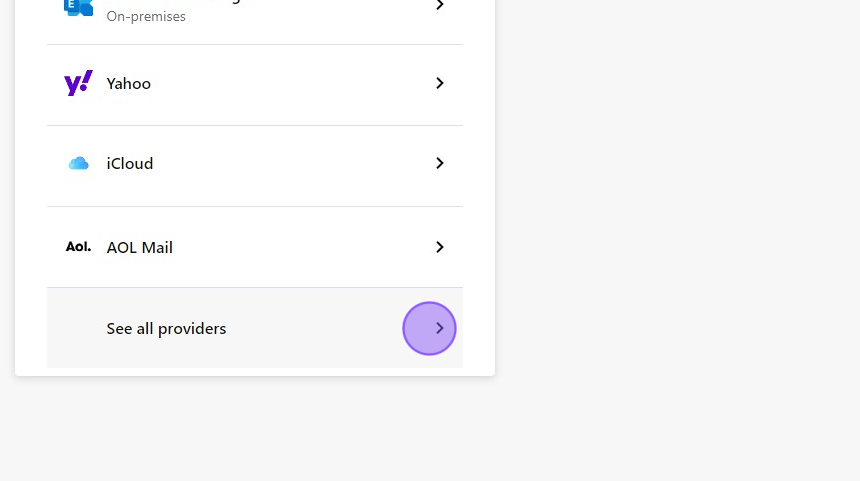
Click the relevant arrow

Click "Continue"
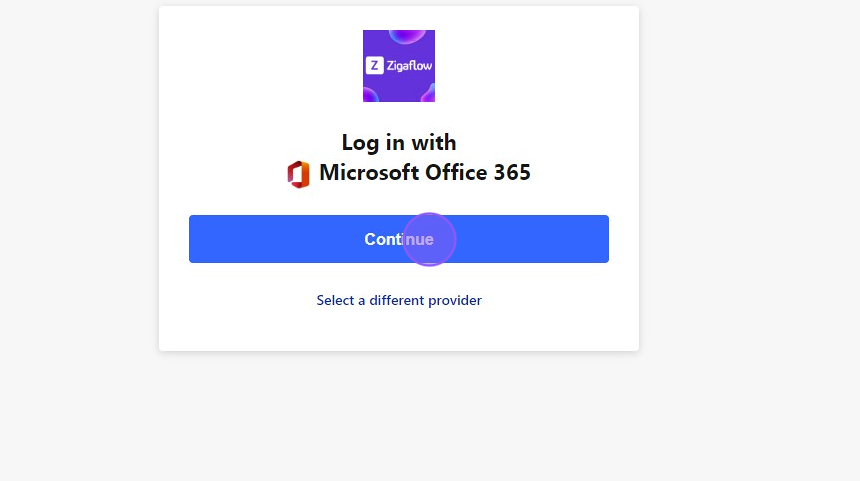
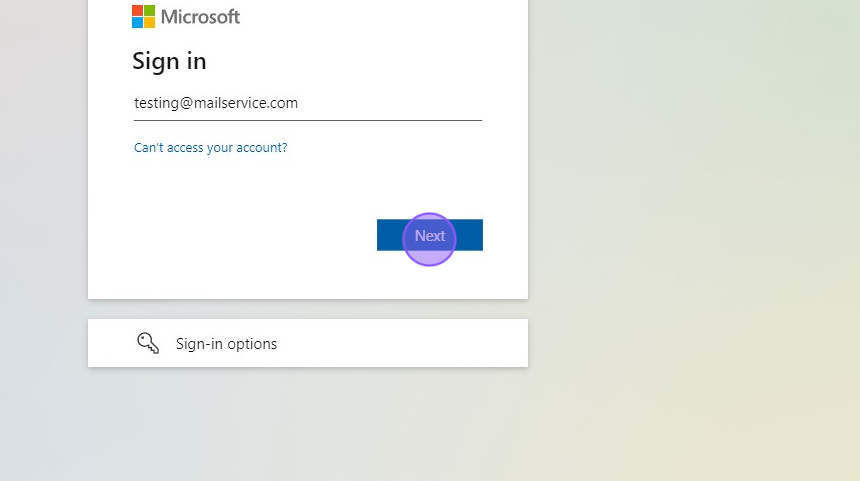
Follow the on-screen instructions
Share the account with other users
If this email is to be accessible and used for sending by different Zigaflow user accounts, you need to...
If this email is to be accessible and used for sending by different Zigaflow user accounts, you need to grant permissions to these, which is explained here.
Learn more: integrated email in Zigaflow


Important:
Email accounts can only be set up and authorised while logged in to My.zigaflow.com
If you are logged in on a custom domain, you will need to log out and log back in on the main Zigaflow app.
Once you have connected it can take 10 to 15 minutes for your email account to appear under "Inbox"
Open your email integration settings
Frequently asked questions
Was this helpful?