Make it yours

Granting access to email accounts

In Zigaflow

The short answer

To let more than one user use an email account, open your profile, click Your Profile, then Email Integration, and click Settings on the account you want to share. Tick Read to let a user read the Inbox, and click Send to let them send or reply from that account.

Steps

  1. Click on the profile button

    Zigaflow dashboard with Tasks and Invoices widgets, profile avatar button in the top-right purple menu bar highlighted
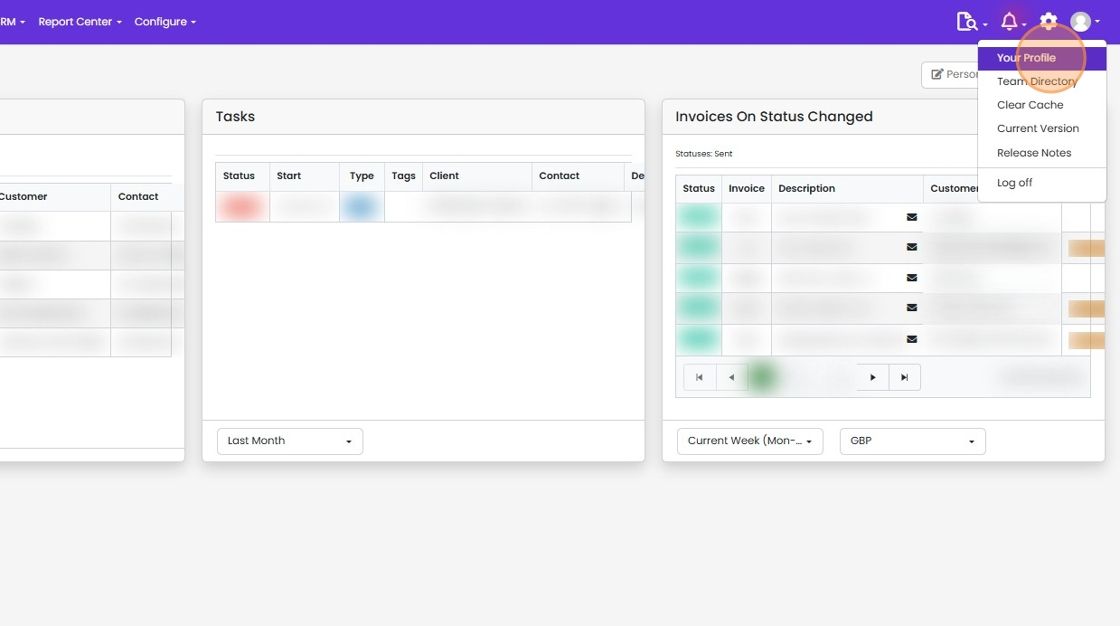
  2. Click "Your Profile"

    Zigaflow dashboard with the user avatar menu open in the top right, highlighting the Your Profile option
  3. Click "Email Integration"

  4. Click "Settings" on the email account you want to share out

    Email accounts list with the Settings button highlighted on the first account under Connected Emails in the Company
  5. For each account you want to allow to read emails in the Inbox, tick "Read"

    For each account you want to allow to read emails in the Inbox, tick "Read". Even without this ticked, any user can read an email associated to a quotation, job/order, etc.

    If you want them to be able to send or reply using this email account, click on "Send"

    Learn more: integrated email in Zigaflow
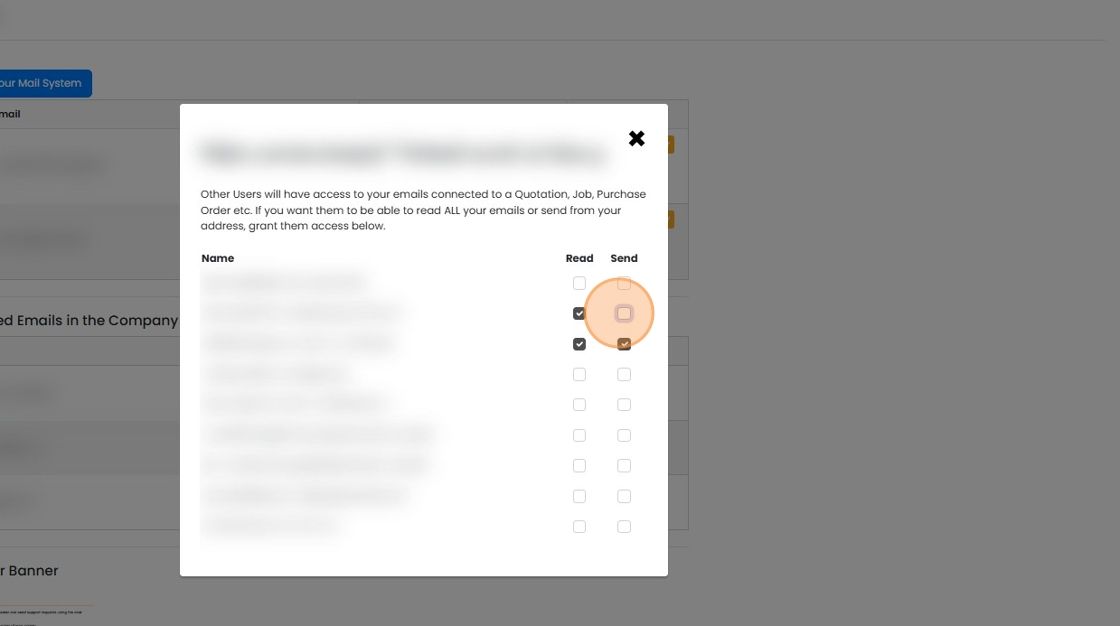
    Email access dialog listing users with Read and Send checkboxes, highlighting the Send checkbox for a user with Read access

This article explains how to grant access to email accounts to different users.

​

Frequently asked questions

Next step

Connecting an email accountTo connect an email account in Zigaflow, click your user photo placeholder, choose Your Profile, then Email Integration, and click Connect to Your Mail System. Enter your email address, log in, pick your provider, click Continue and follow the on-screen instructions. You can connect one or more accounts.

Was this helpful?

See Zigaflow on your own workflow

Book a demo and we will walk through quoting, jobs and purchasing the way your team runs them.

Or see how Zigaflow would fit your business, free