Get set up
Create a custom field in a module
The short answer
In Zigaflow, go to Custom Fields, choose the module (for example Quotations), click Create Custom Field, pick the field type, give it a label, and click Create. For a dropdown, enter the options first. Then show the field on the module's screens with Screen Options.
Steps
Click here

Click "Custom Fields"

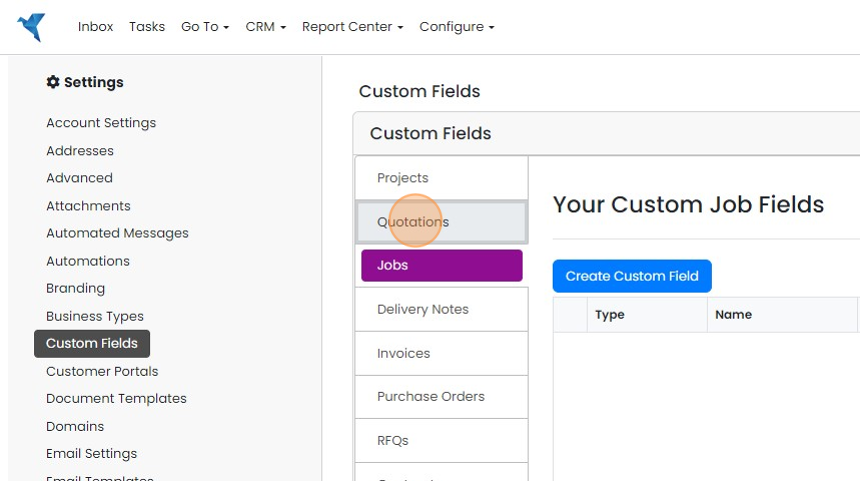
Click "Quotations"
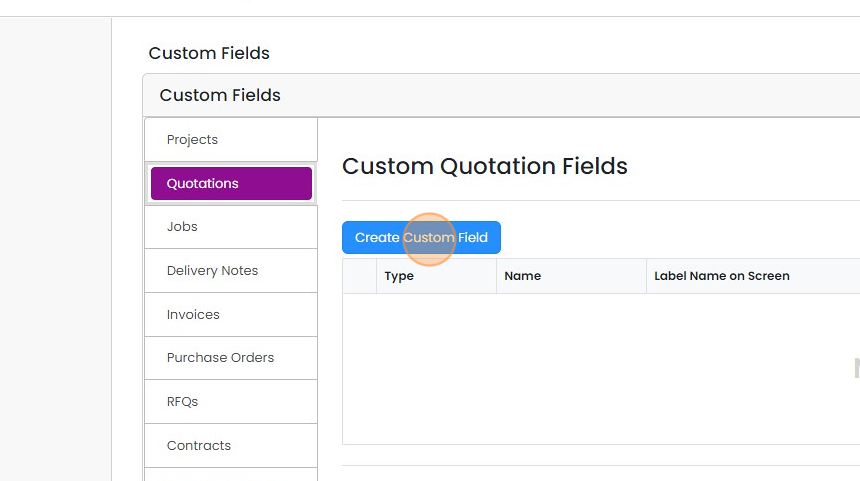
Click "Create Custom Field"
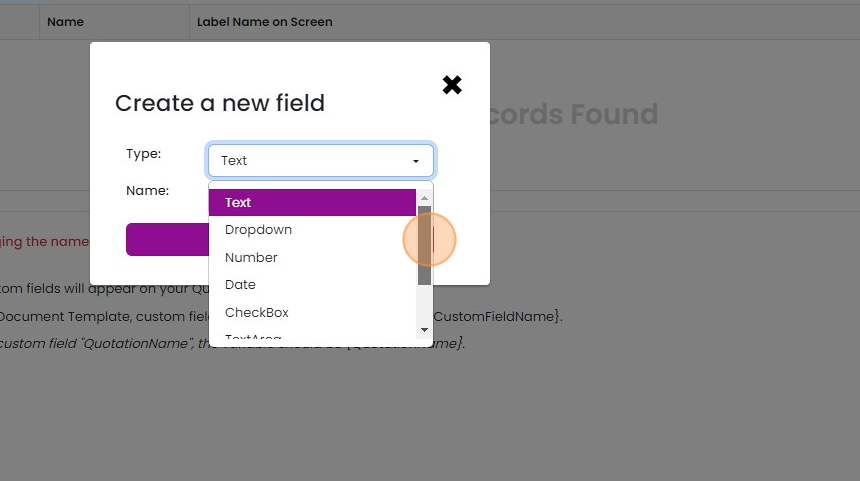
Select the field type
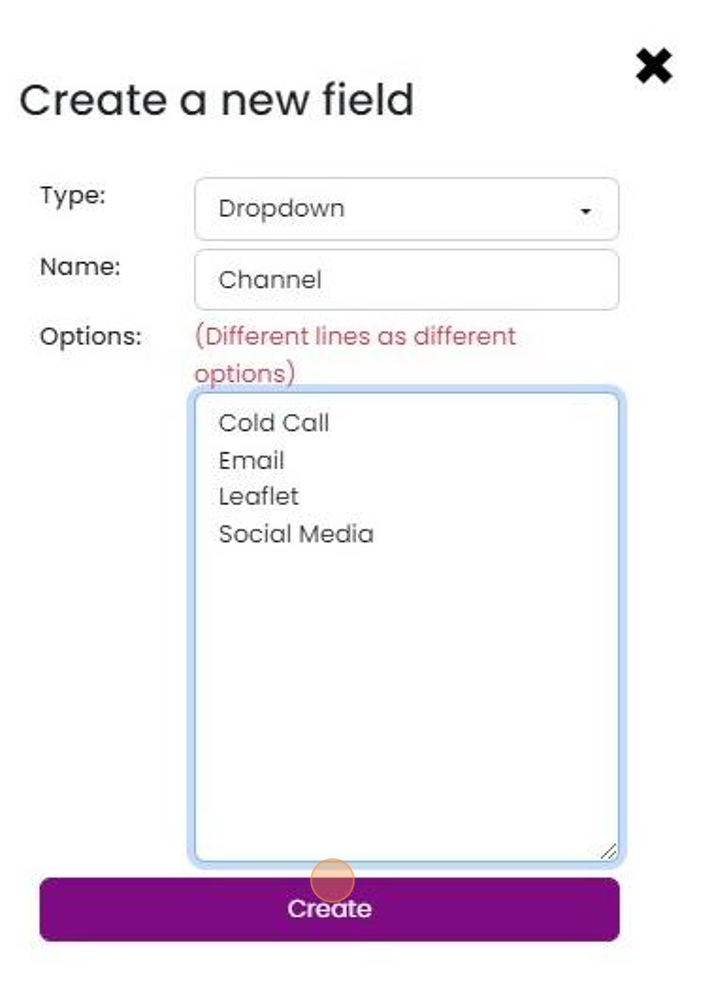
Give the field a label, in this case, "Channel"

For a dropdown, enter the options

Click "Create". This just adds it to the module you are working in
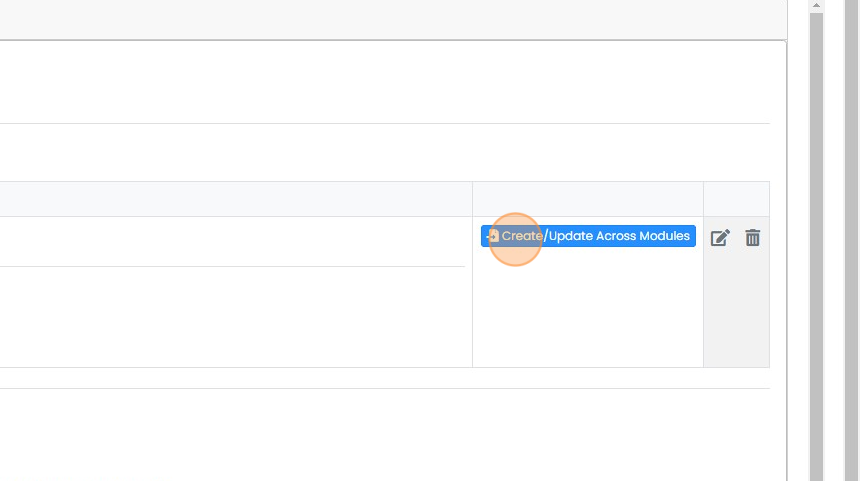
If it needs to be in all modules, click "Create/Update Across Modules"
Show the field in the module
To make it visible in the module's screens go to that module
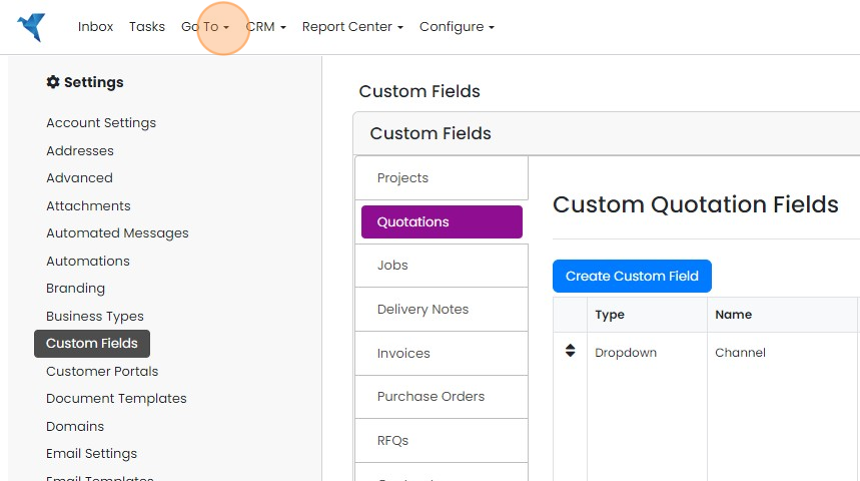
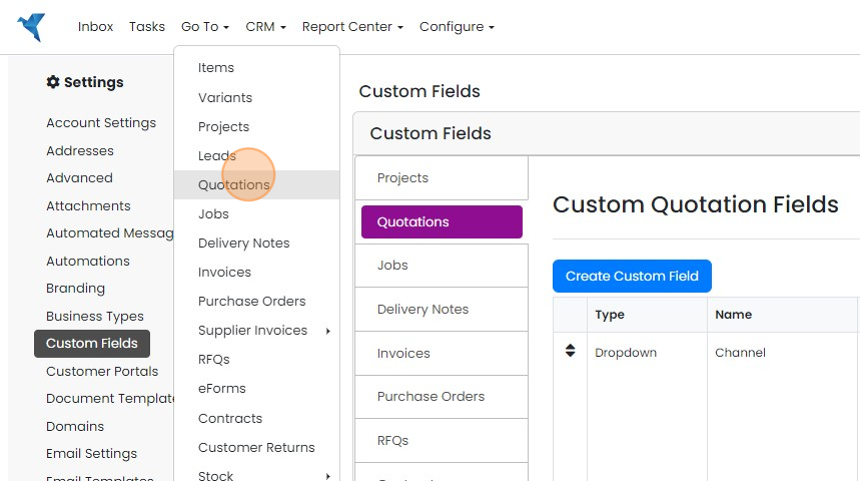
Click on the module
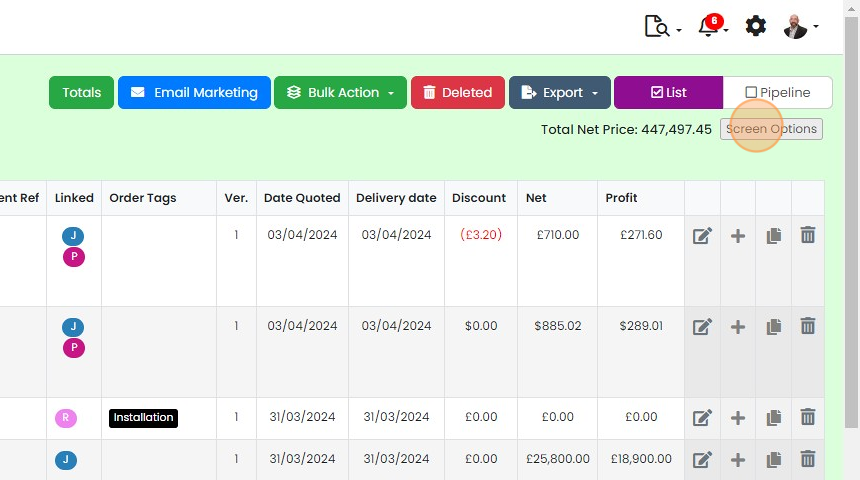
Click "Screen Options"
Find the field and click the slider to show it
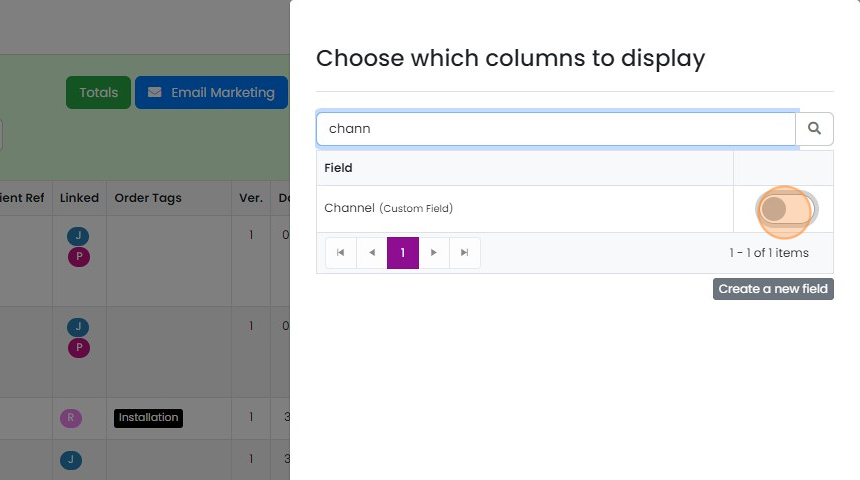
Click away from the sliding panel to close it
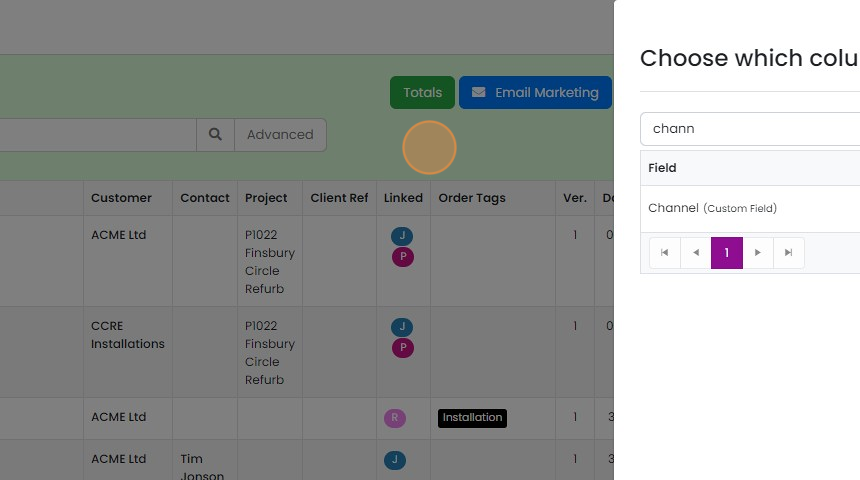
The field is now visible. The same method applies to the "Pipeline" view
Add the field to the edit screen
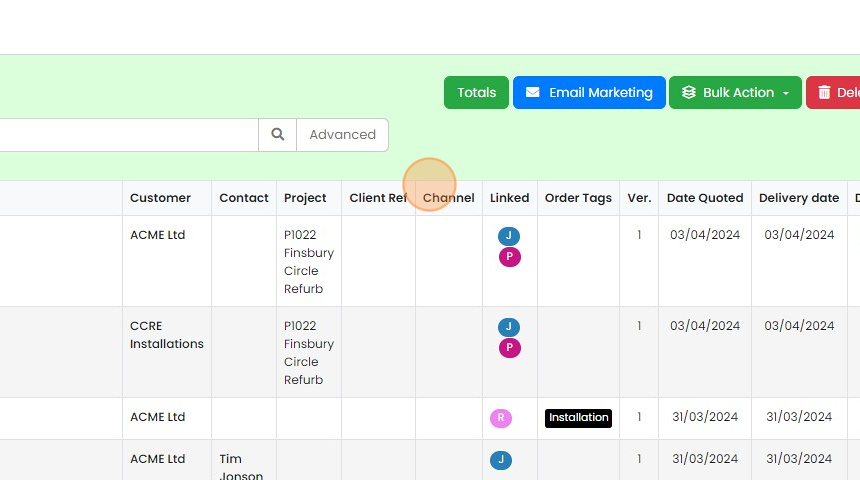
To add it to the edit screen, open one of the records, in this case, a quotation
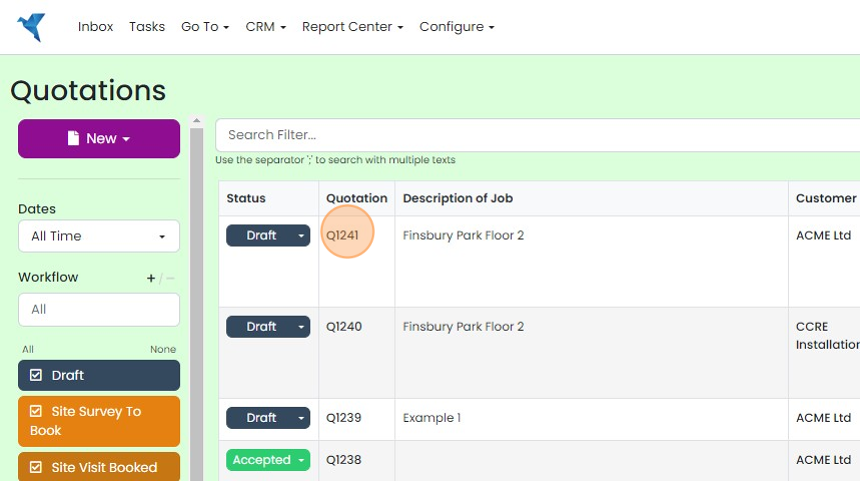
Click "Screen Options"

Click the slider to show it

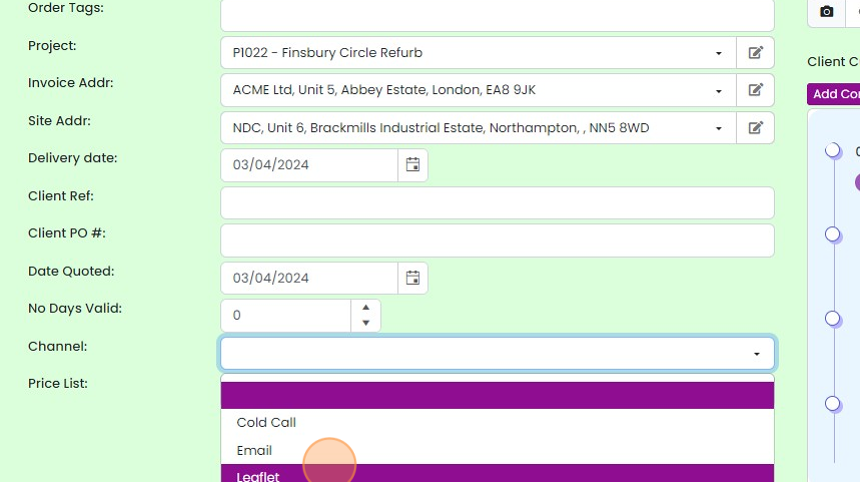
The field appears at the bottom of the standard fields
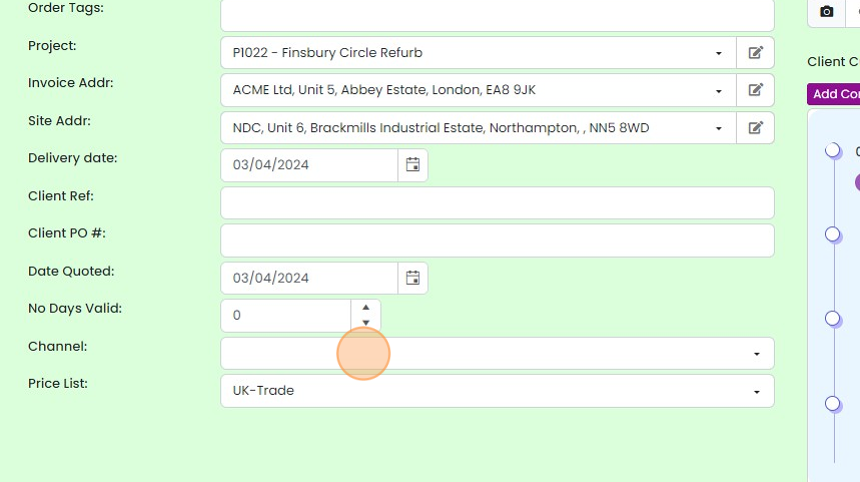
It operates in the same way as a standard field
Add the field to a document template
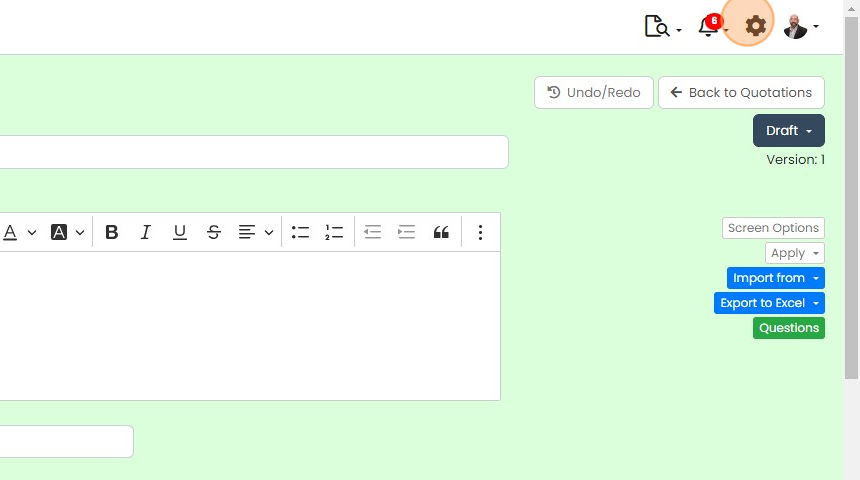
To add it to a document template, click on the Cog
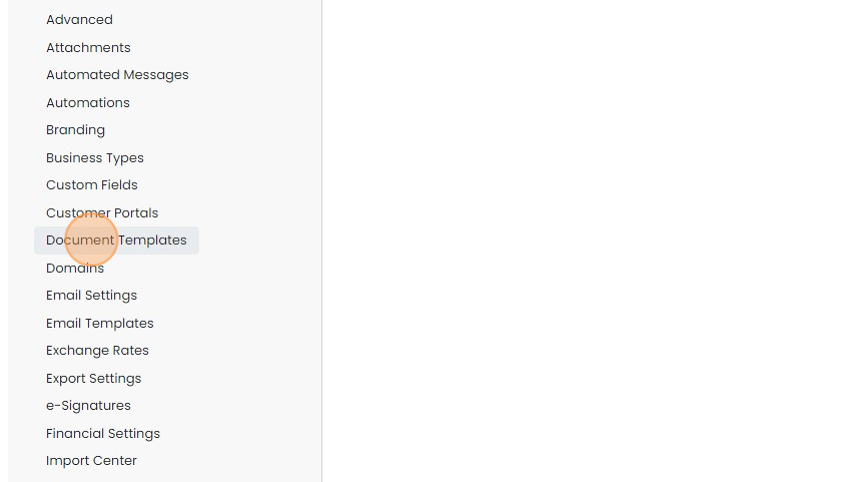
Click "Document Templates"
Click on the document template to edit
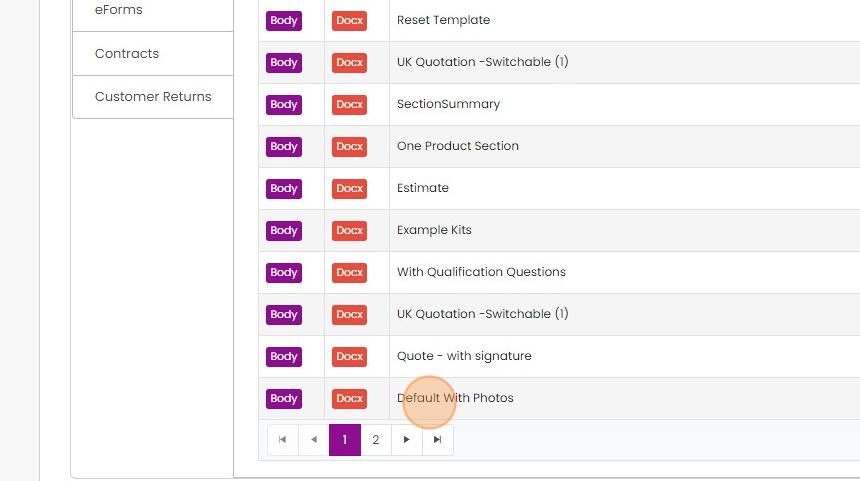
Click "Search Variables"

Click the "Search Filter" field

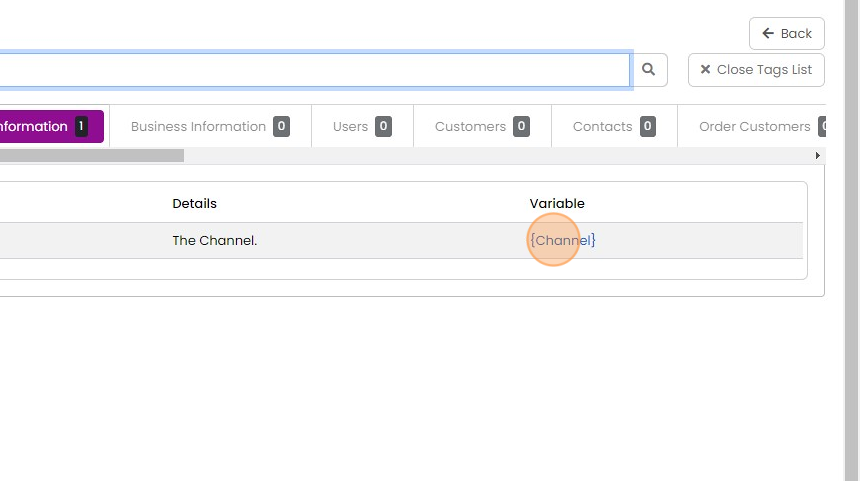
Type in the name of the field, e.g. "Channel"
Click on the variable name in the curly brackets to copy it
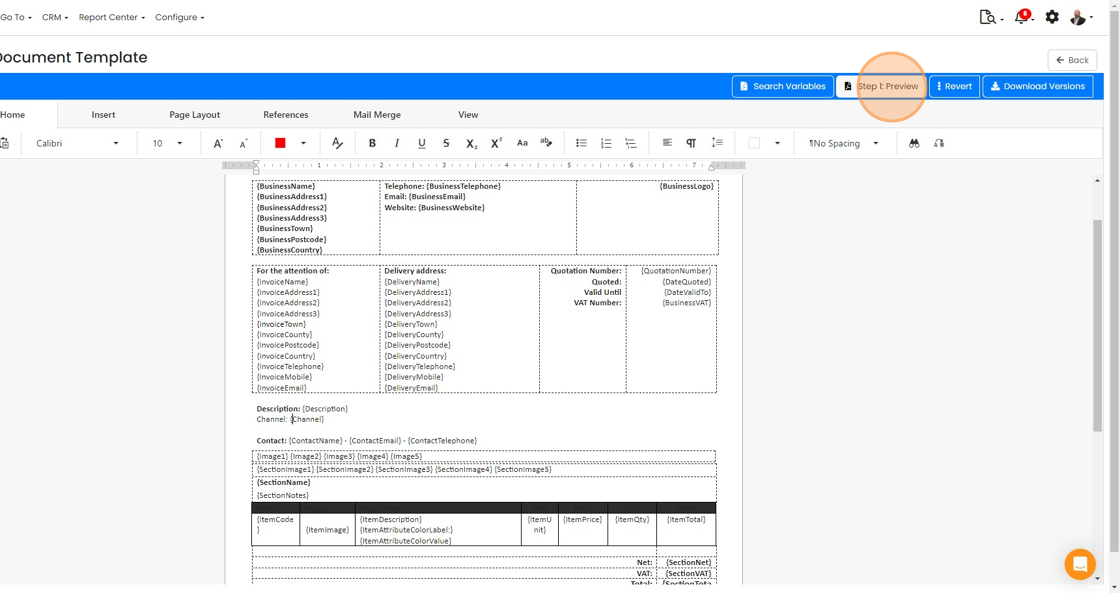
Paste the variable into the document

Click "Step 1: Preview"
Check it is displaying correctly, then click "Step 2: Save"
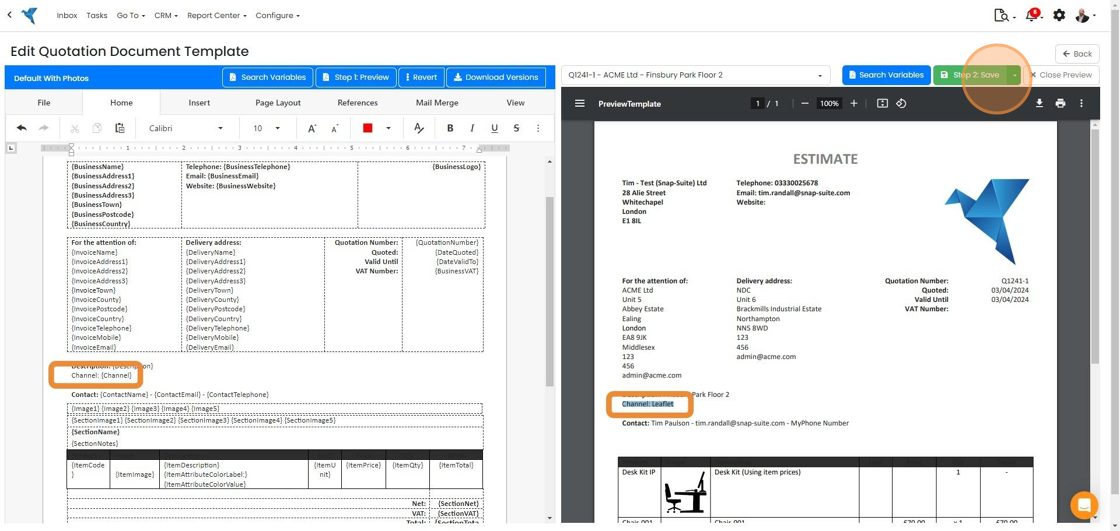
The custom field is now available in the module, and one of the documents
Learn more: document templates in Zigaflow


Custom fields allow you to store additional information in a structured way in Zigaflow, ensuring the data is in a standard format.
Create the custom field
Frequently asked questions
Was this helpful?