Setting up a leads workflow/pipeline/board
The short answer
To set up a leads workflow in Zigaflow, click the Cog, then "Workflows & Statuses", then "Leads", and click "New Lead Workflow". Name it, click the Tick, then add and drag statuses into order. You can pair each status with a quotation or contract status. The workflow then appears on the Leads screen.
Steps
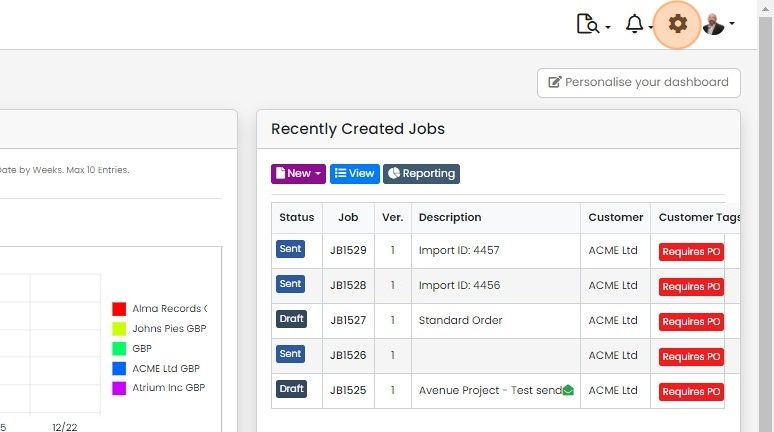
Click on the Cog
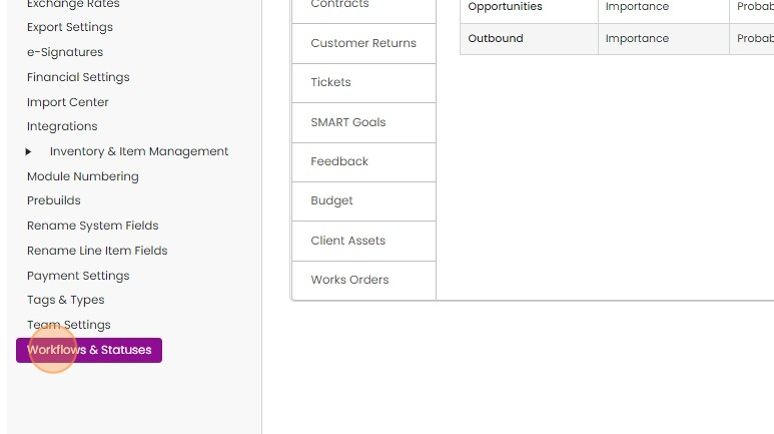
Click "Workflows & Statuses"
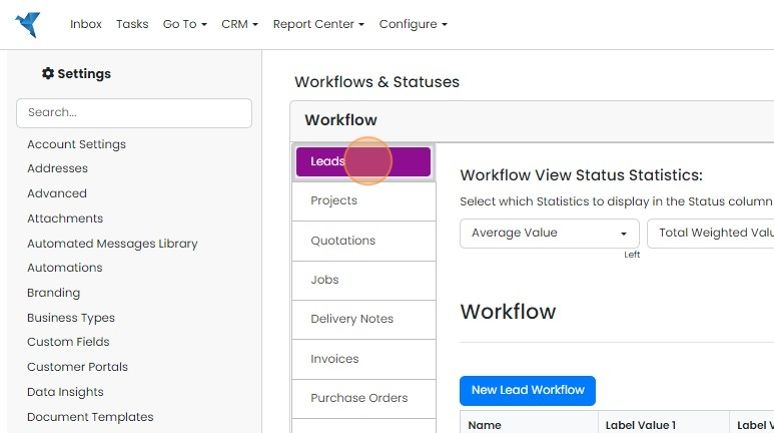
Click "Leads"
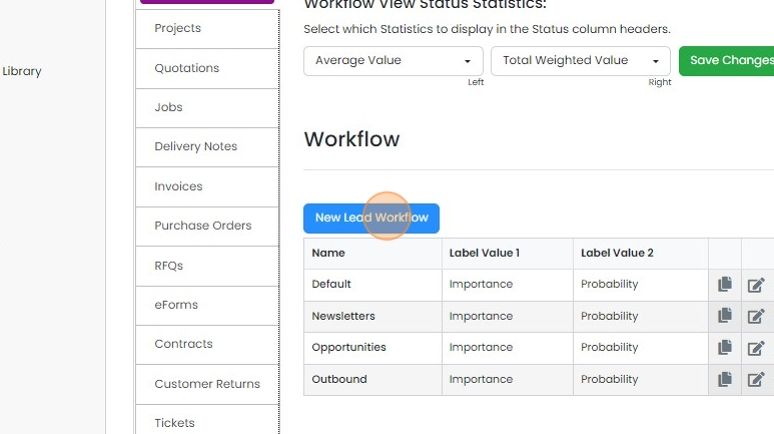
To add a new workflow, click "New Lead Workflow"
Give the Workflow a name, in this example it is "Trade Show"
Click on the Tick to finalize the creation
Add and order statuses

Click on the Workflow to add, edit or delete statuses

Click "Add Status"
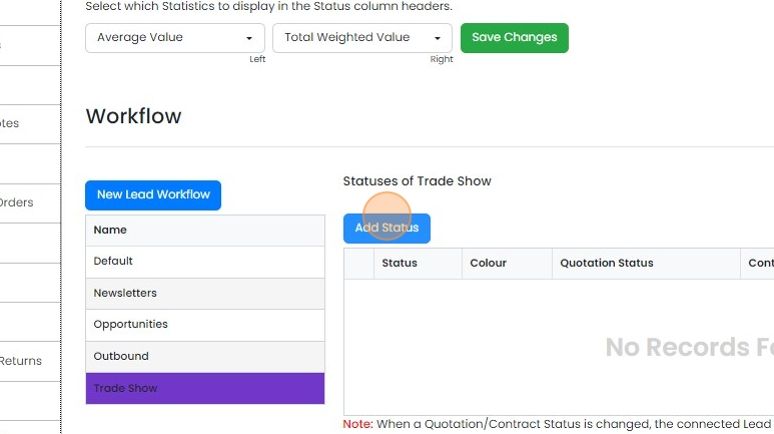
Enter the status name, and set the color
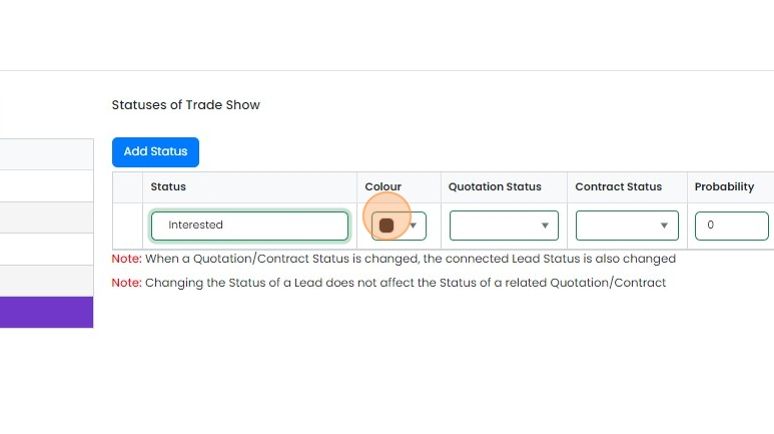
Click on the Tick to confirm the edit
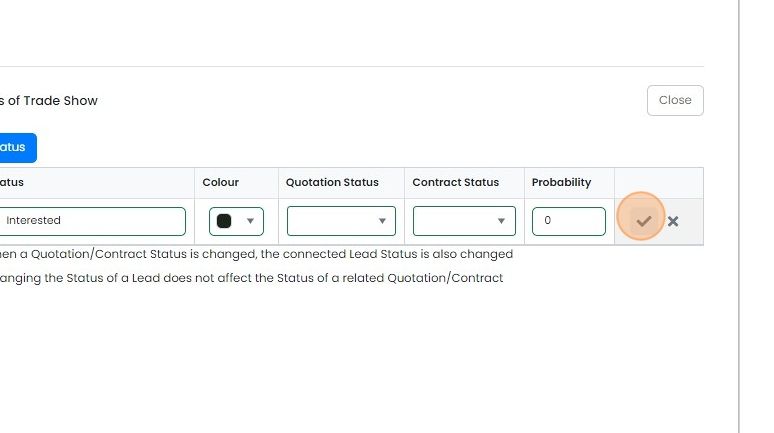
Add as many statuses as required and drag and drop into your preferred order
Pair quotation or contract statuses
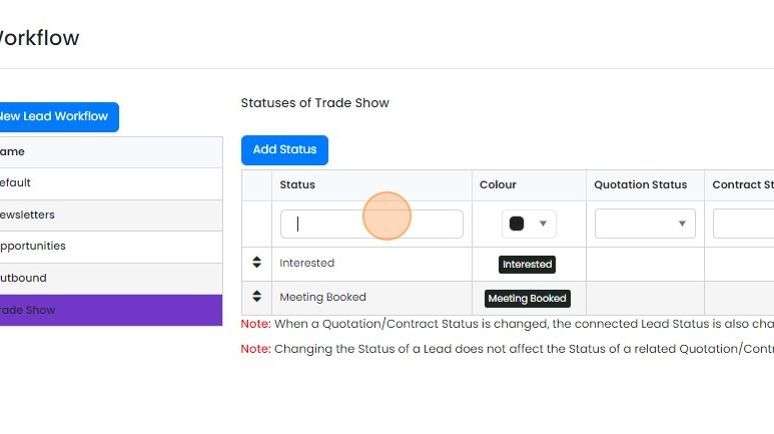
Set the paired quotation or contract status
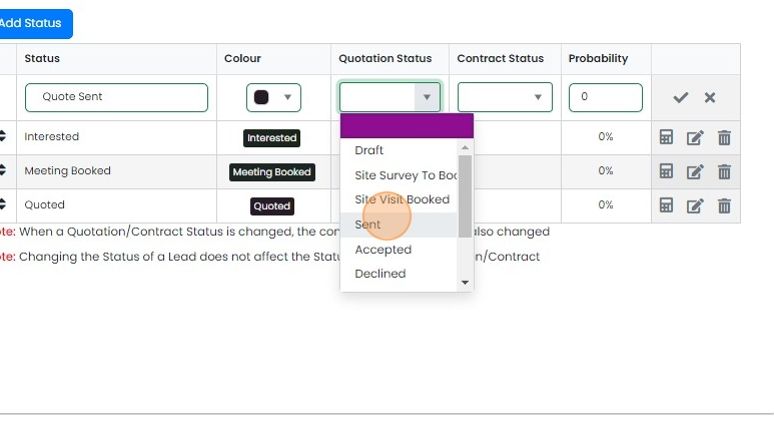
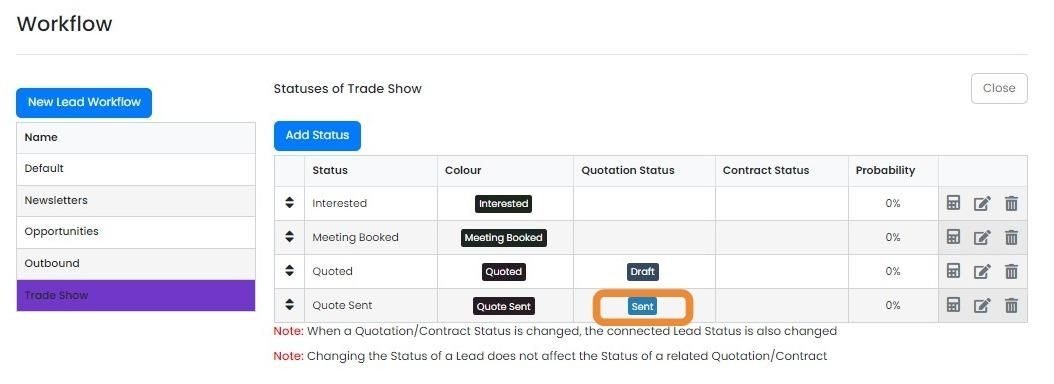
When it is paired, Zigaflow will automatically move the lead if the linked quotation or contract is moved...
When it is paired, Zigaflow will automatically move the lead if the linked quotation or contract is moved to that status. For example, the quotation is sent, it will automatically move the lead (in this case) to "Sent" as well
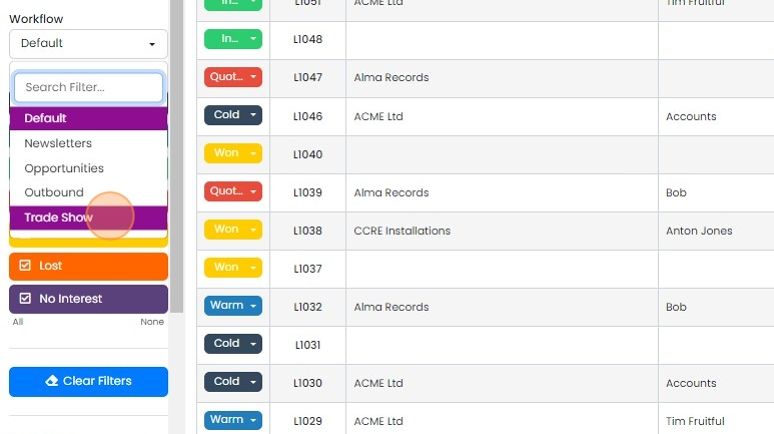
Open the workflow in leads
Once the workflow has been created, it can be access on the Leads screen here
Learn more: leads in Zigaflow


Workflows in Leads work differently from those in the other modules. In Leads you can create workflow statuses that do not exist in another workflow, whereas in the other modules, there are a set number of statuses. These are shared between different workflows.
Create a new lead workflow
Frequently asked questions
Next step
Go and Momentum plansWas this helpful?