Win work
Showing and using mark-ups, margins and discounts on quotations
The short answer
On a Zigaflow quotation, mark-up, margin and discount columns are hidden by default. Click "Screen Options", search the available columns and switch on the ones you want. You can then edit values on each line, or apply them across several lines at once with the "Apply" button.
Steps
Zigaflow can be configured just to show the columns you need

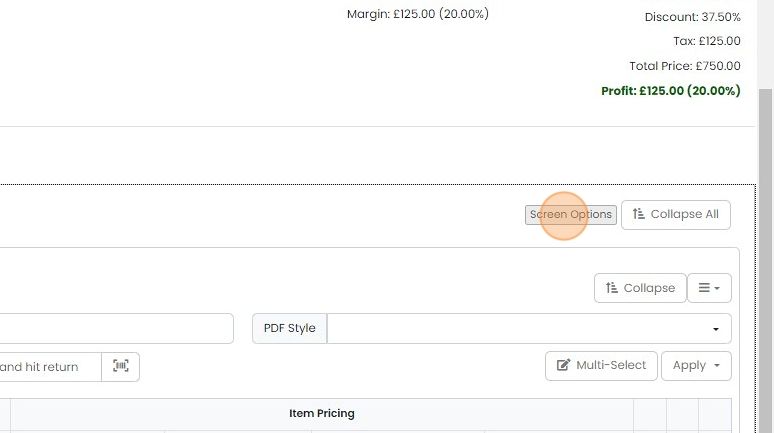
To show Mark-up, Margin or any other column, click on the "Screen Options"
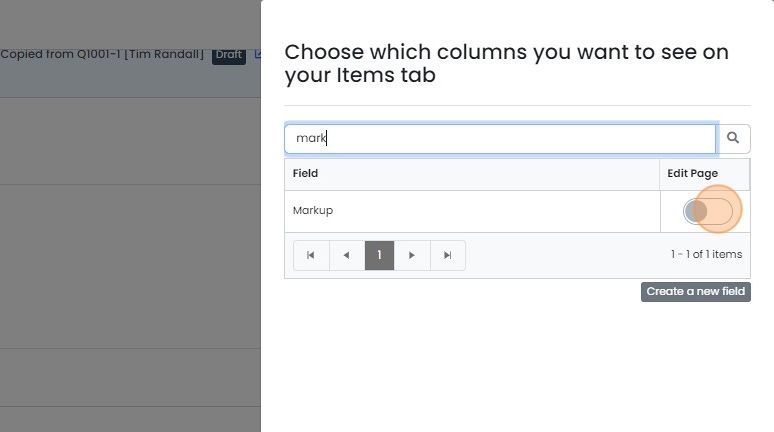
Search through the available columns
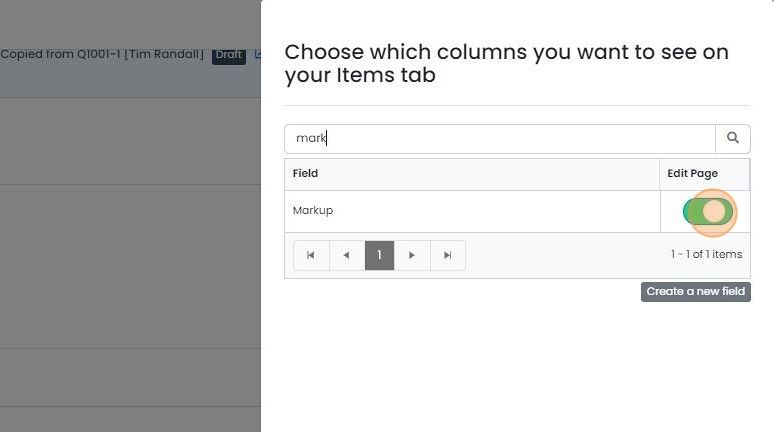
Switch on the columns you want to see
Edit values on a line
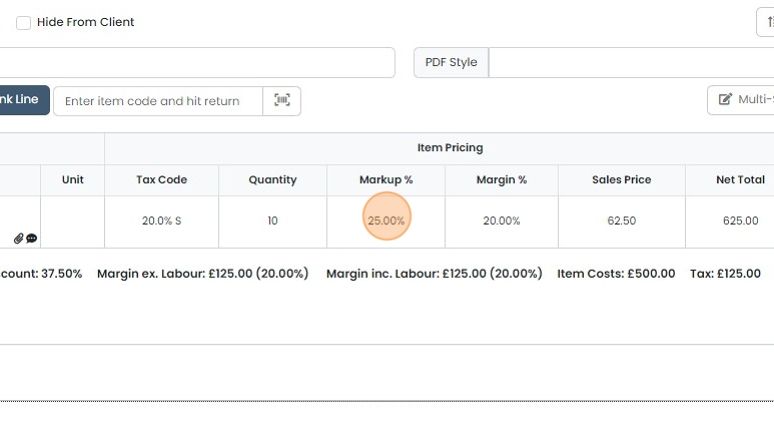
Edit the values directly on the line by double-clicking on the cell
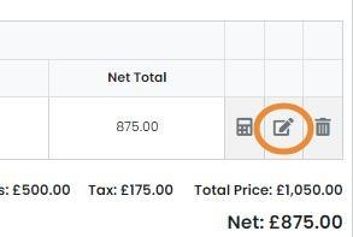
Or edit the line's item values using the edit button
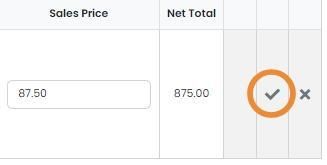
When finished, click on the tick button or press Enter/Return on your keyboard
Apply values to multiple lines
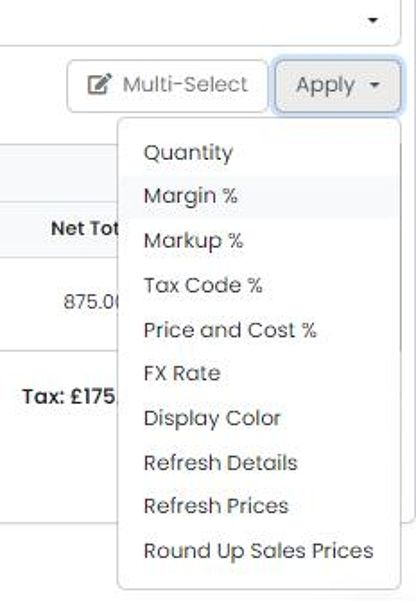
It is possible to apply values across multiple lines using the "Apply" button
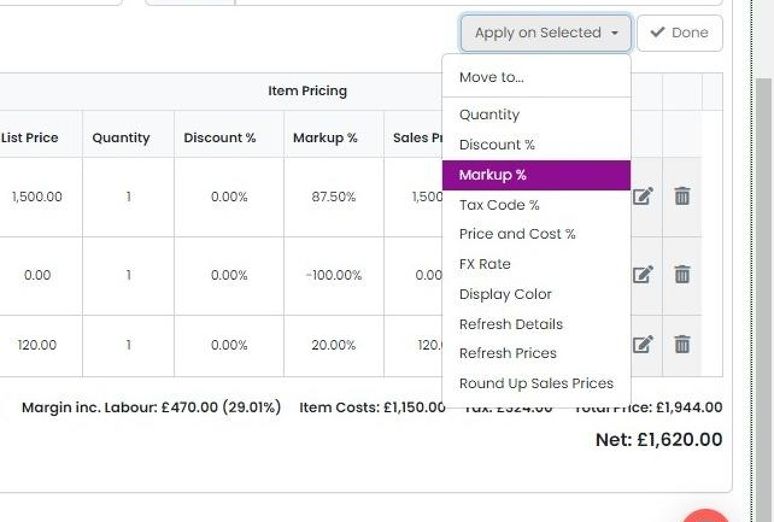
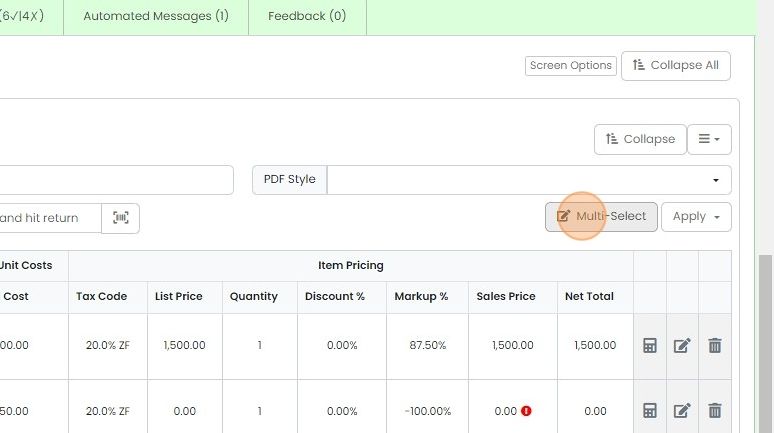
The same value can be applied to more than one specific line at a time. Click the "Multi-Select" button
2. Click on the items to apply your mark-up, margin, discount, FX rate, etc. to

3. Click "Apply on Selected"

4. Select what to apply in this menu
Learn more: quotes in Zigaflow


Zigaflow has many columns that help you to configure and price your quotations quickly. However, they are hidden by default. This article explains how to show them and how the values can be edited.
Show hidden pricing columns
Frequently asked questions
Next step
Every planWas this helpful?