Get set up
Using variants on a quotation
The short answer
To use a variant on a quotation, click Add Items, then Variants, and pick a variant to add it. Select its options, such as Blue, and click Add SKU to add the matching item. Later, click the Variant button on the item, choose a different option, and click Switch SKU.
Steps
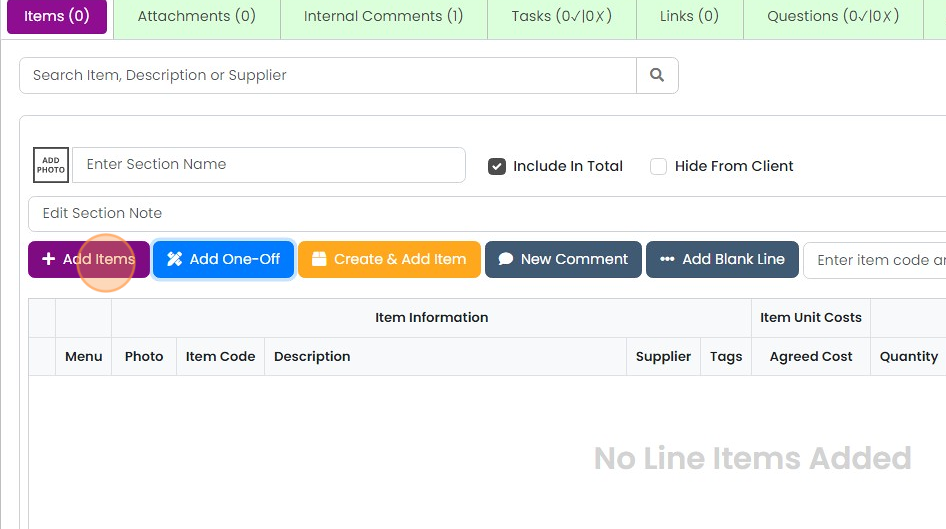
Click "Add Items"
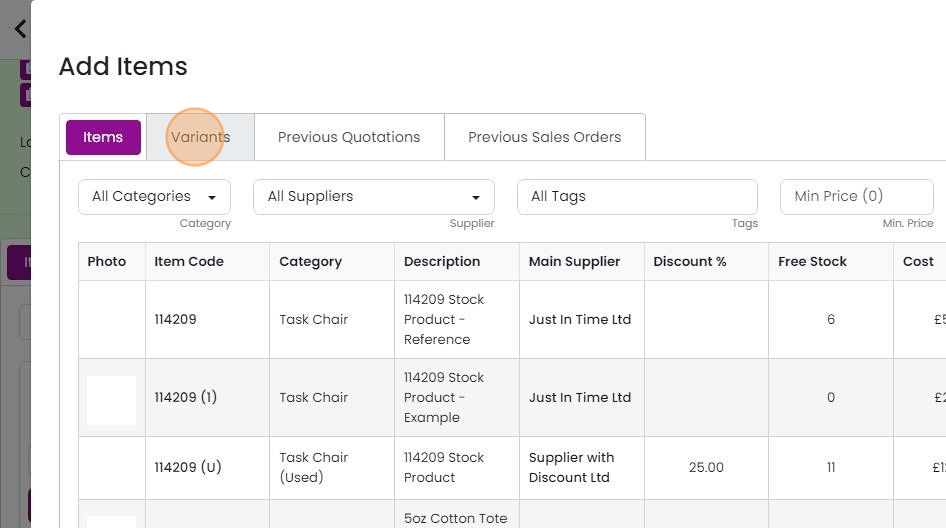
Click "Variants"
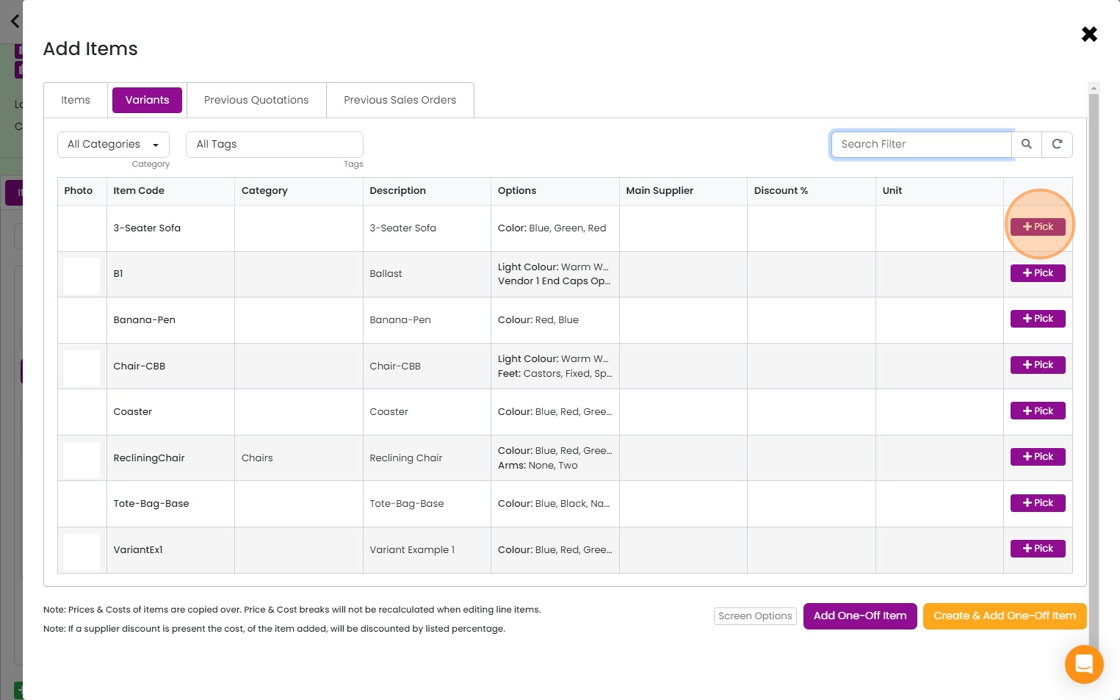
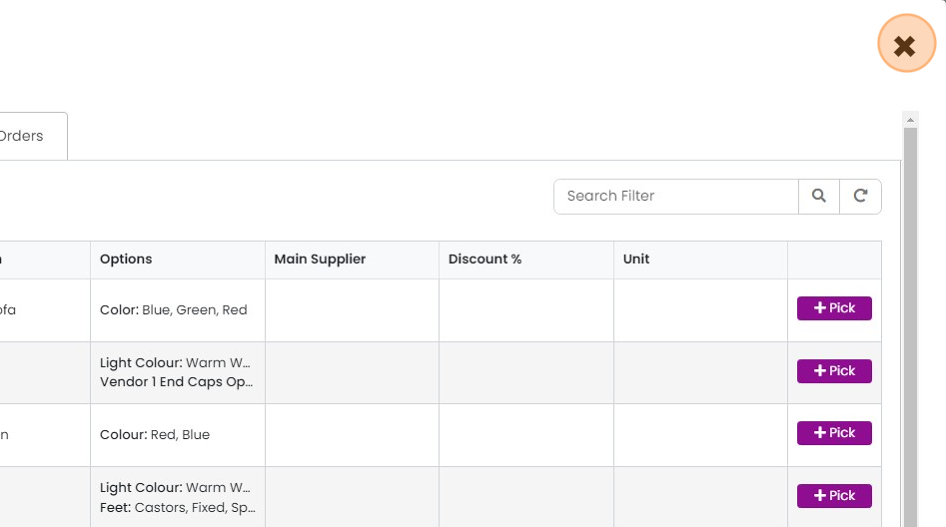
"Pick" a variant to add it to the quotation
Select the option(s)
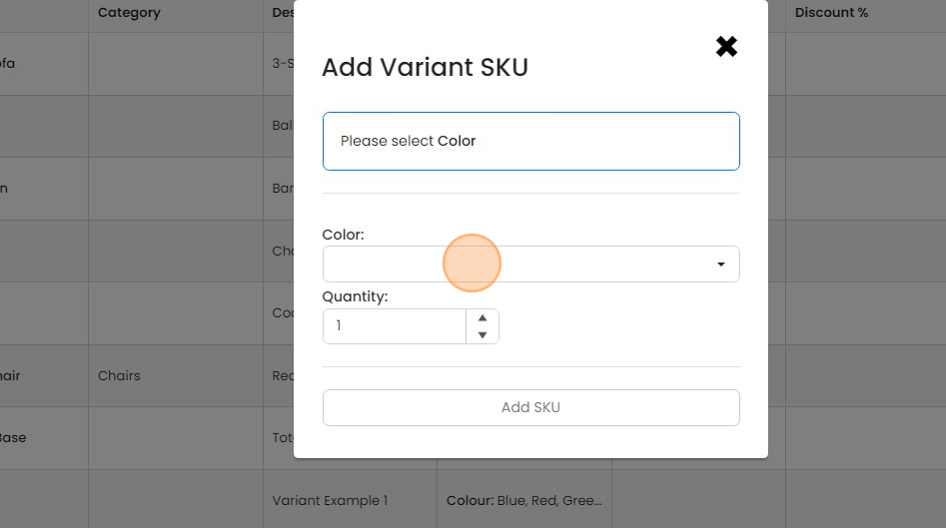
Click "Blue"
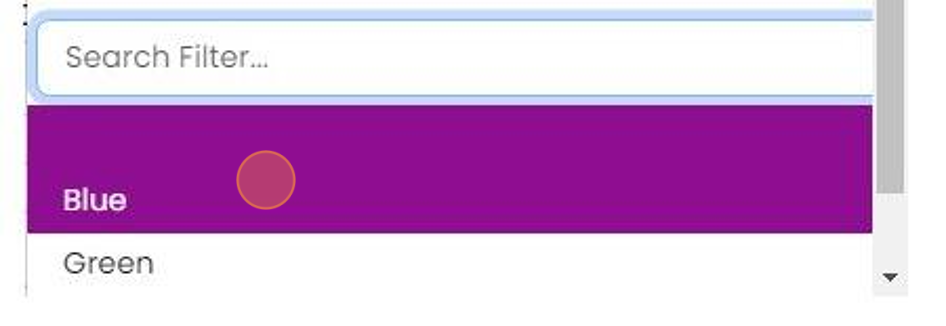
Click "Add SKU"

Click "×"
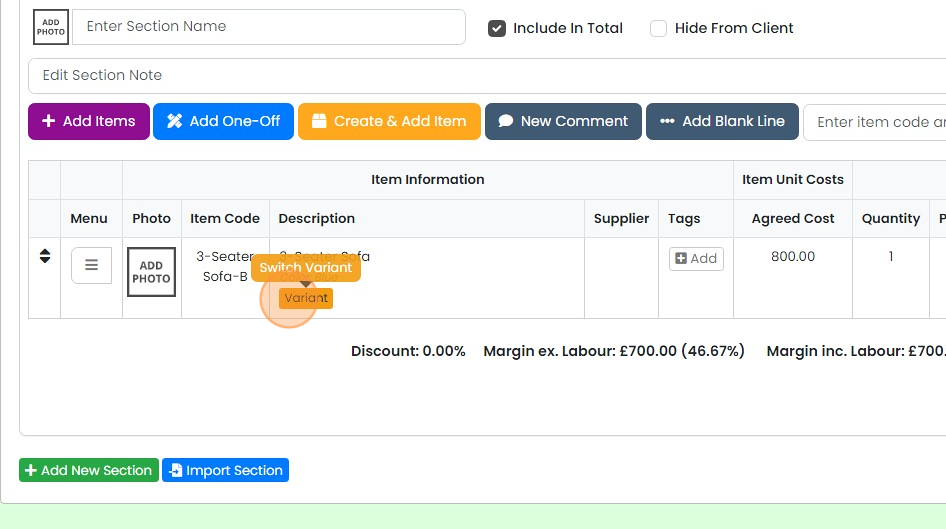
Switch to a different variation
To to change to a different variation (or options), click on the 'Variant' button
Click on the option
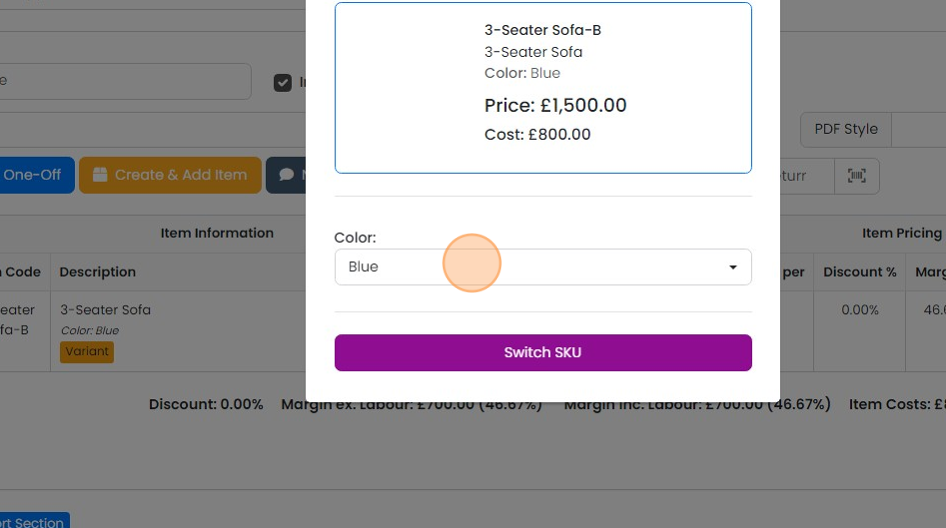
Select a different option
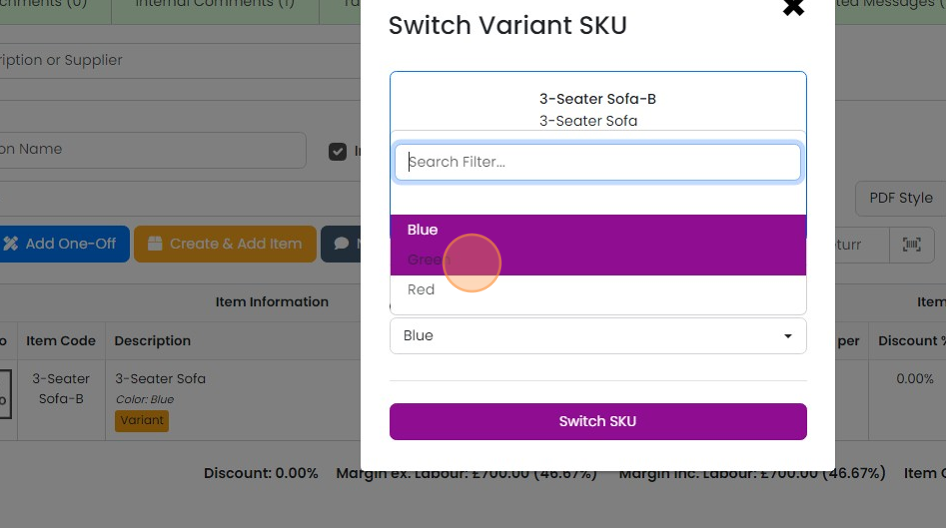
Click "Switch SKU"

Item has been swapped on the quotation
Learn more: kits and variants in Zigaflow
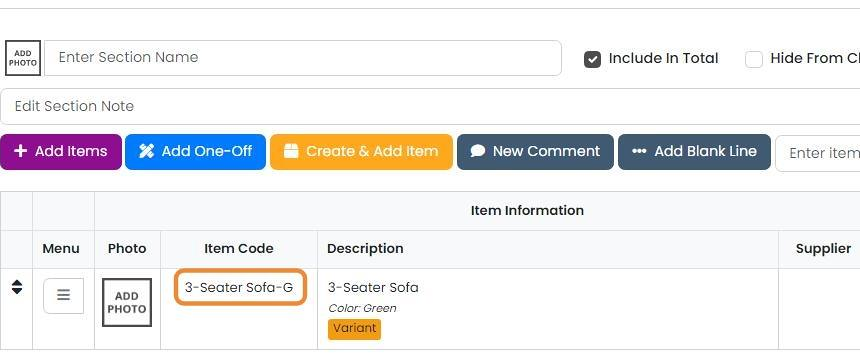


Variants enable users to swap between different items/SKU's on a quotation based on the option(s)/variation(s) selected.
Add a variant to a quotation
Frequently asked questions
Was this helpful?