Win work

Create a lead from an email

In ZigaflowGo and Momentum plans

The short answer

To create a lead from an email in Zigaflow, click Inbox, choose the correct email account from the dropdown, and open the email. Then click Create and pick the preset to use. The lead is created, and a lead icon appears on the email so other users know it has been dealt with.

Steps

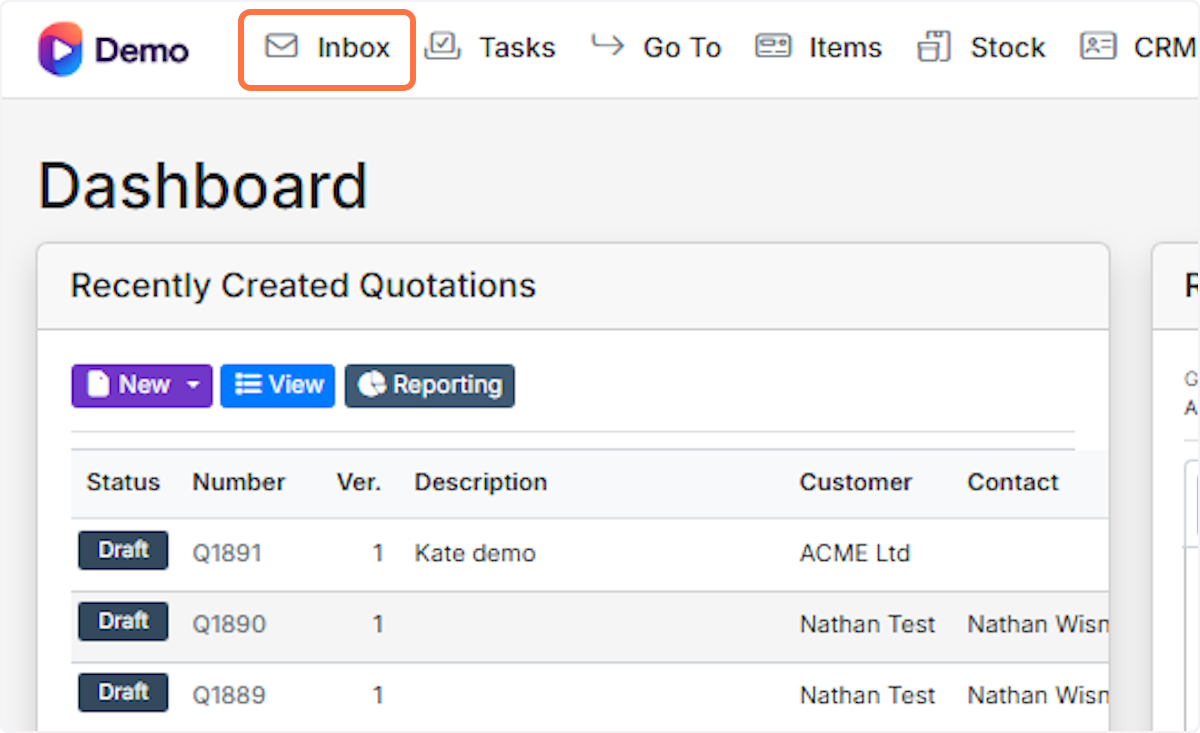
  1. Click on Inbox

    Click on Inbox
  2. A. Click on the dropdown to select the correct email account
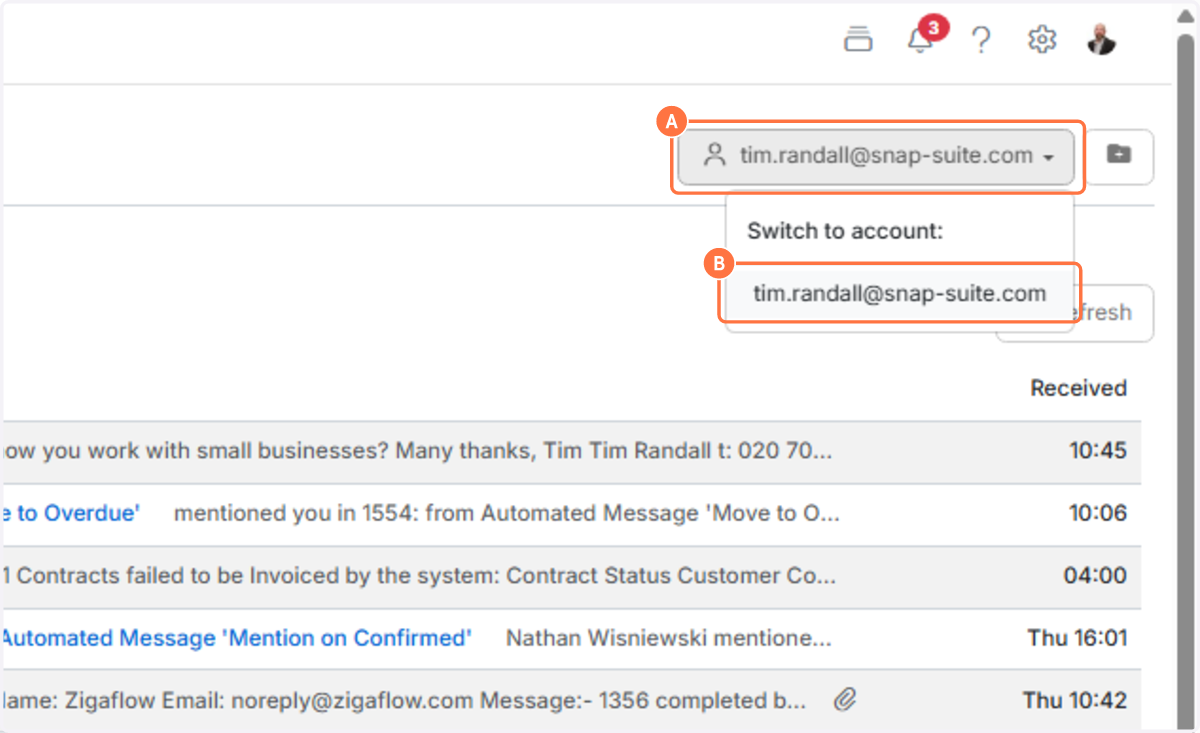
    Step 2
  3. Click on the email to open it

    Click on the email to open it
  4. A. Click on Create

    B. Click on the preset/pre-build to use. The lead is created.
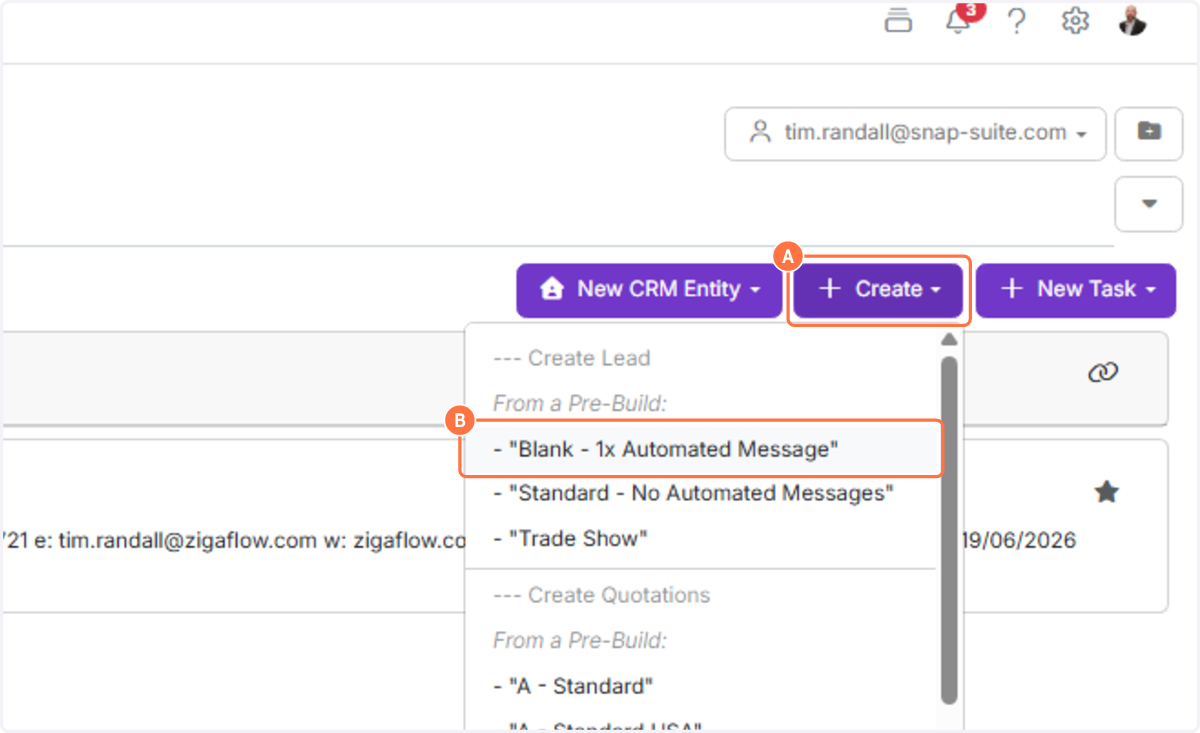
    Step 4
  5. The email has the lead icon added to it to show other users that this email has been dealt with

    ​

    Learn more: leads in Zigaflow

    Email inbox list with the red lead icon highlighted next to the received time, showing the email has been converted to a lead

Frequently asked questions

Next step

Setting up a leads workflow/pipeline/boardGo and Momentum plansTo set up a leads workflow in Zigaflow, click the Cog, then "Workflows & Statuses", then "Leads", and click "New Lead Workflow". Name it, click the Tick, then add and drag statuses into order. You can pair each status with a quotation or contract status. The workflow then appears on the Leads screen.

Was this helpful?

See Zigaflow on your own workflow

Book a demo and we will walk through quoting, jobs and purchasing the way your team runs them.

Or see how Zigaflow would fit your business, free