Win work

Set up customer e-signatures (online acceptance of a quotation)

In ZigaflowEvery plan

The short answer

To set up customer e-signatures in Zigaflow, show the "Approved" status in your Quotations workflow, add the {ReviewLink} variable to your quotation email template, and add the signature variables to your quotation document template. Then send a test quotation, and the customer can accept it online.

Steps

  1. Click here

    Dashboard with the settings gear icon highlighted in the top-right toolbar, beside the notifications bell and profile menu
  2. Click "Workflows"

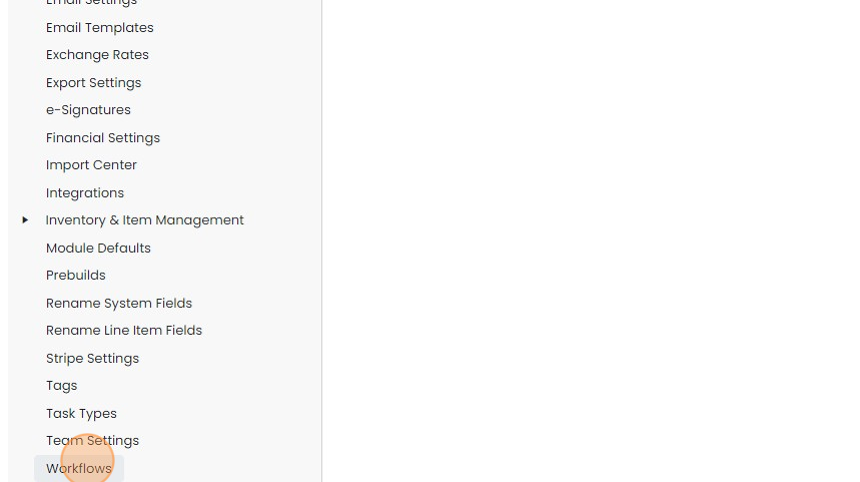
    Settings menu list with the Workflows option highlighted at the bottom, below Team Settings and Task Types
  3. Click "Quotations"

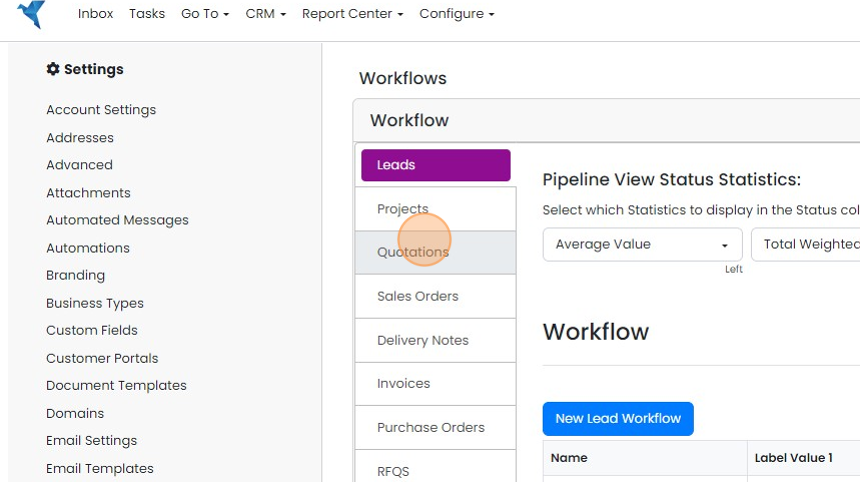
    Workflows settings page with the Quotations tab highlighted in the Workflow list, below Leads and Projects
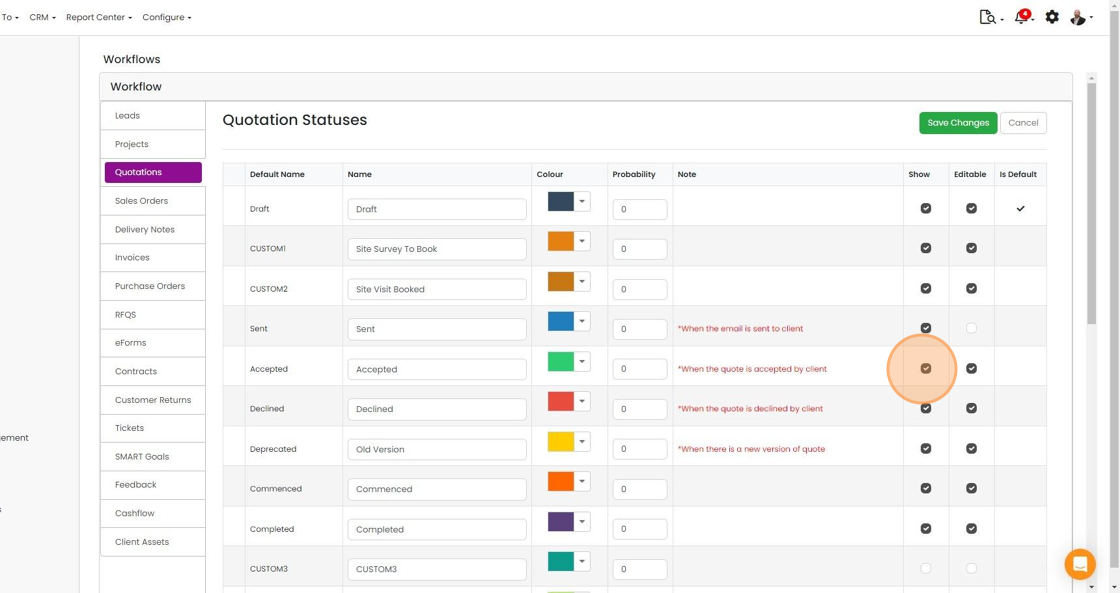
  4. Make sure that the "Approved" status is showing (although it can be renamed)

    Make sure that the "Approved" status is showing (although it can be renamed). Click "Edit" change its visibility
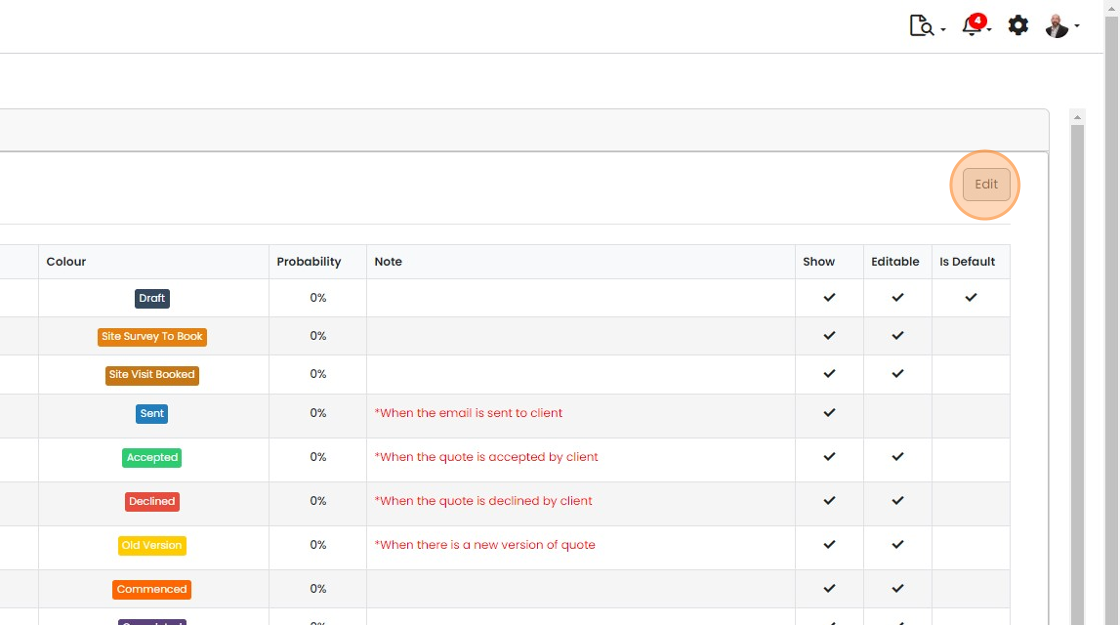
    Quote statuses table listing Draft, Sent, Accepted and Declined with Show and Editable columns, Edit button highlighted
  5. Set to "Show"

    Quotation Statuses table in Workflow settings with the Show checkbox highlighted for the Accepted status row
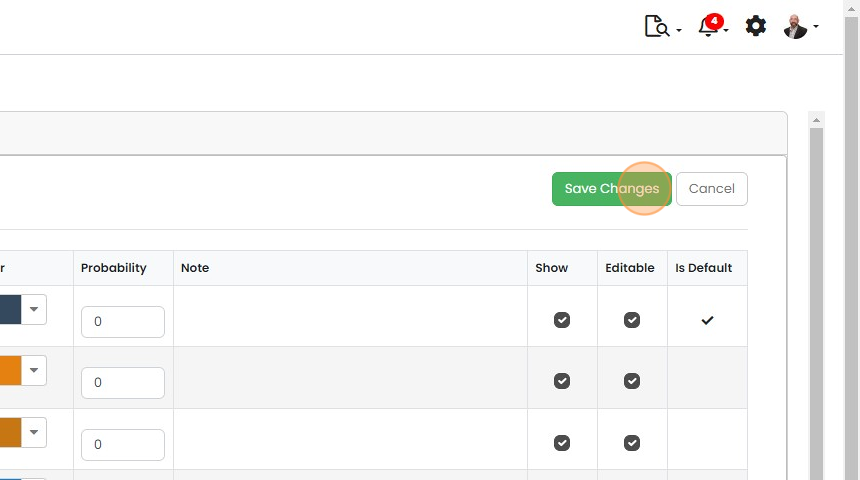
  6. Click "Save Changes"

    Save Changes button highlighted above a status table with Probability, Note, Show, Editable and Is Default columns
  7. Add the link to the page to your email to your customers. Click "Email Templates"
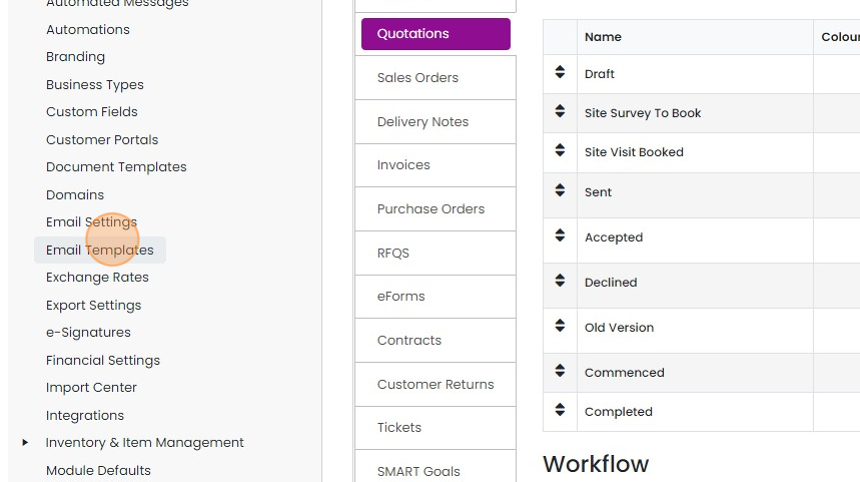
    Settings menu with Email Templates highlighted in the left sidebar, beside the Quotations status list and Workflow section
  8. Edit the email template(s) you use

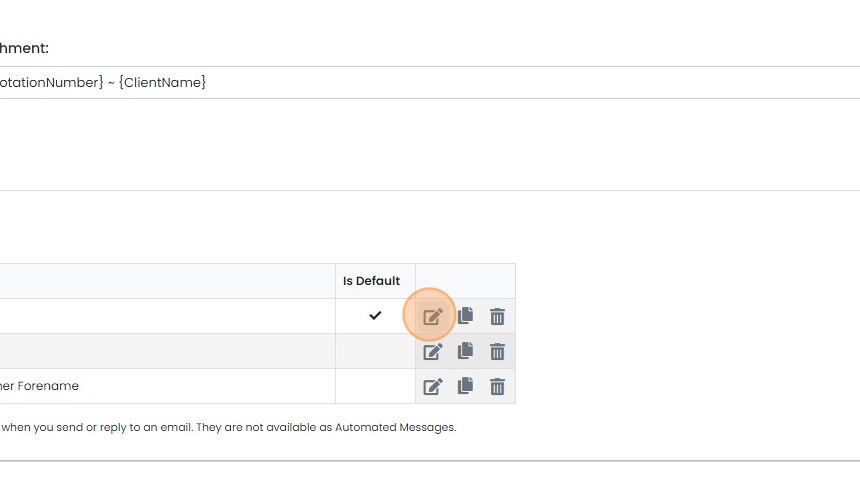
    Email templates table with Is Default column, highlighting the edit (pencil) icon on the default template row
  9. Click here

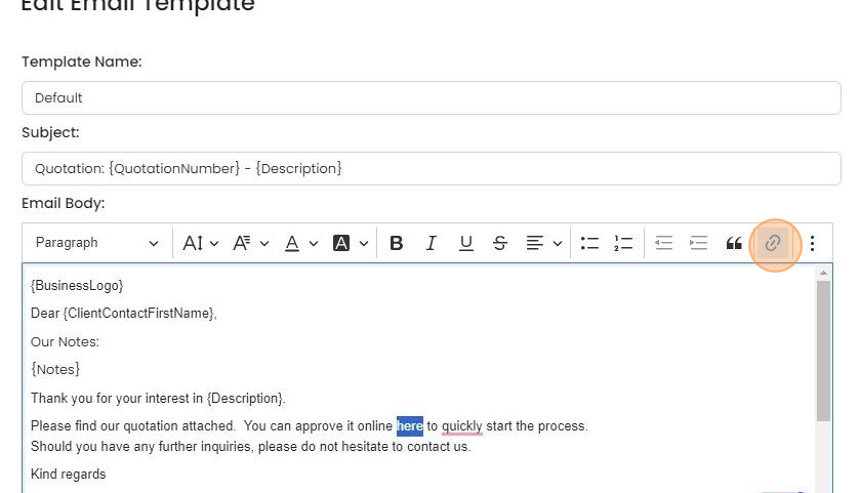
    Edit Email Template body with the word
  10. Insert the variable "{ReviewLink}" and tick to complete the edit

    Email template editor Link URL box containing {ReviewLink} on the word
  11. Click "Save"

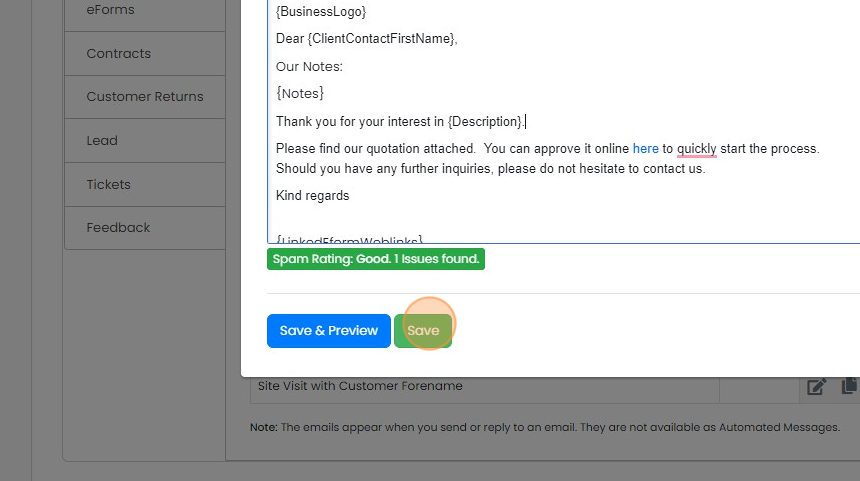
    Email template editor with quotation approval text and placeholders, the Save button highlighted beside Save & Preview
  12. Click "×"

    Add signature details to documents
    Pop-up window with text fields and rich text editor, with the close
  13. Next, make sure that the signature details are going to produced in the quotation document

    Click "Document Templates"
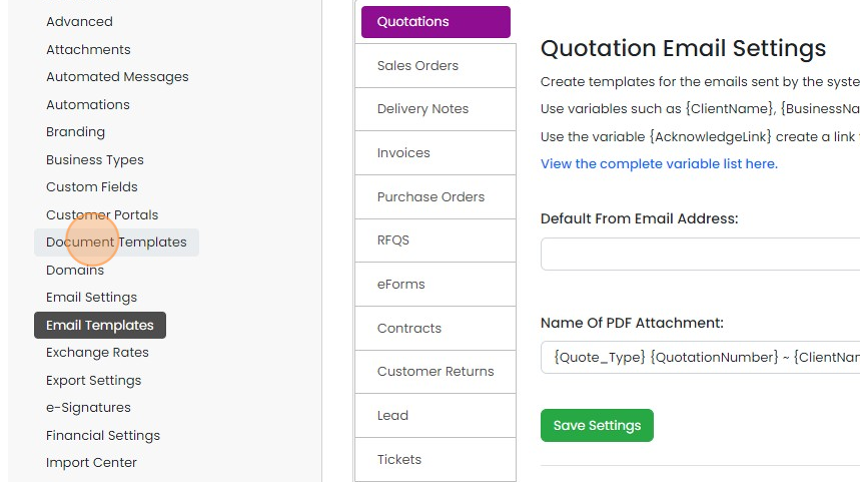
    Settings menu with Document Templates highlighted below Customer Portals, while the Quotation Email Settings panel is open
  14. Click "Quotations"

    Document Templates settings page with the Quotations tab highlighted at the top of the template type list
  15. Edit the document to add the variables to

    Document template list with Body and Docx tags, highlighting the
  16. Add these variables to the document template

    Quotation template acceptance table with Name, Signature and Date Signed columns holding e-signature agreement variables
  17. Click "Step 1: Preview"

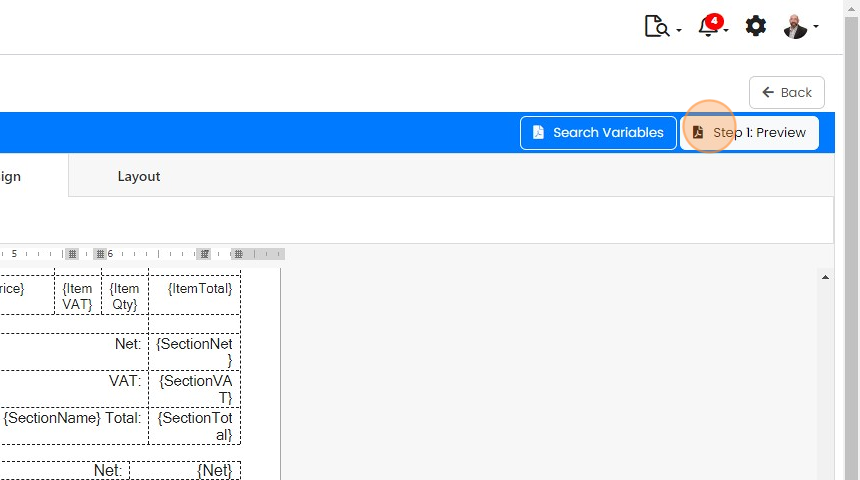
    Document template editor with the
  18. Click "Step 2: Save"

    Make sure this document is set in the Quotation pre-build you are planning to use

    Test the customer acceptance
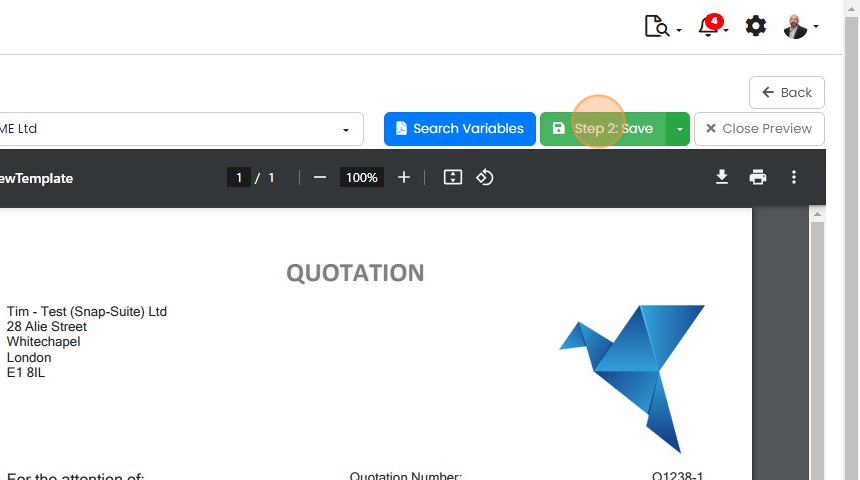
    Template preview of a quotation PDF with the green
  19. Let's see how it works - create a quotation and edit it

    Quotations list with quotation number Q1238 highlighted in the first row, which has Draft status, to open it for editing
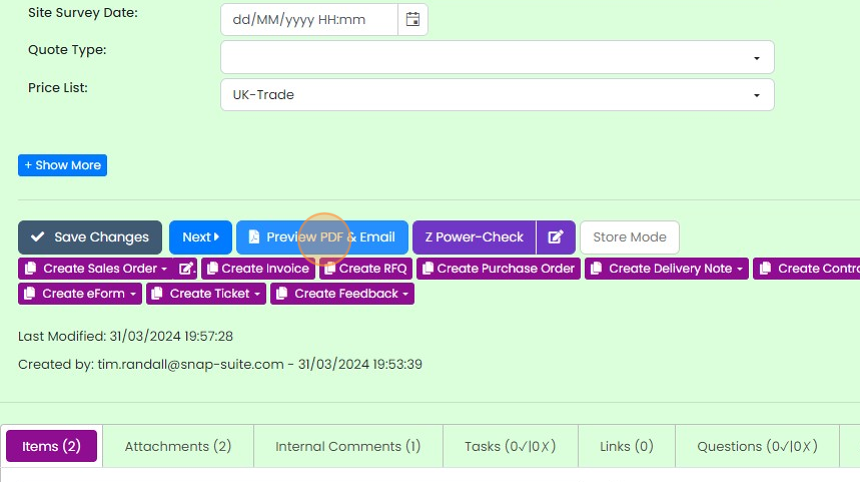
  20. Click "Preview PDF & Email"

    Quote screen action buttons with the Preview PDF & Email button highlighted, next to Save Changes and Next
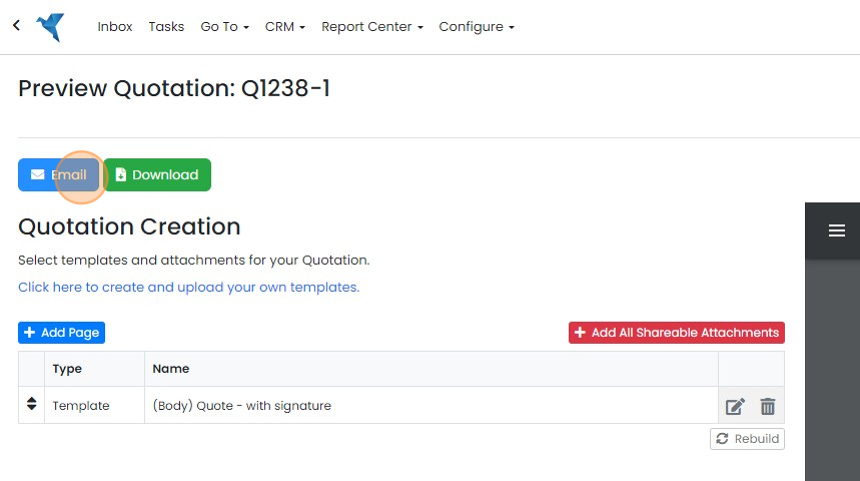
  21. Click "Email"

    Preview Quotation page with the Email button highlighted next to Download, above the Quotation Creation template list
  22. The link has been added to the email - send this email to the customer
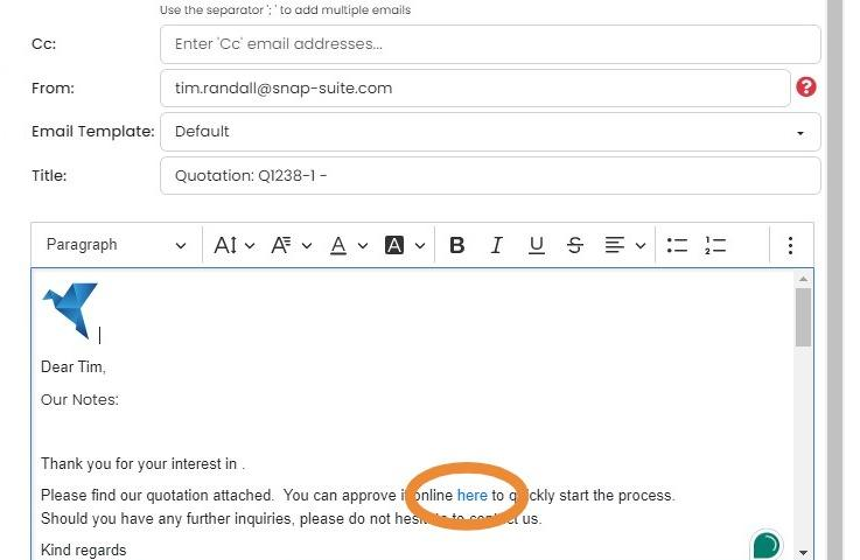
    Quotation email editor with the
  23. Click "Review Link" to open the customer's page

    Quotation preview page with the customer review URL field and the purple Review Link button highlighted beside it
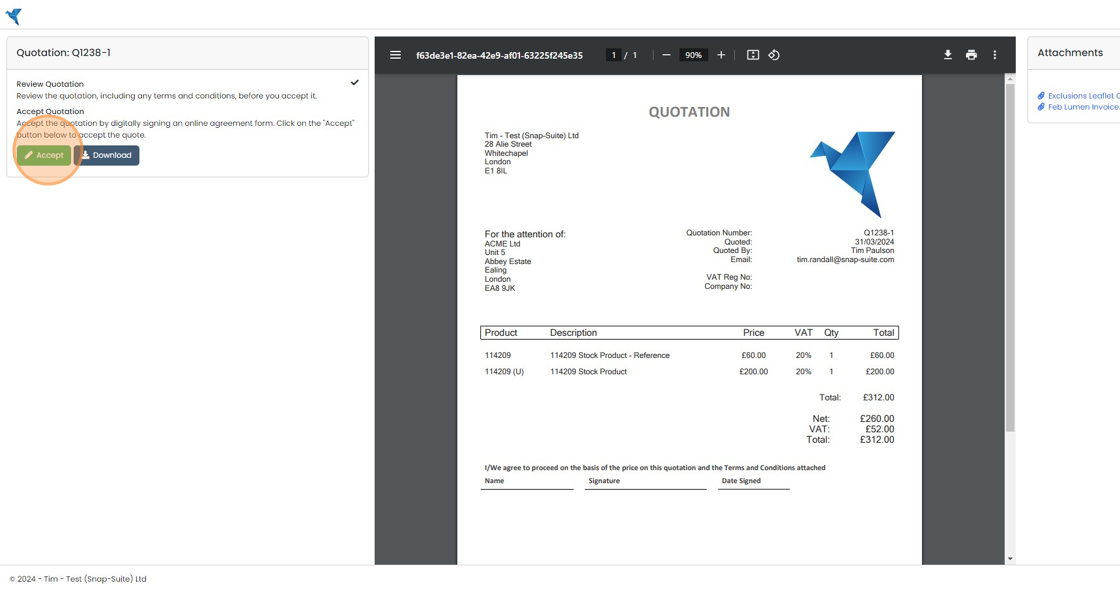
  24. The customer will click "Accept"

    Customer quotation acceptance page with PDF preview and Attachments panel, highlighting the green Accept button
  25. The customer fills in the following fields to accept the quotation
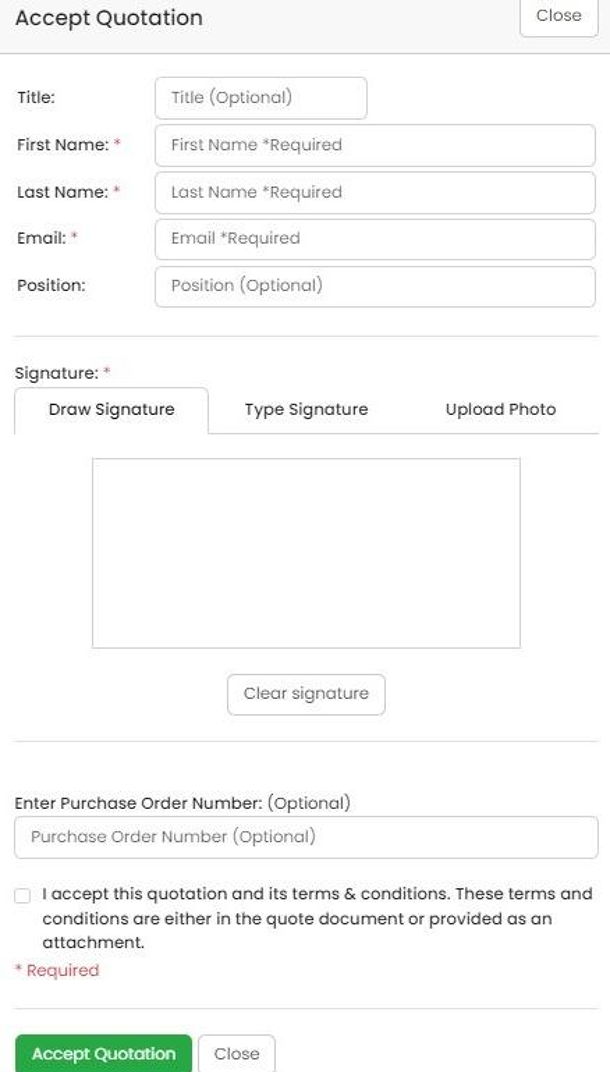
    Accept Quotation form with name, email, signature, optional purchase order number, terms checkbox and Accept Quotation button
  26. You can change what the customer has to fill in on this form on the Cog -> e-Signatures -> Quotations
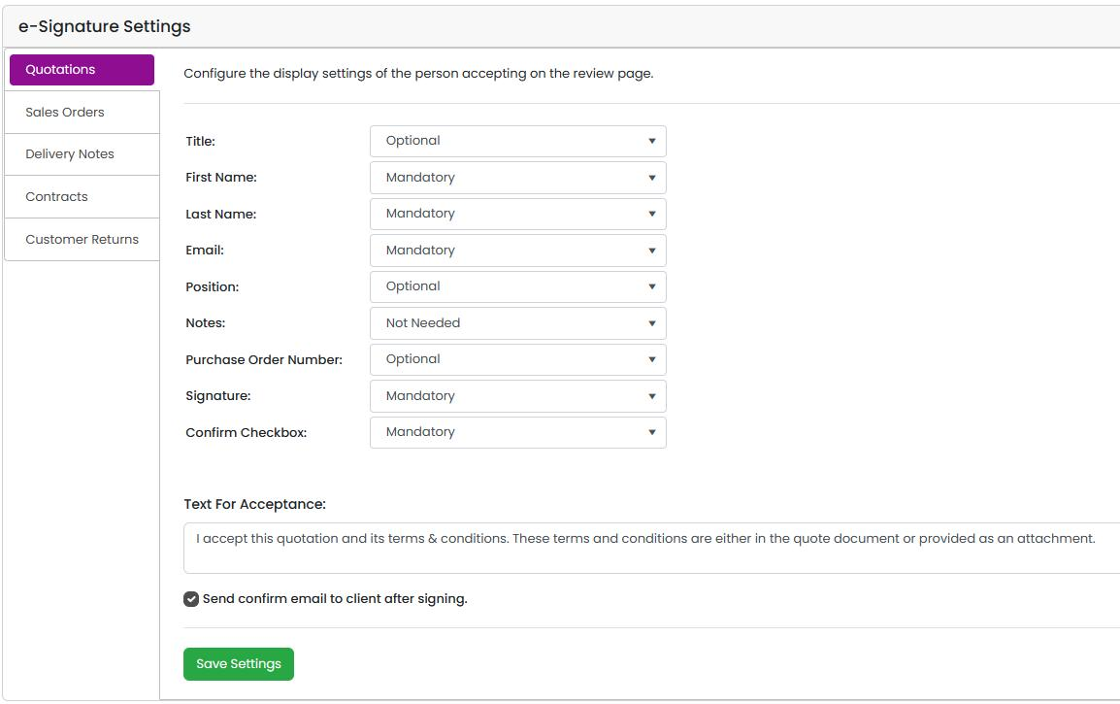
    e-Signature Settings with Quotations tab selected, showing dropdowns setting each acceptance field to Mandatory or Optional
  27. Once the customer has clicked "Accept Quotation" its status is changed to Accepted

    Once the customer has clicked "Accept Quotation" its status is changed to Accepted. The customer can receive a copy of the signed quotation (see the configuration screen above), the assigned user (the salesperson) will get an email and you can trigger automations, for example to create a Job/Sales Order or an invoice.
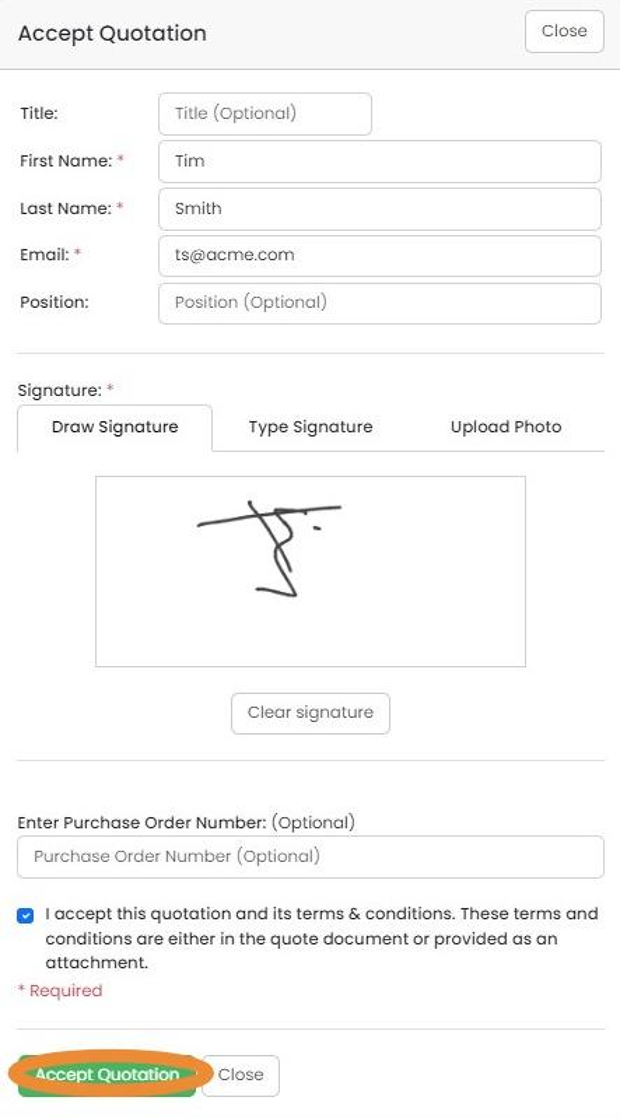
    Accept Quotation form with drawn signature, terms checkbox checked, and the Accept Quotation button highlighted at the bottom
  28. The change of status is shown in the timeline

    Quote timeline showing entries for quote Q1238-1 being created as Draft, changed to Accepted, and accepted by the customer
  29. Click on the "Attachments" table to see the signed quotation in the internal files side - for example...

    Click on the "Attachments" table to see the signed quotation in the internal files side - for example "(Signed) Q1238-1 ~ ACME Ltd.pdf"

    Learn more: quotes in Zigaflow

    Attachments tab with the signed quote PDF highlighted in the Upload Internal Files table, alongside the signed agreement file

Send a link on your emails to your customers. They can accept your quotations online and these will be automatically confirmed to them, inform your team members and optionally, start other process in Zigaflow, such as the creation of a Job/Sales Order, or invoice.

If you set up credit card payments in the system, the customer can also pay online immediately. Using pre-builds, you can reserve this just for some customers.
​

Show the approved status

Frequently asked questions

Next step

Getting customer signature/approvalEvery planTo get a customer to sign or approve a quotation, open the quotation in Zigaflow, click Preview PDF & Email, then Email. The email contains a link to the customer signature page. You can also copy the link from the Review Link field and send it yourself. The customer then enters their details and clicks Accept Quotation.

Was this helpful?

See Zigaflow on your own workflow

Book a demo and we will walk through quoting, jobs and purchasing the way your team runs them.

Or see how Zigaflow would fit your business, free