Creating the PDF template for tiered quotes
The short answer
To create the PDF template for a tiered quote, set up the item table differently from a standard template. The table holds only one item, so the item variables are section variables. The top shows the item's text and image, and the price and quantity section repeats for each quoted quantity.
The item table can only have one item - this is the same as the edit screen, where there can only be one section per item. To differentiate this, the item variables are section variables. The top of the table contains the item's text and image details, with the price and quantity section repeated for each quoted quantity (i.e., 15, 50, 100, etc.).
Make sure the {Catalogue} variable is included in the table:

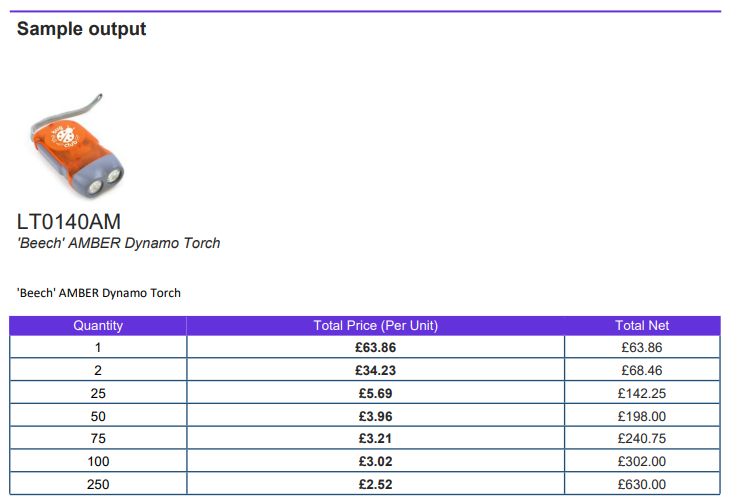
Which resolves into this:
Learn more: tiered quotes in Zigaflow
Frequently asked questions
Next step
Every planWas this helpful?