Win work

Setting up tiered/volume break quotations

In ZigaflowEvery plan

The short answer

To set up tiered or volume break quotations in Zigaflow, switch on tiered quotations in Module Settings, create at least one tiered pre-build under Pre-Builds, then link a PDF template to it under Templates. Test it by going to Quotations, clicking New, and selecting your pre-build.

Steps

  1. Click here

    Zigaflow dashboard with the settings gear icon highlighted in the top-right toolbar, next to the help and profile icons
  2. Click "Module Settings"

    Settings menu with Module Settings highlighted in the left sidebar, below Module Numbering and above Pre-Builds
  3. Click the "Create and view Tiered Quotations" field

    Create a tiered pre-build
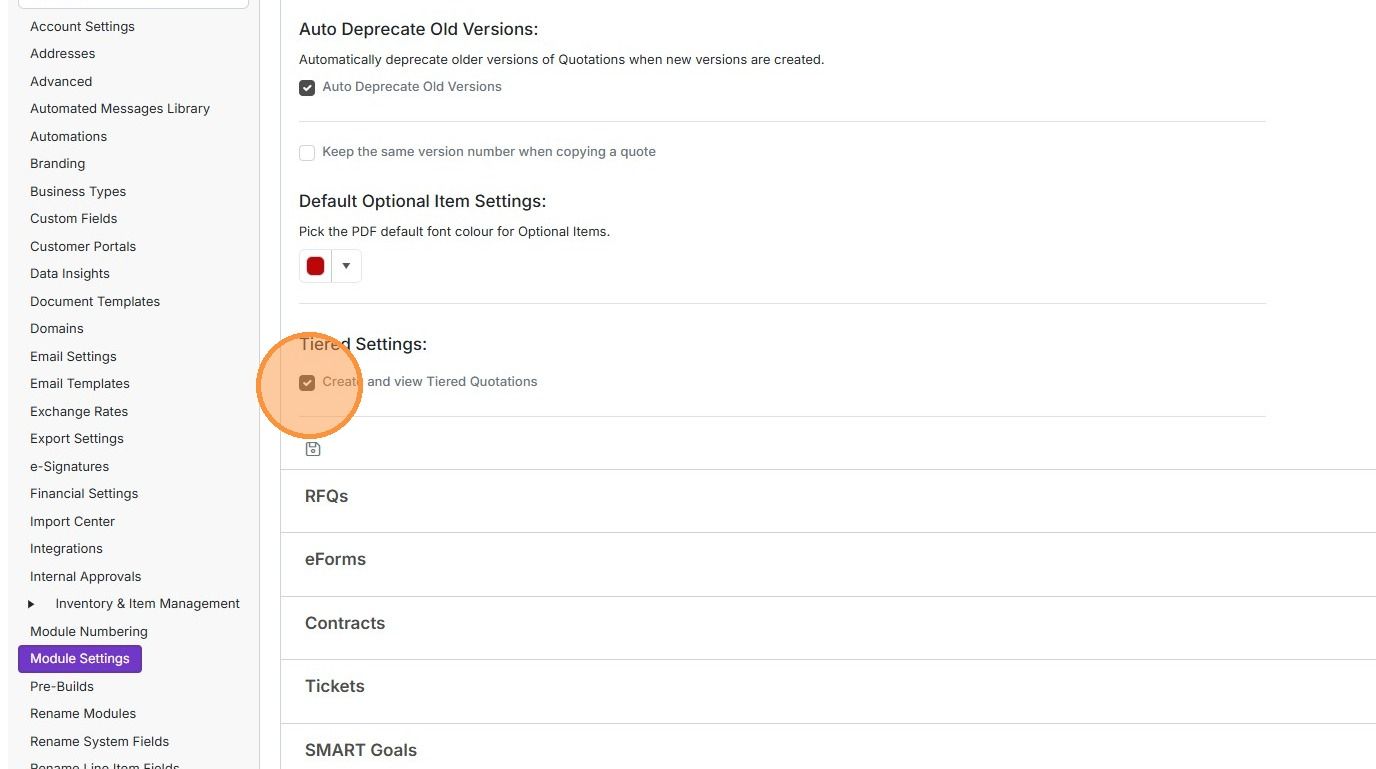
    Module Settings showing the Tiered Settings section with the
  4. You need to set up at least one pre-build. Click "Pre-Builds"
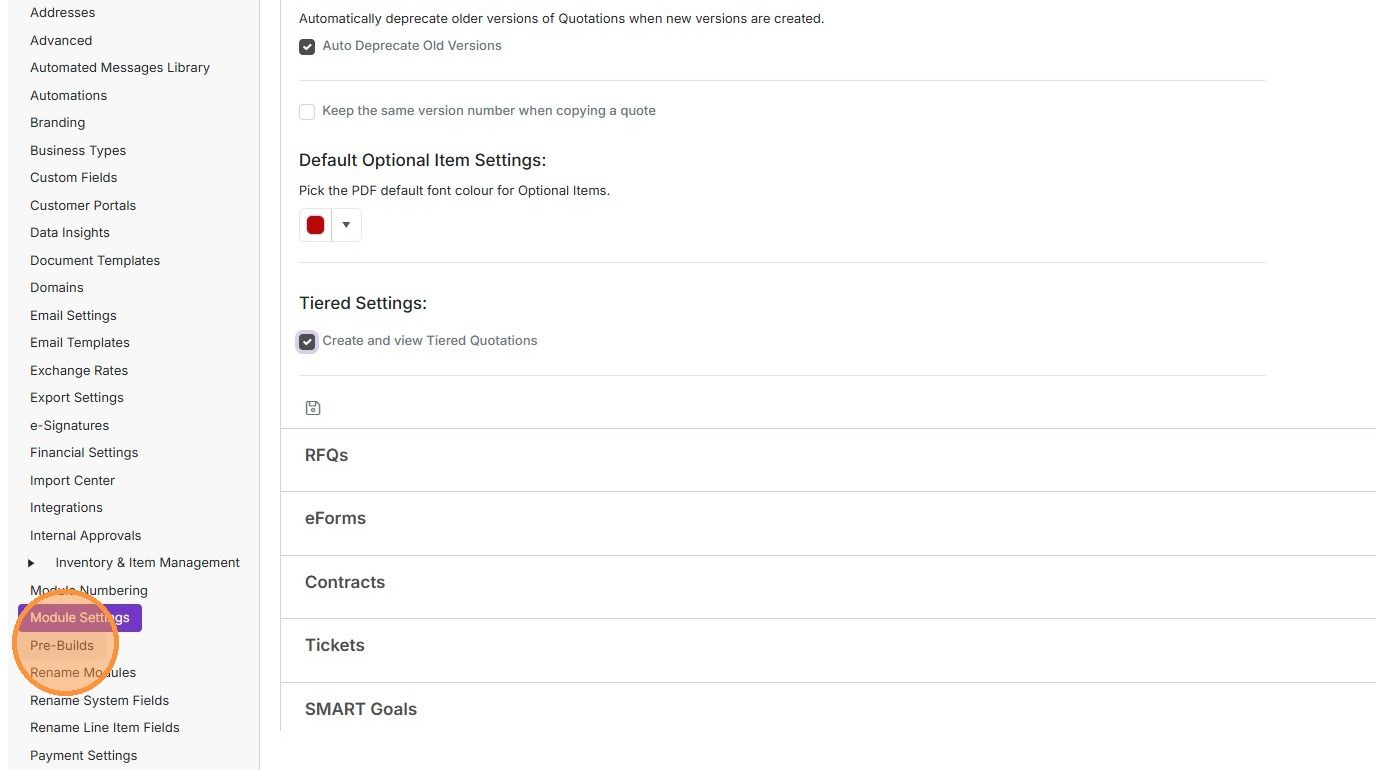
    Settings sidebar with Pre-Builds highlighted below Module Settings, where Create and view Tiered Quotations is checked
  5. Click Quotations

    Pre-Builds settings page with the Quotations tab highlighted in the left-hand list below Leads, showing the pre-build table
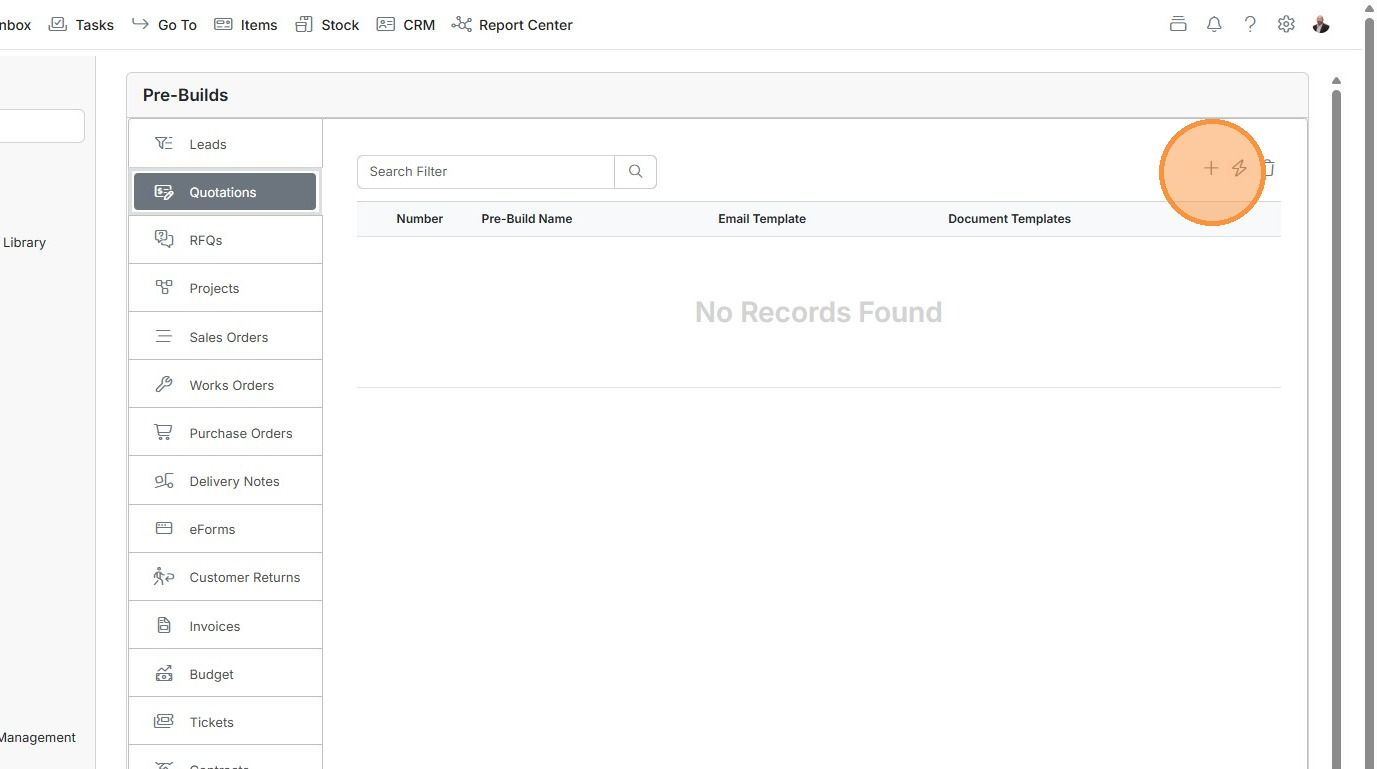
  6. Click to add

    Pre-Builds screen with Quotations selected and the add (+) icon highlighted at the top right of the empty list
  7. Click "Tiered"

    Pre-Builds Quotations tab with the add (+) dropdown open and the Tiered option highlighted below Standard
  8. Give the pre-build a name

  9. To associate a PDF template to be used, click "Templates"
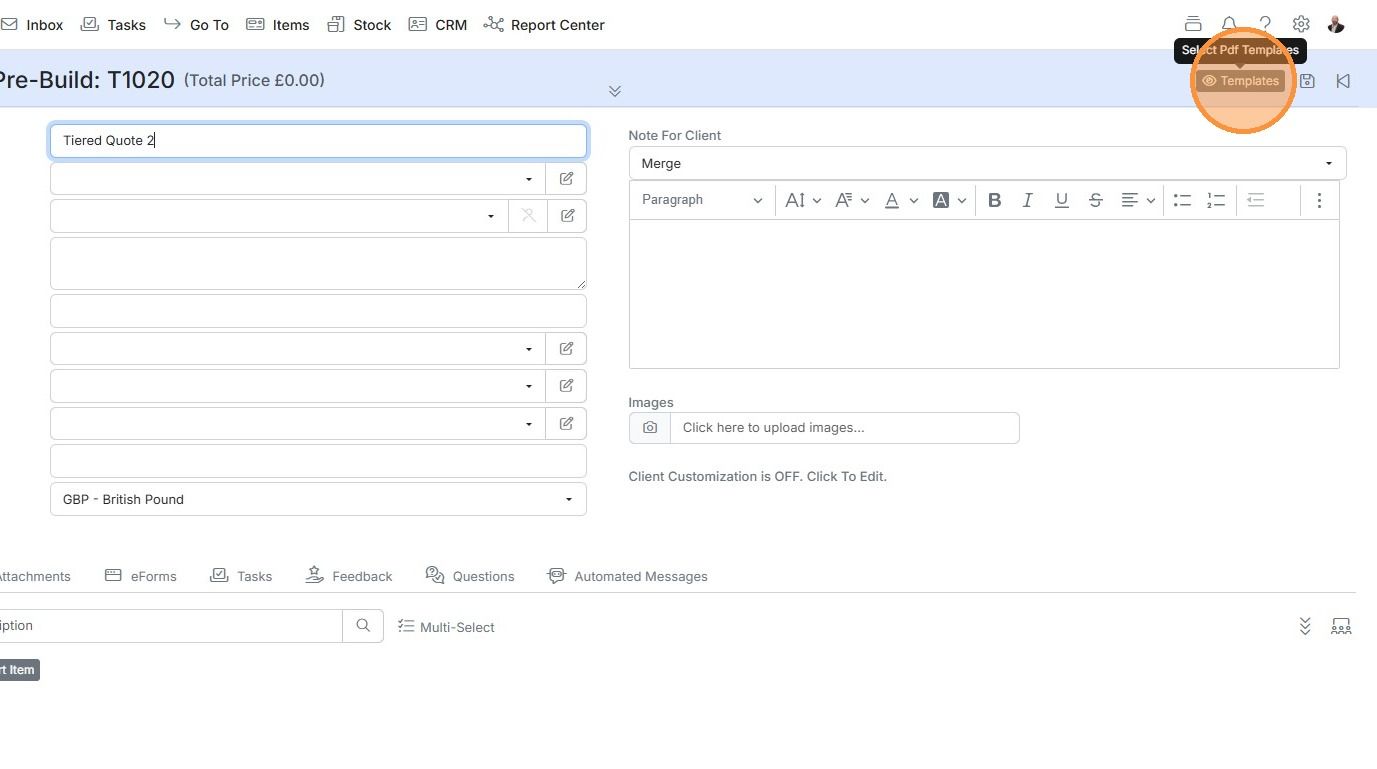
    Pre-Build T1020 quote screen with the Templates button highlighted top right, showing the Select Pdf Templates tooltip
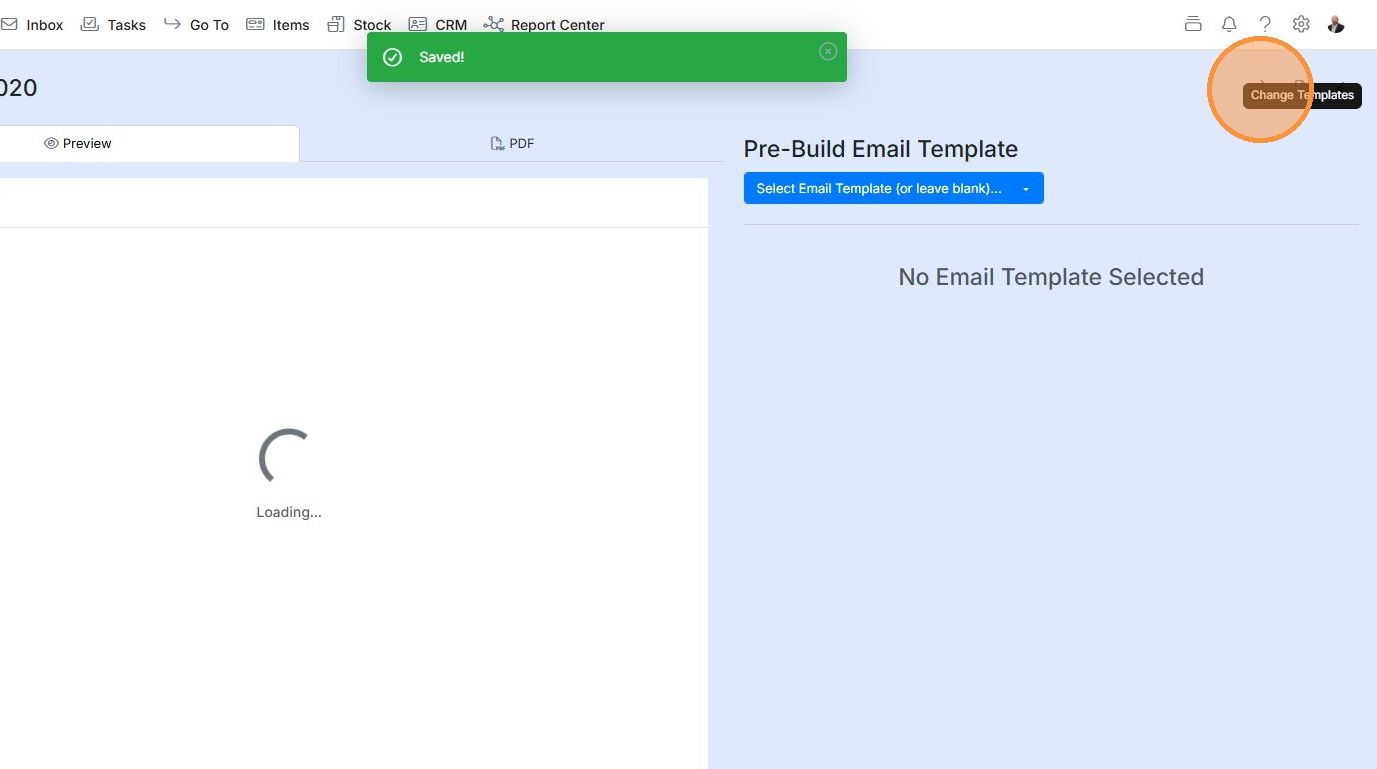
  10. Click here

    Send screen with Pre-Build Email Template panel and Saved message, highlighting the Change Templates icon at top right
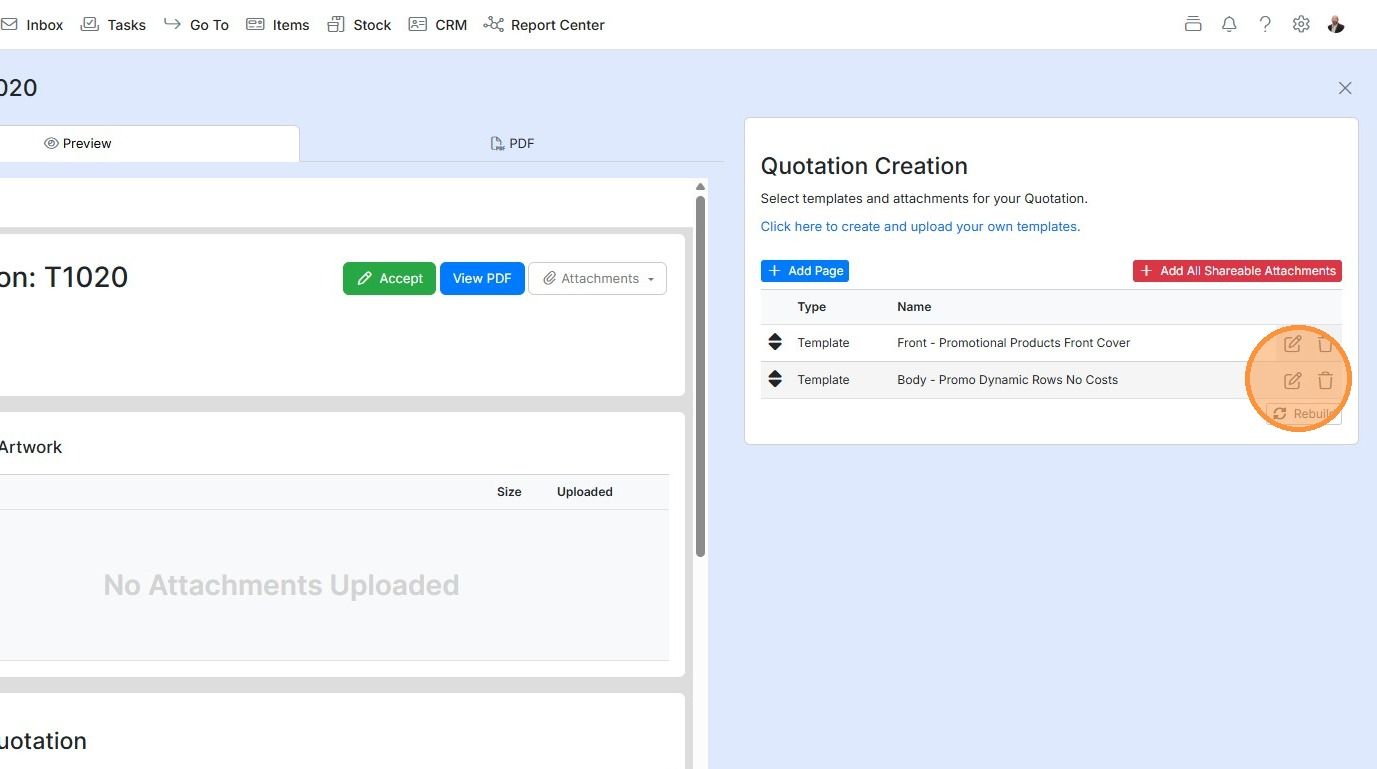
  11. Click here to edit a PDF template

    Quotation Creation panel with the edit (pencil) and delete icons highlighted beside each template row, including Rebuild
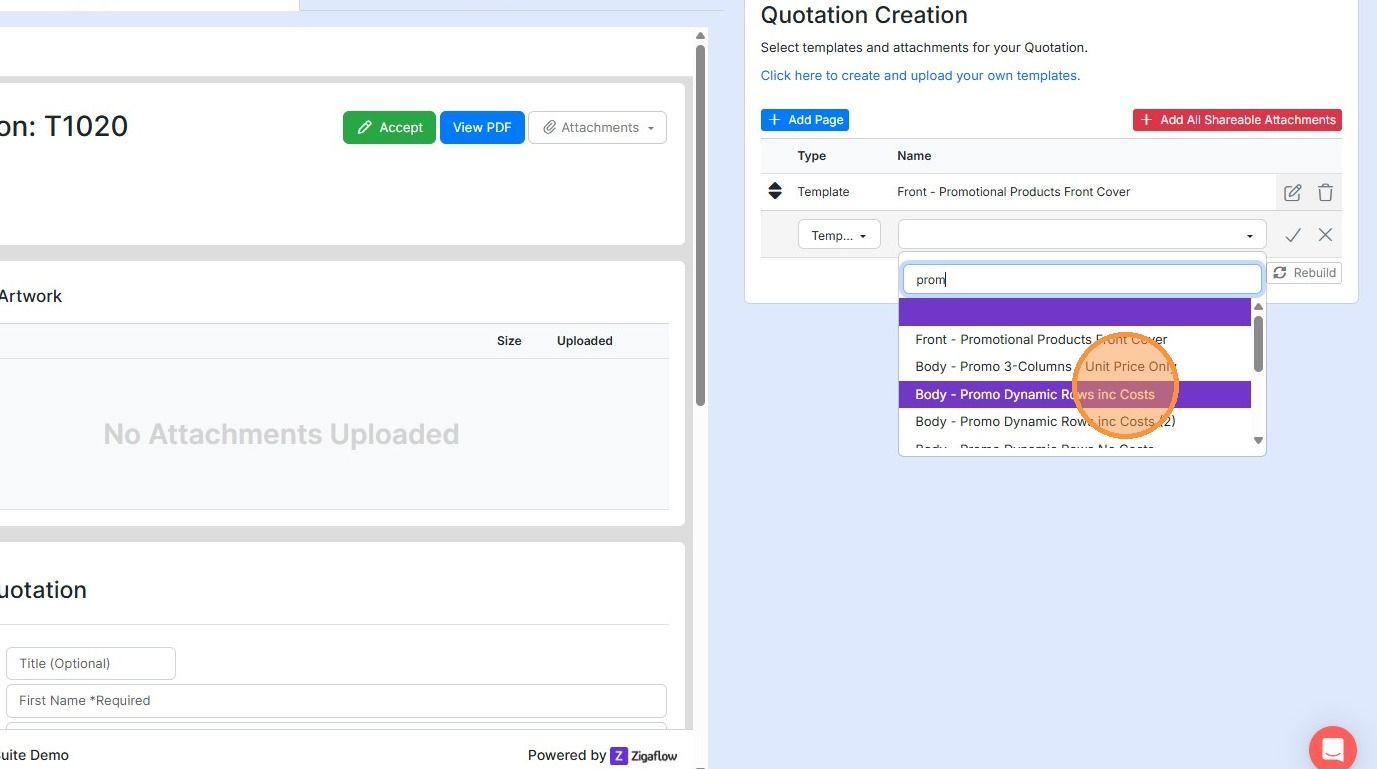
  12. Select the template

    Quotation Creation panel with template dropdown filtered by
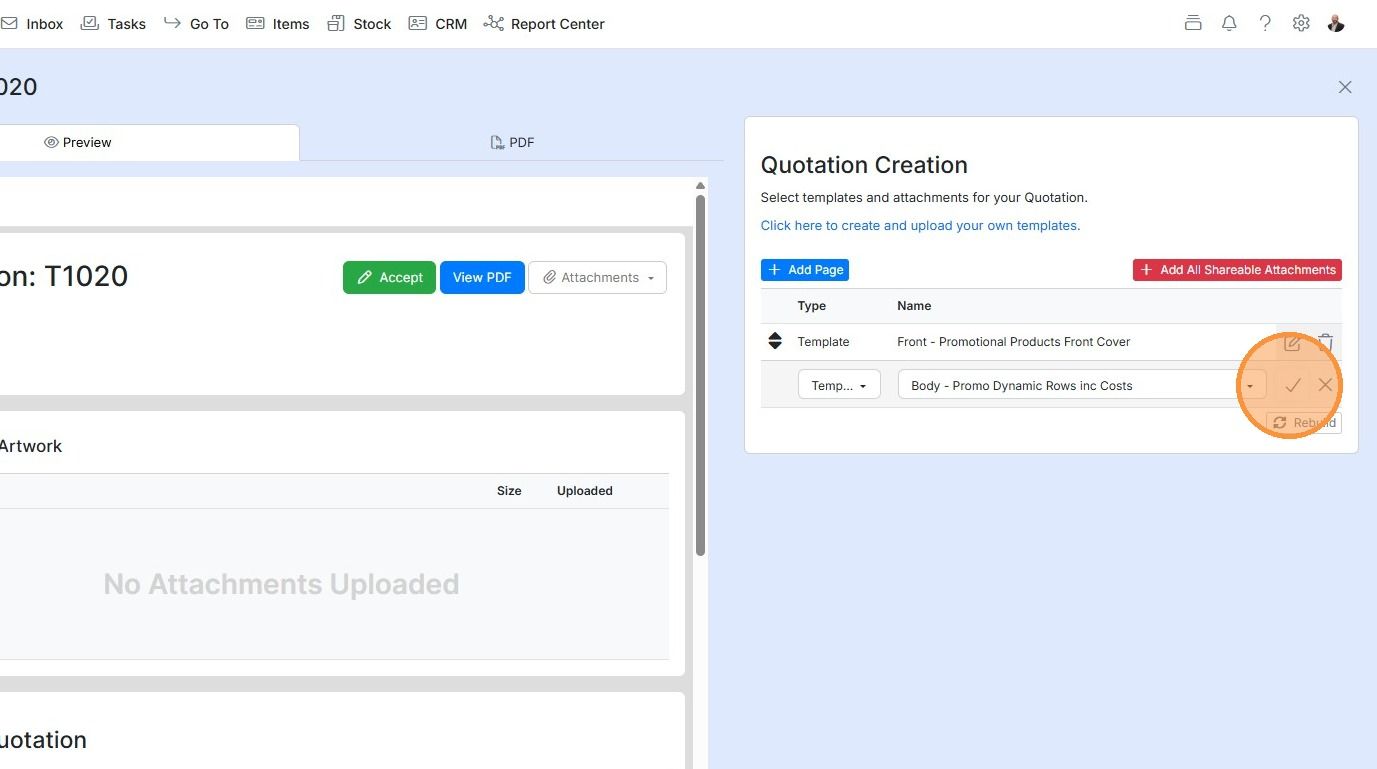
  13. Click here

    Test the quote creation

    Quotation Creation panel with new Body template row, highlighting the checkmark button to confirm adding the page
  14. Test out the quote creation. Click Go To -> Quotations
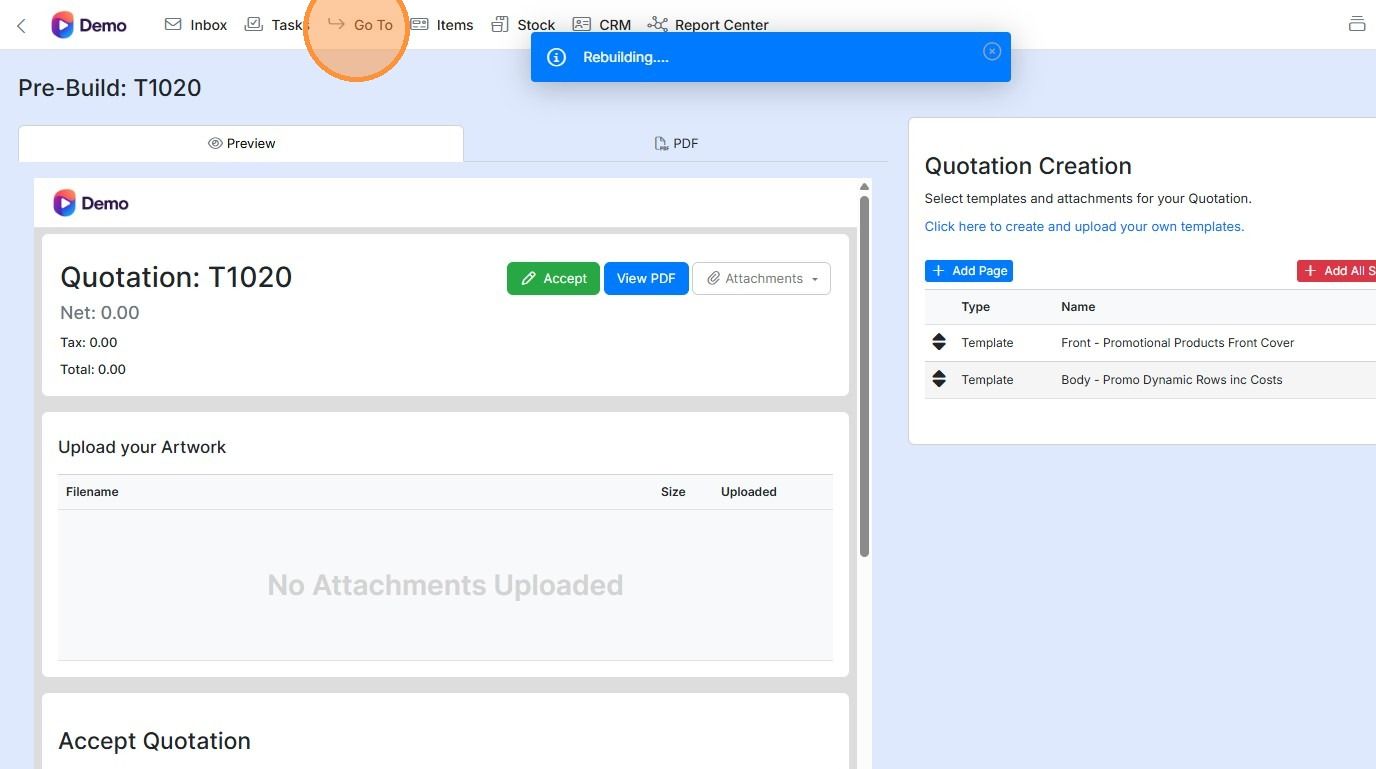
    Pre-Build quotation preview with Rebuilding message, highlighting Go To in the top menu to open Quotations
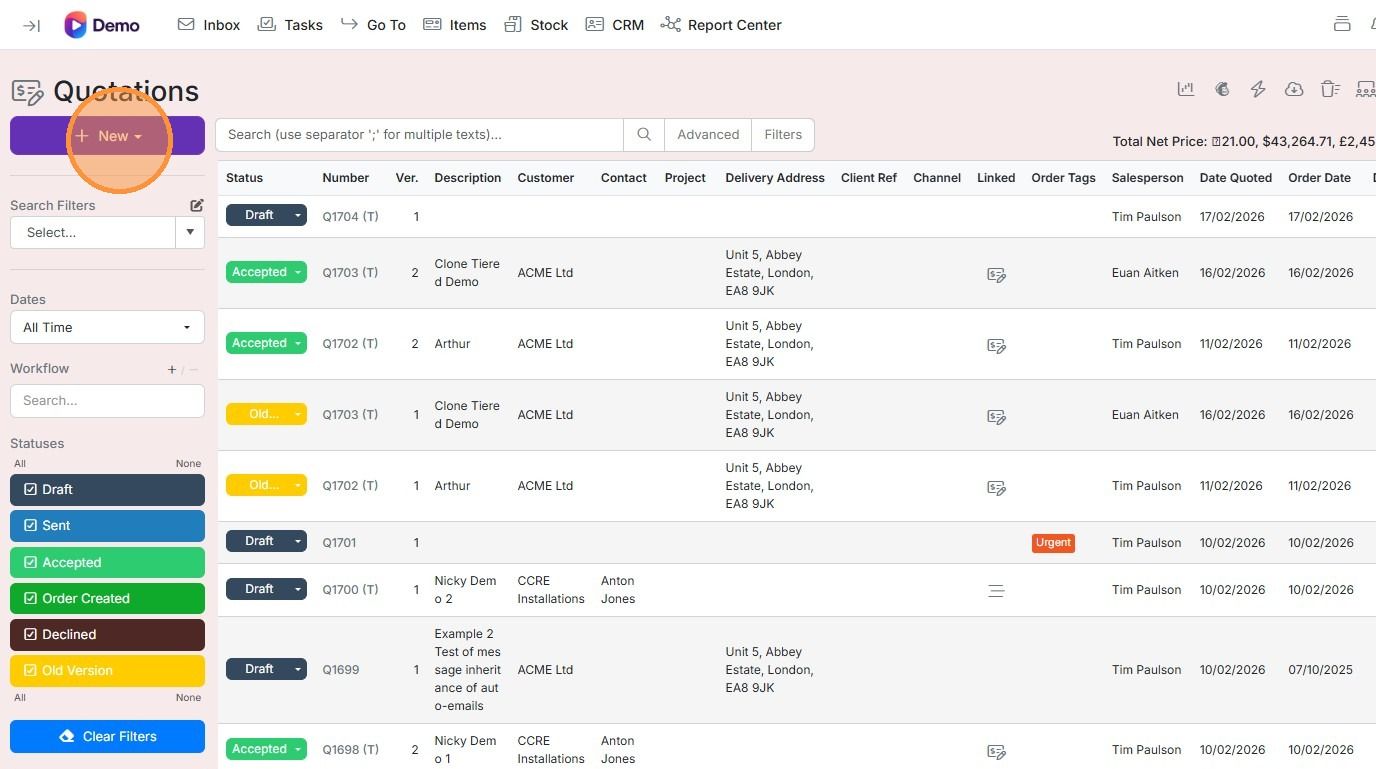
  15. Click "New"

    Quotations list with the purple New button highlighted at top left, above the search filters and status panel
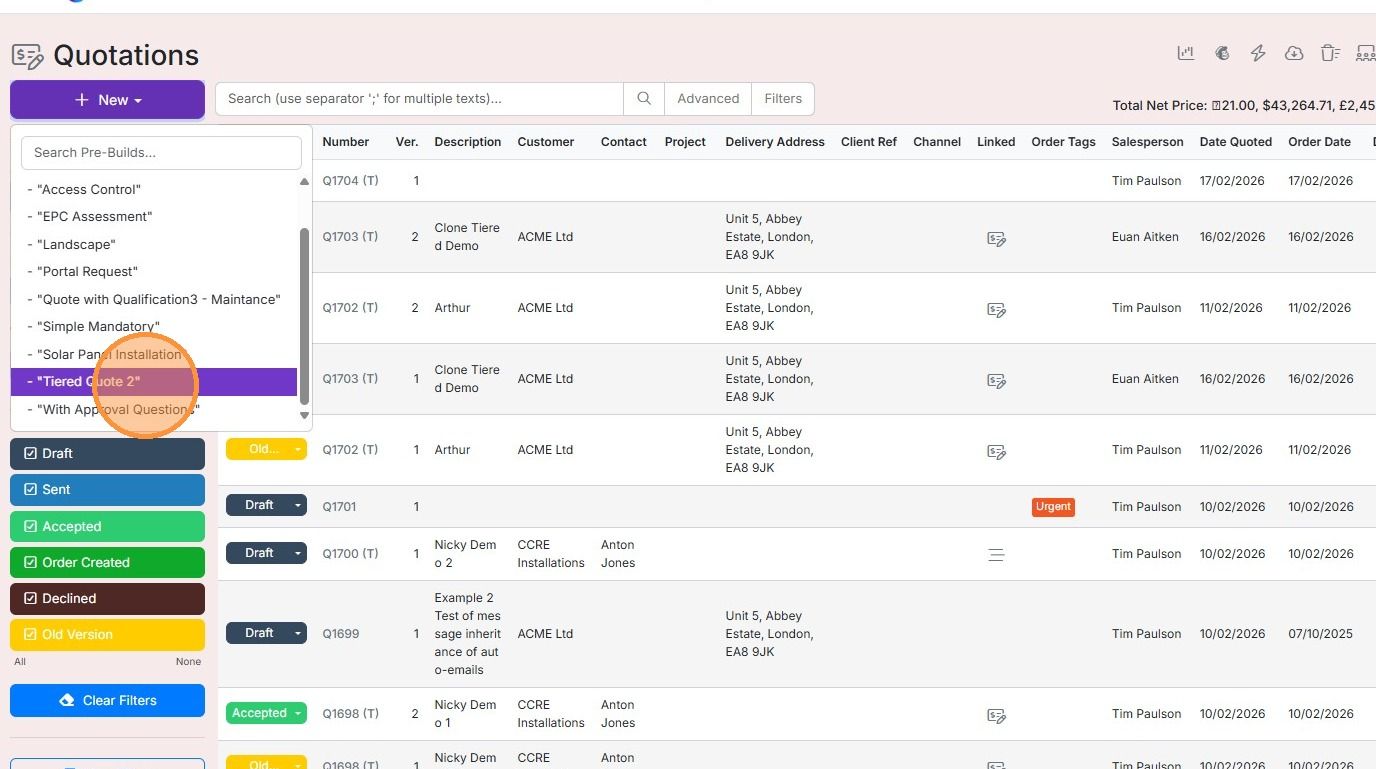
  16. Select your pre-build

    Quotations screen with the New drop-down open, showing the pre-builds list with

This quotation style lets you display multiple prices for the same product for different quantities. It also allows you to add multiple cost factors to an item's price. They need to be switched on, and at least one pre-build set up.

This article covers setting up the pre-build but you need to set up the Tiered Quotation document template(s) as well.

Switch on tiered quotations

Frequently asked questions

Next step

Creating the PDF template for tiered quotesEvery planTo create the PDF template for a tiered quote, set up the item table differently from a standard template. The table holds only one item, so the item variables are section variables. The top shows the item's text and image, and the price and quantity section repeats for each quoted quantity.

Was this helpful?

See Zigaflow on your own workflow

Book a demo and we will walk through quoting, jobs and purchasing the way your team runs them.

Or see how Zigaflow would fit your business, free