Win work
Create a tiered quotation from your product library
The short answer
To create a tiered quotation from your product library in Zigaflow, click New, pick your tiered quote pre-build, add customer details and a New Item, then choose Price-Based or Cost-Based pricing. Add products and charges, set the markup or margin, adjust quantities, then preview the quote and send it as a PDF.
Steps
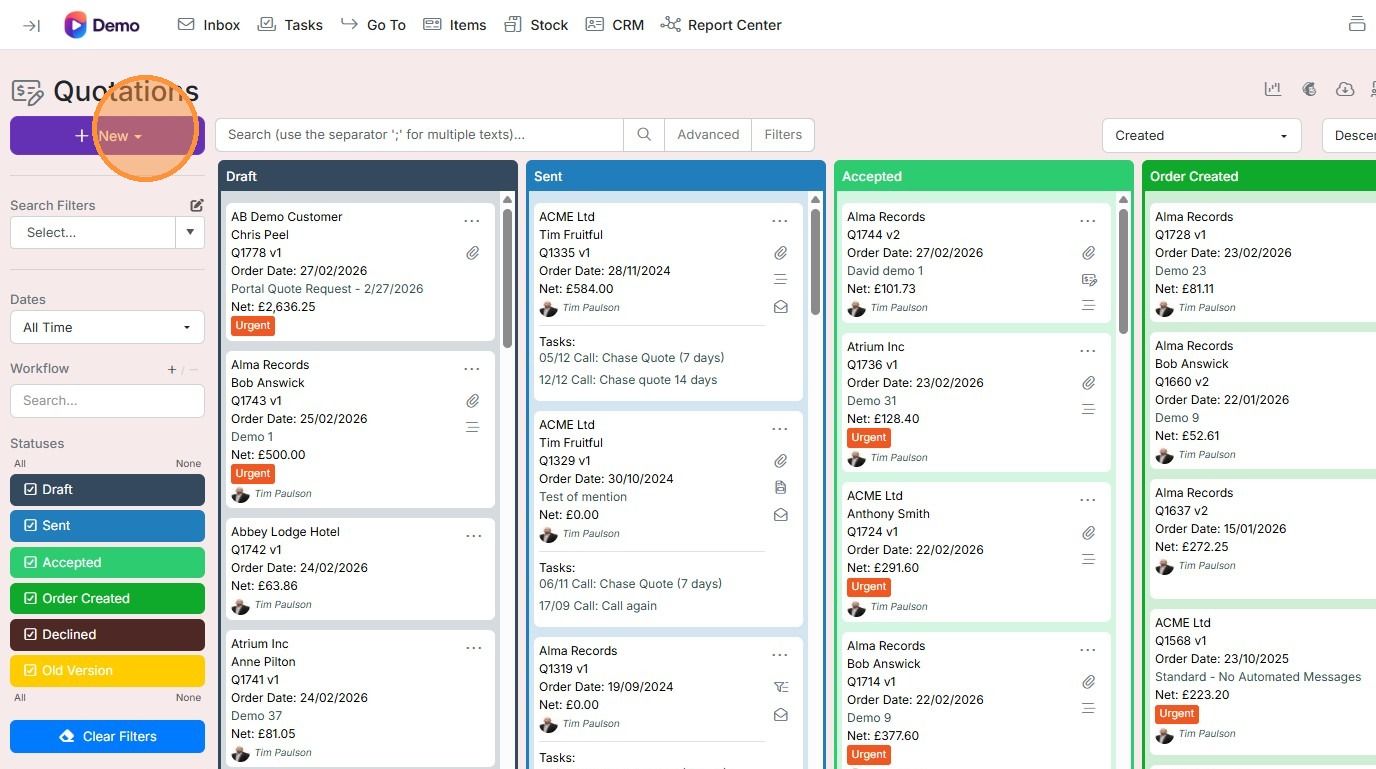
Click "New"
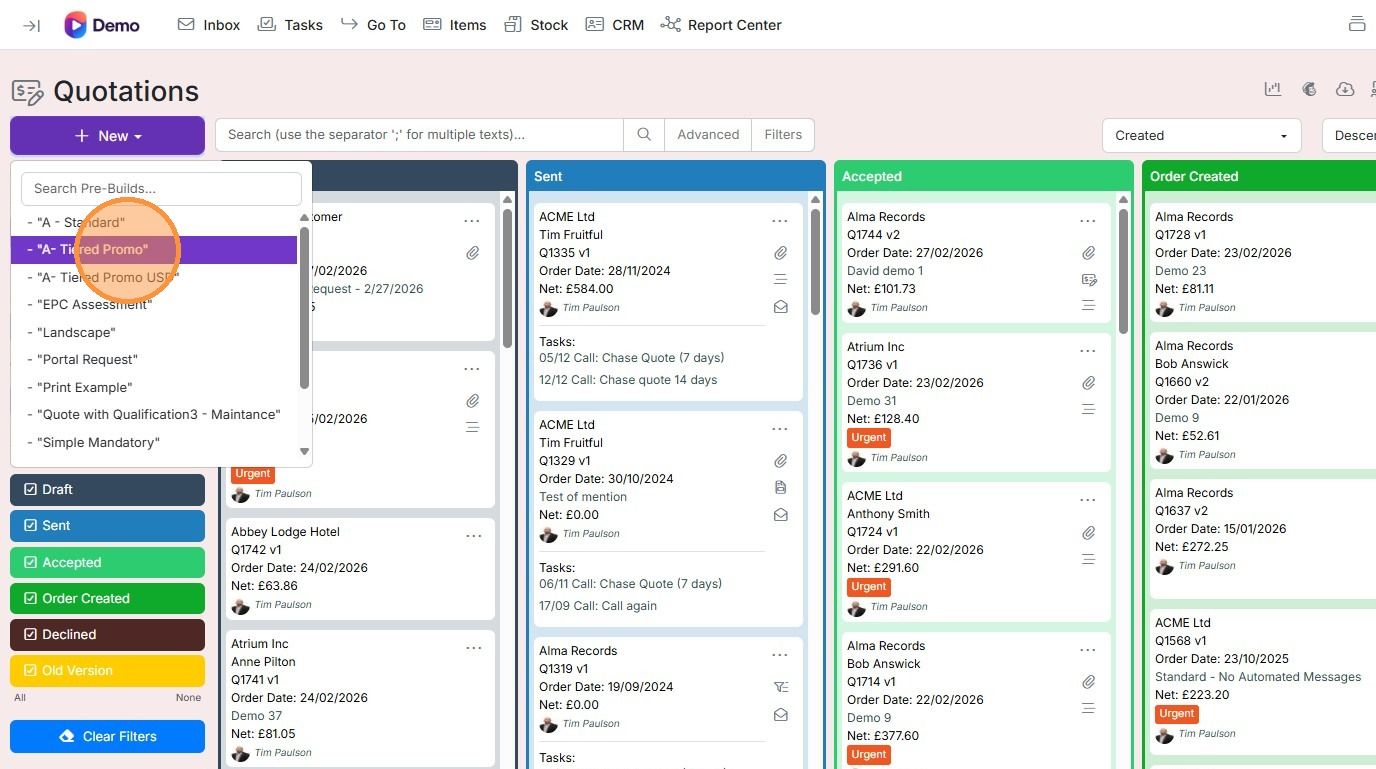
Click the name of your tiered quote pre-build
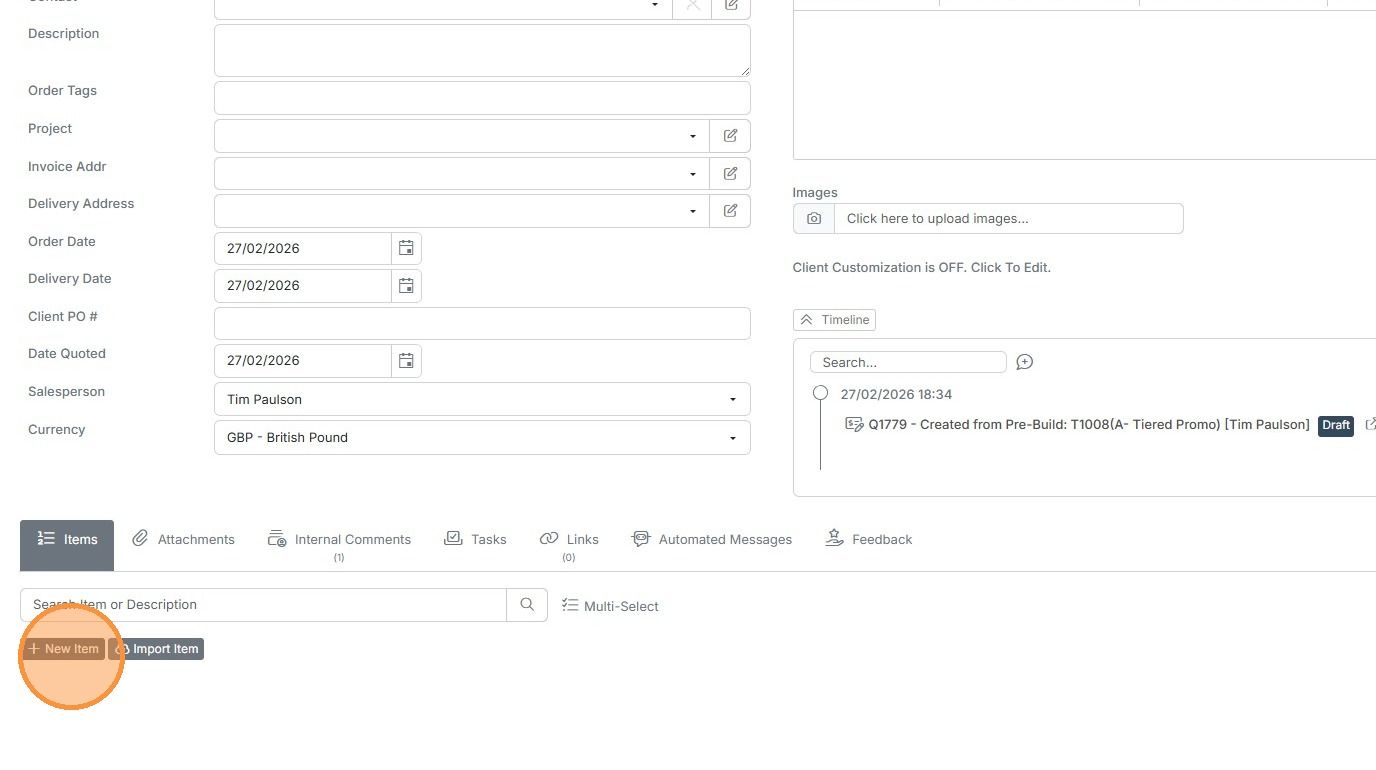
Add the customer details, etc., and click "New Item"
Add products and charges
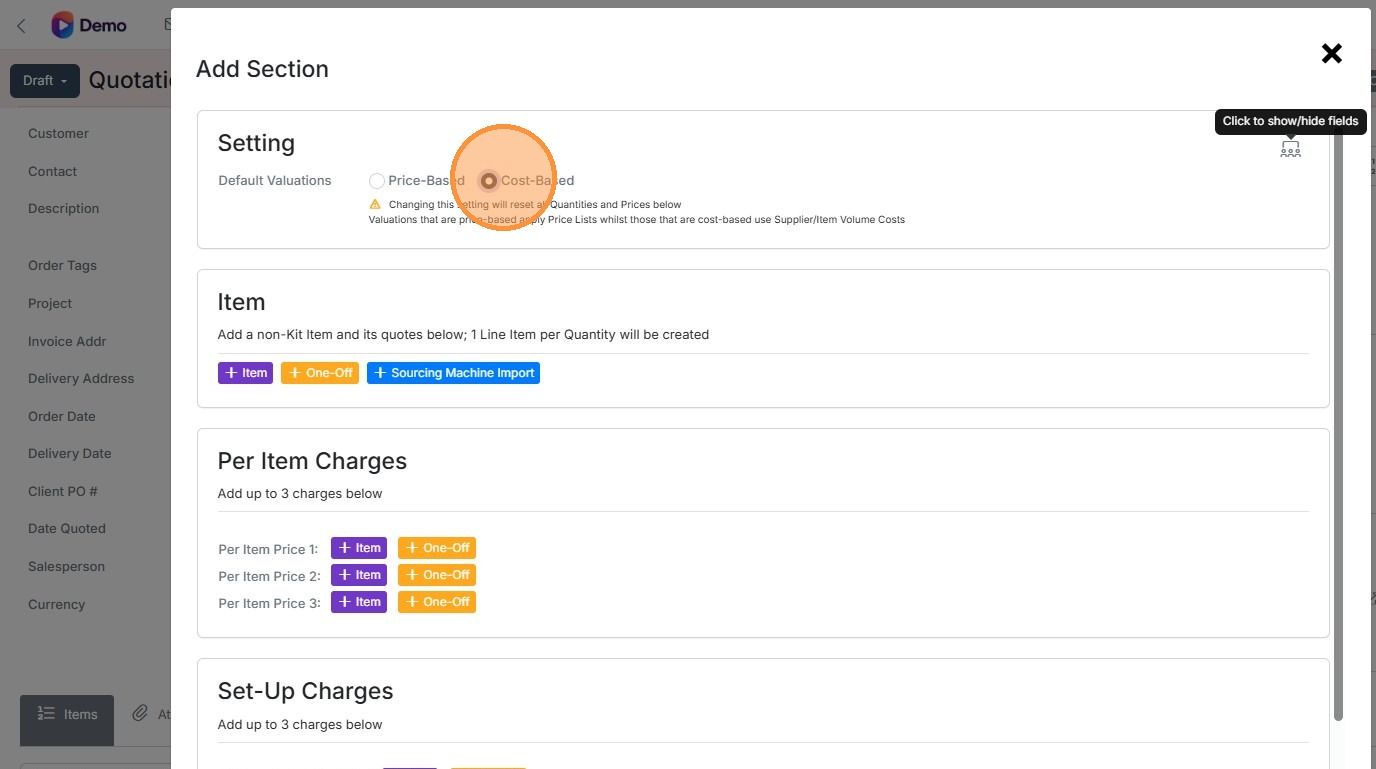
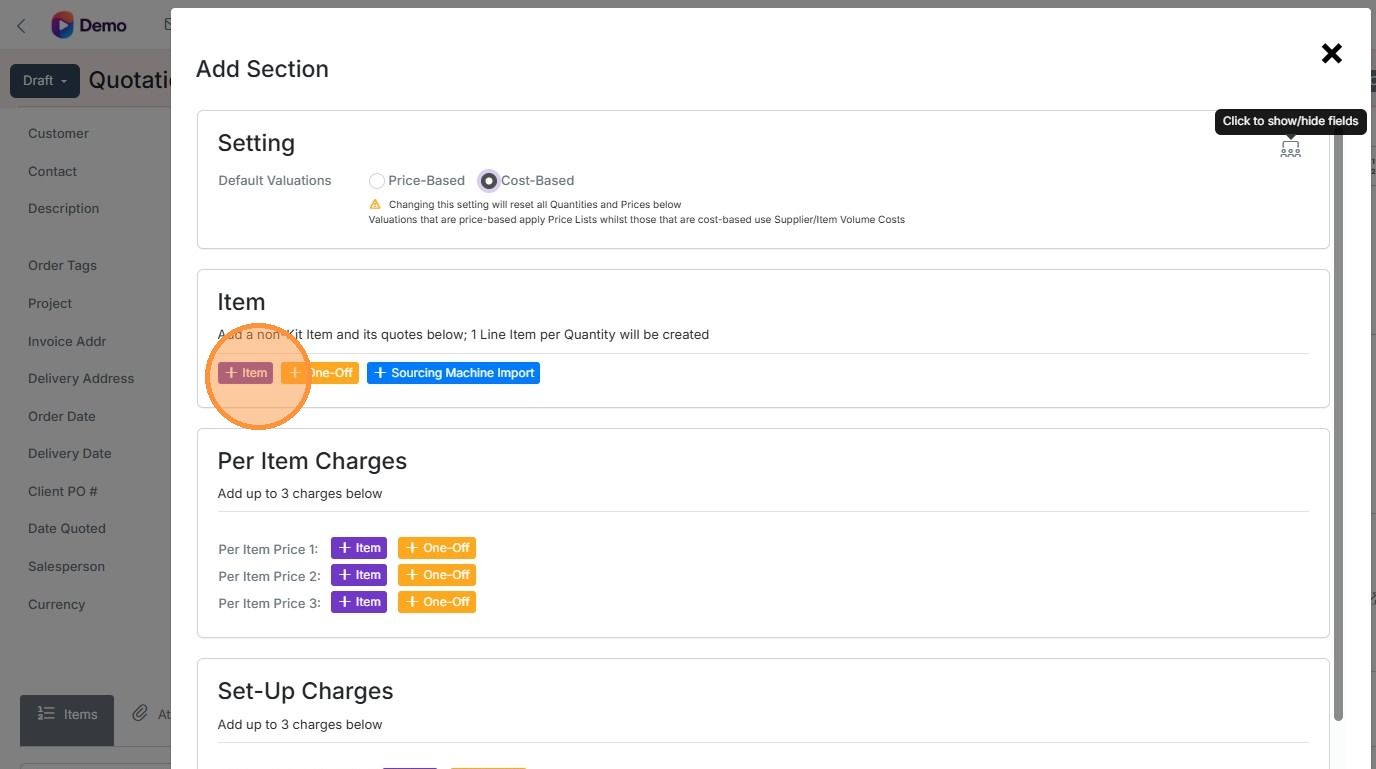
Click "Price-Based" to use existing sale prices

Click "Cost-Based" to pull in the costs and then apply a markup or margin
Click "+Item"
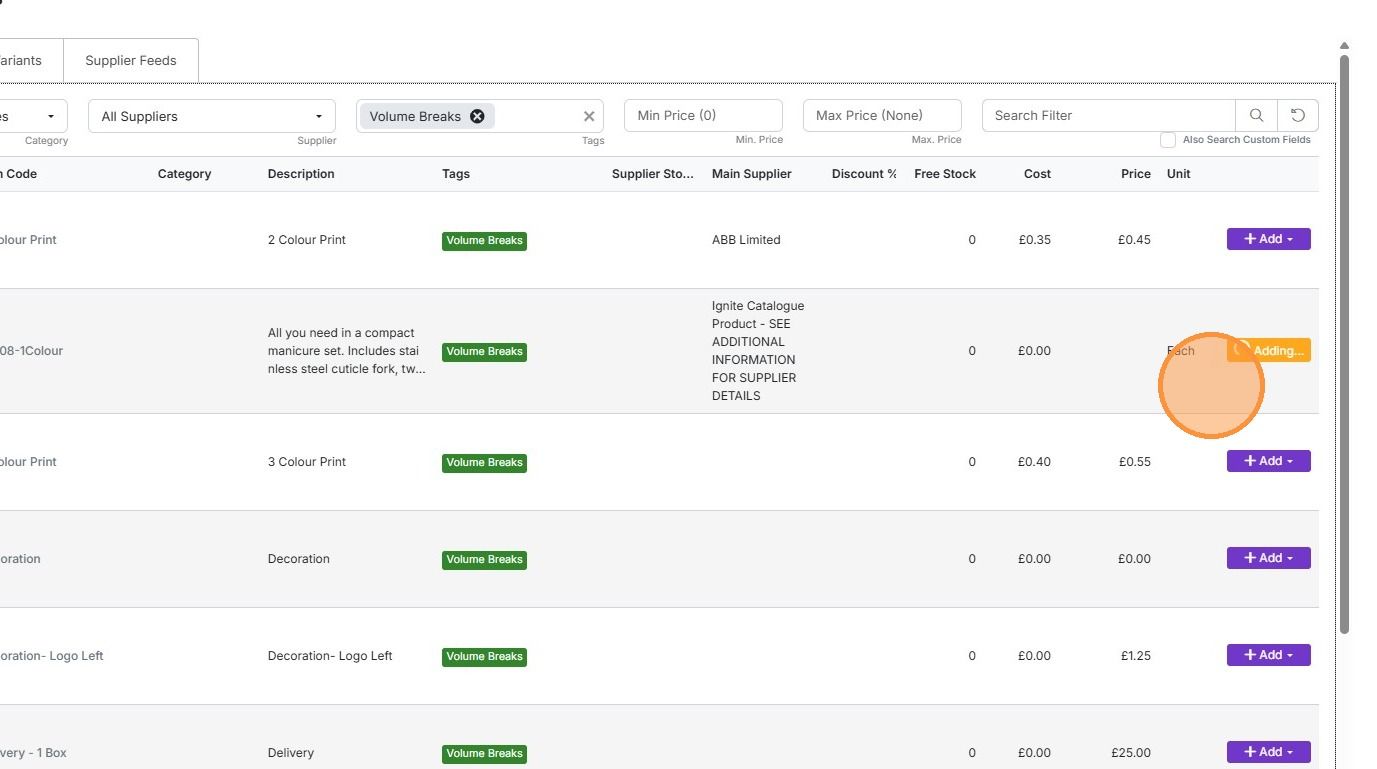
Click "Add"

Select "Item". This is the product
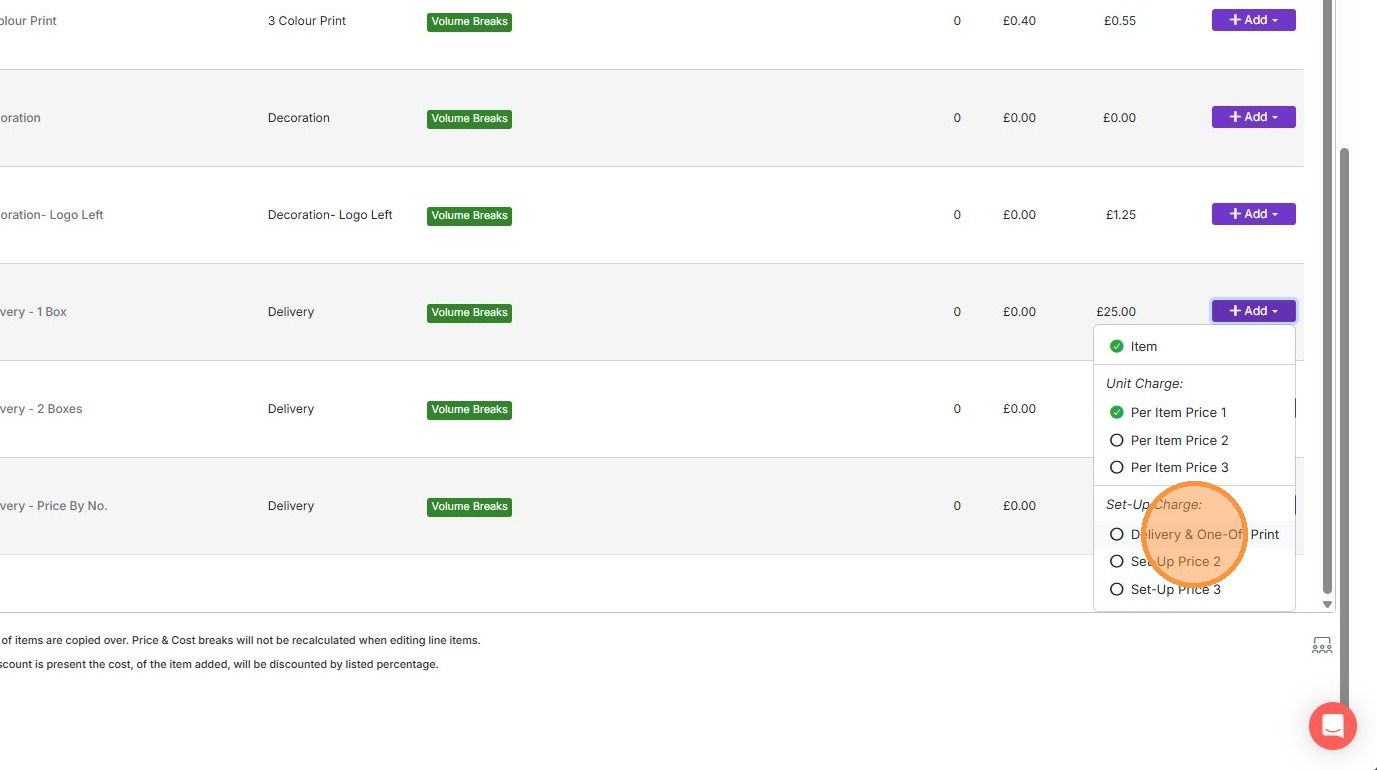
To add a per-item price, select "+Add" for that service and "Per Item Price" 1,2 or 3

You can also add one-off charges, such as delivery or set-up - click "Delivery & One-Off Print"
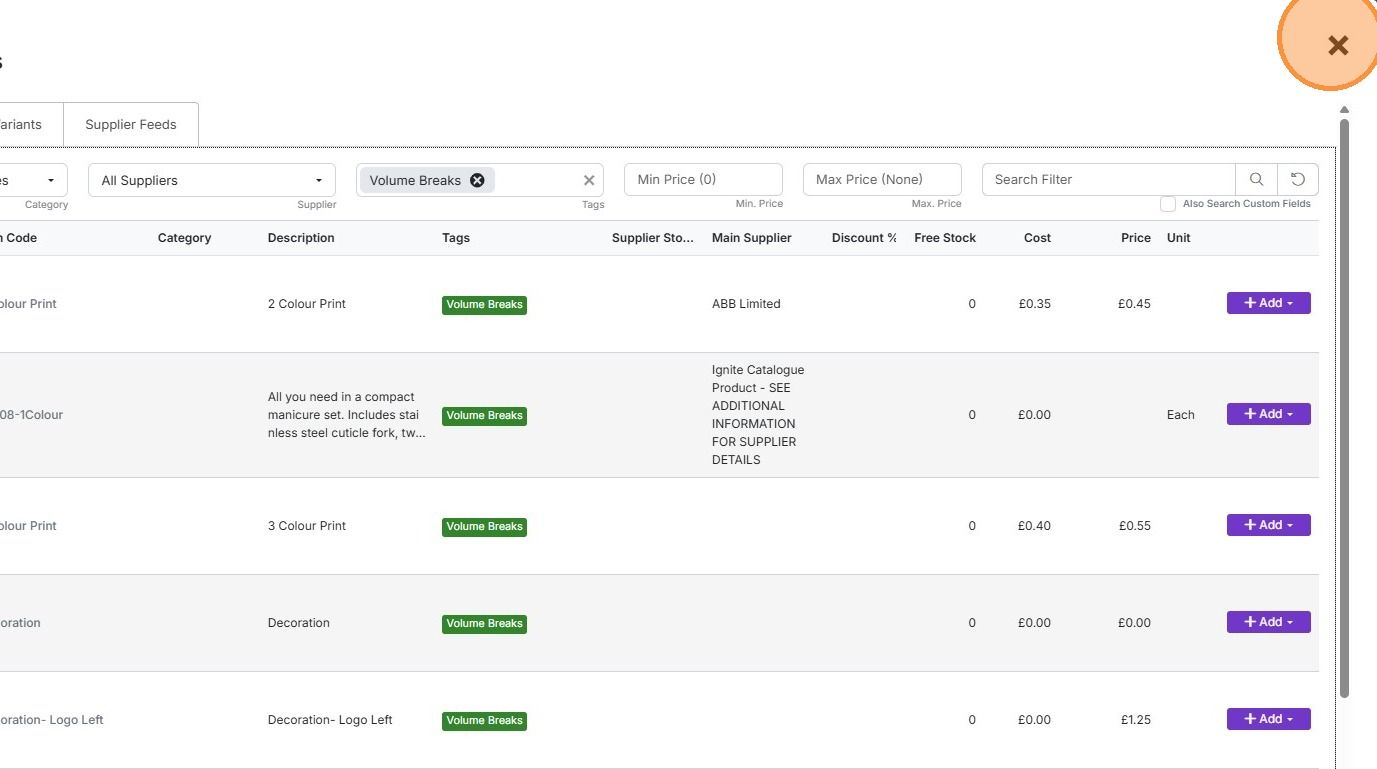
Click "×" to close the panel
You can adjust costs here, and deleted or add them
Set pricing and quantities
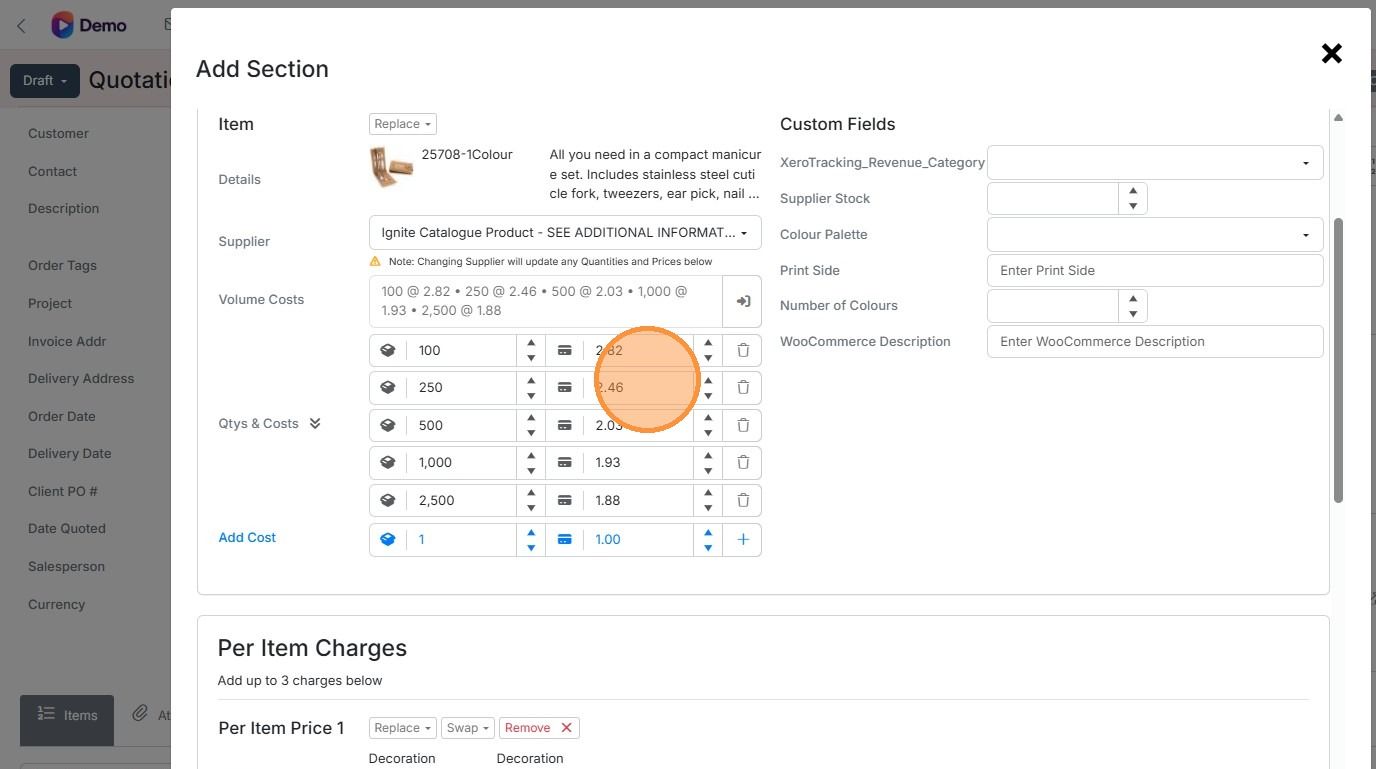
Set the markup or margin
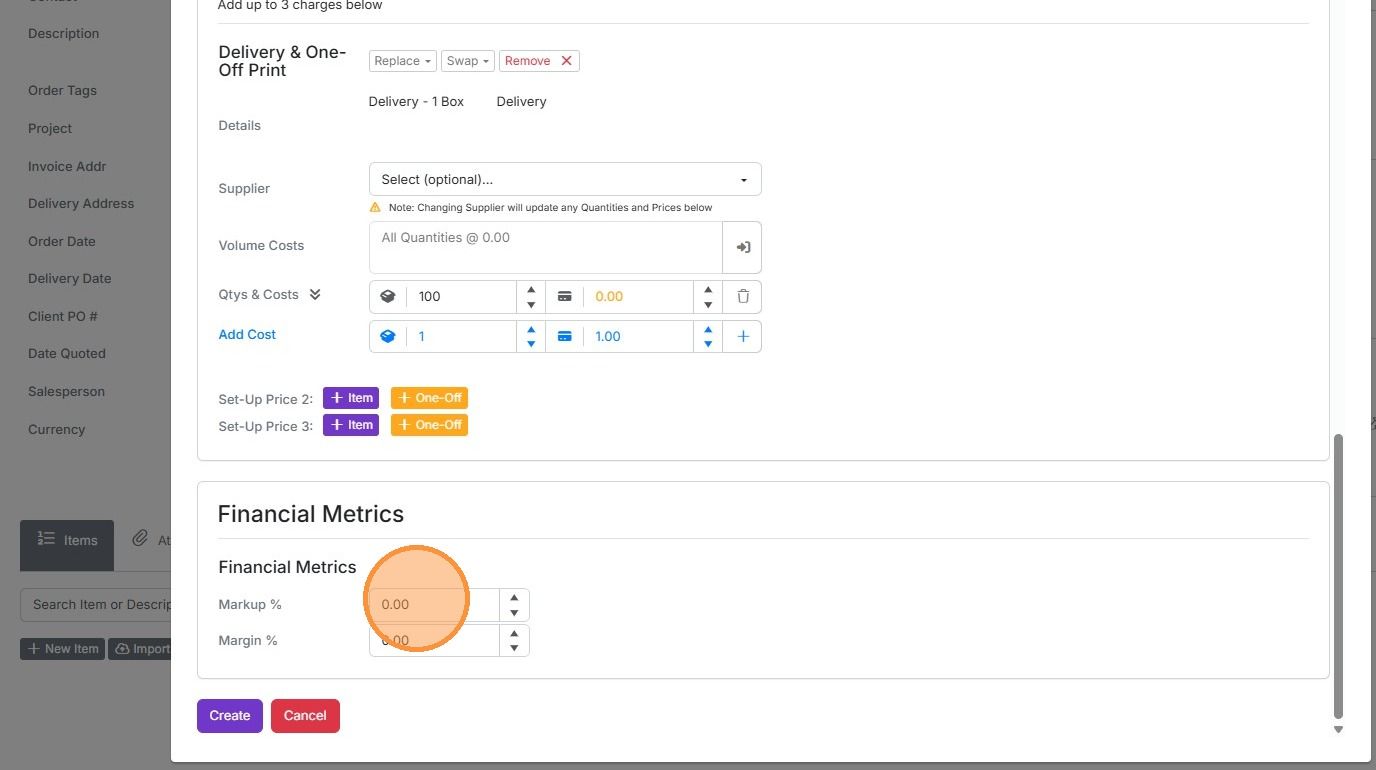
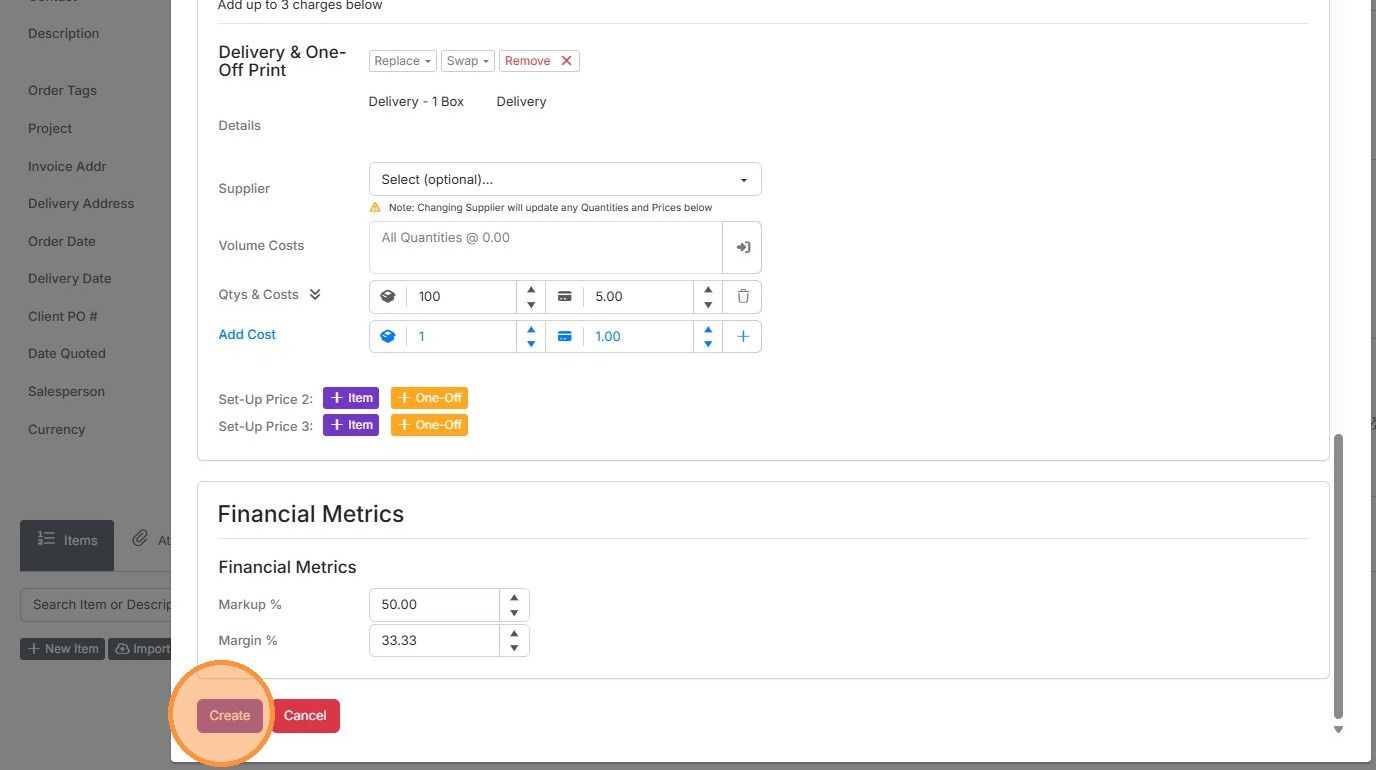
Click "Create"
Delete quantities you don't want
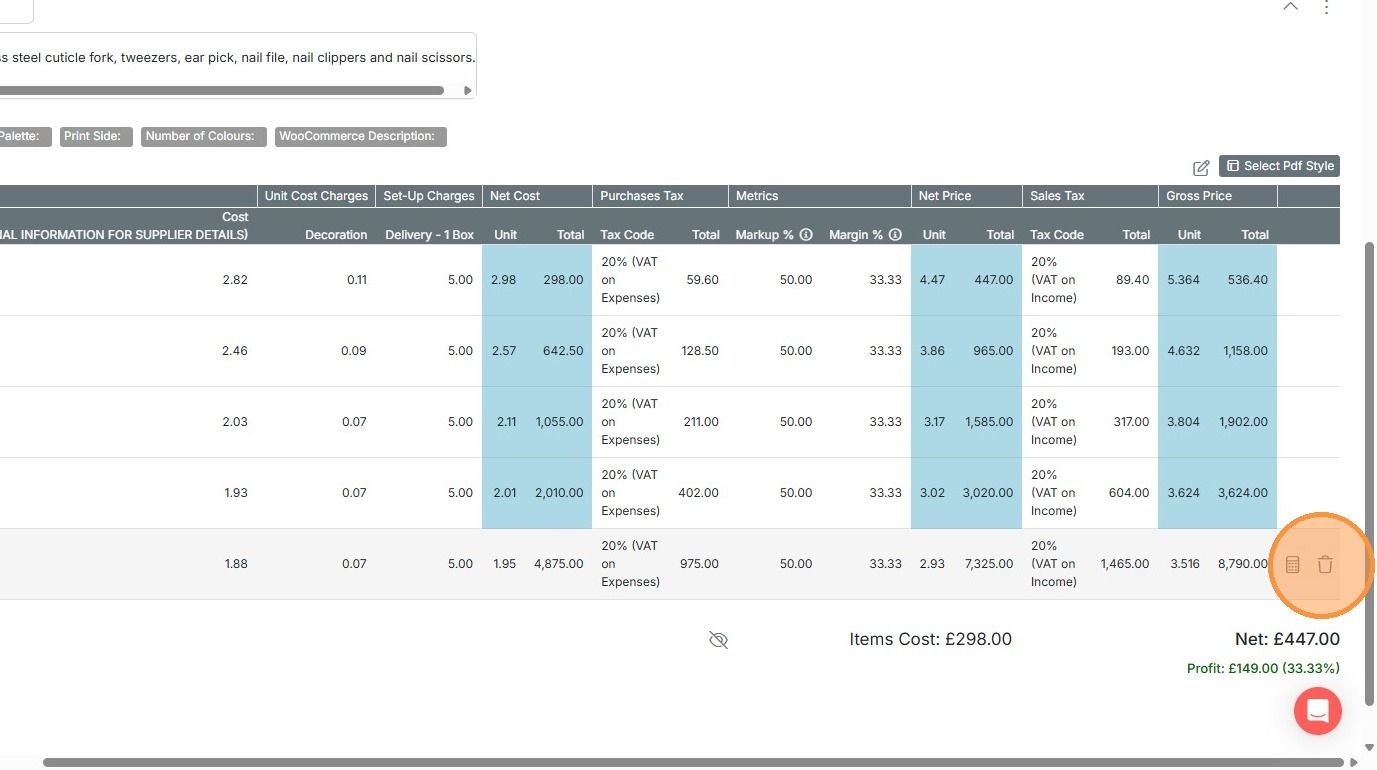
Click on the "+" icon to add a new quantity. The system will calculate the price
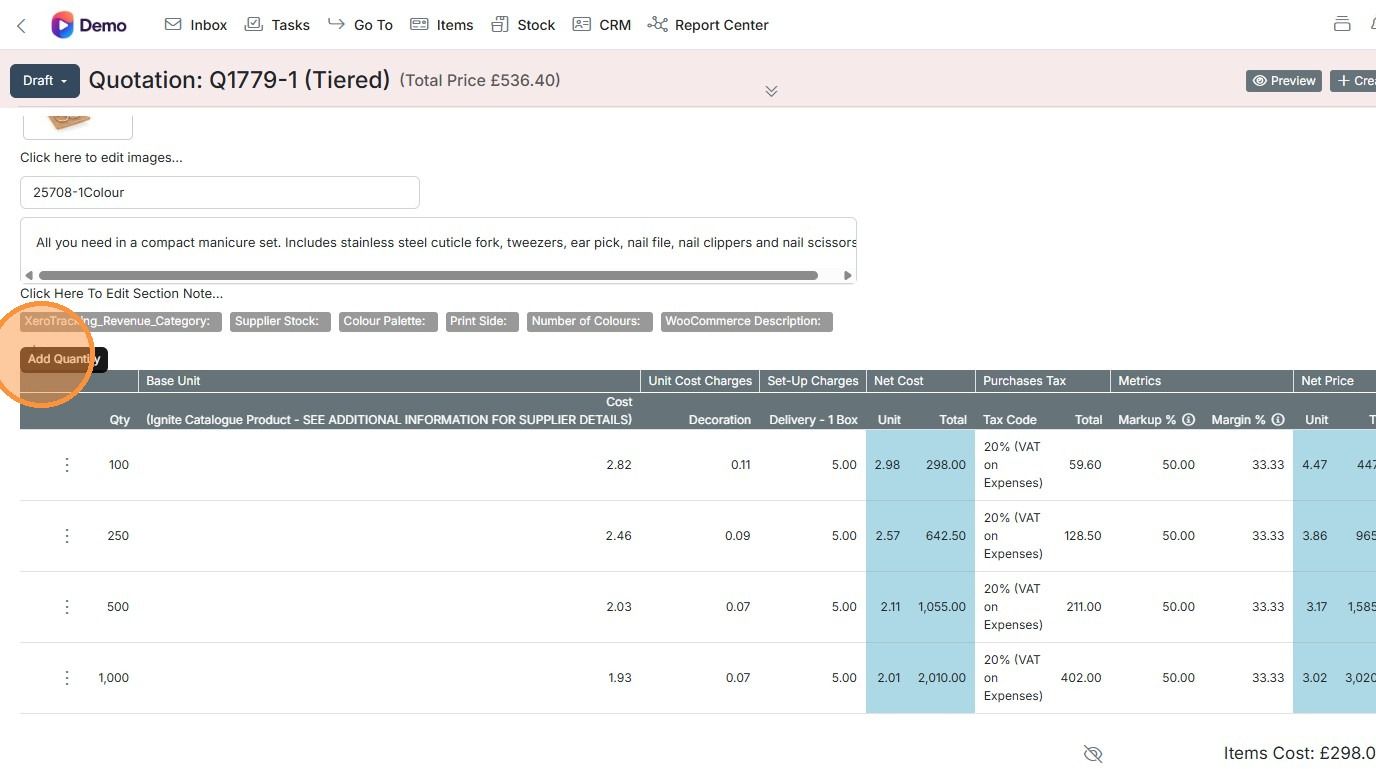
Click "Adding..."
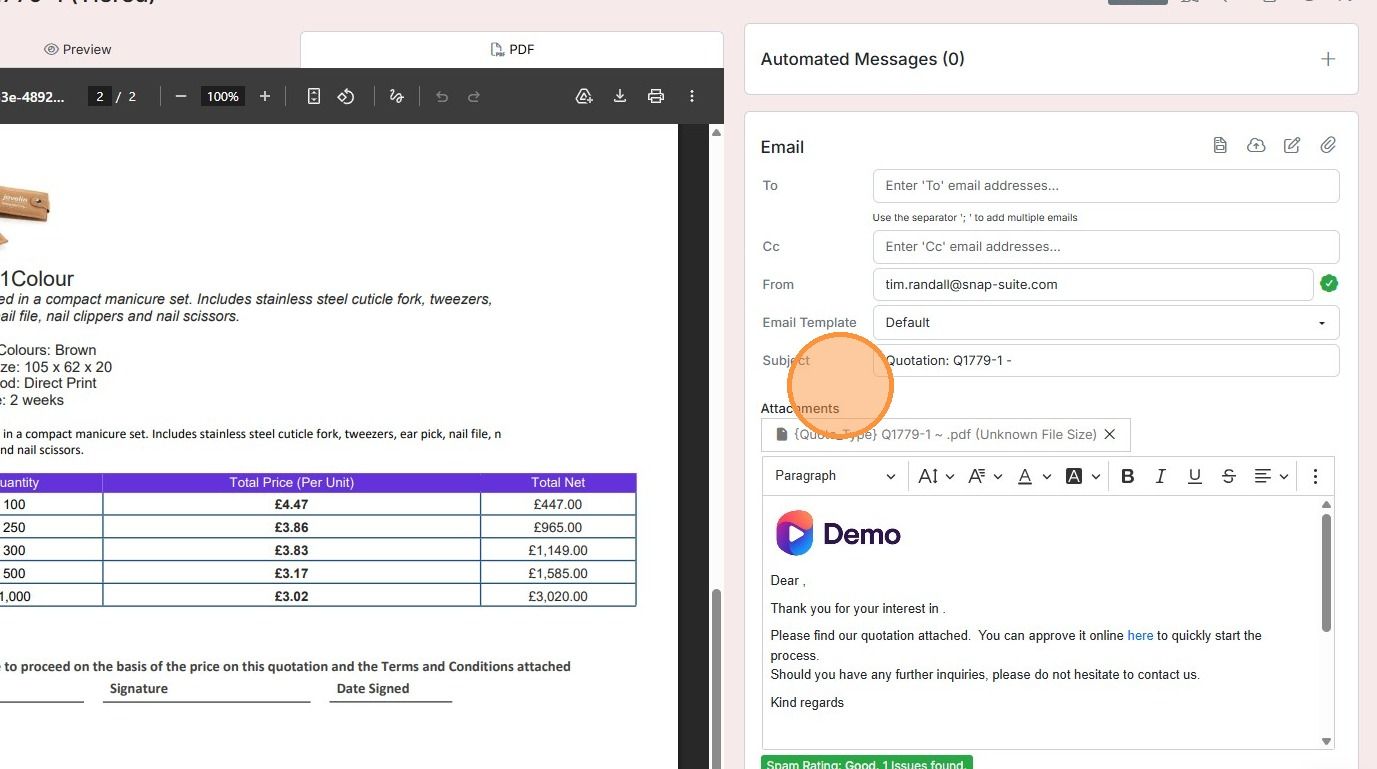
Preview and send the quote
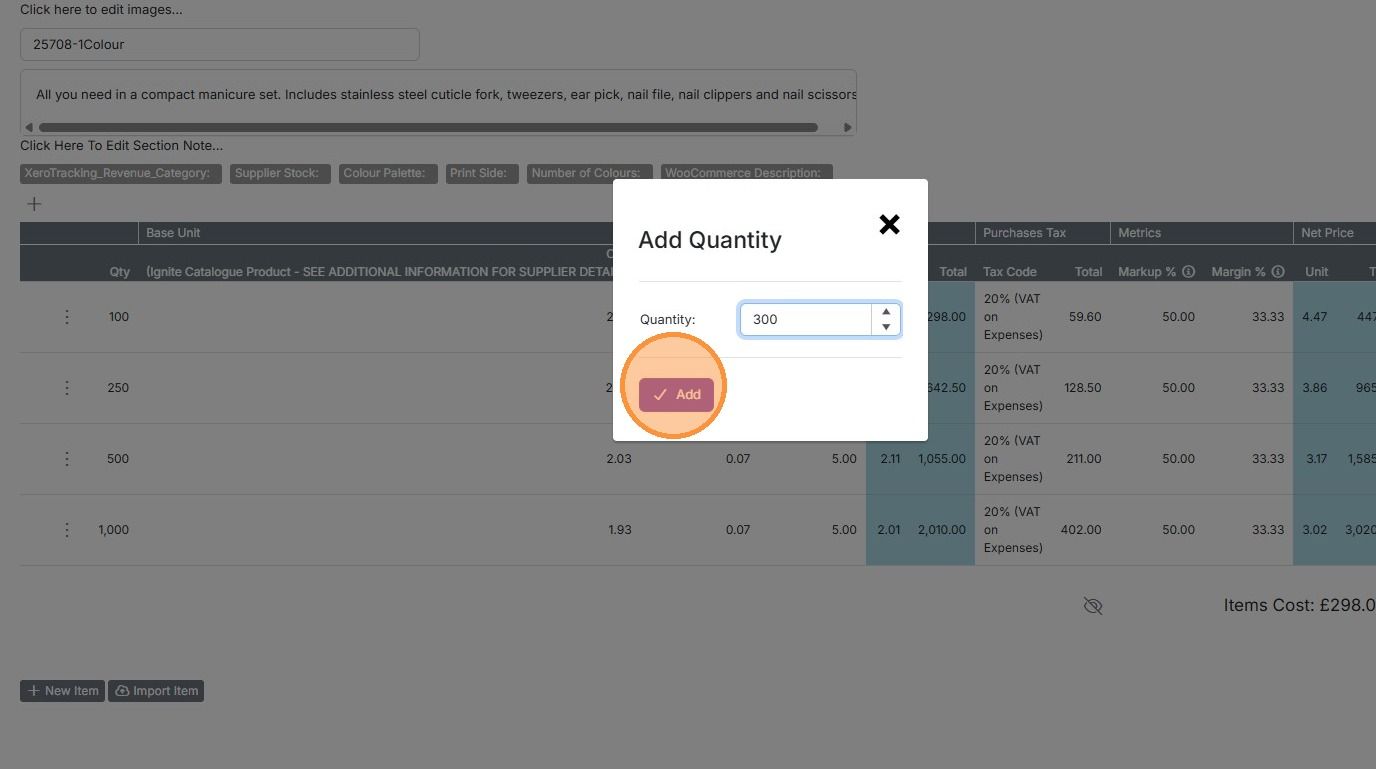
Click "Preview"
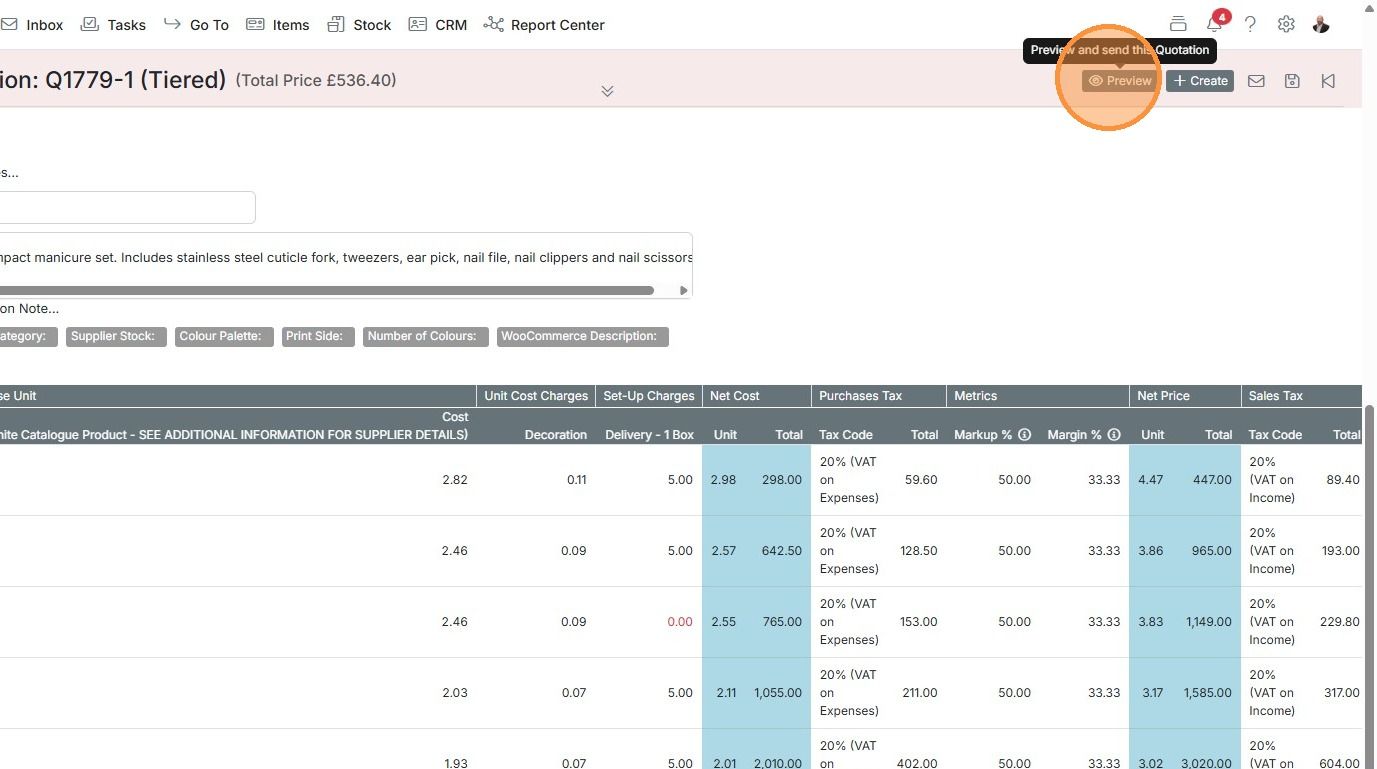
Click "PDF"
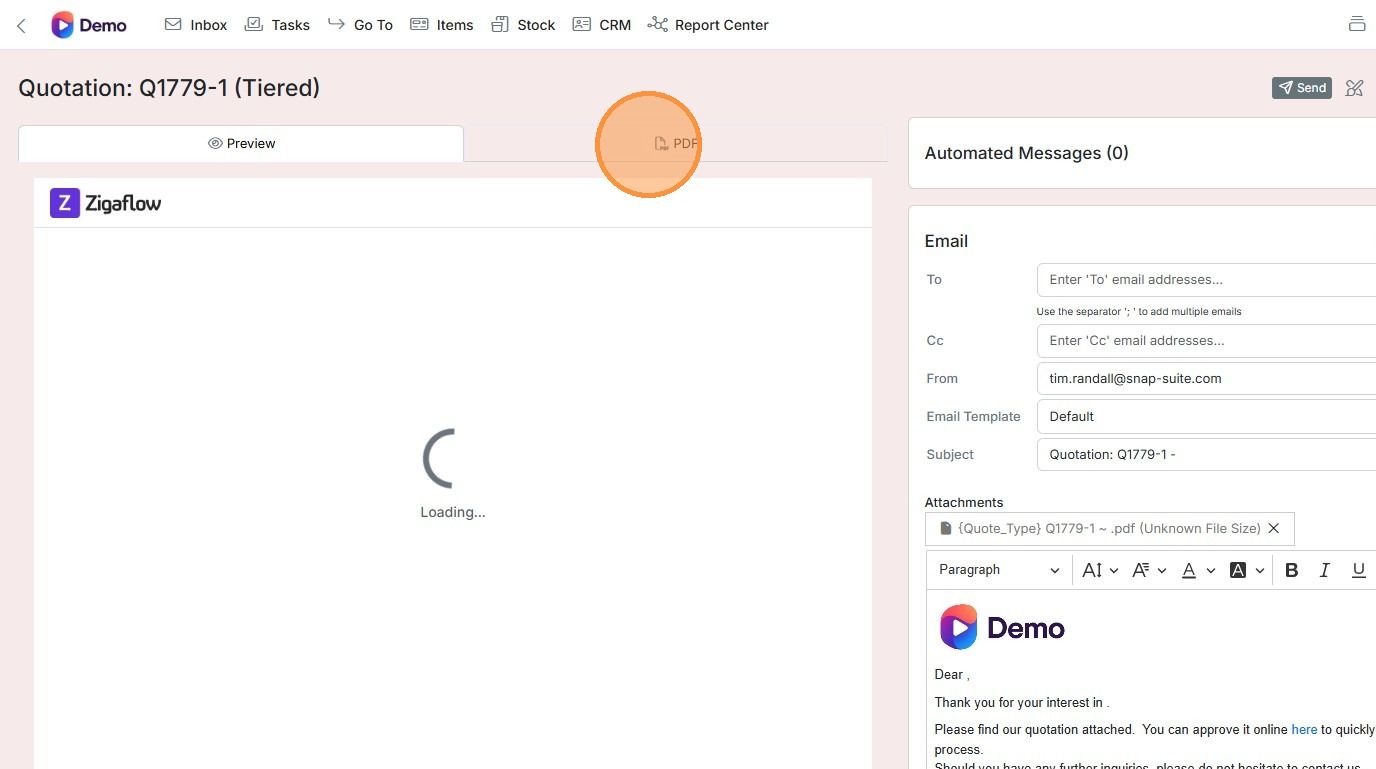
Preview and send the quote to your customer
Learn more: tiered quotes in Zigaflow


Before doing this, set up tiered quotations in Zigaflow.
Start the tiered quote
Frequently asked questions
Next step
Every planWas this helpful?